I deleted all my iPhone photos and emptied Recently Deleted, but my iPhone storage is still almost full. Settings still shows photos or system data taking up space, and I need help figuring out why the storage didn’t free up and how to clear it.
I get why this feels broken. I had the same thing happen a while back: my iPhone was packed, lagging constantly, WhatsApp wouldn’t open, and the Camera app kept crashing when I tried to take a photo. I deleted close to 2,000 photos and videos, cleared Recently Deleted, then checked Settings expecting a big drop. Nothing. At one point the used storage number actually went up.
Usually that doesn’t mean the files are still sitting there in the normal way. iOS can be slow about recalculating storage, and deleted space can hang around under System Data for a bit. The storage graph also seems to cache old numbers, so when you start deleting a bunch of stuff, it may run a fresh scan and suddenly realize the phone was fuller than it showed before.
Here’s what I’d try before giving up:
Force restart the phone, not just a normal restart.
On newer iPhones, press Volume Up, then Volume Down, then hold the Side Button until the Apple logo appears. Sometimes you need to do it more than once before iOS finally clears temp junk and shows the real available space.
Check the weird Date & Time trick.
Go to Settings > General > Date & Time, turn off “Set Automatically,” and move the date forward by a year. Then open Photos, wait a minute, and check Recently Deleted again. Sometimes old deleted items pop back up there because of a database glitch. Delete them again, then turn automatic time back on.
Look at Messages and app caches.
Go to Settings > General > iPhone Storage > Messages and check attachments. Old videos, GIFs, memes, and random stuff from text threads can take up way more space than expected. Also check apps like TikTok, Instagram, and WhatsApp. They can build huge caches, and if something like TikTok is taking 10GB, deleting and reinstalling the app is usually the easiest way to clear it.
Use a cleaner app if Apple’s tools aren’t enough.
The built-in storage tools are pretty limited, especially when the phone is already lagging so badly that Settings barely works. Apple doesn’t make it easy to sort photos and videos by size, and it misses a lot of clutter that isn’t an exact duplicate.
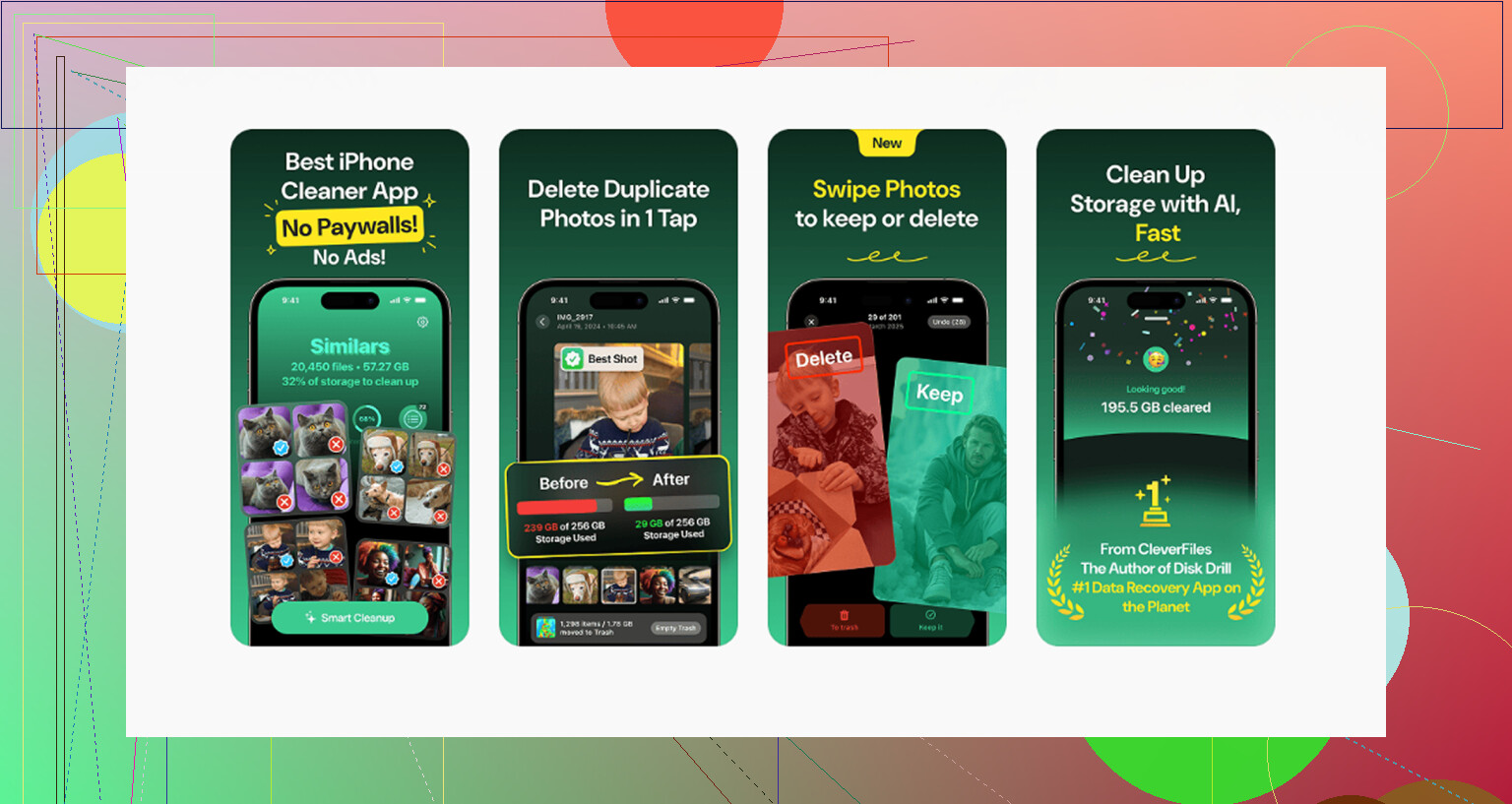
I ended up using Clever Cleaner, and it’s the only cleaner app I’d actually recommend. A lot of these apps are sketchy subscriptions with fake “free trials,” but this one is free, with no ads, no paywall, and no trial trap.
The “Heavies” tab was the most useful part for me. It sorts media by file size, so you can find that random five-minute 4K video eating 2GB by itself. The “Similars” tab is also handy because it finds photos that aren’t exact duplicates but are basically the same shot, like ten versions of the same sunset. It picks the best one and lets you delete the rest quickly. It also shows file sizes, which helps a lot with screenshots and videos. Another big thing for me was that it processes everything on the device, so it isn’t uploading private photos somewhere else.
For my phone, the lagging didn’t really stop until I cleared a decent chunk of space with a dedicated tool. Once you get around 10 to 15GB of breathing room, iOS usually starts acting normal again and the Storage Full alerts calm down.
If none of that works, the last resort is a full backup to a computer followed by a factory reset. That’s the nuclear option, but it should clear corrupted system files or stuck storage data if that’s what’s causing the problem. I’d definitely try the force restart and a proper cleanup first, though.
40 Likes
The iPhone Storage screen is not a live meter. After a big photo purge, leave the phone on Wi-Fi and power for a few hours, preferably overnight, then check the app list below the storage bar instead of trusting the colored bar at the top. If Photos went down but System Data went up, that is usually iOS cleanup/indexing lag, not proof the photos are still there.
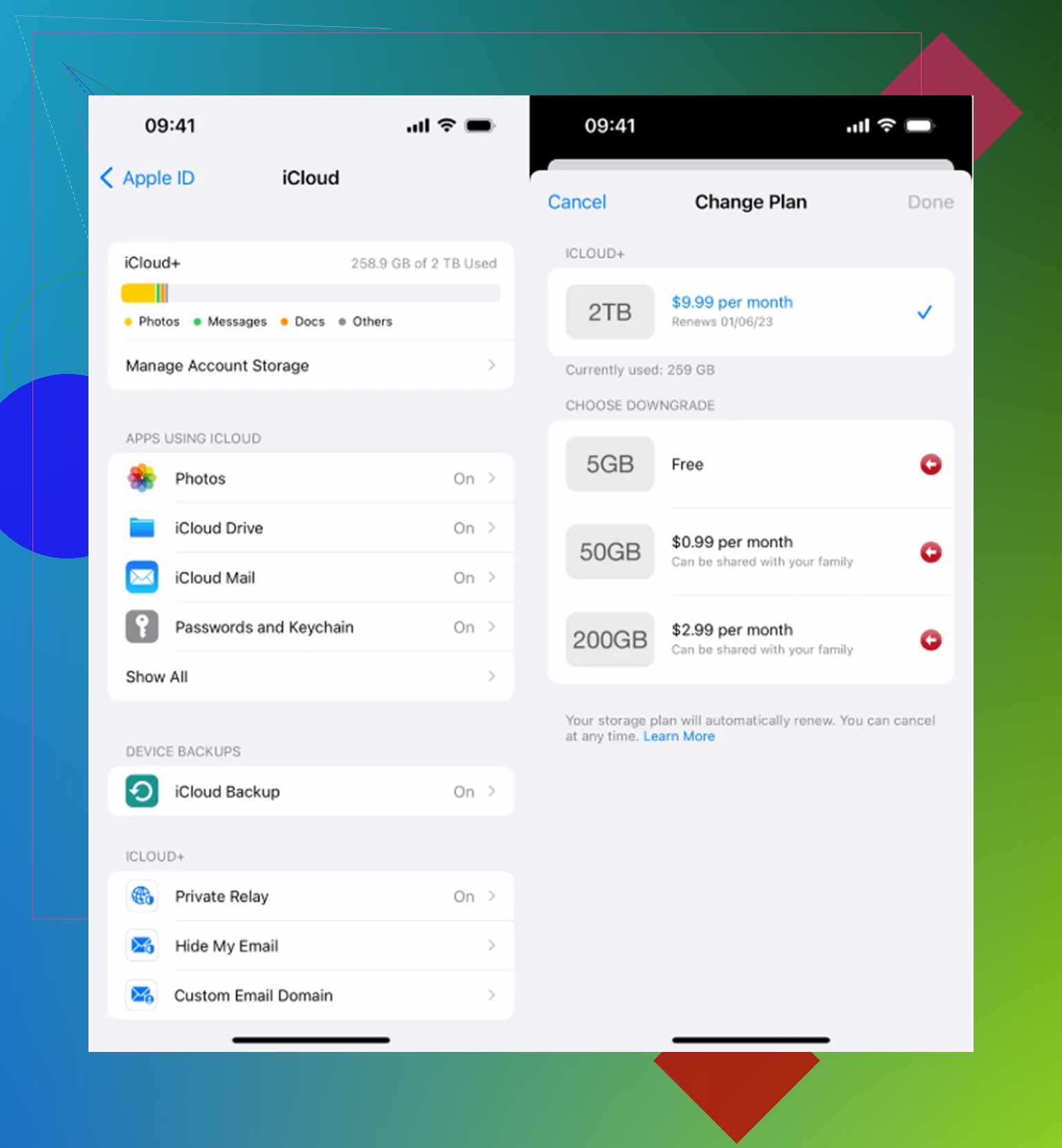
Do not turn iCloud Photos off and on while the phone is nearly full unless you know what it is going to resync. That can make the problem worse, because the phone may try to compare the local library with iCloud again and pull thumbnails, edits, shared items, or originals back down depending on your settings.
The thing I’d check before doing any cleaner app or reset is whether the storage is really “Photos” storage or whether Photos is just the visible symptom of an iCloud sync backlog. Go to Settings > your name > iCloud > Photos and see what it says under sync status. If it says syncing, paused, updating, restoring, or anything like that, the storage number may stay wrong until that finishes. Plugged in, Wi-Fi, screen locked, and Low Power Mode off matters more than people expect.
I agree with @hoshikuzu that the storage graph is laggy. I’d trust the app list lower down more than the colored bar. But I’d be a little careful with the Date & Time trick mentioned above. It has helped some people, but changing the system date can cause weird side effects with iMessage, certificates, banking apps, calendar alerts, and two-factor apps. If you try it, I’d only do it briefly, put the date back immediately, and not start opening a bunch of other apps while the date is wrong.
Another place people miss is Photos > Albums > Utilities. Check Hidden, Recently Deleted, Duplicates, Imports, and any shared library/shared album stuff if you use it. A deleted photo from your normal Library view is not always the same as “this item is no longer involved in any Photos database or sync queue.” If you use iCloud Shared Photo Library, check whether you deleted from your personal library or the shared one. That can make the whole thing feel like the phone is ignoring you.
If the phone says Photos is still huge after a day, I’d do this in a boring order:
- Open Photos and scroll to the bottom of Library to see if there is a sync message.
- Make sure Recently Deleted is empty again.
- Restart once.
- Leave it charging on Wi-Fi overnight with at least a few GB free if possible.
- Check Settings > General > iPhone Storage, then tap Photos specifically instead of reading only the top bar.
- If Photos dropped but System Data grew, wait a bit more. That usually means cleanup/indexing, not “your photos came back.”
- If Photos did not drop at all, assume either iCloud sync is stuck or there is a library database issue.
The annoying part is that iOS needs free space to clean up free space. If the phone is down to a few hundred MB, it may not have enough room to rewrite indexes, update the photo database, or finish iCloud housekeeping. In that situation, delete or offload something boring and reversible first, like a large game, downloaded Netflix/Spotify/YouTube content, podcasts, or offline maps. That gives iOS working room without risking your photo library.
I would not start deleting backups or random “System Data” workarounds right away. System Data is a junk drawer label, and it can include caches, logs, update files, Siri voices, streaming cache, and photo cleanup leftovers. There is no reliable button to clear it because it is not one single thing.
If you need space immediately, the fastest safe move is usually offloading a few large apps from the iPhone Storage screen. Offload keeps the app documents in place but removes the app itself. It is less satisfying than deleting photos, but it can free enough space for the phone to finish whatever cleanup it is stuck on.
If after 24 to 48 hours Photos is still showing the same huge number, then I’d start thinking backup and reset. Make an encrypted backup to a computer if you can, because that preserves more local data than a basic backup. Then restore. That is the cleanest fix for a corrupted storage index, but it is a hassle, so I’d save it for when the phone has had real time on power and Wi-Fi and the numbers still refuse to move.
Whether any of those photos came from a Mac/PC sync matters. If they were Finder/iTunes-synced albums, deleting camera roll items and emptying Recently Deleted may not remove that library space; you have to connect to the computer again and sync with photos turned off or with an empty folder selected.
Open the Files app and check Browse, On My iPhone, and Downloads. Large ZIP files, videos, PDFs, and offline downloads often use several GB while Settings labels the space as System Data. Delete unneeded files, then open Files, Recently Deleted, and remove them again. Restart your iPhone and wait 15 minutes. This simple check frees alot of hidden storage without extra apps.
If your Photos setting is on Optimize iPhone Storage, deleting everything won’t drop the number the way you expect, because most of the local copies were already small proxies and the full originals live in iCloud. In that case you’re mostly waiting on sync bookkeeping, exactly like @nachtschatten said, not staring at hidden files.
The Date and Time trick I’d just skip. It’s more hassle than it’s worth and it can throw off your authenticator and banking apps for no real payoff. If deleted stuff is stuck, a restart plus a night on the charger does the same job without messing with your clock.
For actually finding what’s eating the space, Clever Cleaner is what I’d point Photos at, since sorting by size beats scrolling forever. But it only touches your library. If your System Data is bloated, that’s caches and leftovers no photo tool reaches, and the honest fix there is time plus enough free room for iOS to sort itself out.