My iPhone won’t install the iOS update and keeps saying there isn’t enough storage, even though I still have free space available. I already deleted some apps and photos, restarted the phone, and checked iPhone storage, but the update still fails. I need help figuring out why this happens and how to fix the iPhone not enough storage for update error.
I ran into this on my iPhone more than once. You go to install an update, then the phone throws an “Insufficient Space” alert and the whole thing stalls. It feels dumb because the update file looks small, but iOS usually wants extra free storage before it starts.
A 2 GB update often needs closer to twice that during install. Bigger version jumps, like iOS 26, sometimes need around 15 GB to 30 GB free. The phone has to download files, unpack them, move system stuff around, then clean up after. If storage is packed, it refuses.
Here’s what worked for me without wiping my phone.
Use a cleaner app
Digging through storage by hand takes forever. I stopped doing it. A cleaner app usually finds the junk faster, especially duplicate photos, giant videos, and leftover clutter buried in your library.
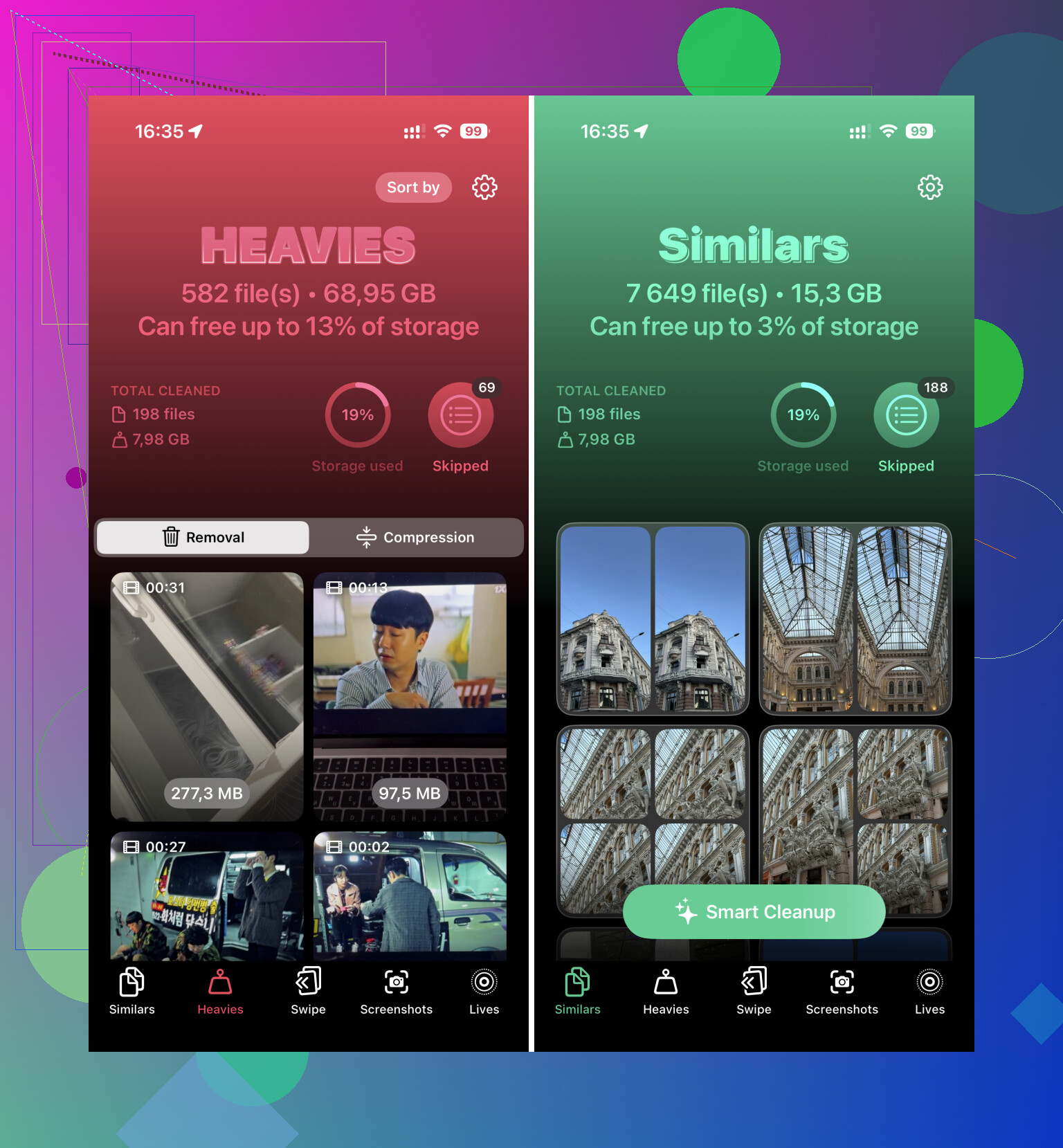
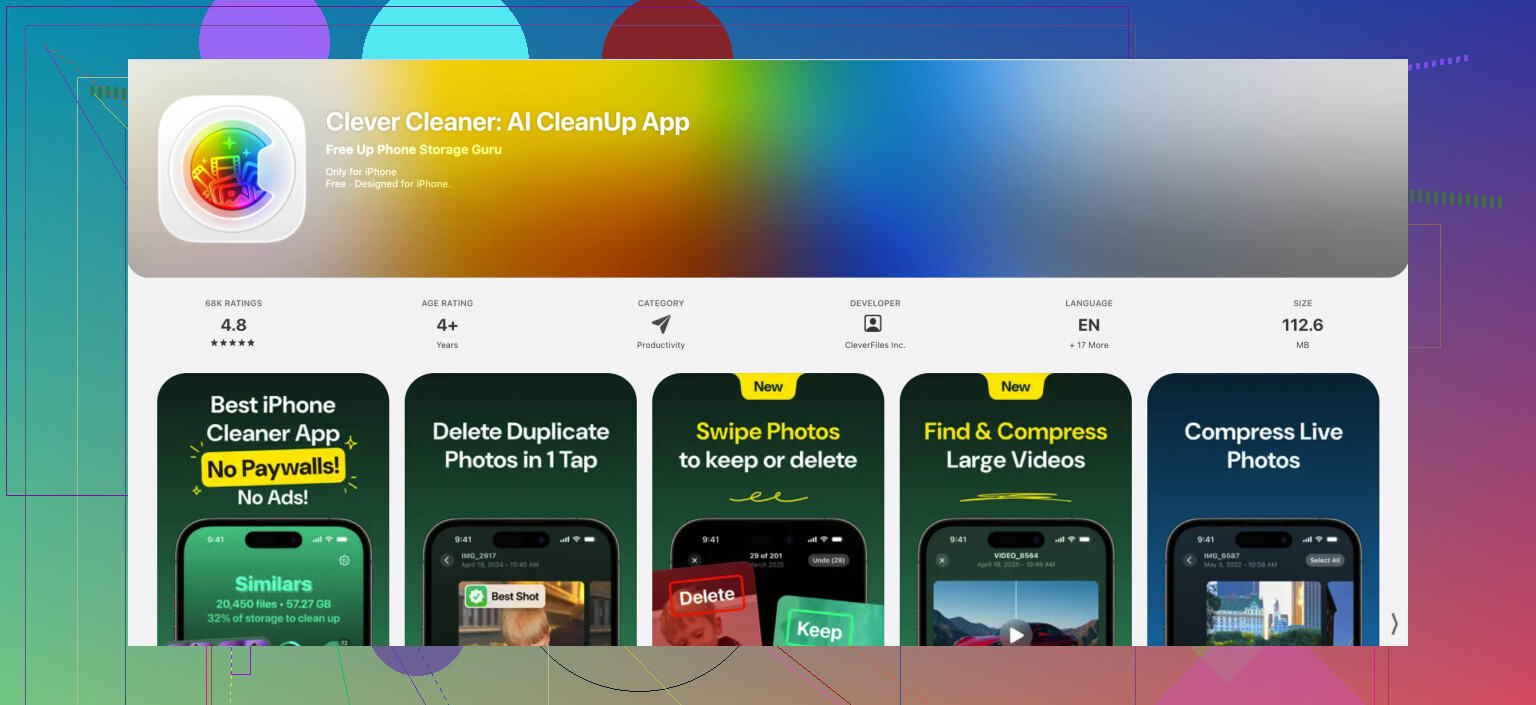
The one I kept using was Clever Cleaner. Most apps in this category push subscriptions or bury the useful parts behind ads. This one is free, no paywall, and the app size is small, around 113 MB. On my phone it freed a few gigabytes in one pass.
I usually start with the Heavies section. It sorts videos by size, which makes the worst offenders obvious fast. Old screen recordings, downloaded clips, random 4K videos, those are often the problem. You delete them or compress them if you still want to keep the file.
The Similars feature helps too. If you took 14 versions of the same photo trying to get one clean shot, it groups those together and helps trim the pile. I found a stupid number of near-identical photos this way.
One thing people miss, I missed it too at first, is this: after deleting photos or videos, open Photos, go to Recently Deleted, and remove them from there too. If you skip that, storage usually won’t free up right away.
Offload apps instead of deleting them
This one saved me a few times. Go to Settings > General > iPhone Storage. Pick large apps you do not need today and use Offload App.
Offloading removes the app itself but keeps your documents, settings, and saved data. So your game progress, account data, and app setup stay there. Later, after the update, tap the app icon and it pulls the app back down. Way less annoying than deleting it and rebuilding everything from scratch.
Check the places people forget
Two spots on iPhone collect junk quietly.
First, open the Files app and look under On My iPhone, especially the Downloads folder. Old PDFs, ZIP files, installers, random docs from Safari, all of it stacks up. Sort by size and clear the big stuff first.
Second, check Messages storage. Go to Settings > General > iPhone Storage > Messages. Look at Large Attachments and Top Conversations. I found old videos and image dumps eating a lot more space than I expected. You can remove the heavy attachments without deleting the full conversation.
Try clearing system cache junk
Sometimes the storage graph shows System Data taking up a weird amount of space. I’ve had some luck with a strange trick. Open Camera and start recording a high-resolution video, like 4K. If the phone gets close to full, iOS sometimes starts clearing temporary system files on its own to make room. It is not guaranteed, but I’ve seen it work.
Delete the test video after. Easy to forget. I did once.
If the update still won’t install, use a computer
At some point I stop fighting with the phone itself. Plug the iPhone into a Mac and use Finder, or into a Windows PC and use iTunes. Updating this way helps because the computer handles the download and unpacking process. Your iPhone often needs less free space than it does during an on-device update.
For a phone sitting on almost no free storage, this is usually the cleanest move.
After the update, stop this from happening again
Once I got past the update, I turned on Optimize iPhone Storage for Photos in iCloud settings. That made a difference long term. The phone keeps smaller local versions while full-resolution copies stay in iCloud. If your photo library is the main problem, this cuts down the chance of hitting the same wall next update.
So, short version:
Use a cleaner app first, especially for duplicates and huge videos.
Empty Recently Deleted.
Offload big apps.
Check Files downloads and Messages attachments.
Try the system cache trick if storage still looks wrong.
Use Finder or iTunes if the phone refuses to update on its own.
Turn on Optimize iPhone Storage after you’re done.
That got me through it without deleting everything, and without losing my stuff.
8 Likes
Free space on iPhone is not the same as usable space for an iOS update. iOS needs room for the download, unpacking, verification, and install. If your storage is fragmented or System Data is bloated, the phone throws the error even when Settings shows a few GB left.
I agree with part of what @mikeappsreviewer said, but I would skip the 4K video trick. It’s hit or miss, and on a full phone it feels like poking the problem with a stick.
A few things worth trying that are diffrent:
-
Delete the downloaded update file itself.
Settings > General > iPhone Storage.
Look for iOS update in the list.
Delete it.
Then try downloading again.
Corrupt update files cause this more often than people think. -
Check Apple’s own minimum space.
Small security updates need less.
Big yearly jumps often need a lot more than the file size shows.
I’ve seen major updates fail with 8 GB free and work after freeing 12 GB to 20 GB. -
Turn off beta updates if enabled.
Beta profiles and beta update channels get weird with storage and cached files.
Settings > General > Software Update > Beta Updates. -
Sync and update from a computer.
This is still one of the best fixes.
Finder on Mac, iTunes on Windows.
It often works when on-device update keeps saying no. -
Force iOS to recalculate storage.
Change the date forward one day, restart, change it back. Old trick. Doesn’t always work, but I’ve seen storage categories refresh after it.
If photos are the main issue, Clever Cleaner is worth a look for finding duplicates and large videos fast. Also, independent reviews covered Clever Cleaner in detail.
If none of this works, backup first, then do the update through a computer. That fixes it more often than people admit. Apple’s storage reporting is kinda messy sometiems.
What’s happening is iOS needs working room, not just “free space” on the bar graph. So 6 GB free does not always mean 6 GB usable for an update. It needs room to download, verify, unpack, replace system files, and roll back if something fails. Annoying, but that’s usually why it lies to your face.
I mostly agree with @mikeappsreviewer and @waldgeist, but I’d add a couple things they didn’t really hit:
- Check if your iPhone is low on temporary local iCloud content. If iCloud Drive or Photos recently downloaded a bunch of stuff, it can eat local storage quietly.
- Remove Safari website data. Settings > Safari > Clear History and Website Data. Won’t save huge space for everyone, but I’ve seen it matter on borderline cases.
- Delete old podcast/music downloads. People forget those because they’re tucked inside the app, not always obvious in storage.
- If Mail is huge, remove and re-add the account. Mail cache can get weirdly bloated.
Also, if your storage breakdown looks off, give it time while charging on Wi-Fi. Sometimes iOS recalculates overnight and suddenly the update will install the next day. Sounds fake, but I’ve seen it happen.
If photos are still the main hog, Clever Cleaner is a legit shortcut for finding duplicate pics, similar shots, and giant videos faster than doing it manually. There’s also a solid Reddit review of Clever Cleaner for iPhone storage cleanup if you want to see how other people used it.
If it still refuses after all that, I’d stop fighting the phone and update through a computer. At some point iOS just gets stubborn lol.
What @waldgeist, @espritlibre, and @mikeappsreviewer are circling around is mostly right: the update needs scratch space, not just visible free space. One angle I’d add is battery and thermal limits. iPhones sometimes postpone or fail prep if battery health is poor, Low Power Mode is on, or the phone is hot while charging. I’ve seen “not enough storage” show up when the real issue was the install prep never completed cleanly.
A few things I’d try that are different:
- Turn off Low Power Mode, plug in, connect to strong Wi-Fi, let it sit locked for an hour.
- Free RAM before retrying. It sounds old-school, but after a restart, wait a minute before opening Software Update so iOS finishes indexing.
- Temporarily disable automatic app downloads and background app refresh. Less churn while the update is staging.
- If you use third-party security/VPN/device management apps, remove or disable them briefly. These can interfere with update staging and verification.
- Check for a pending restore or sync issue in Finder/iTunes. Sometimes the phone is stuck on housekeeping.
On Clever Cleaner specifically:
Pros: fast at surfacing duplicate photos, similar shots, and huge videos; easier than digging manually.
Cons: it’s mostly useful if photos/videos are the problem; not much help for system storage weirdness, app caches, or update-file issues.
I mildly disagree with relying on “storage tricks” too much. If you already cleared obvious stuff and the error persists, updating from a computer is usually the more serious fix. If photos are your main bloat, Clever Cleaner is reasonable first, but if System Data is the culprit, don’t expect miracles.