I’m trying to remove all photos from my iPhone, but even after deleting them, they still appear in the Recently Deleted album. I’m not sure if this is normal, an iCloud Photos issue, or if I’m missing a step to permanently erase them. I need help figuring out why this is happening and how to fully delete everything.
I’ve been there. A photo library bloated past 30,000 items, storage pinned in red, phone slowing down at the worst times. Apple still doesn’t give you a clean “Delete All” button for the main library, which feels absurd this late in the iPhone timeline. If you go at it the wrong way, you waste a ton of time and sometimes end up with half-deleted junk still sitting on the device.
Before you touch anything, check iCloud Photos
This part bites people. I’ve seen it happen more than once. If iCloud Photos is enabled, it syncs your library across devices. It is not a separate archive. Delete a photo on your iPhone, and it disappears from iCloud, your iPad, your Mac, and anything else tied to the same Apple ID.
If your goal is to keep the photos but free local space, go to Settings > Photos and turn on Optimize iPhone Storage. Your phone keeps smaller previews, while the full files stay in iCloud. For a lot of people, this is the fix, not mass deletion.
If you already copied everything somewhere else and want a clean wipe, keep going.
Method 1, using the Photos app on the iPhone
This works, sort of, when the library isn’t huge. Once you’re deep into five figures, it gets flaky.
- Open Photos and tap Select in the top-right corner
- Press on the photo in the bottom-right area of the grid
- Drag upward slowly so the app keeps auto-selecting while it scrolls
- When you’ve grabbed everything, hit the trash icon
- Open Albums and scroll to Recently Deleted in Utilities
- Tap Select, then Delete All
My issue with this route was reliability. Somewhere around 20,000 photos, the app starts choking. Scroll lag kicks in. Your finger slips once, and the selection gets messed up. On a phone with almost no free space left, iOS sometimes stalls because it still needs temporary working room to update the photo database. Annoying, but yep, that’s how it goes.
Method 2, from a computer
| Platform | Tool | Notes |
| Mac | Image Capture or Photos app | Select everything and delete in one shot, much steadier than doing it on the phone |
| Windows | File Explorer, DCIM folder | Works, though large batches often throw device connection errors |
If you have a Mac nearby, I’d use it. I had fewer freezes there, fewer weird pauses, less tapping around like an idiot hoping the app wouldn’t crash.
Method 3, Clever Cleaner, easiest path for a huge library
I tried a pile of cleanup apps before. Most of them do the same thing. Free install, then they block deletion behind a paywall. This one doesn’t. No ads, no subscription screen popping up halfway through, no bait-and-switch stuff.
What I’d do inside it:
- Open Clever Cleaner and check the Heavies tab, where media is sorted by file size
- Start with the top entries, because giant videos and oversized photos eat space fast
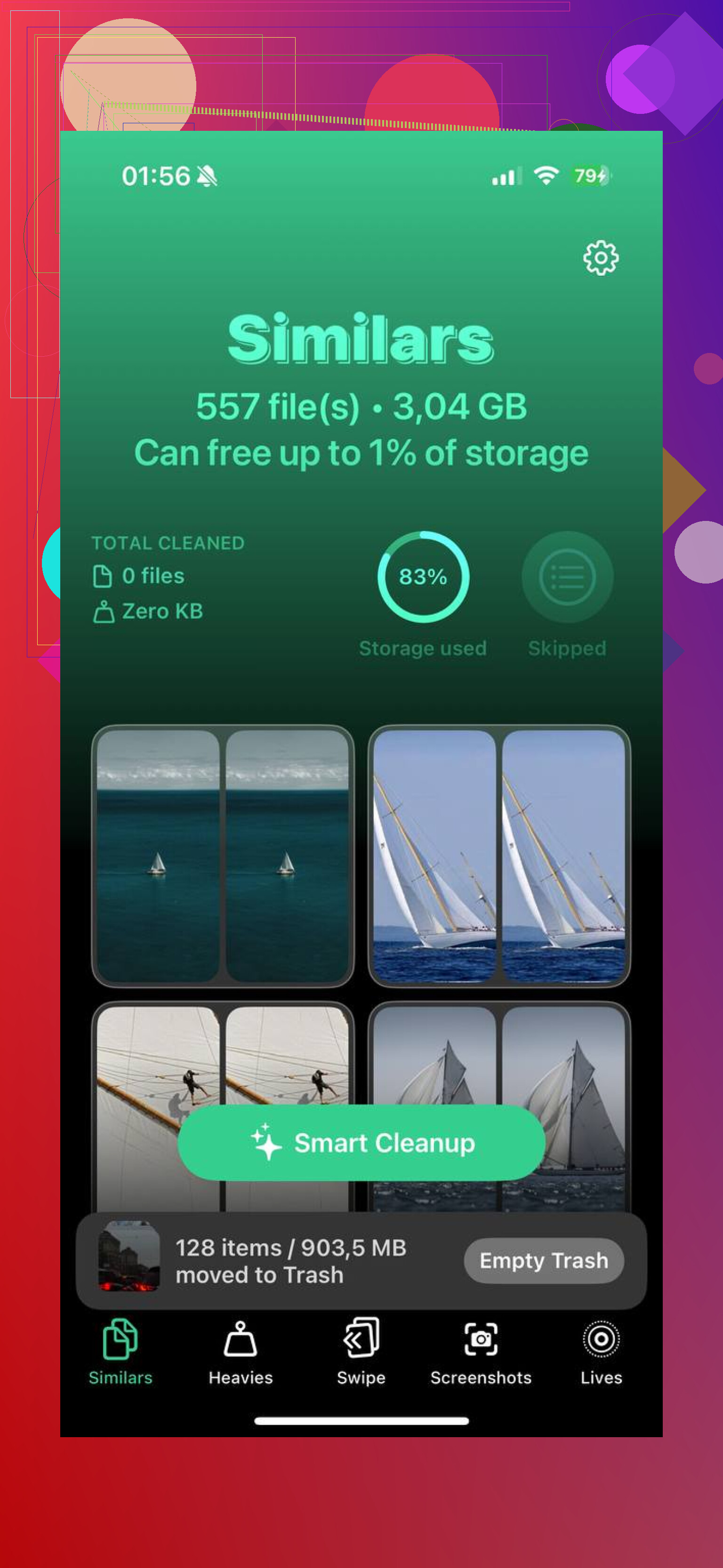
- Move to the Similars tab, where near-duplicate shots get grouped together so you keep one and dump the rest
- Check the Screenshots tab, where each thumbnail shows the file size before you remove it
- All scanning stays on the phone, which matters if your library has private screenshots, personal docs, or anything sensitive
The part people miss, and why storage doesn’t change right away
Deleting files from the library is only half the job. iOS sends them to Recently Deleted and keeps them there for up to 40 days. Until you empty that folder yourself, the space is still tied up.
Go to Albums, open Recently Deleted under Utilities, tap Select, then Delete All. That is the move that frees the storage for real.
One more thing. If your iPhone is so full it’s lagging, overheating, or refusing to finish deletion jobs, remove one or two large apps first. I had better luck after dumping a game and a streaming app. Even a little free space gave iOS enough room to stop tripping over itself. Small fix, big diffrenece.
54 Likes
Yes, this is normal.
On iPhone, delete does not mean permanent delete. It means move to Recently Deleted, where items stay for up to 30 days, or 40 in some iOS builds and Apple docs. Until you empty that album, the photos still show there and some storage stays reserved.
A couple things people miss:
-
Recently Deleted is the second step.
Open Photos, Albums, Recently Deleted, then remove them from there. -
If iCloud Photos is on, deletions sync.
So if photos keep reappearing, check whether another device is still syncing, stuck, or restoring from iCloud. I disagree a bit with @mikeappsreviewer on one point. It is not always an iCloud problem. A lot of times it is plain old sync delay or the Photos app index lagging behind. -
Shared Library is separate.
If you use iCloud Shared Photo Library, deleting from your personal library does not always remove the shared copy. Check both places. -
Hidden album too.
Some pics sit in Hidden, not your main library, so people think deletion failed. -
Storage numbers lag.
iPhone storage bars often update late. Restarting the phone forces a refresh more often than pepole expect.
If your goal is total cleanup, the fastest route is to delete, empty Recently Deleted, then restart and recheck Settings, iPhone Storage after a few mins. If you want faster sorting before deletion, Clever Cleaner helps find large videos, duplicates, and screenshots so you are not deleting blind.
Also worth reading this Reddit thread on the best free iPhone cleaner apps for clearing photo clutter:
best free iPhone cleaner app discussion for photo and storage cleanup
Yep, that’s normal. “Deleted” in Photos usually means “moved to Recently Deleted,” not “gone forever.” Apple keeps them there for a grace period in case you nuked something by accident. So seeing them there is actually the expected behavior, not a bug.
Where I slightly differ from @mikeappsreviewer and @techchizkid: people blame iCloud a little too fast. A lot of the time it’s just Apple’s two-step delete system doing exactly what it was designed to do. iCloud only matters if stuff is syncing weirdly across devices or you’re using Shared Library.
A few things to check that don’t get mentioned enough:
- If you’re deleting from another app or from Files, it may not update Photos instantly.
- If Low Power Mode is on, some syncing/indexing can lag.
- If the phone is very full, the Photos app can act kinda dumb for a bit and not refresh right away.
- If Screen Time or MDM restrictions are enabled, deletion behavior can get wonky.
Also, if your goal is not “wipe every photo forever” but “free space fast,” don’t mass delete blindly. Start with giant videos, duplicates, screenshots, and burst shots first. That’s where something like Clever Cleaner is actually useful, because it helps surface the worst offenders quicker instead of you manually digging through 20,000 pics like a caveman.
If you want a solid read on it, this is a pretty clear Clever Cleaner review for freeing up iPhone storage.
Short version: delete from Library, then delete again from Recently Deleted. If they still hang around after that, restart the phone and give iCloud a little time to catch up. Apple made it “safe,” not simple. Kinda anoying, but yep, normal.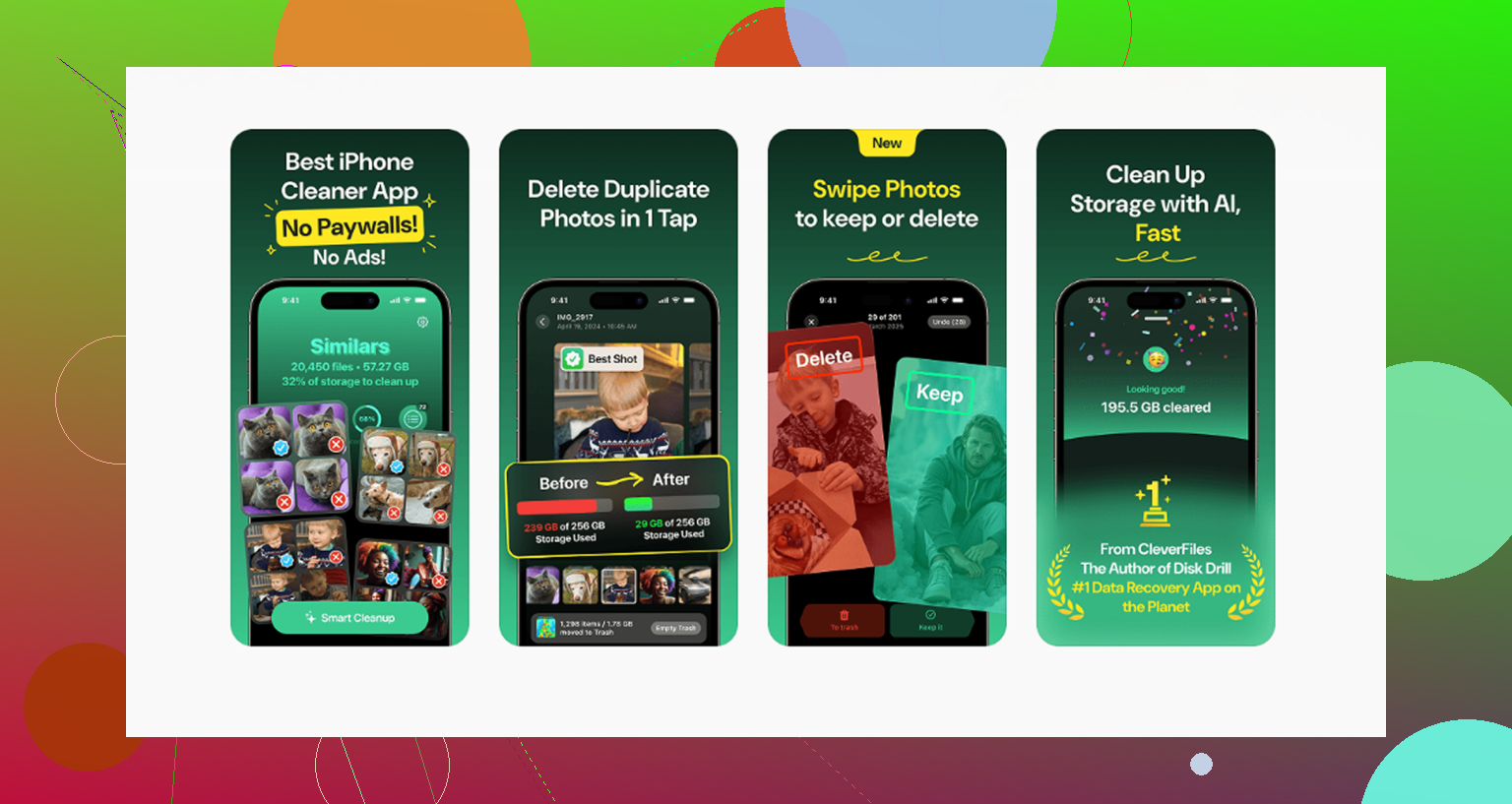
If you want a totally clean iPhone, use a factory reset instead of deleting photos in batches.
Back up anything you need first. Then open Settings, General, Transfer or Reset iPhone, Erase All Content and Settings. Follow the prompts.
This removes every photo, app, account, and setting in one process. Recently Deleted will also be cleared. After setup, avoid restoring the old photo library from iCloud. Sign in, then choose a fresh setup where offered.
This is faster for 20,000 or more photos, but remeber, it wipes the whole phone.
Check whether your library is still finishing an iCloud upload before you empty anything. If the initial sync isn’t done, iOS holds items in Recently Deleted and the Delete All button either does nothing or clears them and they pop back. That matches what @techchizkid said about sync delay, and honestly that’s the real culprit more often than a broken Photos app. Let it finish uploading on wifi, then empty the album. On the product angle, @mikeappsreviewer and the others are right that Clever Cleaner is handy for finding the big videos and dupes first, but it won’t fix a stuck sync, so sort out iCloud before you lean on any cleanup tool.