I lost my Magnavox Roku TV remote and need a reliable remote app to control the TV from my phone. Which app is compatible, and how do I connect it?
What should work with a Magnavox Roku TV
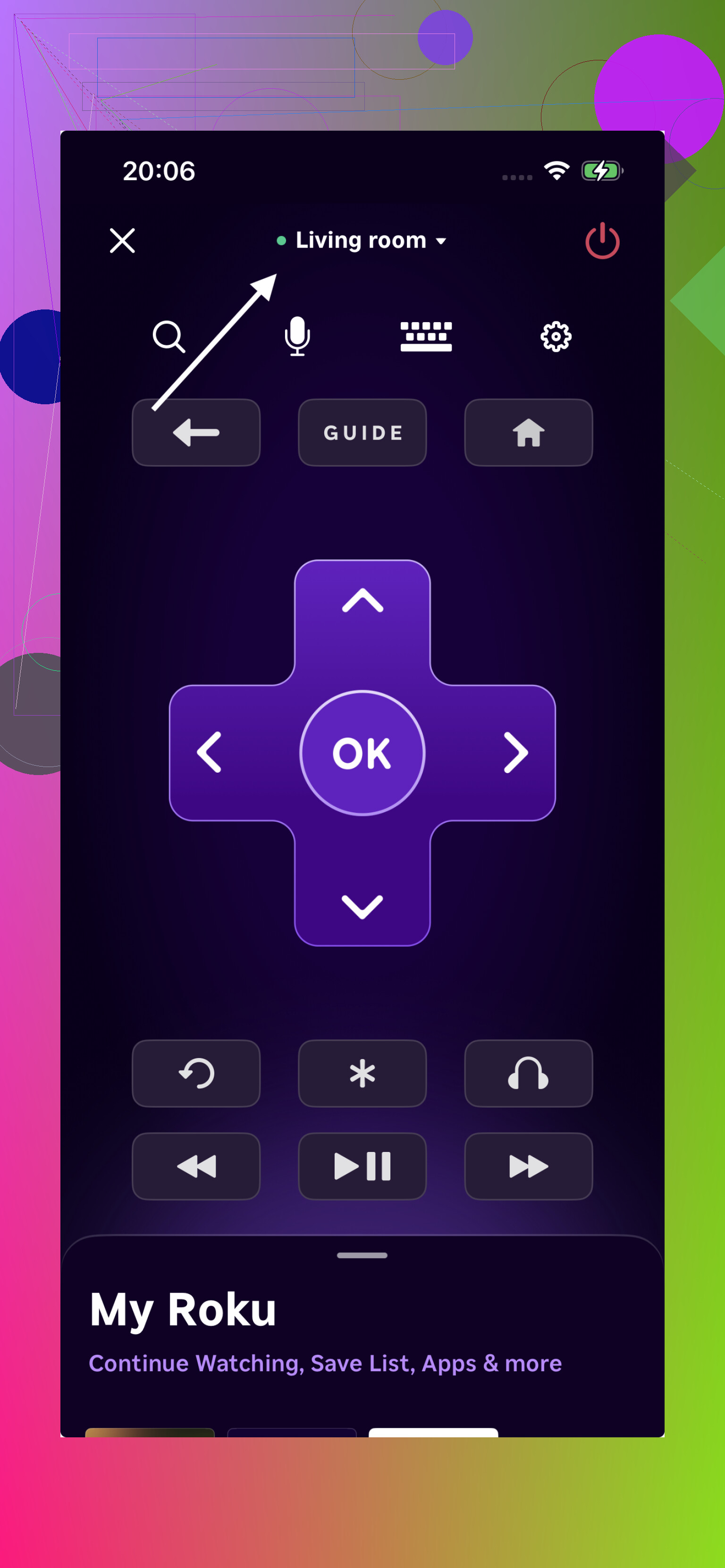
The basic point is straightforward. If the Magnavox television runs Roku, a phone can act as its remote. The official Roku app is the safest starting point because it is made for that platform, costs nothing, and should pair without much effort.
Both the phone and television need to be connected to the same Wi-Fi network. After opening the app, the Magnavox set should appear in the device list. That network requirement is easy to overlook and is probably the first thing I would check if pairing failed.
There is an important limitation. This does not apply to an older Magnavox television without Wi-Fi. A basic infrared-only set cannot receive commands from an iPhone app, so it still needs a physical remote or compatible infrared hardware. I also could not verify the broader claim that almost every Magnavox smart TV is a Roku model. Checking the television’s menus or model information is more reliable than assuming.
Why the universal option may be more useful
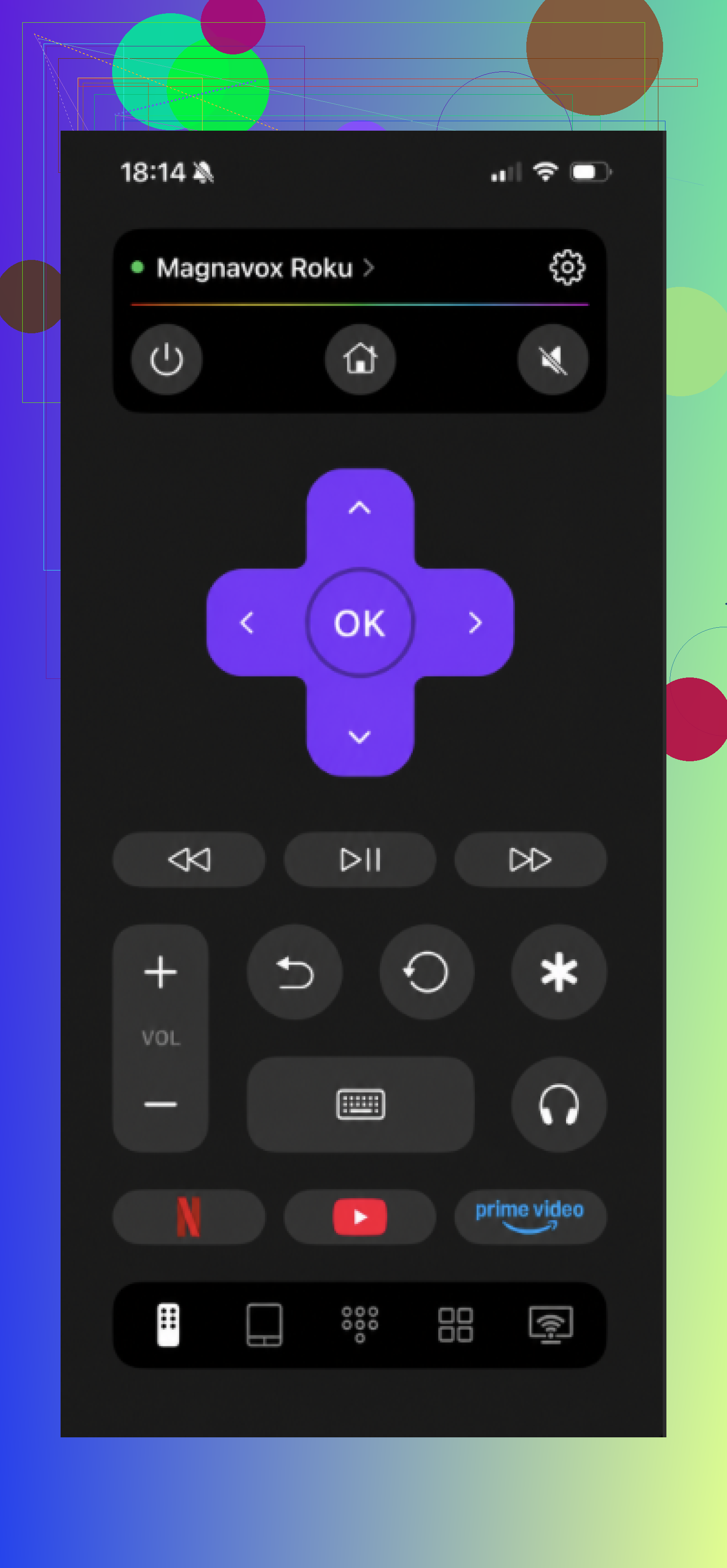
The Roku app only controls Roku devices. TVRem is presented as the broader option because it supports Roku alongside Samsung, LG, Fire TV, Android or Google TV, and Apple TV. That matters less if there is only one television in the house, but it becomes useful when several brands or streaming devices are involved.
The advertised controls include a swipe touchpad, shortcuts for services such as Netflix, YouTube, and Prime, plus phone-keyboard and voice entry. Those features sound practical, especially compared with typing through an on-screen letter grid. I have not independently tested the response time, device coverage, or voice input, so I would not assume every function works equally well on every model.
The choice I would make
The app can be found through the here, while the developer’s description is available on the TVRem product page. I would check the current App Store listing for pricing, reviews, device requirements, and privacy details rather than relying entirely on the promotional page.
For a single Magnavox Roku television, I would start with the official Roku app because it has the narrowest job and the fewest compatibility questions. If I needed one phone remote for several television platforms, I would try TVRem, but only after confirming that it is still free and supports my exact devices. My verdict is simple: Roku is the cautious choice, while TVRem is the more flexible one if its current listing matches the claims.
26 Likes
Don’t pay for a third-party remote app before trying the official Roku mobile app. Install it, connect your phone to the same Wi-Fi network as the Magnavox Roku TV, then open Devices and select the TV. The catch is that this won’t solve a network setup problem: if the TV is offline or your router/password changed, you’ll need a physical Roku-compatible remote or Ethernet connection first.
Don’t factory-reset the TV while the remote is missing. That wipes the saved Wi-Fi connection, and no phone app can find the set until you reconnect it with a physical remote.
Use the official Roku mobile app on iPhone or Android. Magnavox made the television, but Roku supplies the operating system, so you do not need a Magnavox-specific app.
The connection process is short:
- Connect your phone to the same home Wi-Fi network the TV was using.
- Open the Roku app and allow local-network access if your phone asks.
- Tap Devices and wait for the Magnavox Roku TV to appear.
- Select the TV, then tap Remote.
If the TV does not show up, turn off any VPN on the phone and make sure you are not connected to a guest Wi-Fi network. Guest networks often prevent devices from seeing each other. On an iPhone, check Settings for the Roku app and confirm Local Network permission is enabled. Restarting the app, TV, and router can clear a discovery problem too.
@data_lena60 is right about the Wi-Fi limitation. A useful fallback is a universal remote that specifically says it supports Roku TVs. That can get you into Settings > Network after a router replacement or password change. Be careful with remotes advertised only for Roku players or sticks, since the TV version needs power and volume controls as well.
Once you regain control, enable Fast TV Start under Settings > System > Power if your model offers it. That makes phone control more dependable when the screen is off, though it uses a little more standby power. I would keep a cheap physical Roku TV remote in a drawer anyway. The app is convenient, but it cannot fix the very network problem it depends on.
Turn the TV on with its built-in power button first, then try the official Roku mobile app. Magnavox often hides the button under the bottom edge or on the back panel. If Fast TV Start is disabled, the app may not wake the television from standby, which can make a working setup look broken.
Once the screen is on, connect your phone to the same regular Wi-Fi network, open the Roku app, choose Devices, select the TV, and open Remote. I agree with the warning about factory resets. The same goes for changing the router name or password before you have another remote available.
I would skip third-party apps unless the Roku app has a specific problem on your phone. If the television is no longer connected to your Wi-Fi, an app cannot perform the initial network setup. At that point, the simplest fix is an inexpensive replacement labeled for Roku TV, not merely a Roku streaming stick.
If the TV is still connected to your home Wi-Fi, this is easy. If it has dropped off that network, no phone app is guaranteed to rescue it.
Use the official Roku mobile app, not a Magnavox-branded app. Put the phone on the same non-guest Wi-Fi, allow local-network permission, then open Devices, select the TV, and tap Remote. Be cautious with apps claiming they connect directly by Bluetooth, since Roku TV control normally depends on the network.
A possible workaround after a router change is to create a hotspot with the exact old Wi-Fi name and password the TV remembers. You would need a second phone or tablet running the Roku app and connected to that hotspot. This does not work with every hotspot because some isolate connected devices, but it may restore temporary control long enough to enter the new network details.
If that fails, buy or borrow a remote specifically labeled for Roku TVs. A remote intended only for a Roku stick may lack the TV power, input, and volume buttons you need.
Don’t assume a phone app will be as dependable as a physical remote for everyday use. The official Roku mobile app is the best match for a Magnavox Roku TV, but you may have to unlock your phone and reconnect after calls, Wi-Fi changes, or the app being closed. Third-party “universal” apps usually add ads or paid features without fixing those basic network limitations.
For setup, turn the TV on with its built-in button, connect your phone to the same home Wi-Fi, open the Roku app, and select the Magnavox TV under Devices. Then choose Remote. If the TV never appears, it is probably offline or on a different network, and a Roku TV-compatible replacement remote is the more useful purchase. For occasional use, the app is fine. For daily channel, volume, and power control, a cheap physical Roku TV remote is less annoying.
Quick correction before anyone runs off and installs the wrong thing: not every Magnavox smart TV is a Roku. In the last few years plenty of Magnavox sets sold here shipped on Google TV instead, and the Roku app will never find those no matter how clean your Wi-Fi is. @beacon8053 was right to flag that assumption. So the real first step isn’t picking an app, it’s confirming what the TV actually runs. If you remember the home screen having rows of Roku channel tiles, it’s Roku. If it looked like Android with a Google search bar up top, that’s a different app entirely (Google TV or Google Home).
Assuming it really is Roku, everyone here is basically correct that the official app is the move. I won’t repeat the pairing steps since they’ve been covered three times over.
Where I’d push back a little is on the tone that the app is a shaky everyday remote. It’s fine for daily use once it settles, but the annoyance nobody mentioned is that the Roku app tends to disconnect the second your phone flips to a different Wi-Fi band. Lots of routers hand out a 2.4GHz and 5GHz network under names that look identical, and if your phone lands on one while the TV sits on the other, discovery just quietly fails. Worth checking before you blame the app or the TV.
On the universal apps like the TVRem one from earlier, I’d treat it as a maybe, not a fix. If your TV turns out to be Google TV and you don’t feel like juggling two separate remote apps for two rooms, a single universal app makes sense. But it still needs the same network, so it solves zero of the offline problems people warned about. Same limitation, wider brand list.
Honestly, my cheapest and least fussy answer: order a replacement Roku TV remote for a few bucks and keep the app as backup. The app is nice until you’re mid-show and it drops. A physical remote never asks for local network permission.
Use the official Roku app for iPhone or Android. Connect your phone to your TV’s home network, open Devices, select your Magnavox Roku TV, then tap Remote.
For an alternative, check teh TV for an Ethernet port. If present, try connecting it directly to your router with an Ethernet cable, then turn it on. Keep your phone on your router’s regular Wi-Fi and retry the app. A wired TV connection supports phone control over the same local network, without matching the TV’s saved Wi-Fi details. This avoids buying a seperate remote.