I just downloaded several old .avi video files and none of my default apps on Windows will play them properly. Some say the format isn’t supported, others only play the audio with no video. I’m confused about which software is best and safest for opening .avi files and whether I need extra codecs or plugins. Can anyone recommend a reliable program and explain what I should install to get these .avi videos working?
Opening .AVI files is pretty easy. It’s a common video format and there are plenty of media players that can handle it without any trouble.
What is the AVI format?
AVI (Audio Video Interleave) is a video container format created by Microsoft back in the 90s. A container basically means it holds the video, audio, and sometimes subtitles in one file.
You’ll still see AVI files around a lot, especially with older movies, TV episodes, downloaded videos, or archived footage. It’s not the newest format anymore, but it’s still widely supported. The main downside is that AVI files can be pretty large compared to newer formats like MP4, and sometimes compatibility depends on the codec used inside the file.
Apps for opening AVI files
For Mac
Elmedia Player
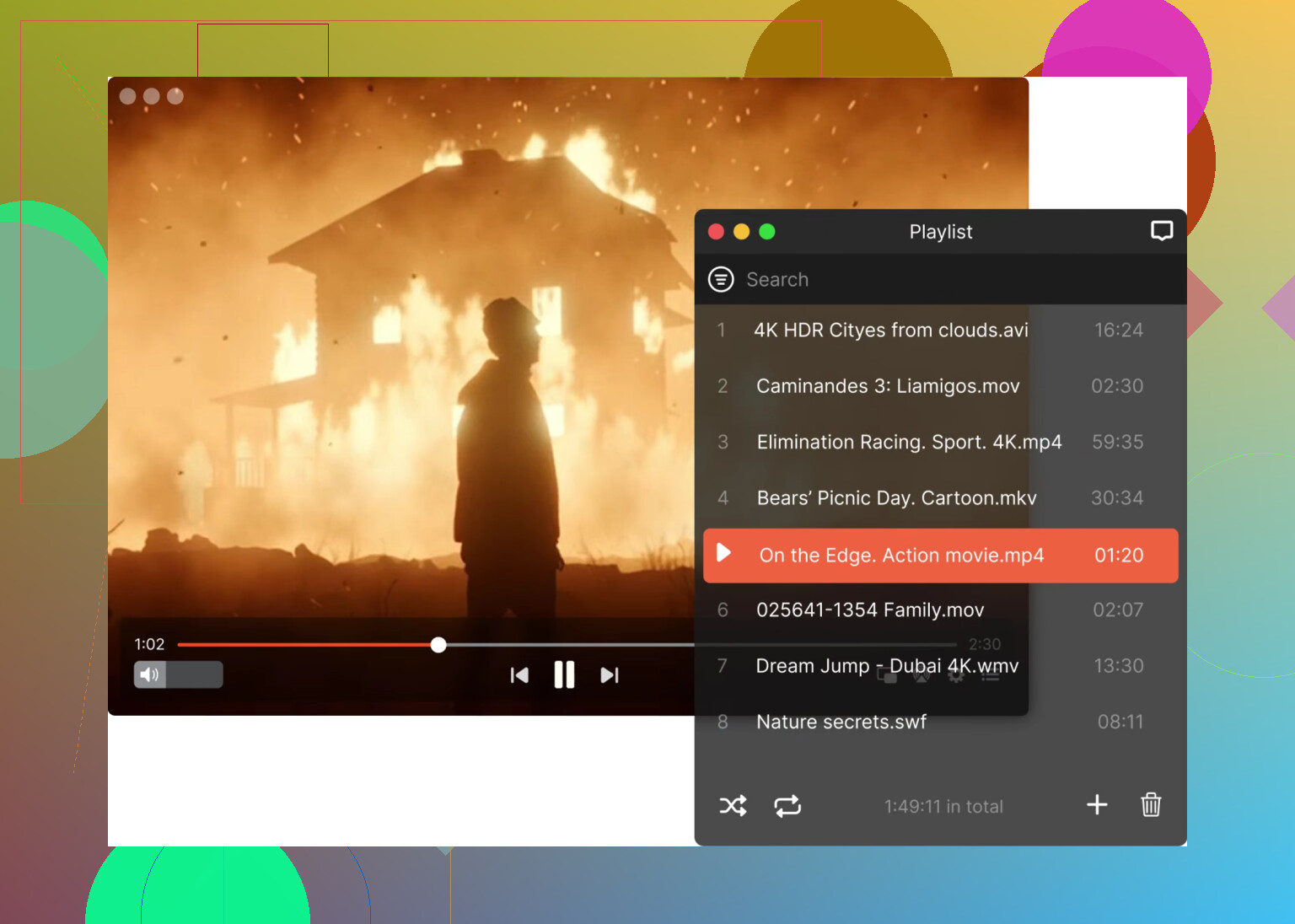
Elmedia is a really solid Mac media player if you deal with lots of different video formats. It supports AVI and tons of other formats without needing extra codecs. It also has great subtitle support, smooth HD playback, and built-in streaming to things like Chromecast or Apple TV. Basically it’s a nice upgrade if you want something more flexible than the default Mac player.
QuickTime Player
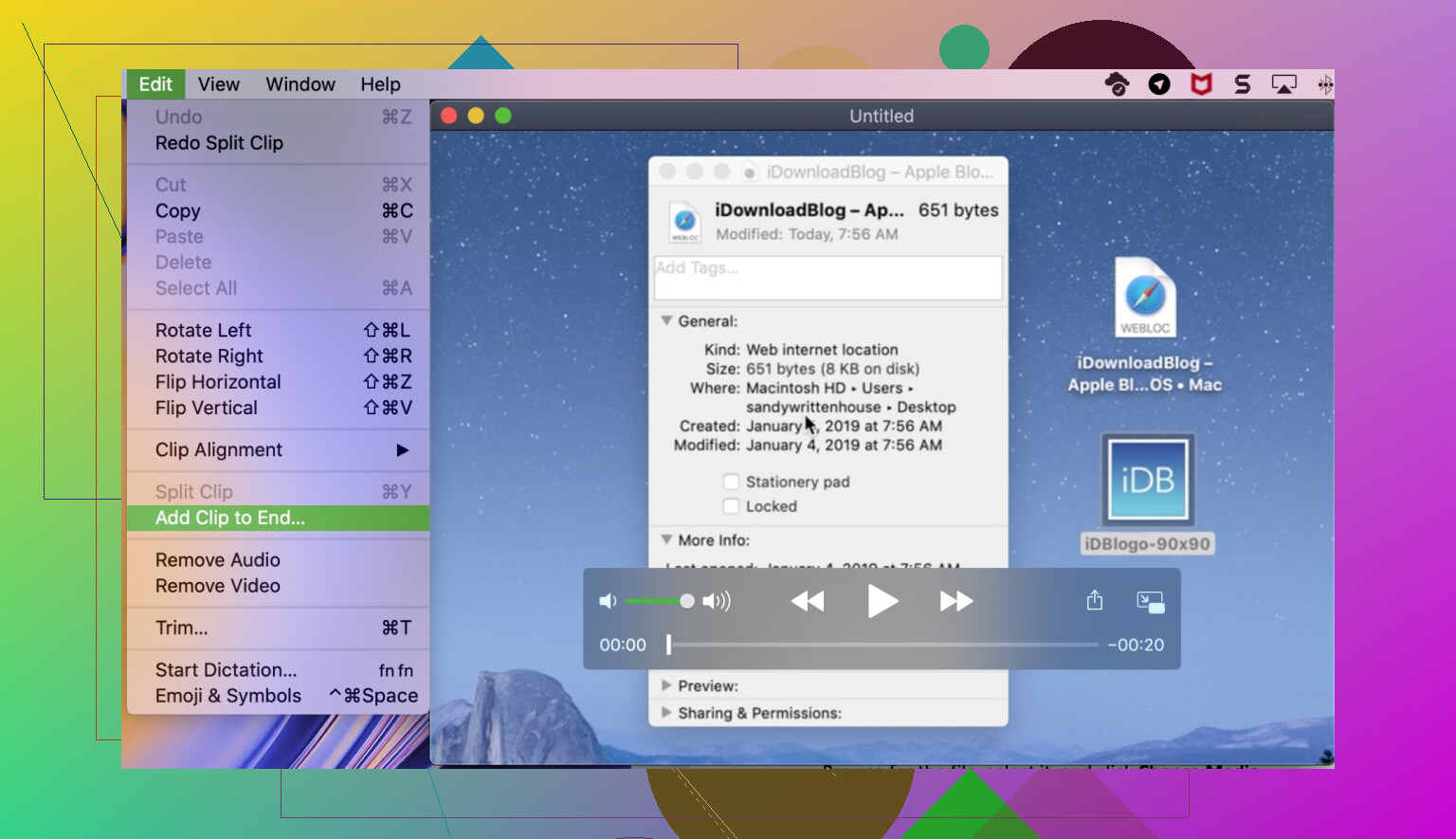
QuickTime comes preinstalled on macOS and is super simple to use. You just double-click a video and it opens. The only downside is that it has narrower file format support compared to third-party players like Elmedia Player, so some AVI files might not play depending on the codec used.
For Windows
DivX Player
DivX Player is designed with AVI and DivX files in mind, so it handles them really well. It supports high-quality playback, good performance with HD videos, and features like media library organization and casting.

PotPlayer
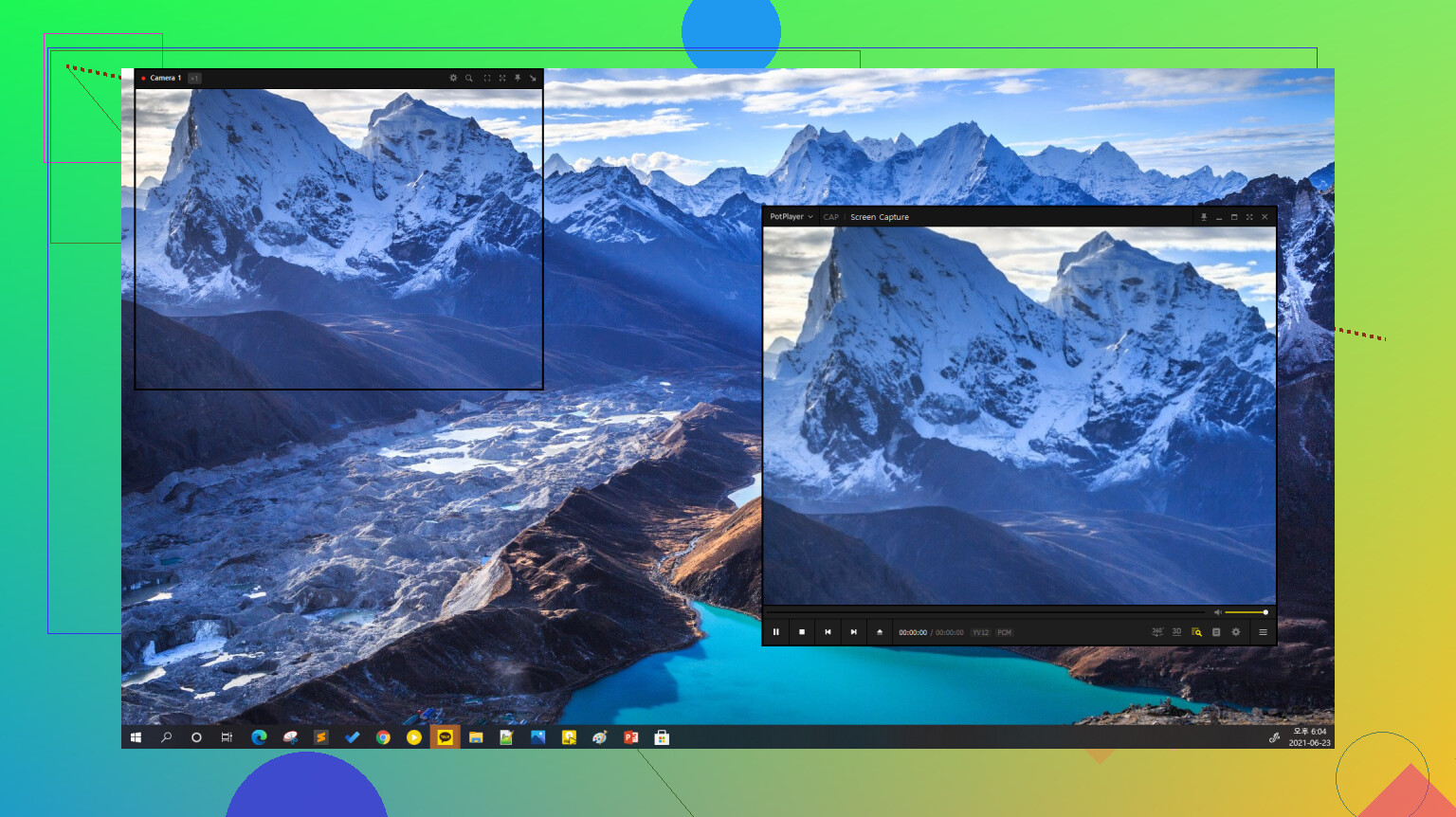
PotPlayer is another favorite among Windows users. It’s lightweight, highly customizable, and supports a huge range of formats right out of the box. It’s known for very smooth playback and tons of advanced settings if you like tweaking things.
35 Likes
Your issue is classic old-AVI-on-modern-Windows stuff. The extension says AVI, but the video inside often uses ancient codecs like DivX or XviD that your default player does not support.
Since @mikeappsreviewer already went into PotPlayer and DivX Player, I will point you to a slightly different setup that tends to work well.
-
Try VLC first
- Free, open source.
- Built-in codecs.
- Handles most AVIs with weird video or audio.
- On Windows, download from videolan.org, not from random mirror sites.
-
If VLC plays audio but no video
- Go to Tools → Preferences → Input/Codecs.
- Set Hardware-accelerated decoding to “Disable”.
- Save, restart VLC, test the AVI again.
Sometimes older AVIs break with hardware decoding enabled.
-
Use MPC-HC as a second player
- Search for “MPC-HC” or “MPC-HC fork” and grab a recent build.
- Lighter than VLC.
- Often handles older MPEG-4 ASP AVIs slightly better on weak GPUs.
- Supports external filters if you need them.
-
Avoid big codec packs
Here I disagree a bit with the old “install K-Lite” advice you still see on forums.
Codec packs hook into the system and sometimes break apps that used to work.
A self contained player like VLC, MPC-HC, PotPlayer, or DivX Player is safer. -
If nothing plays the file
- Use MediaInfo to inspect the AVI.
Check “Format” and “Codec ID” for video and audio. - If the file uses some oddball codec, skip hunting for a decoder.
Convert to MP4 with HandBrake.
Use:
Video codec: H.264
Audio codec: AAC
Then everything on Windows will play it.
- Use MediaInfo to inspect the AVI.
-
If you also use a Mac
- Install Elmedia Player there.
- It handles AVI, MKV, and old internet rips nicely.
- For cross platform watching, convert to MP4 so both Windows and macOS treat the files the same.
Quick path for you on Windows right now:
- Install VLC.
- Test your AVIs.
- If some still fail, try MPC-HC or PotPlayer for those files.
- For stubborn ones, use HandBrake once, convert to MP4, stop fighting AVI.
That keeps your system clean, avoids random codec installs, and gets your old videos playing again without a lot of trial and error.
Short version: use a player with its own codecs and stop trying to “fix” Windows.
Since @mikeappsreviewer and @ombrasilente already covered PotPlayer, DivX, VLC, MPC-HC, I’ll come at it from a slightly different angle and what I’d actually do with a pile of old AVIs like yours.
-
First check if the files are even valid
- Grab MediaInfo (tiny, free).
- Drop one AVI on it.
- If MediaInfo cannot read duration / codec info, the file itself might be corrupt or incomplete, and no magical player will fix that.
- If it shows video as something like DivX, XviD, or generic MPEG-4 Visual, the files are fine, your player is the problem.
-
Use a “codec-complete” player instead of patching Windows
I actually disagree a bit with the habit of hopping between 3–4 players. That gets annoying fast.
Pick one solid player and stick with it for everyday use:- On Windows: I’d go with PotPlayer or MPC-HC if you like something lightweight. VLC is fine but can be weird with some older encodes.
- On Mac, if you ever move these files or share a drive, Elmedia Player is excellent for AVI, MKV, FLV, etc. It has its own codecs so you’re not hunting for system-wide codec packs. If you ever Google “Elmedia Player AVI”, you’ll see people using it exactly for this kind of legacy stuff.
-
Avoid codec packs (seriously)
Old advice like “install K‑Lite” used to be common. Now it mostly creates a mess:- Random apps start using random filters.
- Stuff that was working suddenly breaks.
- You end up debugging Windows’ DirectShow graph instead of watching your video.
With modern players, codec packs are almost never worth it.
-
For really stubborn AVIs, convert once and be done
If:- your AVIs only play audio
- or only work in exactly one sketchy player
then convert them and move on: - Use HandBrake
- Output container: MP4
- Video: H.264
- Audio: AAC
Result: the new MP4s will play in basically anything on Windows, phones, TVs, consoles, toasters, etc. I convert old “problem” AVIs once and throw the originals on a backup drive.
-
Practical setup for you on Windows right now
- Install PotPlayer (or MPC-HC if you prefer simpler).
- Test your AVIs.
- Any file that still misbehaves gets a one-time conversion with HandBrake to MP4.
- Delete/ignore the broken originals unless they’re irreplaceable.
tl;dr: Don’t fight the built-in apps, they’re not made for these ancient AVI codecs. Use a player that ships its own codecs, keep codec packs off your system, and convert the truly cursed files to MP4 so you never have to deal with this again.
If VLC, PotPlayer, MPC‑HC and DivX Player are already in the mix from the other replies, I’d look at your overall strategy rather than just “which player.”
1. Decide: keep AVI long term or migrate away from it
If these are family videos / rare downloads you care about, I would not rely on AVI forever. The real fix:
- Keep a backup of the original AVIs on an external drive.
- Gradually convert “keepers” to MP4 (H.264 + AAC) with HandBrake.
- Use the MP4s as your daily watching copies across Windows, phones, TVs.
That way you are not endlessly troubleshooting ancient codecs again in 5 years.
2. One main player per platform
You can absolutely hop between VLC, PotPlayer, MPC‑HC like @ombrasilente, @himmelsjager and @mikeappsreviewer suggested, but juggling 3 or 4 players gets old. I’d pick:
- On Windows: one of VLC, PotPlayer or MPC‑HC as your primary.
- On Mac (if you ever move these files): Elmedia Player as the “problem solver” for AVI, MKV and old rips.
That gives you a clear “default app” instead of constant guessing.
3. Where Elmedia Player fits in
If you also use macOS, Elmedia Player is worth mentioning because it behaves like a self-contained Swiss‑army knife for weird files, similar in spirit to VLC on Windows.
Pros of Elmedia Player:
- Plays a wide range of formats, including older AVI encodes that QuickTime refuses.
- Built‑in codecs, so you avoid installing system codec packs.
- Handles external subtitles cleanly.
- Can stream to devices like Chromecast or Apple TV, which helps if you want to watch those old AVIs on a TV without converting first.
Cons of Elmedia Player:
- macOS only, so it does not solve anything directly on your Windows box.
- Free version lacks some of the “nice to have” features locked in the paid tier.
- Another app to install and maintain if you already use VLC everywhere.
So: use it if you are in Apple’s world at all or share drives between Windows and Mac. Otherwise you can safely stick to Windows players.
4. Check one file before installing more stuff
Before adding yet another player, take one “problem” AVI and:
- Inspect it with MediaInfo (as others already suggested).
- If MediaInfo shows a normal codec (DivX, XviD, MPEG‑4 Visual) but multiple players on Windows struggle, that file is probably badly encoded or partially corrupt.
Those “zombie” files are exactly where conversion helps more than more players:
- Try HandBrake with “Web Optimized” disabled and “Constant Quality” around 20.
- If HandBrake fails to read it at all, the AVI itself is damaged. Keep it only if it is irreplaceable.
5. Avoid the codec-pack rabbit hole
Here I fully agree with the others: do not “fix” Movies & TV or the system by installing giant codec packs. On modern Windows that usually:
- Breaks apps that were working.
- Makes future troubleshooting harder, since you cannot tell which filter is active.
Self-contained players plus conversion for the stubborn files is cleaner.
Bottom line for your situation on Windows:
- Pick one strong player and make it your default (PotPlayer or VLC are fine).
- Any AVI that still gives you audio‑only or “format not supported” gets converted to MP4 once with HandBrake.
- If you ever move these archives to a Mac, install Elmedia Player there to open the leftover AVIs without fighting QuickTime.
That combination usually ends the “which app will finally play this AVI” game instead of just moving the problem from one player to another.
Upload the AVI files to Google Drive, then play them in Chrome or Edge. Google Drive processes many older video codecs and streams them without installing players or codec packs.
Try one file first. Upload it, wait a few minutes for processing, then double-click it. This works best with a stable connection, though large files take awhile. Keep sharing set to Restricted for private videos.
Google Drive isn’t the shortcut it looks like here. It re-encodes some uploads for streaming but stalls on the exact old DivX and XviD encodes you’re fighting, so you’d likely end up with the same audio-only playback in the browser, just after handing private footage to Google and waiting on an upload. Not worth it.
Whatever player you land on, VLC on Windows or Elmedia if you’re ever on a Mac, keep it local. And honestly, if a file already gives you sound but a black screen, that’s your answer that the video codec is unsupported, not that the file is broken. One local player with its own decoders clears that up in about ten seconds without any of the cloud detour.