Synced media on my iPhone will not go away even after I turned off syncing and deleted what I could. The music and videos still show up in storage and in some apps, and I am not sure what else to try. I need help figuring out how to fully remove synced media from my iPhone without losing anything important.
After iOS 17, I noticed “Synced Media” showing up like some giant mystery chunk in iPhone storage. It’s one of those Apple changes where the label got clearer for them and worse for everyone else. Here’s what I found after dealing with it.
What “Synced Media” means on iPhone
This is stuff you copied onto the iPhone from a computer with a cable, using Finder on Mac or iTunes on Windows. Music, photos, books, stuff like that.
Before iOS 17, those files usually sat under the app they matched. Music looked like Music storage. Books stayed under Books. Then Apple split the synced stuff into its own storage line, so now manually transferred files often land under “Synced Media” instead.
App Store downloads are separate. If you downloaded a song or app on the phone itself, it does not move into this section. This category is mostly for content pushed from a computer.
You’re safe to remove it if the original files are still on your Mac or PC. One catch though, you don’t remove it from the iPhone alone. Since the files got there through a computer sync, you usually need to use a computer to pull them back off. I tried looking for a simple delete button on the phone. Nope.
Why the storage number looks fake
There’s an iOS 17 bug where the same files seem to get counted twice. I saw this with music and synced photos. Once under the app, once again under Synced Media. So your storage total looks bloated, sometimes by a lot.
Bad part, the phone still behaves like storage is full. Downloads fail. Updates stall. Apps get grumpy. Even if the real usage is lower than what the screen claims.
How I removed Synced Media for real
Method 1, use the computer it came from
- Plug the iPhone into your Mac and open Finder, or use a Windows PC with iTunes.
- Pick your iPhone from the sidebar or device icon.
- Open the tab for the content type, usually Music, Photos, or something similar.
- Untick the items you don’t want on the phone anymore.
- Hit Sync or Apply.
Once sync finishes, the unchecked content should disappear from the phone.
Method 2, the empty-folder fix for stuck synced photos
This one felt dumb, but it worked.
- Make a new empty folder on your computer.
- In Finder or iTunes, set photo sync to use that empty folder.
- Run Sync.
The phone checks the folder, sees nothing in it, and wipes the old synced photo set. If your synced pictures refuse to leave any other way, this is the move. It cleared mine fast.
Method 3, remove and reinstall Apple Music
If the junk is tied to synced music, deleting the Apple Music app and installing it again from the App Store sometimes clears leftovers from old syncs. I’ve seen normal sync removal leave scraps behind, which is annoyng, but reinstalling helped.
Why fixing Synced Media doesn’t solve the whole storage mess
Even after cleaning this section, your iPhone still needs breathing room. From what I saw, once free space drops under roughly 5 to 6GB, the phone starts acting off. Lag in menus. Camera warnings. Apps closing for no clear reason. Updates dragging or refusing to start.
And yeah, Synced Media is often only one slice of the problem. The other usual suspects are repeated photos, screen recordings you forgot about, giant videos, and piles of screenshots from six months ago you swore you’d sort later.
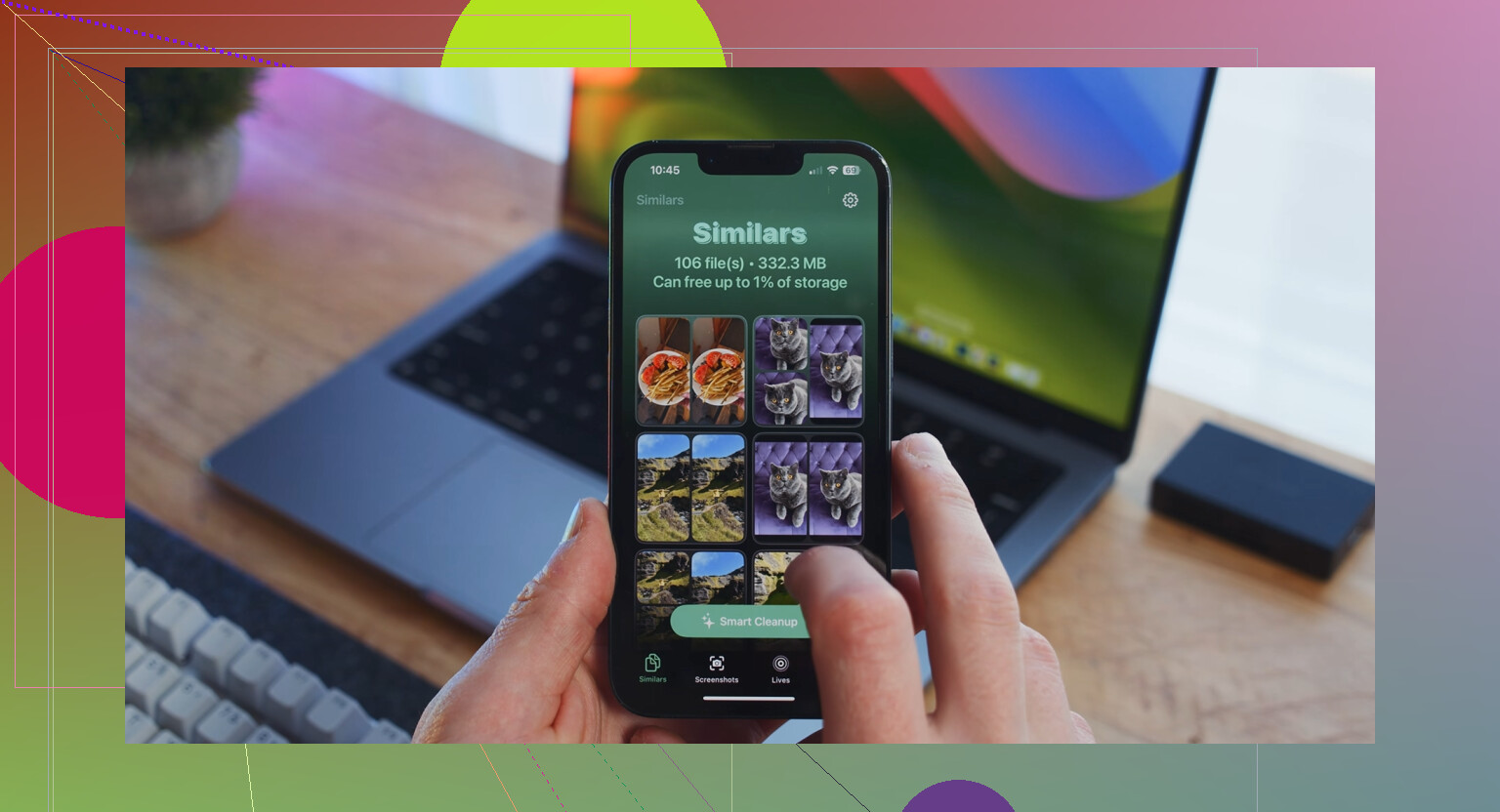
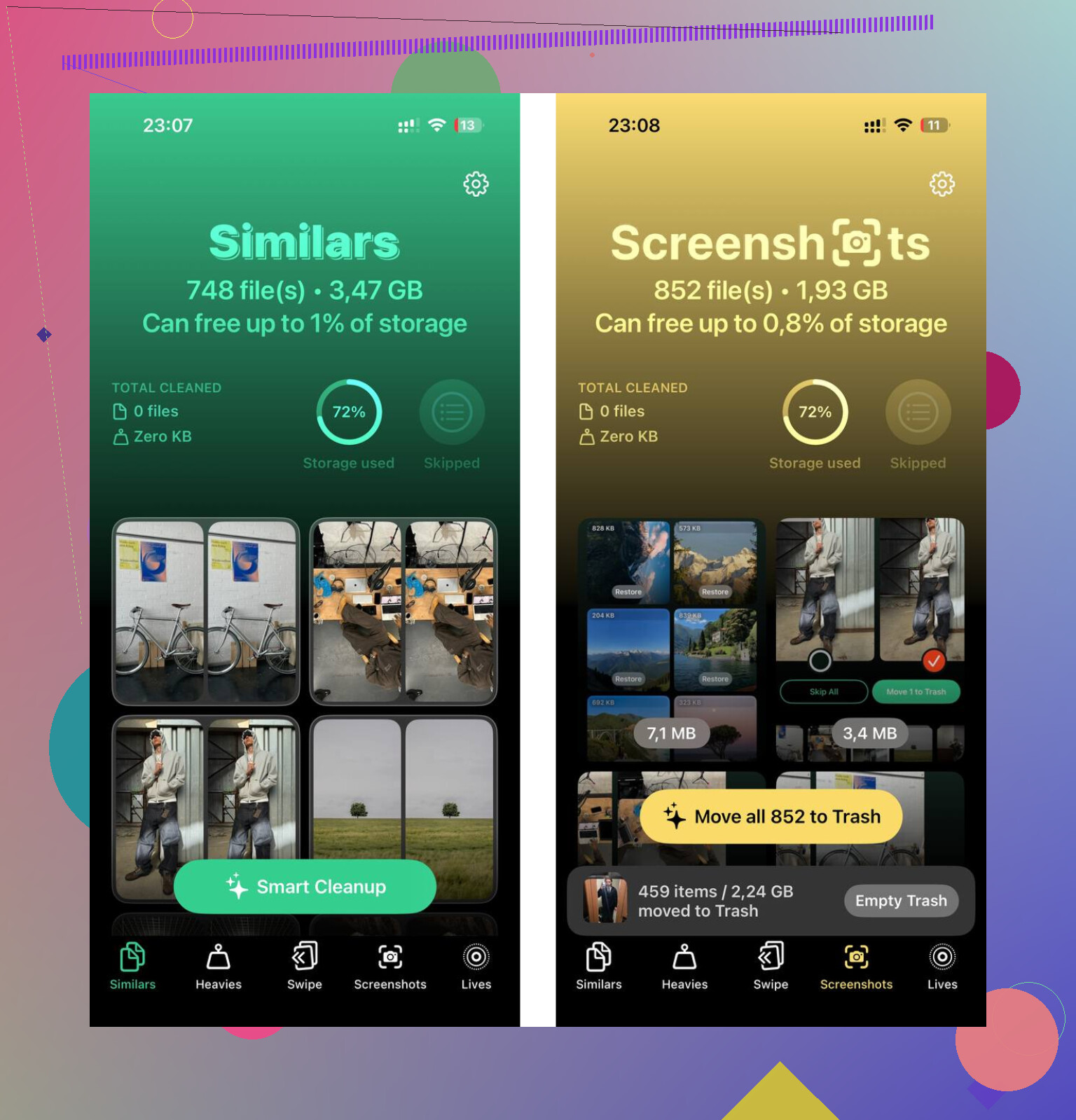
Clever Cleaner deals with the photo side of it. I used it after clearing the synced stuff because Finder fixed only part of my space problem. The Similars tab groups near-matching shots and picks a Best Shot, which helped with bursts and those five tries at the same pic. The Heavies tab lists files from biggest to smallest, with file sizes shown, so the worst storage hogs show up first. Processing stays on the device.
For me, the combo was what fixed it. First remove Synced Media through Finder or iTunes. Then clean out the photo library. After that, the lag eased up and I had enough room for the next iOS update without the usual storage tantrum.
12 Likes
If you already turned off sync and the storage line still sits there, I’d treat it like stale indexing first, not missing files.
A few things I’d try, separate from @mikeappsreviewer’s Finder and iTunes steps.
-
Force a storage re-scan.
Restart the iPhone.
Then go to Settings, General, iPhone Storage, and leave that screen open for 2 to 5 minutes on Wi-Fi. iOS sometimes recalculates late. I’ve seen “Synced Media” drop after a reboot plus waiting. -
Check Screen Time content lists.
Settings, Screen Time, See All App and Website Activity.
Sometimes media still appears tied to Music, TV, or VLC history even after files are gone. It does not free space by itself, but it tells you whether the files are real or the storage db is borked. -
Sign out of Media and Purchases.
Settings, your Apple ID, Media and Purchases, Sign Out.
Reboot.
Sign back in.
This clears some stuck library references, espiecally with Music and TV. -
Remove downloaded items inside the apps.
Music app, Library, Downloaded.
TV app, Library, Downloaded.
Files app, On My iPhone.
Some synced-looking stuff is mixed with local app caches. -
Last resort, encrypted backup, erase, restore.
This is the one Apple Support usually lands on when the storage index is corrupted. Encrypted backup keeps passwords and health data. Tedious, yes. Effective, also yes.
I slightly disagree with the idea that all of it is true double-counting. Sometimes it is, sometimes the files are still there and hidden in app storage.
If photos and duplicates are also eating space, Clever Cleaner helps with the rest of the cleanup. Also worth a read, NY Weekly’s hands-on review of Clever Cleaner for iPhone cleanup.
One thing I’d add to what @mikeappsreviewer and @sterrenkijker said: check whether the stuff is being preserved by a profile or library setting, not just sync.
I’ve seen this happen when old media was added from a computer, then the phone got switched between Apple Music, Finder sync, and manual app transfers. iPhone storage keeps showing “Synced Media” because the database never fully detaches the old entries. Annoyng, but fixable.
What I’d try that’s different:
- Settings > Music > turn off Show All Purchases and Sync Library temporarily
- Settings > TV > disable anything showing synced or purchased media history
- Delete the TV app too, not just Music, if videos are part of the problem
- In Files, check On My iPhone for VLC, Infuse, foobar, or other media apps. A lot of “synced” video is really local app storage
- If you use a Mac, open Console while the phone is connected. If media services keep throwing errors, that points to stuck indexing, not real files
Also, I kinda disagree that reinstalling Music always helps. Sometimes it does nothing because the actual hold-up is in TV, Files, or a third-party player cache.
If the goal is just reclaiming space fast, deal with the media issue first, then clean your photo junk separately. Clever Cleaner is decent for that part, especially duplicate pics and giant videos. If you want a solid outside look, this article on a genuinely free iPhone cleaner app for clearing duplicates and heavy files explains it better than Apple does half the time.
If none of that changes the storage number after a day, you’re probly at backup/erase/restore territory. That’s usually when the ghost data finally dies.
I’d check one thing the others only touched on sideways: the storage category can persist because of a stale backup restore map, not just indexing. If this iPhone was ever restored from an older phone that had synced media, iOS can keep reserving that category even after the files are gone.
What I’d do before full erase/restore:
- Settings > Music > Downloaded Music and make sure there is literally nothing left there
- Settings > General > Transfer or Reset > Reset > Reset All Settings
Not erase. Just reset settings. This sometimes clears weird storage mappings without wiping data - Then connect to power overnight and let Spotlight/media indexing finish
I slightly disagree with the “reinstall Music” idea as a main fix. In my experience, that helps only when Music owns the leftovers. If the ghost space came from an old restore, app deletion does basically nothing.
Also check whether the storage number changes after making a tiny video, then deleting it. Sounds dumb, but it can force iOS to rewrite storage accounting.
If you still need space after this, then yes, backup and restore is probably the real fix. Separate issue, but after the media mess is sorted, Clever Cleaner is useful for the non-Apple junk like duplicate photos and huge videos.
Pros: free, good at finding duplicate/similar photos, easy to scan big files.
Cons: won’t truly remove computer-synced media, not much help for corrupted iOS storage databases.
So: @sterrenkijker is right to treat some of this as stale indexing, @jeff is right that app caches can fake “synced” leftovers, and @mikeappsreviewer is right that Finder/iTunes is the actual removal path. I’d just add Reset All Settings before going nuclear.