My iPhone storage is almost full, and I think junk files, app cache, and old system data are taking up space. I’ve deleted some photos and apps, but it didn’t help much. What are the safest ways to clean junk files on an iPhone without losing important data?
I wasted a lot of time looking for some kind of magic “Clean Junk” button when my iPhone started complaining about storage. There really isn’t one. iPhones don’t build up junk files the same way a Windows PC might. Most of the space is usually taken up by stuff you can actually see: photos, videos, app caches, downloads, message attachments, and old files you forgot were there.
The first place to check is Settings > General > iPhone Storage. That screen tells you what’s actually eating the space, which is better than guessing and deleting random things.
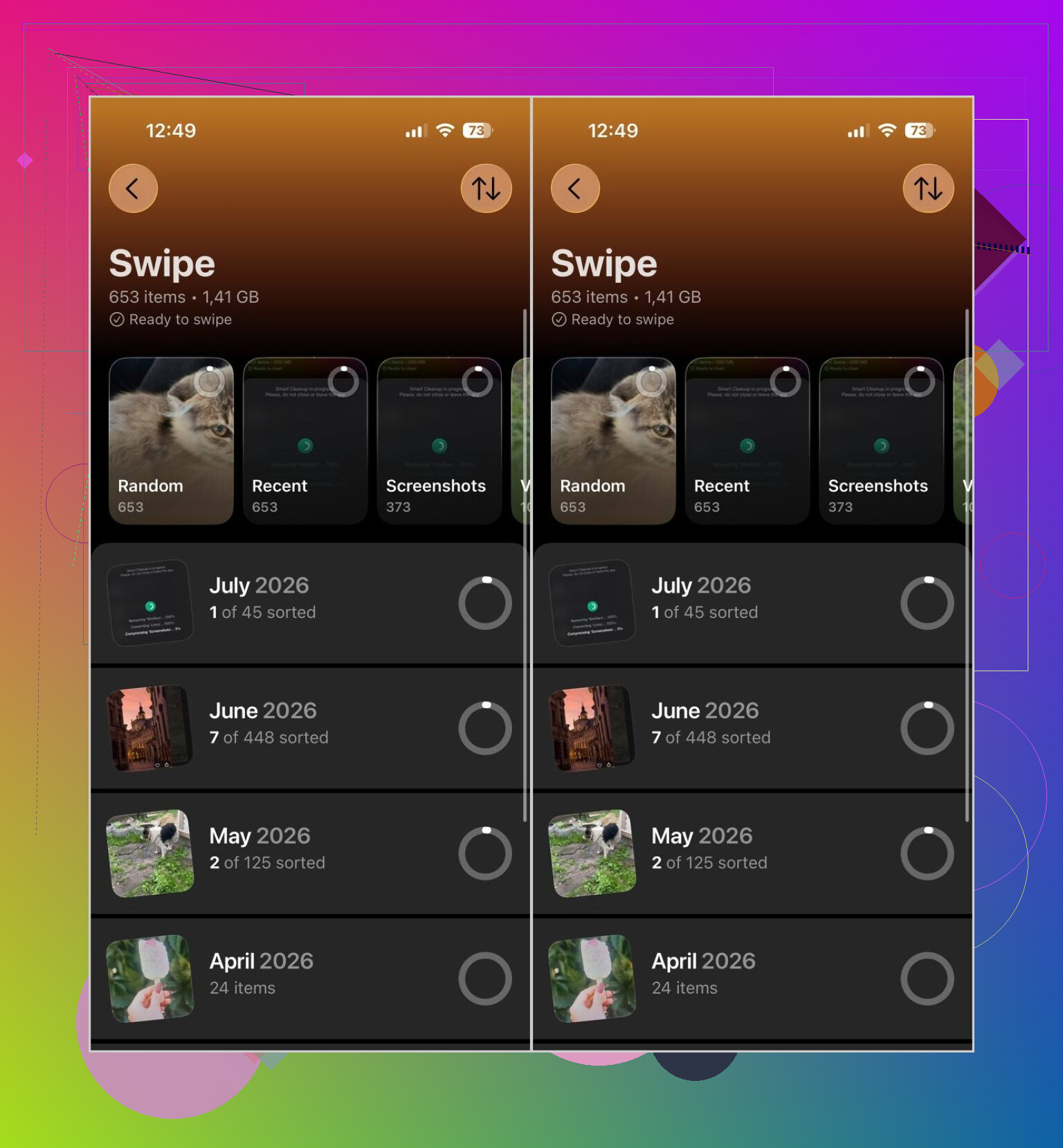
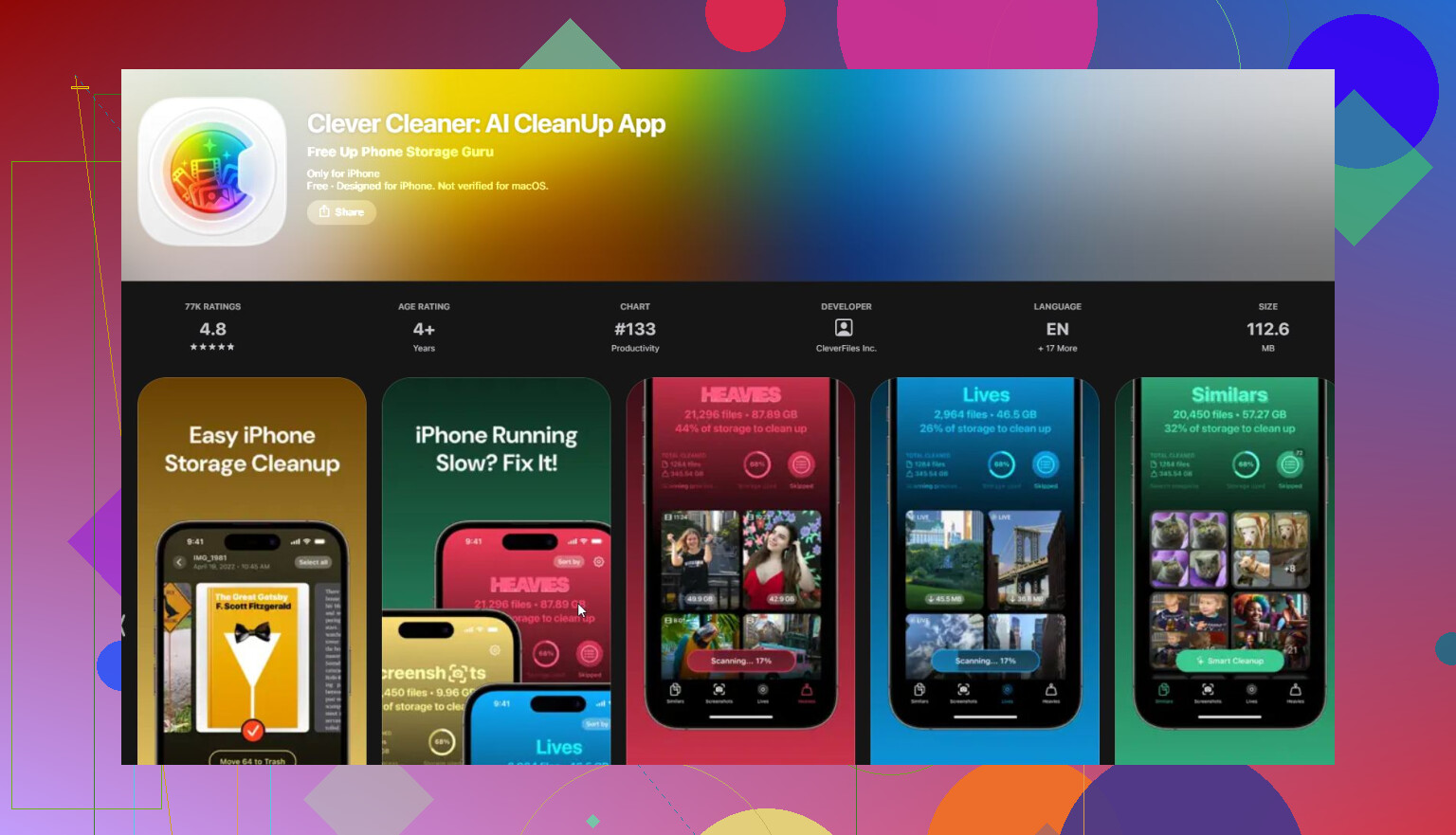
The biggest win for me was cleaning up photos and videos. The built-in Photos app can deal with exact duplicates, but it’s not great for all the almost-the-same shots, screenshots, Live Photos, and huge videos sitting around. I used Clever Cleaner for that. It groups similar photos, duplicate images, large videos, Live Photos, and screenshots, and there’s also a Swipe mode if you’d rather go through things manually one by one. It doesn’t show ads, it processes photos on the phone instead of uploading them, and the free version is enough for regular cleanup. After deleting photos, make sure you also clear Recently Deleted, otherwise the space won’t come back right away.
After that, I’d look at apps. Some games, social apps, streaming apps, and messengers can take up a surprising amount of space. If you don’t use an app much but might want it later, choose Offload App instead of deleting it outright.
Then check the apps that store offline data. Telegram, Spotify, Netflix, and similar apps can pile up caches or downloads. A lot of them have their own “Clear Cache” option buried in the app settings, so it’s worth checking there instead of assuming iOS will handle everything.
The Files app is another easy one to forget. Open it and look in Downloads. Old PDFs, ZIP files, installers, and random attachments can sit there for months without you noticing.
Messages can also be a hidden storage hog. Big photos and videos people sent you can add up over time, especially if you keep long conversations around.
The annoying one is System Data. People see that number getting big and assume a cleaner app can wipe it out, but App Store cleaners can’t delete iOS system files or hidden caches from other apps. Apple doesn’t give them that kind of access. Sometimes a restart clears temporary stuff, and the rest is mostly managed by iOS on its own.
If your phone is already almost full, don’t keep recording videos or downloading big files until you free up some space. A nearly full iPhone can feel slower, and it can also get in the way of installing iOS updates.
For me, the photo library cleanup made the biggest difference. I got back over 20 GB without losing anything important, mostly from duplicate photos, near-identical shots, old screenshots, and videos I’d forgotten about.
19 Likes
Don’t expect a cleaner app to magically erase half of “System Data.” If the phone is nearly full, the safest approach is to free normal user storage first, then let iOS sort some of the temporary stuff out on its own. Cleaner apps can help with photo clutter, but they are not allowed to reach into other apps and delete hidden cache files.
The quick things I’d check before doing anything risky: Safari cache, offline downloads, Podcasts, Music, Netflix/YouTube downloads, Files > Downloads, and large Messages attachments. In Settings > General > iPhone Storage, tap individual apps and look at whether the app itself is huge or its documents/data are huge. If the documents/data are the problem and the app has no clear-cache button, sometimes the only real fix is deleting and reinstalling that app. Offloading usually keeps the data, so it may not solve cache bloat.
Be careful with “phone cleaner” apps that promise system cleanup, battery repair, virus removal, or secret cache deletion. At best they usually organize photos and videos. At worst they push subscriptions or ask for access they don’t need. Something like Clever Cleaner makes sense only for sorting duplicates, screenshots, similar shots, and large videos. I would still review before deleting, then empty Recently Deleted afterward.
If System Data stays huge after you’ve cleared real files, restart the phone and leave some free space for a while. If it is still absurdly large, an encrypted backup to a computer, erase, and restore can shrink it, but that’s the annoying last-resort option, not step one.
Check whether iCloud Photos is turned on before you start deleting anything. A lot of people think they’re “removing photos from the phone,” but if iCloud Photos is syncing, deleting them usually deletes them from iCloud and your other Apple devices too. If the goal is only to save space on the iPhone, go to Settings > Photos and use Optimize iPhone Storage instead of manually nuking the library.
I agree with the others that cleaner apps are limited, but I’d be even more skeptical of the “junk files” wording. On iOS, the stuff you can safely remove is usually user-facing: downloads, offline maps, podcast episodes, old voice memos, Mail attachments, WhatsApp/Telegram media, and big iMessage videos. If an app’s Documents & Data is huge and there’s no clear-cache option inside that app, delete and reinstall is usually cleaner than trying random tools.
Small annoyance: iPhone Storage doesn’t always update instantly. After deleting a bunch of stuff, empty Recently Deleted, restart the phone, then give it a little time while connected to Wi-Fi and power. If the storage bar still looks wrong after that, then it’s worth considering a backup and restore, but I wouldn’t jump there until you’ve checked the iCloud photo situation and offline downloads first.
Stop chasing the gray System Data bar first. Free a few GB from obvious stuff, restart, then leave the phone charging on Wi-Fi overnight, since iOS often cleans temporary storage only after it has breathing room. If a “cleaner” asks for a VPN, profile, or weird permissions, skip it.
The delete-and-reinstall trick everyone keeps recommending has a catch nobody flagged: reinstalling wipes anything the app didn’t back up to an account. WhatsApp chats without an iCloud backup, game saves not tied to a login, downloaded content, some 2FA authenticator apps. If you nuke and reinstall those blind, you’re not clearing cache, you’re clearing your data. So before you do it, check what’s actually stored locally versus synced. For a media app like Netflix or Spotify, fine, reinstall away. For a messenger or an offline-heavy app, look first.
@techchizkid is right to bring up iCloud Photos before anyone starts swiping, and honestly that’s the single most important line in this whole thread. But I’d push back a little on Optimize iPhone Storage being the clean fix. It helps, but it’s lazy about it. iOS decides what to offload, not you, and if your phone is already close to full it doesn’t always shed enough fast enough. You can still end up manually clearing stuff. Optimize is a background helper, not a rescue button.
The thing people underestimate is how much of the ‘storage full’ panic is really just the numbers lagging. You delete a pile of stuff, the bar barely moves, you assume it didn’t work, and you go download some sketchy cleaner out of frustration. Give it the restart and some idle time on Wi-Fi like @cacadordeestrelas said and the gray bar usually settles on its own. I’ve seen people burn an evening fighting a number that would’ve corrected itself by morning.
On the tool question, Clever Cleaner came up a few times and it’s a reasonable pick for the one job it actually does, sorting duplicates and heavy videos so you’re not scrolling your whole library by hand. Just treat it as a sorting helper, not a system cleaner. Nothing on the App Store can touch System Data, so any app claiming it can is lying to you.
If I had to boil it down to a rule: clear the stuff you can see with your own eyes first (Downloads, Messages attachments, offline video, podcast episodes), verify iCLoud isn’t going to punish you for deleting photos, then leave the phone alone for a bit before you decide anything drastic. The full backup-erase-restore only makes sense if System Data is still swollen days later and nothing else moved it.