My Seagate external hard drive suddenly stopped showing up on my computer, and it has important files I need to recover. I’m not sure if the drive is failing, corrupted, or just not being recognized. What are the safest first steps for Seagate external hard drive data recovery without making the problem worse?
I’d stop using the Seagate drive for now. If it suddenly looks empty, shows up as RAW or unformatted, or Windows can see the drive but not the files, the data may still be there. The risky part is continuing to use it, because new writes can overwrite files that might still be recoverable.
Do not format it, initialize it, or copy anything onto it. Also don’t install recovery software on that drive. Missing files often aren’t actually wiped right away. Sometimes the file system or partition info gets damaged, and the space gets treated as “available” even though the old data is still sitting there.
Before doing any software recovery, listen to the drive. If it’s clicking, grinding, beeping, repeatedly spinning up and down, or making any new weird noise, don’t run scans on it. That can make a physical failure worse. In that case, look at Seagate Rescue Data Recovery Services instead. Some Backup Plus drives included limited Rescue coverage, and you can check that on Seagate’s site with the serial number.
If the drive sounds normal, you’ve got a better shot at DIY recovery. A Seagate external drive can show as RAW, ask to be formatted, or disappear from File Explorer because the partition or file system is damaged. That does not automatically mean the files are gone.
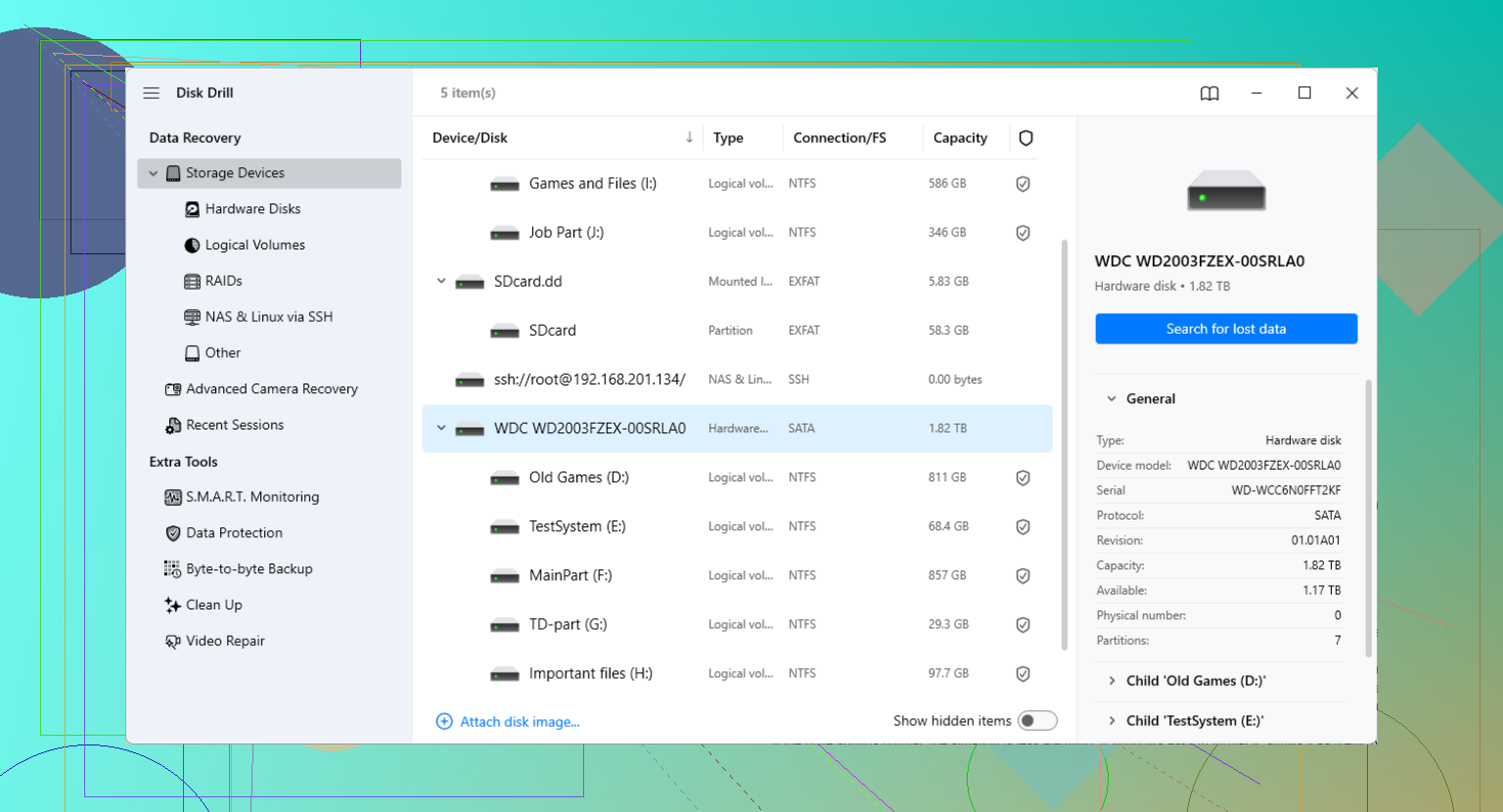
For software, Disk Drill is a reasonable option to try, especially if the drive was unplugged incorrectly, lost its partition, or is detected but not readable.
The safer way to do it is:
Install Disk Drill on your internal drive, or on some other separate drive. Not on the Seagate.
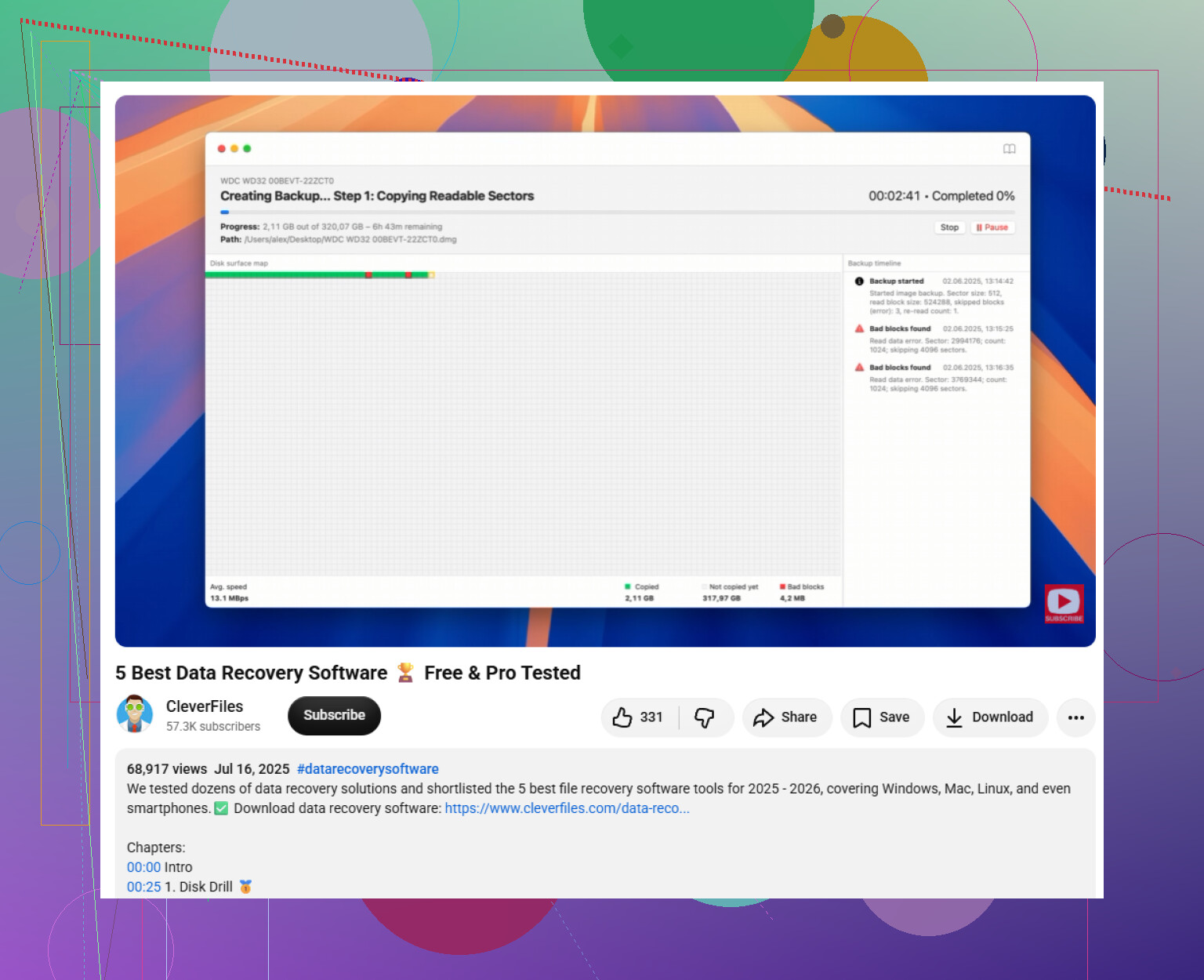
If the files are important, make a byte-to-byte backup first. Disk Drill can create a full image of the Seagate drive, then you scan the image instead of putting more stress on the original disk.
Use a known-good USB cable and try another port if detection is flaky. Sometimes the problem is the cable or the external enclosure connection, not the drive itself.
Scan the image if you made one. If not, scan the Seagate drive directly, assuming it sounds normal and stays connected.
Check the scan results carefully and use preview before recovering. If photos, documents, or videos preview correctly, that’s usually a good sign.
Save recovered files to a different drive only. Never recover them back onto the same Seagate drive while you’re still trying to get data off it.
If File Explorer doesn’t show the drive properly, check Windows Disk Management. If it appears there with the right capacity, recovery software may still be able to scan it even though Windows can’t open it.
After you get the important files back, test the Seagate with SeaTools from Seagate and run the Long Generic Test. If it fails, replace the drive. If it passes, you can reformat it, but I still wouldn’t trust it as the only copy of anything important.
Large external drives can take a long time to scan, so let it run unless the drive starts making bad noises or keeps disconnecting. If it’s still detected and doesn’t seem physically damaged, recovery is worth trying.
17 Likes
A drive that doesn’t appear anywhere in Disk Management is a different problem than a drive that appears with the right size but no readable partition. If it’s totally absent, I’d suspect the USB cable, power brick, port, or enclosure before assuming the Seagate disk itself is dead. Don’t keep unplugging and replugging it twenty times though, because if it is failing, that just wastes what little time it may have left.
The exact Seagate model matters more than people think here, especially if you’re considering removing the drive from the enclosure. Some Seagate externals use the USB bridge/enclosure in a way that can affect how the data is presented, so “just shuck it and plug it into SATA” is not always a clean fix and can make the situation more confusing. I agree with checking Disk Management first, but I’d write down what it shows: correct capacity, RAW, unallocated, no media, unknown, or nothing at all. Those labels point to very different problems. If it shows the right size and sounds normal, then imaging it before running Disk Drill or any other recovery scan is the sane route. If it shows “no media” or keeps dropping in and out, stop treating it like a software problem.
Do not run chkdsk or any “repair drive” prompt on it yet. Windows may offer to “fix” the disk, and that sounds harmless, but it can change file system records while trying to make the volume mountable. If the directory structure is already damaged, that can turn a recoverable mess into a harder one.
I agree with the earlier point about checking Disk Management, but I’d keep that step strictly observational. Open it, see whether the drive appears, note the size and status, then close it. Don’t initialize it. Don’t assign a new partition. Don’t convert anything. If it shows the correct capacity, that is usually a better sign than if it shows 0 bytes, “no media,” or keeps vanishing.
A thing people forget with Seagate externals is power. If it is a larger desktop-style external drive with its own power brick, make sure you are using the correct adapter for that enclosure, not just one that happens to fit. Wrong or weak power can make a drive spin, click, disconnect, or appear dead. For portable USB-powered models, try a short known-good cable plugged directly into the computer, not a hub or monitor port. That is a cheap check before you assume the disk itself failed.
If it stays connected and sounds normal, make an image first and scan that. Disk Drill is fine for this kind of “drive is visible but the files/partition are not” situation, but I would treat it as a recovery scanner, not a magic repair button. Install it somewhere else, image the Seagate to another drive with enough free space, then scan the image. Recover anything found to a third drive or your internal drive, never back to the Seagate.
If the drive is not detected at all after cable/port/power checks, or it clicks, beeps, spins down, or freezes the whole computer, stop. At that point the safest starting point is deciding whether the files are worth paying a lab for. DIY tools are useful when the drive can be read. They are not great when the hardware is failing while you are asking it to do long scans.