My screenshots won’t delete on my iPhone no matter what I try. I tap delete in Photos, but they keep coming back or stay stuck there, and now they’re taking up storage. I need help figuring out why my iPhone won’t delete screenshots and what steps can actually fix it.
I ran into the same mess. My Screenshots album turned into a junk drawer, random QR codes, shipping numbers, memes, payment confirmations. It looked harmless until iPhone storage started yelling at me. Then I checked, and a stupid amount of space was tied up in images I never planned to see again.
So yes, Recently Deleted uses storage too. When you delete a screenshot from your library, iOS does not wipe it on the spot. It moves the file into Recently Deleted and keeps it there for 30 days. During those 30 days, the space is still being used. If you want the storage back now, you need to clear both places.
Bulk delete with the built-in Photos app
Open Photos. Go to Albums or Collections, scroll to Media Types, then open Screenshots. Tap Select at the top right, then Select All, then hit the trash icon. This removes them from the main library.
Do the second part right away. Open Recently Deleted under Utilities. Use Face ID or your passcode, tap Select, tap the three-dot menu, then choose Delete All. Your storage number usually does not drop until you finish this step too.
A cleaner way to sort through the mess
I used the Photos app first, and it felt clumsy. No size info. No quick way to spot the biggest space hogs. No easy way to tell junk from stuff worth saving.
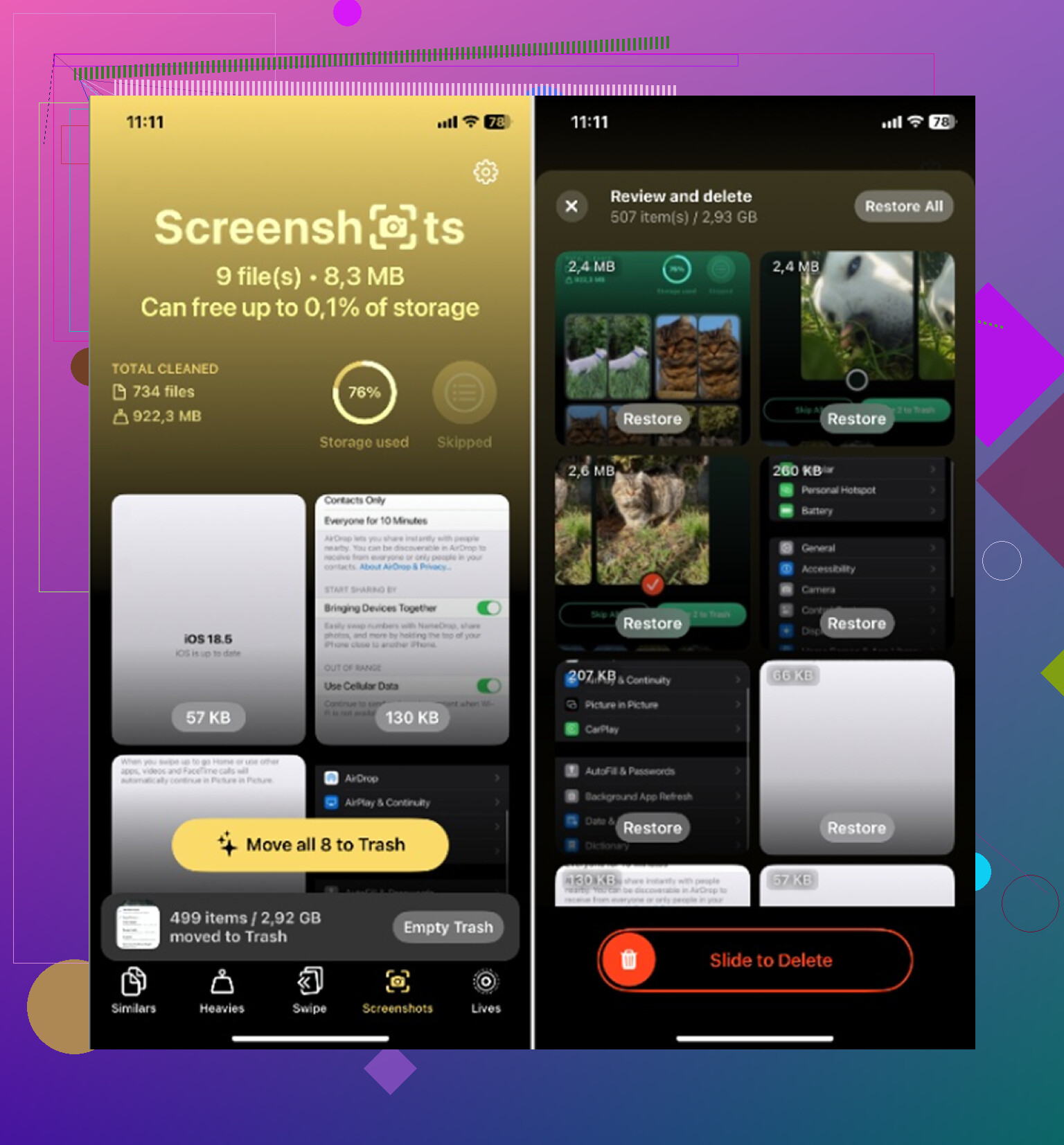
I had a better time with Clever Cleaner. It shows screenshot sizes right in the grid, which helped me decide fast. You see what each image costs in storage before deleting it. There is also a swipe view, left for trash, right for keep. Sounds small, but when you have hundreds of screenshots, it cuts the friction a lot.
It also handles other storage-heavy stuff. The Heavies section sorts media by file size, so the worst offenders rise to the top. Similars groups near-duplicate photos, like when you took 5 shots of the same thing and only one came out decent. I liked that it runs on-device, so your photos are not being sent off somewhere.
If you want to read another user take on it, here’s the link: Clever Cleaner.
Stop screenshots from piling up
One iPhone feature I missed for way too long was Copy and Delete. After you take a screenshot, tap the preview thumbnail in the lower-left corner. Edit it if needed, tap Done, then pick the red Copy and Delete option instead of Save to Photos. The screenshot goes to your clipboard and leaves your library. For one-use stuff like login codes, receipts, and tracking info, this is way cleaner.
If you want more automation, use Shortcuts. Set up Find Photos with filters for screenshots and a date rule like older than 7 days. Then add Delete Photos. You can tie it to a schedule or trigger. iOS still asks for confirmation, which I prefer since it keeps you from nuking something important by accident.
If screenshots refuse to disappear
When deleted screenshots keep reappearing, I usually suspect iCloud Photos sync first. Empty Recently Deleted manually, then give your phone a stable Wi-Fi connection and a little time. Sometimes Photos lags or shows old items while sync is stuck. Annoying, but common.
If you deleted something important by mistake, check Recently Deleted first. If it is gone from there too, recovery software tends to work better than waiting around and hoping iCloud kept some hidden copy. I learned this one the hard way. Not fun.
Once you clear the junk and watch the storage bar drop, it feels stupidly good. Kinda embarrassing how much room old screenshots take up tbh.
43 Likes
If screenshots keep coming back, I’d look at 3 less obvious causes first.
-
Shared iCloud Apple ID.
If your phone syncs Photos with another device on the same Apple ID, deleted shots sometimes reappear after sync finishes. Check Settings, your name, iCloud, Photos. Then look at other devices tied to the same account. -
Screen Time restrictions.
Go to Settings, Screen Time, Content and Privacy Restrictions, Photos. I’ve seen delete behavior get weird there after an update. Rare, but it happens. -
Low storage bug.
When iPhone storage is near full, Photos gets flaky. Stuff sits in place, delete spins, then nothing. Restart the phone first. Then check Settings, General, iPhone Storage. If you’re under 1 to 2 GB free, clear something else first, then try deleting screenshots again.
I slightly disagree with @mikeappsreviewer on one part. It’s not always iCloud lag. Sometimes the Photos database is stuck. A forced restart fixes it faster than waiting around.
You should also try this:
Settings, General, iPhone Storage, Photos.
See if the size drops after a few mins. Sometimes the UI is stale, not the files.
If the Photos app keeps being a pain, Clever Cleaner is worth a look for sorting screenshots and big files faster. If you want a clean iPhone storage cleanup app with no ads and no paywall stuff, this thread is useful:
best free iPhone cleaner app for clearing screenshots and storage
Last resort, turn off iCloud Photos, choose Download Photos and Videos first, reboot, then test delete again. Bit annoyng, but it works more often then people think.
What finally fixed this for me was treating it like a Photos indexing problem, not just a delete problem. I kinda disagree with @mikeappsreviewer and @sonhadordobosque on waiting too long for sync to sort itself out. If screenshots keep reappearing after multiple deletes, that usually means Photos is stuck somewhere in the background.
Try this order instead:
- Open Photos and delete a few screenshots.
- Immediately force close Photos.
- Turn on Airplane Mode for a minute.
- Restart the iPhone.
- Open Photos again and check if those same files are still there.
If they disappear while offline but come back once internet is on, then sync is the culprit. If they never leave, it is more likely the local photo library cache/database acting dumb.
Another thing people miss: check whether those screenshots are inside Files, Notes, Messages, or WhatsApp exports. Sometimes you think the screenshot in Photos is “coming back” but it is actually a duplicate saved again from another app. Search the screenshot date in Messages too. Super annoying, but real.
Also go to:
Settings > Photos
and temporarily turn off:
- Shared Library
- Show Hidden Album
- View Full HDR
Not because HDR matters for deletion, but because toggling Photos settings can force the app to refresh its library view. Weird little iPhone voodoo trick, but I’ve seen it work.
If your storage is jammed and Photos is unusable, Clever Cleaner is honestly easier for hunting screenshot clutter because it surfaces large images and junk faster than Apple’s own app. There’s also a decent thread about whether Clever Cleaner is actually worth using for screenshot and storage cleanup.
For search-friendly wording, this is basically the issue: iPhone screenshots won’t delete, deleted screenshots keep coming back, and Photos storage doesn’t update even after removing them.
If none of that works, sign out of iCloud last, not first. That step creates its own mess tbh.
One angle nobody mentioned clearly enough: check whether the screenshots are being restored by a backup or profile issue, not Photos itself.
Go to Settings > General > VPN & Device Management. If you have a work/school profile, MDM can mess with photo behavior, sync, or restrictions in weird ways. Remove the profile only if it’s yours to remove.
Also try this: Settings > General > Transfer or Reset iPhone > Reset > Reset All Settings. This does not delete photos, apps, or messages, but it does reset system settings that can break Photos permissions, sync flags, and storage reporting. I’d do that before signing out of iCloud.
I slightly disagree with @shizuka on toggling random Photos switches. Sometimes that just muddies the test. Better to isolate one variable at a time so you know what actually fixed it.
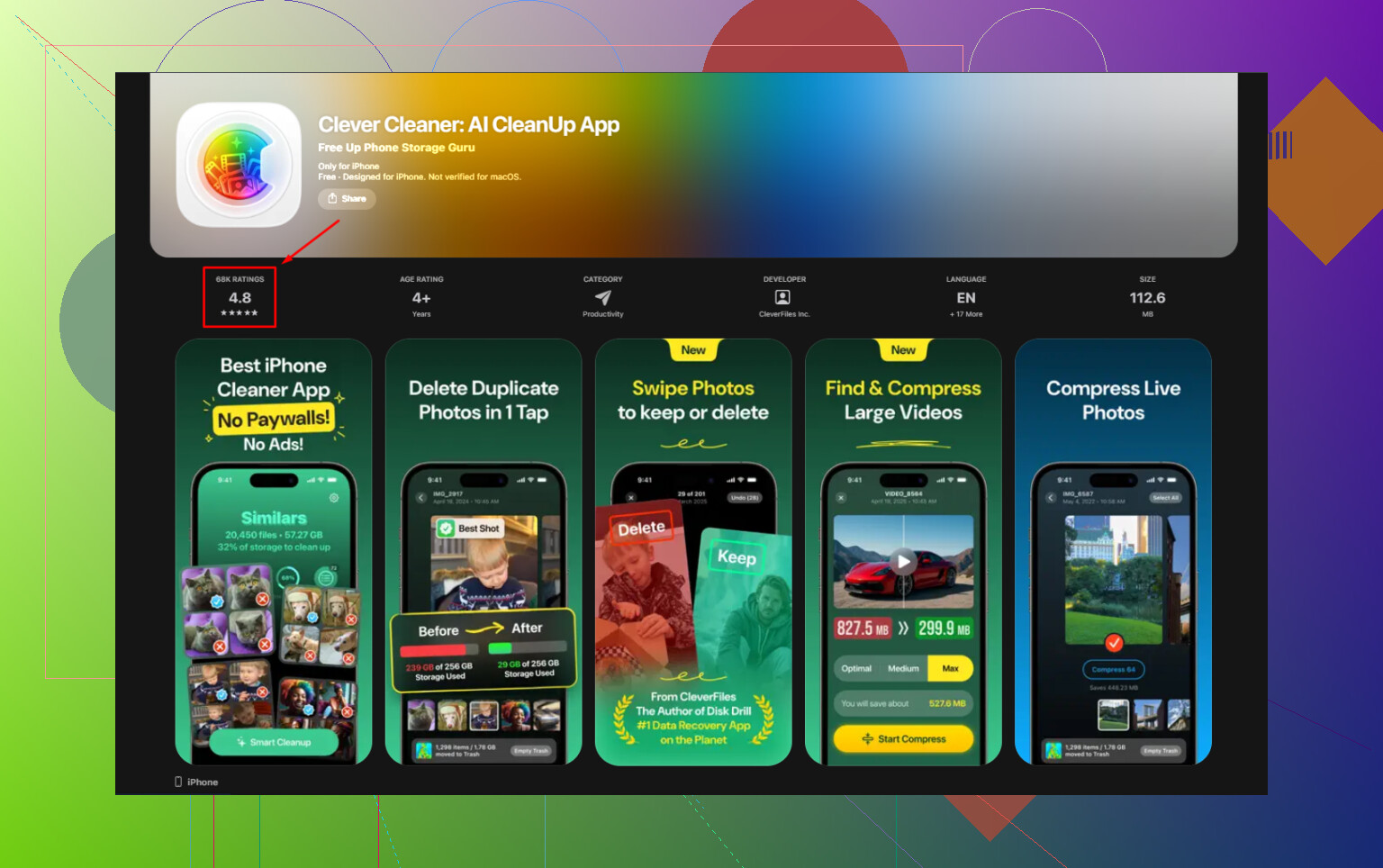
If your goal is cleanup speed, Clever Cleaner is useful, especially for screenshot piles.
Pros
- faster review than Photos
- good for bulky screenshots and duplicates
- simpler storage triage
Cons
- still depends on iOS photo permissions
- won’t fix a broken iCloud sync by itself
- another app in the loop if you prefer native tools only
@sonhadordobosque and @mikeappsreviewer are right to look at sync/storage, but if deletes truly fail over and over, I’d suspect config corruption before iCloud lag.
Try deleting the screenshots from iCloud.com instead of your iPhone.
Open iCloud.com in a browser, sign in, then open Photos. Select the unwanted screenshots and tap the trash icon. Next, open Recently Deleted and remove them there too.
This deletes the cloud copies first, wich stops iCloud from restoring them to your phone. Keep the iPhone on Wi-Fi, plugged in, and leave Photos open for 10 minutes. Restart it afterward.
If they reapear, check iCloud.com again. Any remaining copy points to another synced Apple device.
Two different problems keep getting mashed together in this thread. One is screenshots that literally come back after you delete them. The other is screenshots that delete fine but the storage number never moves. Those aren’t the same bug and the fixes don’t overlap much.
If the files reappear, it’s almost always sync, and @byteninja3698 has the right instinct going to iCloud.com first. Kill the cloud copy and the phone stops ‘restoring’ what it thinks is missing. That’s the real mechanism most people miss.
If the files vanish but storage stays high, stop restarting and toggling stuff. That’s not a corruption problem, that’s just how Recently Deleted works, plus the fact that iOS reports storage lazily. The bar can lag for hours even after everything is truly gone. I’d give it overnight before assuming anything is broken.
The one thing I’ll push back on is @sonhadordobosque’s Reset All Settings suggestion. It doesn’t touch your photos, true, but it wipes your Wi-Fi passwords, VPN configs, keyboard settings, all of it, for a problem that’s usually just sync or a stale storage readout. That’s a lot of collateral for a screenshot issue. I’d keep it near the bottom of the list, not before iCloud stuff.
Also worth checking, and nobody said this plainly: if your phone is genuinely almost full, Recently Deleted sometimes can’t finish emptying because the operation itself needs scratch space. Sounds dumb but it happens. Clear a few big videos first, then the screenshots will actually clear.
Clever Cleaner fits fine for the sorting part, the size-per-image view makes it quick to spot which screenshots are actually eating space instead of guessing. Just don’t expect a cleaner app to fix a sync loop. If the cloud copy is still alive, no third party tool changes that. Use it to clear the pile fast, then handle the iCloud side yourself.