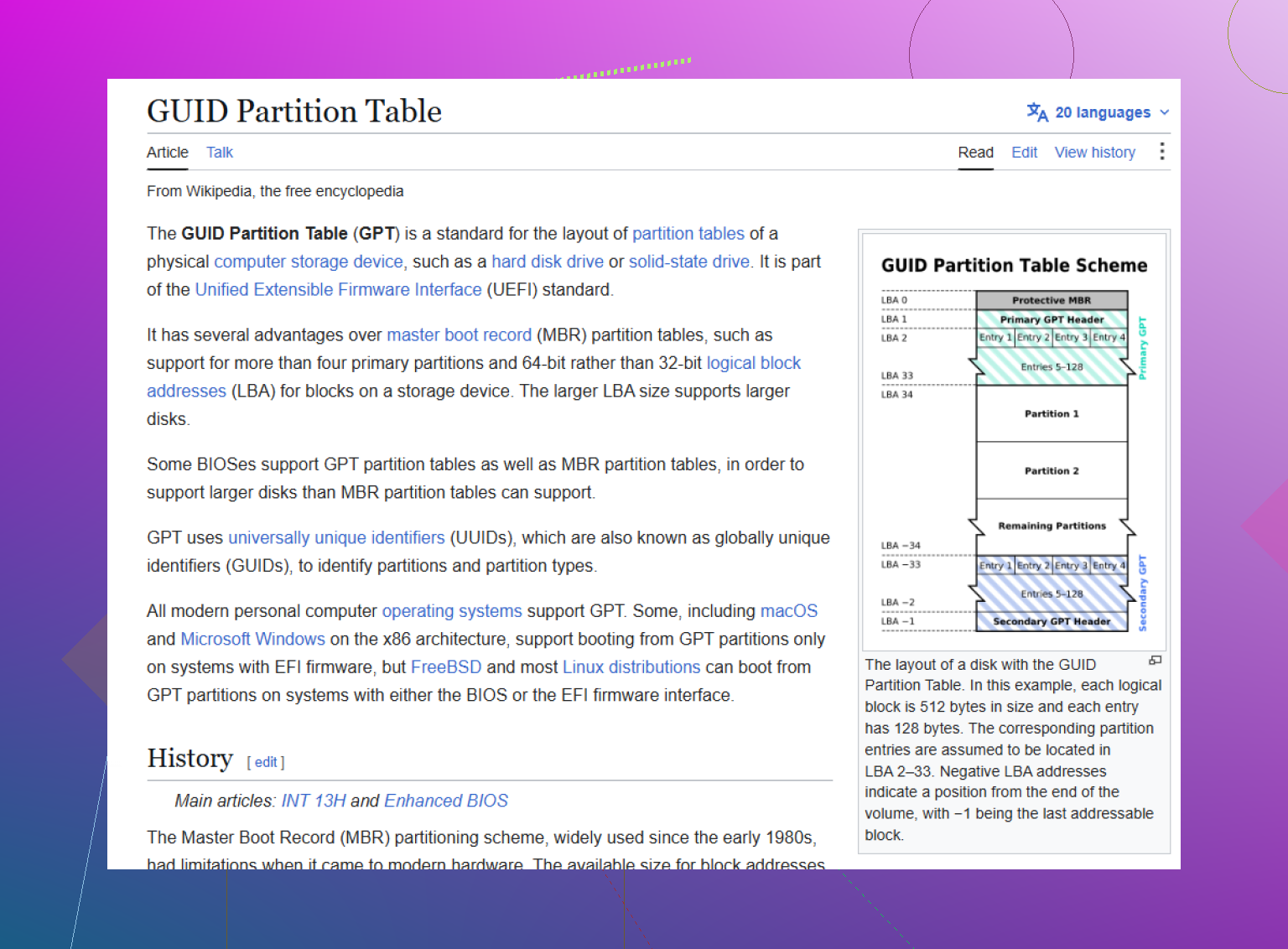
My drive’s GPT partition table was accidentally overwritten, and now the partitions/files are no longer accessible. I need help figuring out the safest way to recover data without making the damage worse, including which partition recovery tools or steps are best for a GPT disk.
If the drive suddenly shows up as Unallocated, RAW, or “GPT Protective Partition,” don’t assume the files are gone. A lot of the time the data is still on the disk, but Windows can’t read the partition layout anymore. With GPT, the “map” can get damaged while the actual files are still sitting there.
The main thing: do not write anything to that drive. If Windows asks you to format it, cancel. Don’t run random repair tools, don’t create a new partition, and don’t copy anything onto it. If it’s your boot drive, stop using that install and boot from a recovery USB or another machine instead. Every write can overwrite something you’re trying to recover.
I’d try to copy the files off before attempting any in-place repair. Rebuilding a partition table can work, but it’s also an easy way to make the situation worse if the wrong thing gets written. A safer approach is to scan the whole physical drive and recover the files to another healthy disk.
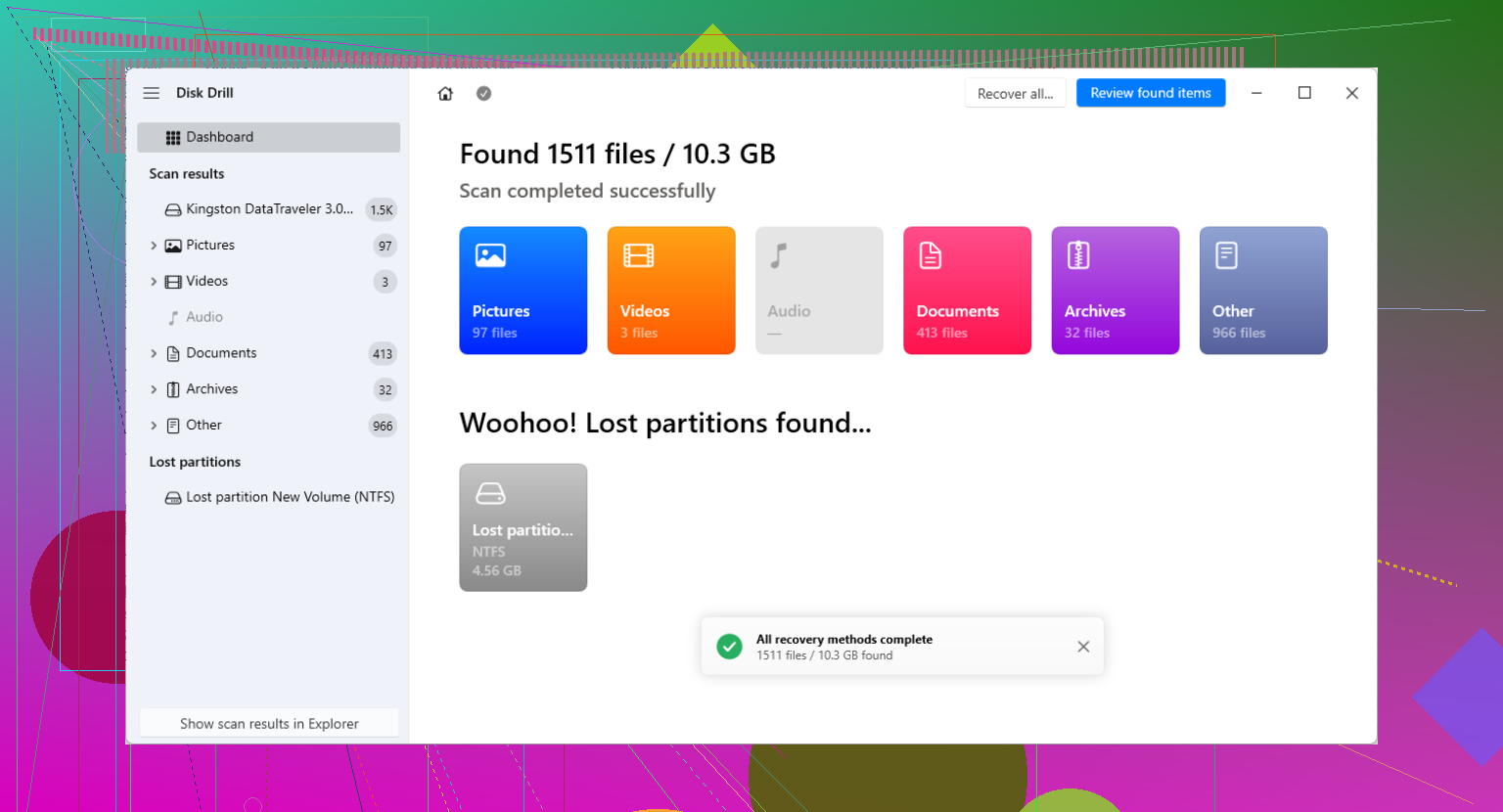
For that, Disk Drill is a solid option. It’s made for cases like this where the partition info is missing or damaged, and it can scan beyond the partition table by looking for recoverable files directly.
The basic process is:
- Select the actual physical disk, not a missing or broken partition.
- Run a deep scan and let it search for lost or reconstructed partitions.
- Use the preview feature to check whether the files look intact before committing to recovery.
- Recover the files to a different physical drive, never back onto the damaged one.
If you’re comfortable with command-line tools, TestDisk is another route. It’s free and open-source, and it can sometimes rebuild GPT information by finding the backup GPT header at the end of the disk. GPT normally keeps one header near the start and another backup copy at the end, so if only the primary one is damaged, tools like TestDisk or gdisk may be able to restore the structure.
That said, TestDisk is not very forgiving. If you pick the wrong options or write the wrong layout, you can make recovery harder. I’d treat it as a tool for someone who already understands partition tables, not as the first thing to try when the data matters.
One more thing to check, especially with external drives: the “GPT Protective Partition” message can happen because of the enclosure or USB dock. Some docks present the drive with a different sector size than the computer sees when the drive is connected directly over SATA. So if the drive was formatted in a USB enclosure, then later plugged straight into the motherboard, Windows may read it wrong.
If that sounds like your setup, don’t use Diskpart’s clean command. Put the drive back into the original enclosure or dock first and see if the partitions show up again. If they still don’t, go back to recovery software and copy the data out before trying to repair anything.
6 Likes
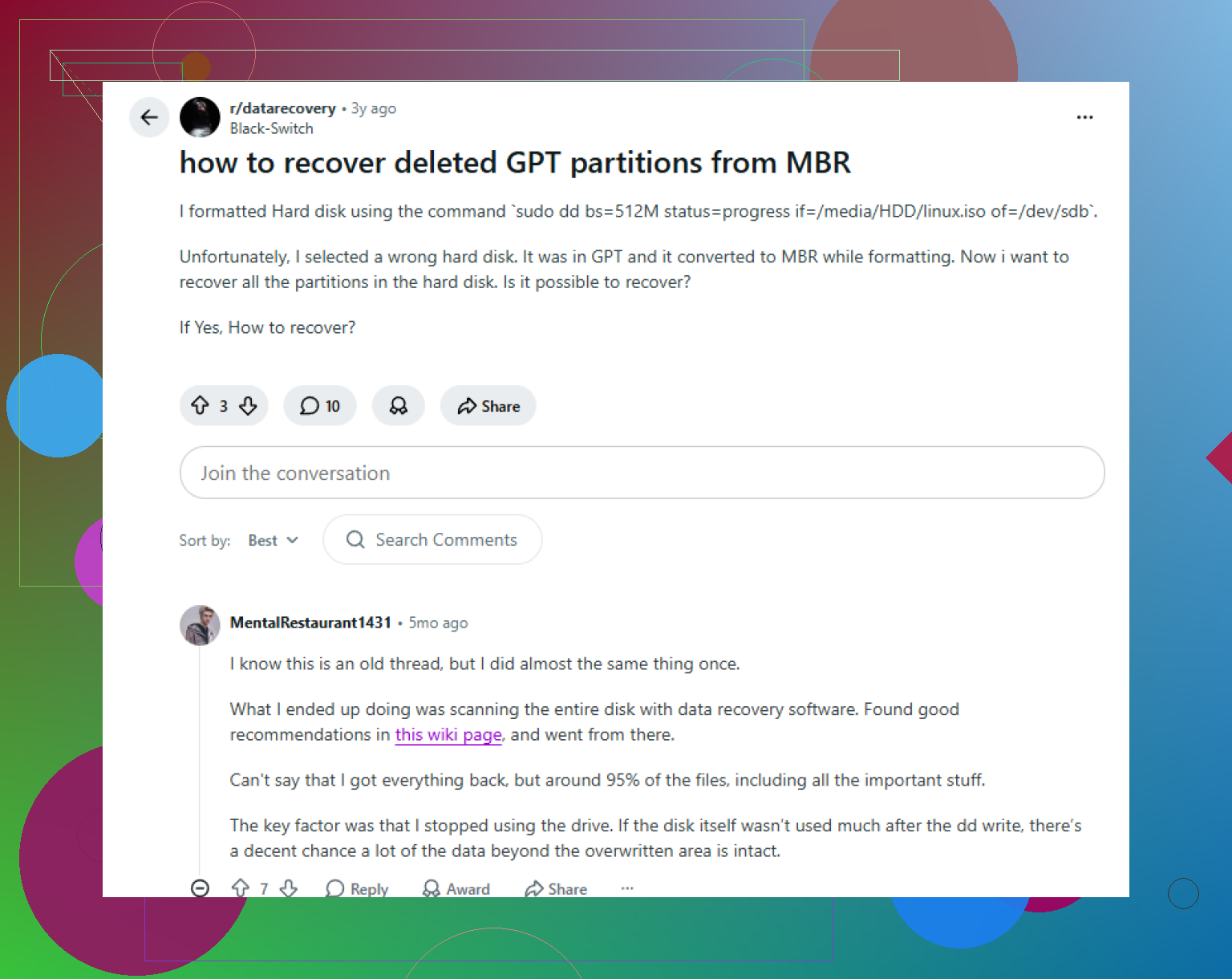
A full-disk scan is safer than “repairing” the partition table, but it still isn’t harmless if the drive is unhealthy. If the disk is clicking, disconnecting, throwing SMART warnings, or taking forever to read certain areas, I would not keep running recovery scans against the original. Make a sector-by-sector clone or image first, then work from that copy. That way if a tool guesses wrong, crashes, or the drive gets worse, you still have the original untouched.
That’s where I’d slightly narrow the advice above. Disk Drill, TestDisk, R-Studio, DMDE, etc. can all be useful, but the order matters more than the brand. First preserve the drive, then recover. If you have another disk equal or larger in size, clone with something recovery-oriented like ddrescue from a Linux USB. Don’t clone “files,” clone the whole device. After that, point Disk Drill or whatever scanner you choose at the clone/image and recover files to a third disk if possible.
Also keep expectations realistic if this was an SSD. If the partitions were deleted and the OS sent TRIM commands, some files may already be zeroed even though the folder names still appear in a scan. On a spinning hard drive, odds are usually better because deleted partition records don’t erase the file contents by themselves. Either way, don’t initialize the disk, don’t run chkdsk, and don’t let Windows “fix” anything until the data you care about is copied somewhere else.
Do not let any recovery tool “fix” the GPT until you have saved its scan results or made an image, because the first wrong write can turn a recoverable layout problem into a guessing game. A missing detail here is encryption: if the volume was BitLocker/FileVault/LUKS, most file-carving tools will only see encrypted junk unless the original partition boundary and unlock metadata are recovered. In that case, chasing “found files” in Disk Drill or similar may look disappointing even though the real target is getting the encrypted container visible again. If you remember the exact old partition order or have screenshots from Disk Management, installer logs, gdisk -l output, etc., keep those notes. Exact start sectors matter more than partition names. GPT itself is just the disk’s partition map, not the files, but rebuilding it blindly is still a bad first move.