My USB drive suddenly stopped opening after I moved important work files and family photos onto it. Now my computer says the drive needs to be formatted, and I’m worried I’ll lose everything if I do the wrong thing first. I need help with safe USB data recovery steps, possible repair options, and what to avoid before the files are gone for good.
I’ve run into this before, and yeah, it sucks. A USB stick going unreadable out of nowhere feels bad fast when your stuff on it matters.
The first thing I’d sort out is this. Are you dealing with file system damage, or is the USB itself starting to die. Those are two different messes.
From what I’ve seen, a lot of “corrupted” USB drives still hold the files. The storage is there, but the file table got mangled. I’ve seen it happen after yanking the drive too soon, power cuts during a copy job, file system glitches, malware, cheap flash memory wearing out, or an old stick finally giving up.
When software recovery makes sense
I’d try recovery software first if your USB does most of these:
- It shows up in Disk Management on Windows or Disk Utility on macOS.
- It pops up a format prompt.
- It shows as RAW, unreadable, or inaccessible.
- The size of the drive looks correct.
That usually points to a logical issue, not total hardware failure.
When I’d stop and consider a recovery lab
I would not keep poking at it if any of this is happening:
- The USB is not detected at all.
- It keeps connecting and disconnecting.
- Your PC hangs or freezes when you plug it in.
- The connector or casing is bent, cracked, or otherwise damaged.
- The files matter enough where one bad move would hurt.
At that stage, DIY work gets risky fast.
What not to do first
This part matters. Don’t format it. Don’t run CHKDSK yet.
I know Windows likes to throw repair prompts in your face. I’d ignore those until the files are copied off. My rule has been simple, recover first, fix later.
A DIY route I’d start with
If you want to handle it yourself, I’d begin with Disk Drill. I used it on damaged USB drives because it scans the device itself, so it does not need a healthy file system to start finding data.
The steps are plain enough:
- Install Disk Drill on your computer. Do not install it onto the bad USB.
- Plug in the USB drive and open the app.
- Pick the USB from the list of devices.
- Hit Search for Lost Data.
- Let the scan finish. On larger drives it can take a bit.
- Preview what it finds.
- Recover the files to another disk, not back to the same USB.
If the drive looks unstable, slow, or flaky, I’d make a byte-for-byte backup first. Then scan the image instead of the original stick. I learned this the hard way once with an old SanDisk drive. Every extra read made it worse, or at least it felt like it did. Working from a copy is safer.
After the files are safe
Only after recovery would I bother trying to repair the USB itself.
- On Windows, run CHKDSK.
- On macOS, run First Aid in Disk Utility.
- If repair tools do nothing, reformat the drive.
- Test it with a big copy job, both to the drive and back off it.
I’d keep an eye on how it behaves after formatting. If corruption shows up again, writes fail, files vanish, or diagnostics report errors, I’d retire the thing. USB flash drives are cheap. Re-losing your files is not. Learned taht one once.
21 Likes
Do not format it. That is step one.
I agree with @mikeappsreviewer on skipping the format prompt, but I’d add one thing before recovery software. Try to reduce variables first.
- Stop using the USB.
- Plug it into a different USB port.
- Try a second computer, if possible.
- Check Disk Management in Windows. If the drive shows the right size, your odds are better.
- If it shows 0 bytes, keeps dropping out, or gets hot, stop there. DIY gets risky fast.
I would also avoid CHKDSK at the start. People love to suggest it, and yeah, sometimes it works, but it also likes to ‘fix’ folders into missing folders. I’ve seen it do more harm than help on photo collections. Kinda brutal.
If the drive stays visible, I’d go for recovery before repair. Disk Drill is a solid pick for this because it reads past file system damage better than a lot of built-in tools. Save recovered files to your computer or another external drive, not back onto the same USB. Thats the part people mess up.
One more thing I’d do. If the files are irreplaceable, make an image of the USB first, then scan the image. Fewer reads on a dying flash drive is a smart move.
Also, if you want a quick visual guide, this quick corrupted USB data recovery tutorial covers the process in a simple way.
After your files are safe, then wipe and test the stick. If it fails again, toss it. USB drives fail more often than people think, esp cheap ones.
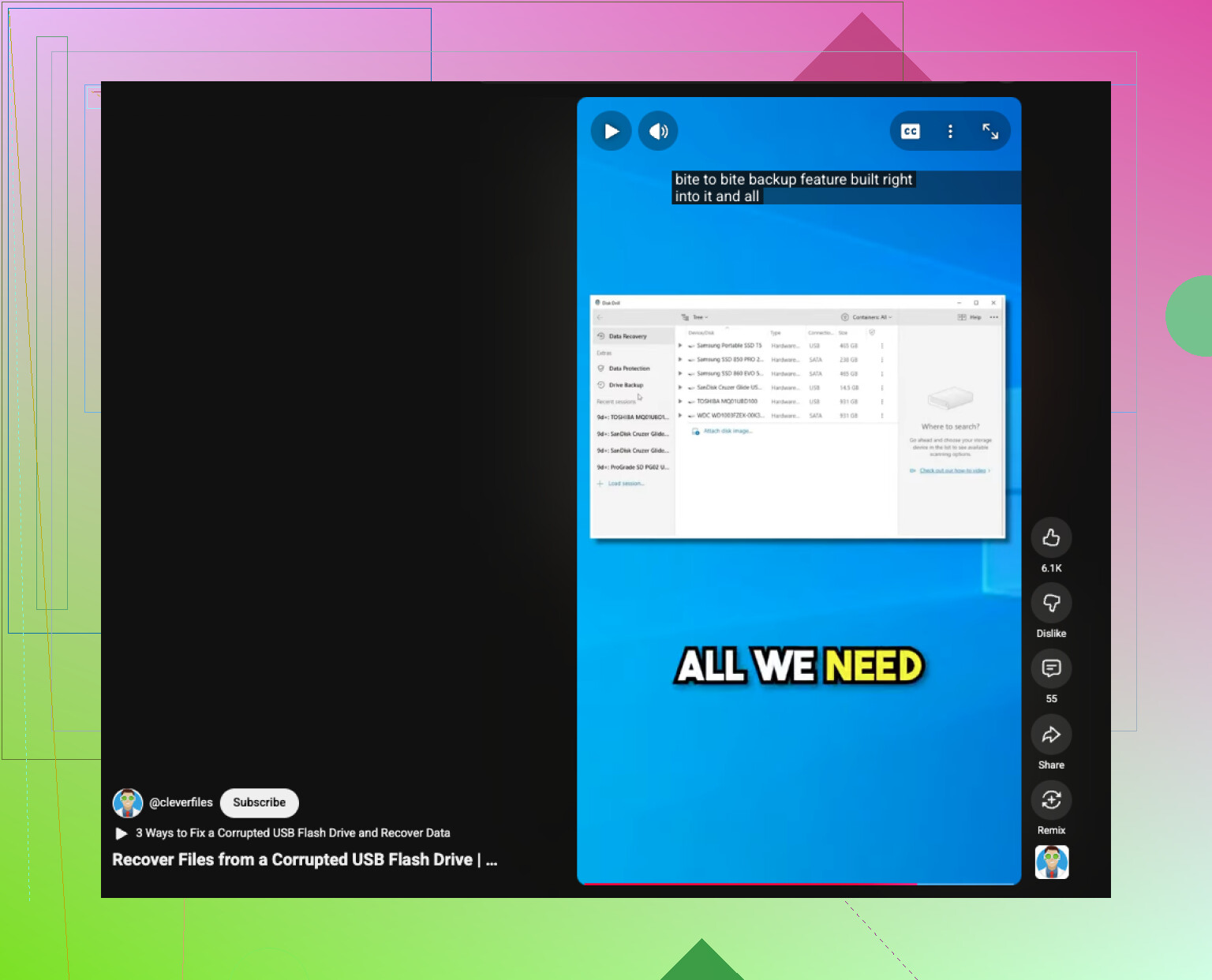
Do not click Format yet. That part I agree with from @mikeappsreviewer and @waldgeist.
Where I slightly differ is this: before doing any deep scan, check whether the USB is being identified with a normal controller name in Device Manager or System Information. If the drive shows up as some generic broken device, or with weird capacity, that can hint at controller failure, not just file system corruption. In that case, repeated scans can be kinda pointless.
What I’d try first:
- Use a short USB extension or different port, preferably USB 2.0 if you have one
- Check if the drive reports the correct size
- Listen for system lag when plugging it in
- If it mounts read-only anywhere, copy the most important files first by hand
I’m also not 100% on jumping straight to repair tools after recovery. Sometimes a flash drive that throws the format message once is already on borrowed time. I’d recover the data, then retire the stick instead of trying to trust it again.
If it stays visible long enough, Disk Drill is a reasonable move for corrupted USB recovery because it can pull files from damaged partitions without needing the drive to open normally. Recover to another disk only. Not the same USB. Thats how people turn ‘maybe recoverable’ into ‘welp.’
Also, if you want more examples from real users, this USB flash drive recovery discussion and recovery tips has some useful context.
One thing I’d add to what @waldgeist, @caminantenocturno, and @mikeappsreviewer already covered: check the SMART/health info if the USB is actually an external SSD or enclosure, but for a plain flash stick, skip that and look at the Event Viewer instead. Windows sometimes logs disk, NTFS, or USB controller errors that tell you whether this is corruption or the device browning out. If you see lots of I/O or reset errors, I would not keep rescanning it over and over.
Also, slight disagreement with the “wipe and test” idea after recovery. For a normal USB flash drive that already threw a format prompt, I usually retire it. Maybe reformat it only if you want to confirm it is dead, not because I’d trust it again with real files.
If the drive is still readable enough to stay connected, I’d prioritize the most valuable folders first instead of doing a full blind recovery right away. Sometimes a partial manual copy works before the device gets worse. If that fails, then use Disk Drill.
Quick pros and cons on Disk Drill:
Pros
- Good at finding files from damaged or RAW USB drives
- Preview is useful for checking whether recovery is worth it
- Works even when the file system is trashed
Cons
- Deep scans can take a while
- File names/folder structure may not always come back perfectly
- Not magic if the controller or NAND is physically failing
My order would be: keep it unplugged, test one clean connection, check logs, try a manual copy if it opens even briefly, then run Disk Drill and recover to another drive only. If the USB disconnects mid-scan or reports bizarre capacity, stop DIY there.