My Outlook PST file became corrupted after a sudden shutdown, and now I can’t open important emails, contacts, or archived folders. I need help with Outlook PST file recovery and the safest way to repair or restore the data without making things worse.
I’ve run into this one before, and yeah, Outlook picks the worst time to throw “file cannot be found.” Most of the time, the missing file is a PST you deleted by accident while cleaning up Documents, Downloads, or some old folder you thought was junk.
First thing, stop using the PC for anything you do not need. I mean it. When Windows deletes a file, it usually removes the pointer, not the data right away. So each browser tab, Windows update, download, or saved note eats into the same disk space where your PST might still be sitting.
Here’s the order I’d go in.
1. Check the easy spots first
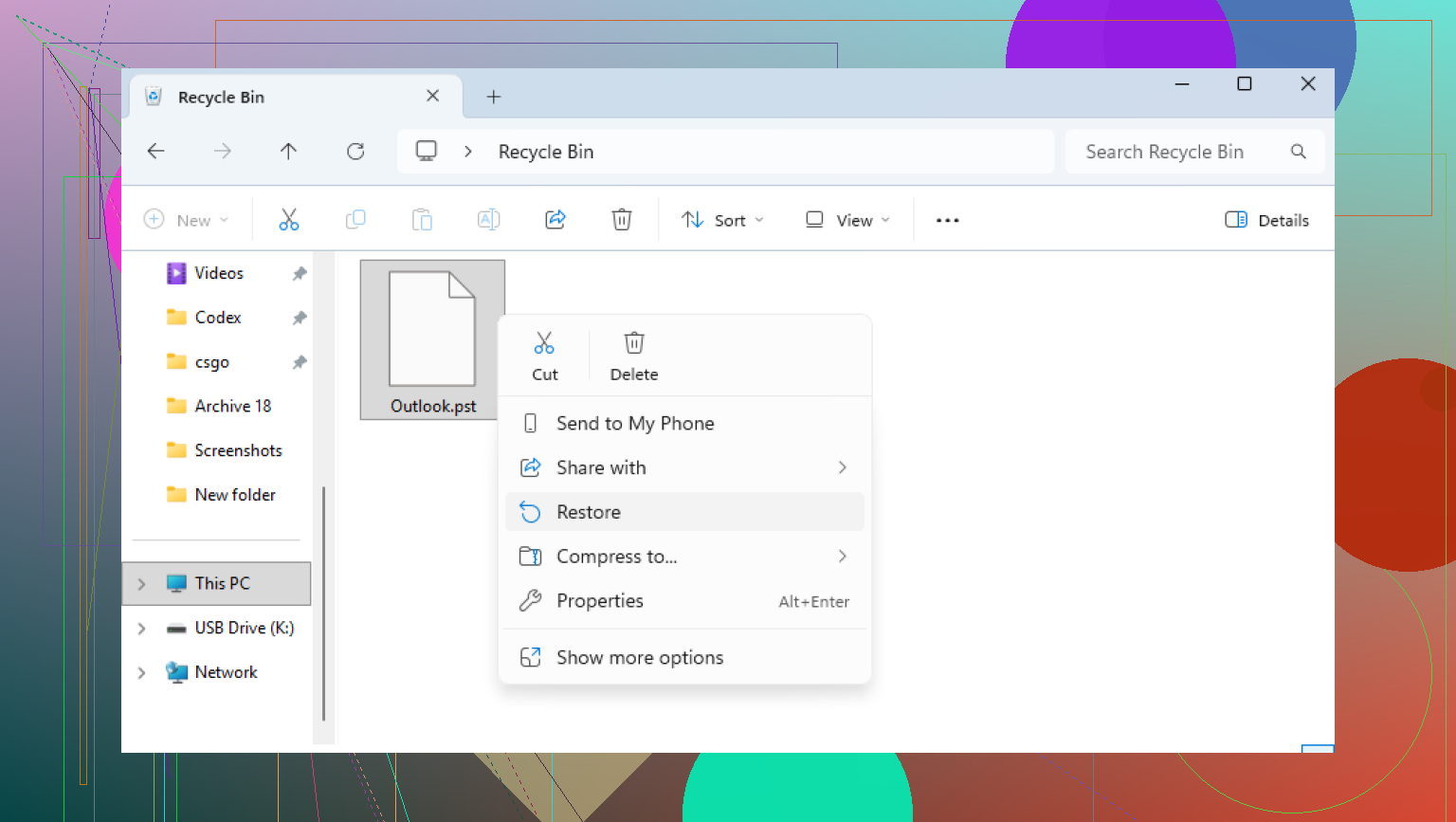
Open the Recycle Bin and look there. If you deleted the PST the normal way, you might get lucky and restore it in seconds. If you used Shift+Delete, then it skipped the bin.
Then check your cloud accounts if you sync folders. OneDrive, Dropbox, Google Drive, stuff like that. Use the web dashboard, not only the local folder. Look in Deleted Files, Trash, Recycle Bin, or version history. I’ve seen files show up there after people swore they were gone for good.
2. Try Windows previous versions
Sometimes Windows kept an older copy of the folder through restore points or shadow copies.
Go to the folder where the PST used to live. A common path is:
C:\Users\YourName\Documents\Outlook Files
Right-click the folder, pick “Restore previous versions,” then check whether Windows lists an older snapshot. If you see one from before the deletion, open it and copy the PST out to a safe place.
3. Use recovery software if the file is gone gone
If the bin is empty and previous versions show nothing, I’d move to file recovery software. At this point you’re trying to pull back a deleted file Windows no longer shows.
Disk Drill is one option. It scans the drive for deleted data and tends to do well with PSTs since those files are often large enough to stand out.
The way I’d handle it:
Install the recovery app on a different drive or a USB stick if you have one. Don’t put it on the same drive where the PST was deleted if you can avoid it.
Scan your main drive, usually C:.
Search the results for .pst files, or filter by file type.
Look hard at file size. The empty PST Outlook made today might be tiny, maybe a few hundred KB. Your old mail archive is more likely hundreds of MB or a few GB.
Restore the recovered file somewhere else, like an external drive or the Desktop. Do not drop it back into the original folder yet.
4. Watch out for the fake-looking replacement file
Outlook often creates a fresh empty data file after it loses track of the old one. That part trips people up. You see a PST with a familiar-ish name and think you’re safe, then open Outlook and it’s blank.
After you recover the old PST, don’t mash Send/Receive and hope for the best. Open Outlook and go here:
File > Open & Export > Open Outlook Data File
Select the recovered PST. If it loaded right, your old folders should show up in the left pane. Once you confirm your mail is there, go into Account Settings and switch the recovered PST back as the default data file.
5. If your account uses IMAP, part of your mail might still be online
If this is Gmail, Yahoo, Comcast, or another IMAP account, your inbox and synced folders are often still on the server. Re-adding the account in Outlook often rebuilds the OST and pulls mail back down.
What usually does not come back cleanly are local-only folders, archives, old custom folder trees, or stuff stored only on your machine. If those lived inside the deleted PST, you still need the PST.
After you get it back
Once the file is recovered, move it into a location your backups cover, or copy it to an external drive on a schedule you will stick to. PST files end up holding years of mail, receipts, contacts, weird old folders, all of it. Losing one feels bad fast. Been there.
If the scan turns up a large PST, I’d take that as a good sign.
18 Likes
If the PST is still there but Outlook says it’s corrupted, I’d start with repair before file recovery. That’s the part I’d add to what @mikeappsreviewer said. He focused more on deleted-file recovery. Your case sounds closer to file damage after a bad shutdown.
Do this first.
-
Find ScanPST.exe on your PC. It ships with Outlook.
Common paths:
C:\Program Files\Microsoft Office\root\Office16
C:\Program Files (x86)\Microsoft Office\root\Office16\ -
Make a copy of the damaged PST before you touch it. Work on the copy, not the original. This matters. ScanPST sometimes fixes folder structure but drops a few broken items into Lost and Found.
-
Run ScanPST on the copied file. If it finds errors, let it repair. Run it again after the first pass. I’ve seen PSTs need 2 or 3 passes before Outlook opens them.
-
If Outlook opens after repair, export important mail, contacts, and calendar stuff into a fresh PST right away. Don’t keep trusting the old file.
One small disagreement with @mikeappsreviewer. I would not set a repaired PST as your main default file long term. I’d open it, pull data out, then move into a new clean PST. Old PST corruption tends to come back, esp after a forced shutdown.
If ScanPST fails, then Disk Drill makes sense for recovery if the file got damaged during write activity or Outlook replaced it with a bad copy. Also check file size. If your old PST was 3 GB and now it’s 265 KB, that’s a bad sign.
Also, if this was an Exchange, Microsoft 365, or IMAP account, mail in the mailbox often lives on the server. Contacts and archives stored only in the PST are the part you need to save first.
This walkthrough on repairing corrupted Outlook PST files with Disk Drill is worth a look.
Last thing, copy the recovered or repaired PST to another drive before doing more tests. People skip this and make it worse. I’ve done it too, sadly.

I’d actually pause before doing more repair passes if the PST is super important. @mikeappsreviewer covered deleted-file angles and @espritlibre covered ScanPST, but one thing missing is checking the drive itself. A sudden shutdown can corrupt the PST because the disk or file system hiccuped, not just Outlook. Run chkdsk /scan first so you do not keep working on a flaky volume and make the file worse.
Also, if the PST is on an SSD, don’t count too hard on undelete methods. TRIM can wipe deleted blocks fast. In that case, cloning the drive or at least copying the damaged PST off to another disk ASAP matters more than endless experimenting.
If ScanPST keeps “fixing” it but Outlook still hangs, try opening the PST in a new Outlook profile instead of your current one. Sometimes the mail profile is the mess, not only the data file. Control Panel > Mail > Show Profiles > Add. That test can save a lot of time.
For deeper recovery, Disk Drill is worth trying if the file size suddenly shrank or Outlook replaced it with a near-empty PST. I woudn’t recover back to the same drive tho.
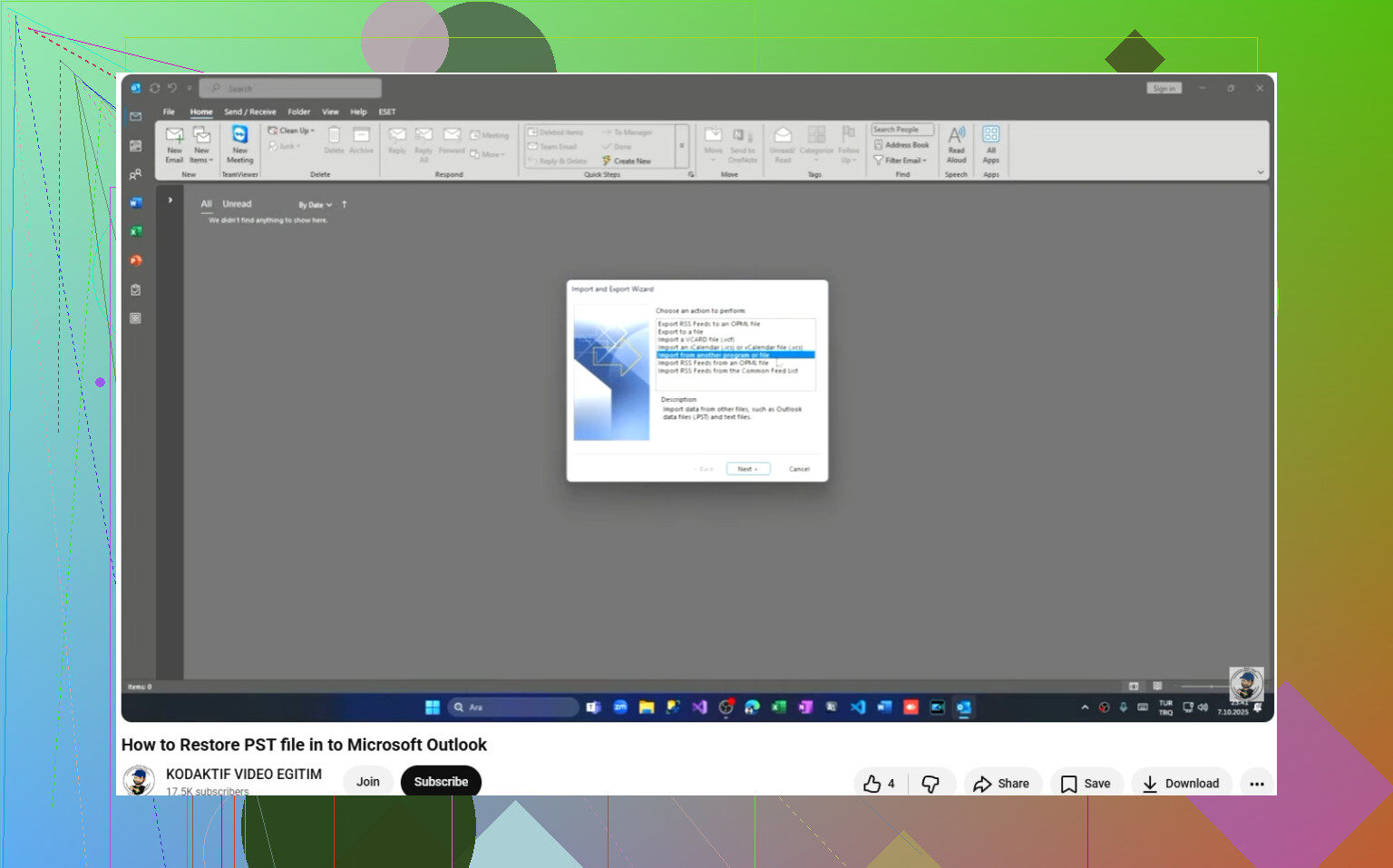
If you need the next step after recovery, this guide on how to restore a recovered PST file in Outlook is pretty clear. Also, if you only need contacts/calendar fast, exporting from a repaired PST first is smarter than trying to make the whole archive “perfect.”
I’d add one thing the replies from @espritlibre, @suenodelbosque, and @mikeappsreviewer only touched indirectly: check whether Outlook is failing on the PST, or whether the PST is fine and the navigation pane/profile is what got scrambled by the hard shutdown.
Quick tests that don’t overlap too much with the repair/recovery advice above:
- Start Outlook in safe mode:
outlook.exe /safe - Reset the navigation pane:
outlook.exe /resetnavpane - Create a brand new Windows user profile or Outlook mail profile and try opening the PST there
- Copy the PST to a different local drive path, short/simple folder name, then open it from Outlook
Why this matters: I’ve seen “corrupt PST” errors that were really profile corruption, bad add-ins, or a busted pane config.
One mild disagreement with the multi-pass repair approach: if the PST contains irreplaceable archives, I would not keep hammering the same copy with repeated repair attempts until you have at least one untouched backup and preferably a sector-level copy of the disk if the drive is acting weird. Every repair modifies structure.
Also check Event Viewer:
Windows Logs > Application
Look for Outlook, disk, NTFS, or VSS errors around the shutdown time. That can tell you if this is file corruption versus storage trouble.
About Disk Drill specifically:
Pros:
- Good if the PST was replaced, truncated, or partially lost
- Useful for finding older copies by size/date
- Can recover to another drive, which is the right way to do it
Cons:
- Less useful if the file is still present but internally damaged
- On SSDs, deleted-file recovery can be limited because of TRIM
- Large PST scans can take a while and results may include junk/partial files
So my order would be: verify profile issue vs file issue, preserve the original, then repair or use Disk Drill only if the file itself is missing/shrunken/replaced. If the account was POP and that PST was the only store, I’d be extra cautious.