My current TV remote just stopped working and the replacement from the manufacturer is overpriced and has bad reviews. I’m looking for a reliable universal TV remote that’s easy to set up, works with multiple brands, and won’t break after a few months. What models or features should I look for, and what are you all using that actually lasts?
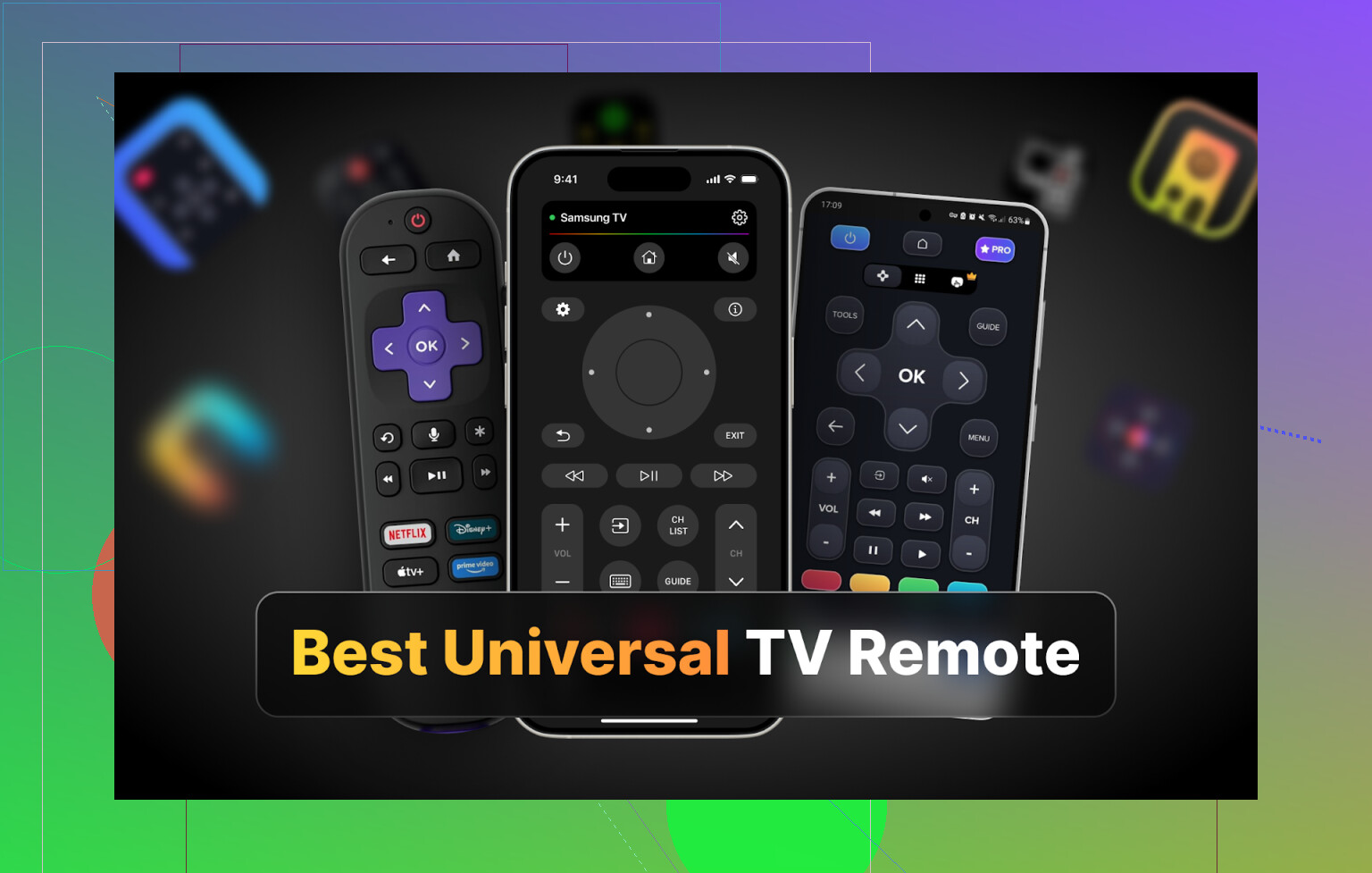
I hit that point where I was done hunting for TV remotes under the couch every night. We have two TVs at home, a Samsung in the living room and an LG in the bedroom, and somehow both remotes like to disappear at the worst possible moment. So I decided to stop fighting it and move everything to phone remote apps.
My phone is always on me, unlike the remotes. Plus I wanted one thing that works with different brands, instead of juggling separate plastic bricks.
So I spent a few evenings trying a bunch of universal TV remote apps on iPhone, Android, and Mac. Below is how it went, what worked, what was annoying, and what I ended up keeping.
Part 1: iPhone TV remote apps
On iOS I tried four apps from the App Store:
- TVRem Universal TV Remote
- TV Remote – Universal Control
- Universal Remote TV Smart
- TV Remote – Universal
They all claim “universal” support, but the experience was pretty different once I used them for more than five minutes.
TVRem Universal TV Remote – my top iPhone pick
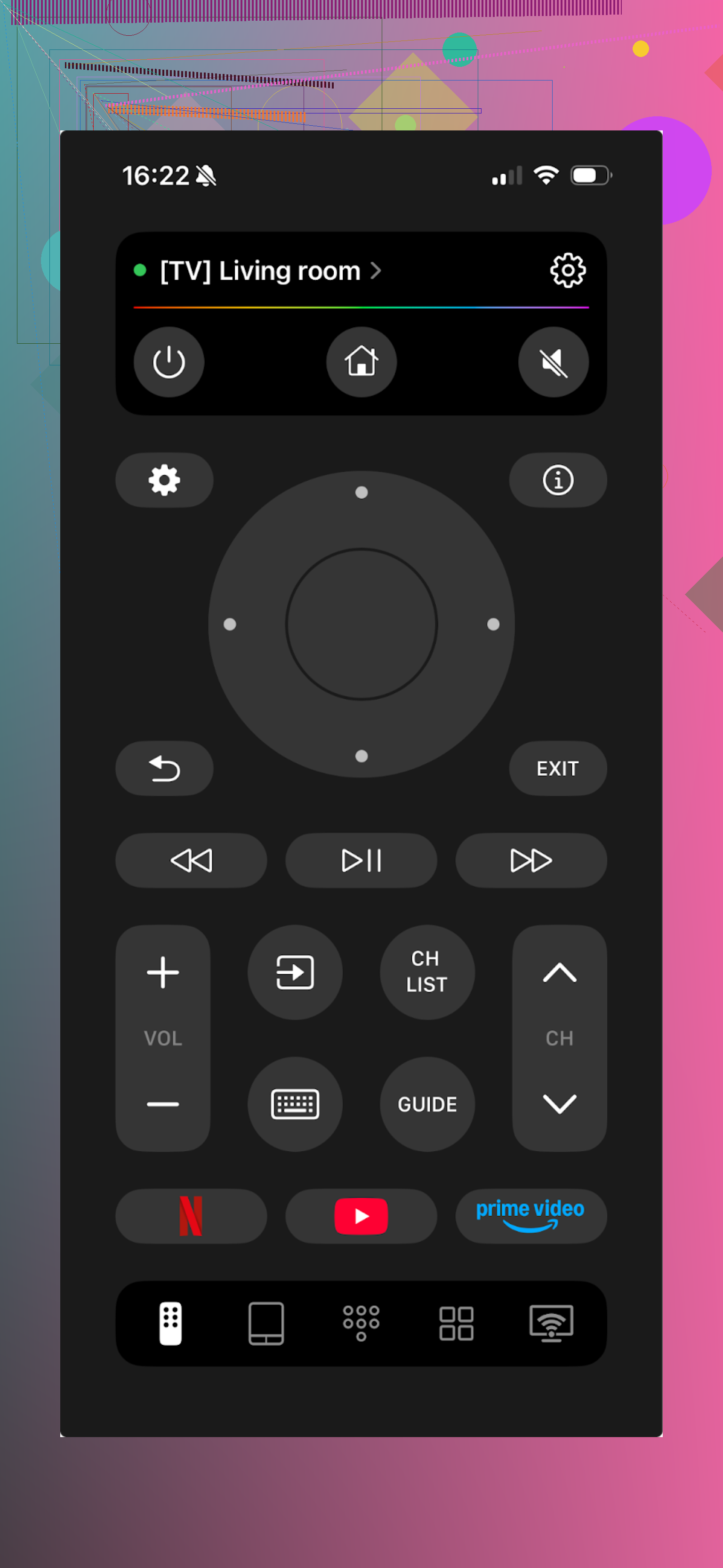
I started with TVRem and it ended up staying on my phone. It works with a bunch of brands and platforms: LG, Samsung, Sony, Android TV, Roku and others. I tested it on my Samsung and LG, both over Wi‑Fi.
Setup took around 20–30 seconds per TV. It discovered the TV, I tapped it, did a quick pairing confirmation on screen, and that was it. No weird device codes, no hoops.
The thing that hooked me is that it is free. No fake “free” with a crippled remote. No surprise paywall when you tap volume.
Main stuff I used most of the time:
- Touchpad for navigating apps on the TV
- On‑screen keyboard for passwords and search
- Standard remote buttons, power, volume, channels, back, home
- Voice input support where the TV supports Google Assistant or Alexa
Pros
- Clean UI, nothing weird or confusing
- Connects to TVs fast
- Fully free
- Supports a lot of brands and platforms
- Covers everything I use on a physical remote
Cons
- No support for Vizio TVs
Price: free
Link: https://apps.apple.com/us/app/tvrem-universal-tv-remote-app/id6746162794
My take:
If your TV brand is supported and you want something simple that does not nag you for money every 10 seconds, this one is worth installing first. For daily use it felt like using a normal remote, only with better typing.
There is also a Reddit thread where people throw in their own picks and compare them to physical remotes:
https://www.reddit.com/r/DataRecoveryHelp/comments/1qqa2bh/best_universal_tv_remote/
Visit this product page to find out more about the universal TV remote app:
https://mac.eltima.com/tvrem-universal-tv-remote/
TV Remote – Universal Control
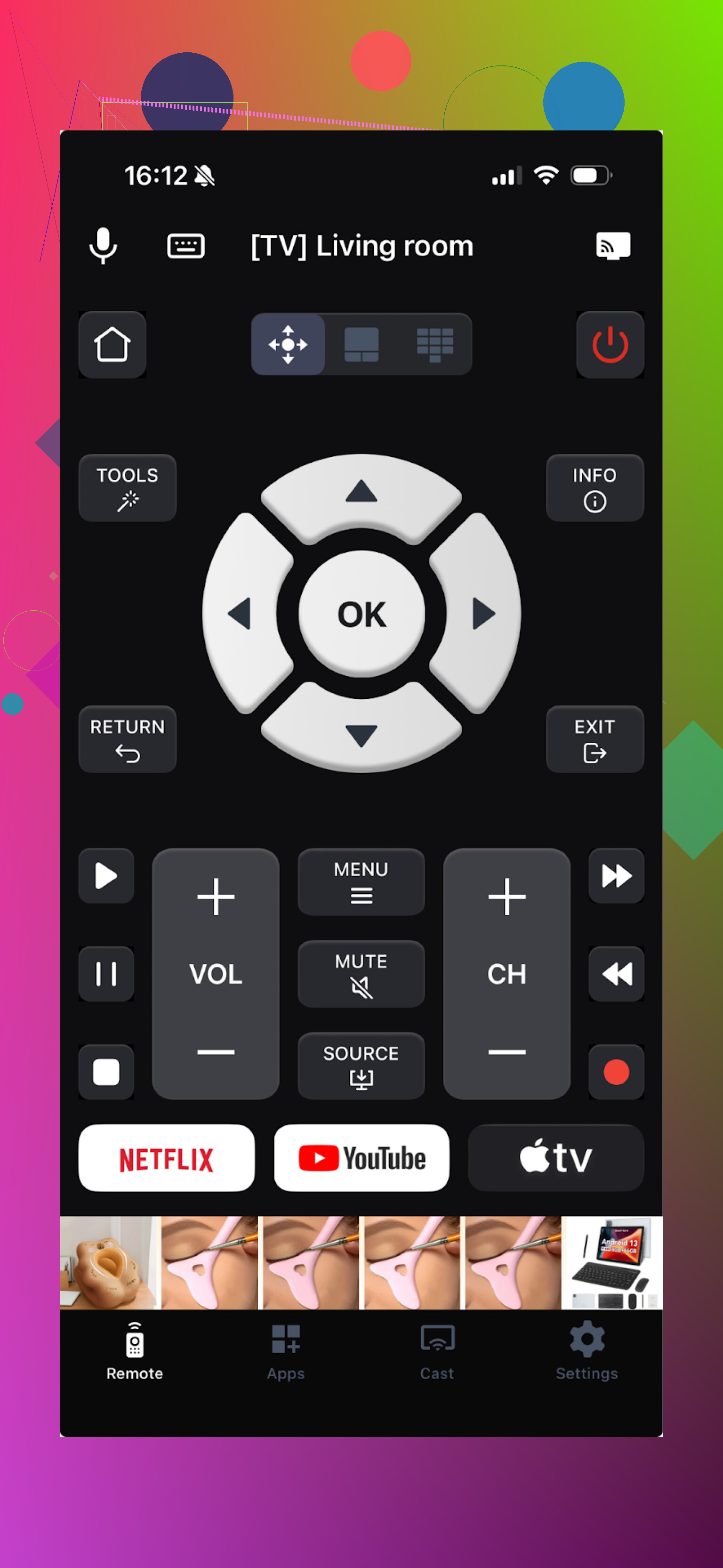
This one also supports a bunch of brands and works over Wi‑Fi. So same network requirement for phone and TV.
The features I cared about were present, touchpad, voice control, channel launcher, keyboard. It also has media casting, screen sharing and some extras that I did not use much.
The catch is the pricing. To touch anything beyond the bare minimum, I had to start a free trial. Ads popped up before I even explored the menus properly.
Pros
- The main feature set is solid
- Supports a lot of TVs and platforms
Cons
- Ads inside the app in the free state
- Most core features end up behind a subscription or purchase
- I had a few crashes when opening the menu
Price: from $4.99 and up
Link: https://apps.apple.com/us/app/tv-remote-universal-control/id1539090879
My take:
If you are fine with paying and you like the feature set, it is not bad. For someone trying to replace a lost remote without adding another subscription, it felt too heavy on upsells.
Universal Remote TV Smart
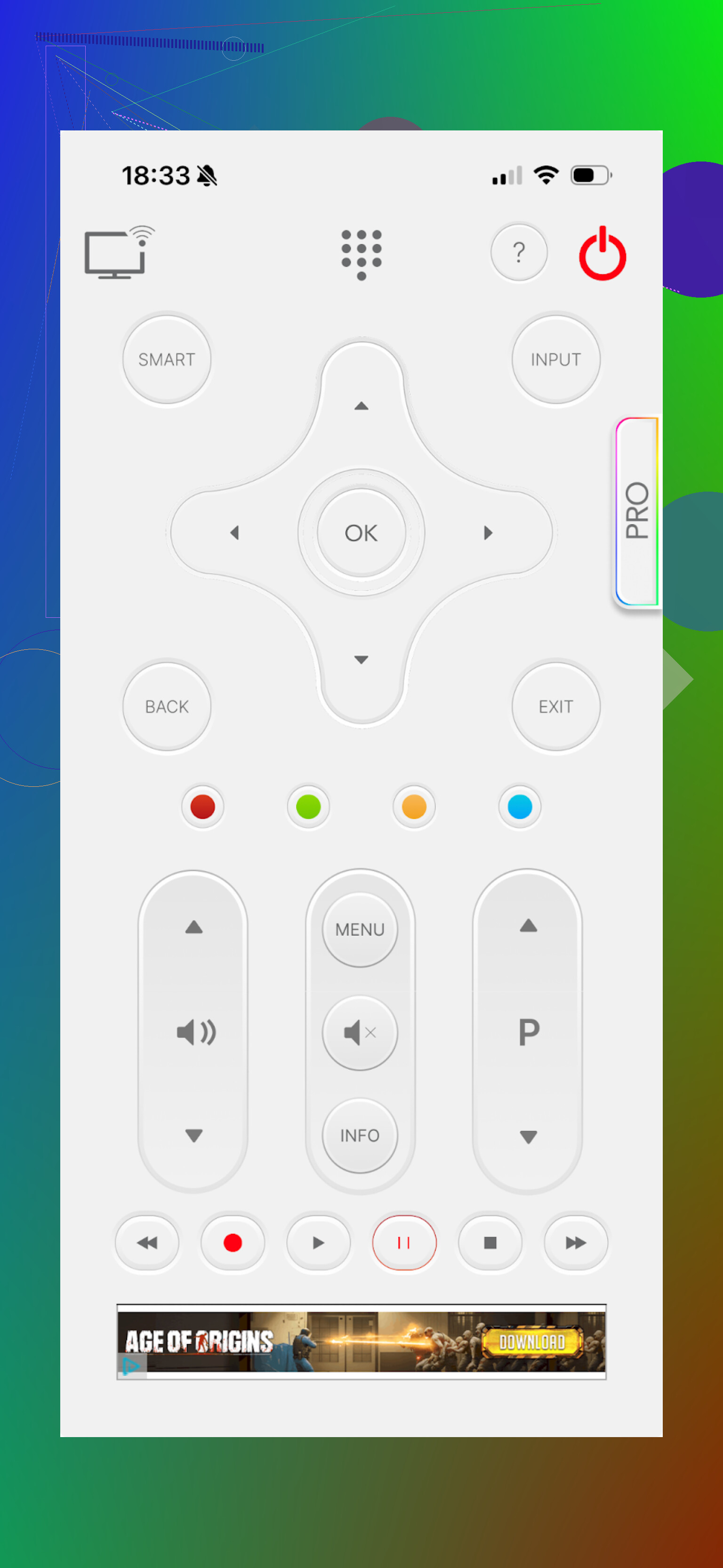
This one rubbed me the wrong way pretty fast. It works with many brands, but the layout looked messy on my phone and was awkward to use. It did not feel like a physical remote, more like someone copied random buttons into a screen.
You still get keyboard, navigation, channel and volume controls. So the basics are present, but I had to think twice before each tap because of the layout.
Pros
- Works with many TV brands
Cons
- Cluttered and uncomfortable interface
- No voice control
- Ads that stop you to watch videos
- Most real features require payment, even something as simple as trying to open YouTube triggered a pay screen for me
Price: from $7.99 and up
Link: https://apps.apple.com/us/app/universal-remote-tv-smart/id1401880138
My take:
I uninstalled this one first. Between the UI and the aggressive monetization, it did not feel worth it.
TV Remote – Universal
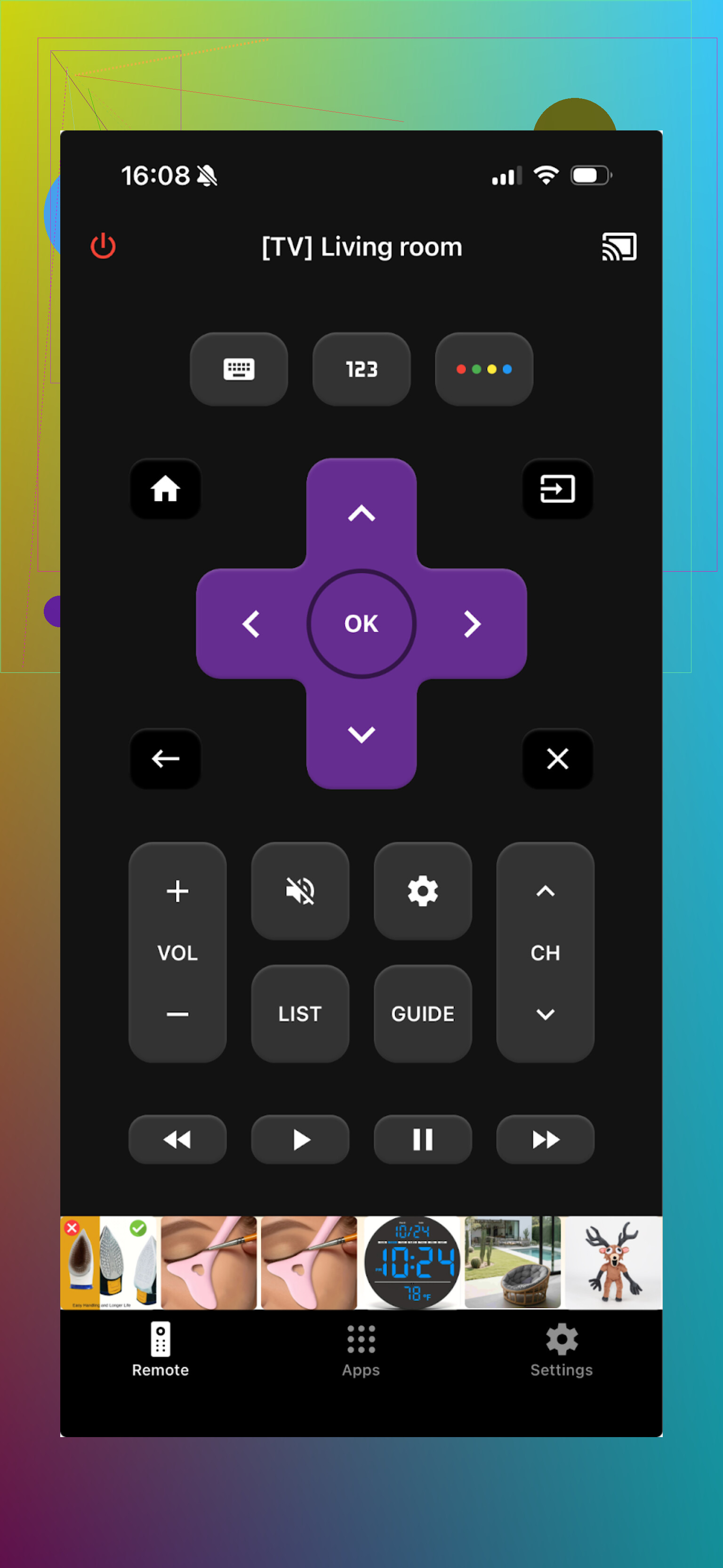
This app turns your iPhone or iPad into a remote and supports LG, Samsung, Sony, Vizio, Android TV and others. So if you have a Vizio, unlike TVRem, this one will see it.
Connection again is over Wi‑Fi, so same network rule. It found both of my TVs without much effort.
You get basic channel and app switching, keyboard input, playback controls like pause and rewind.
Pros
- TV discovery and pairing were simple
- Interface is fairly intuitive
- All main controls are there
- Free trial to test the full set
Cons
- Ads in the free version, removable with payment
- Most extended features prompt an upsell, almost every button tries to sell you something
Price: from $4.99 and up
Link: https://apps.apple.com/us/app/tv-remote-universal/id1670649189
My take:
I used the trial to see everything. Performance was okay aside from a bit of lag on the home screen. If you do not mind paying, it is usable. If you dislike being nagged with offers, it gets old fast.
Part 2: Android TV remote apps
On Android I checked a few different “universal TV remote” apps to see what I would recommend to anyone on that side. This is also what my wife ended up using.
Universal TV Remote Control
This one supports a long list of brands, Sony, Samsung, LG, Philips, TCL, Hisense, Panasonic and others. It works both over Wi‑Fi and IR, if your phone has an infrared blaster.
Features that stood out:
- Trackpad navigation
- Voice search
- Control of apps on the TV
- Built‑in keyboard
Everything I needed was technically free, which looked great on paper.
The problem was ads. Full‑screen ones, banners, popups. A few times I could not even find the close button right away. It crashed on me a couple of times too, so I had to reconnect to the TV again.
Pros
- Large device and brand support
- Works with Wi‑Fi and older IR‑equipped phones
- Core features are free
Cons
- Too many ads, some hard to close
- Crashes that force you to reconnect
Price: free
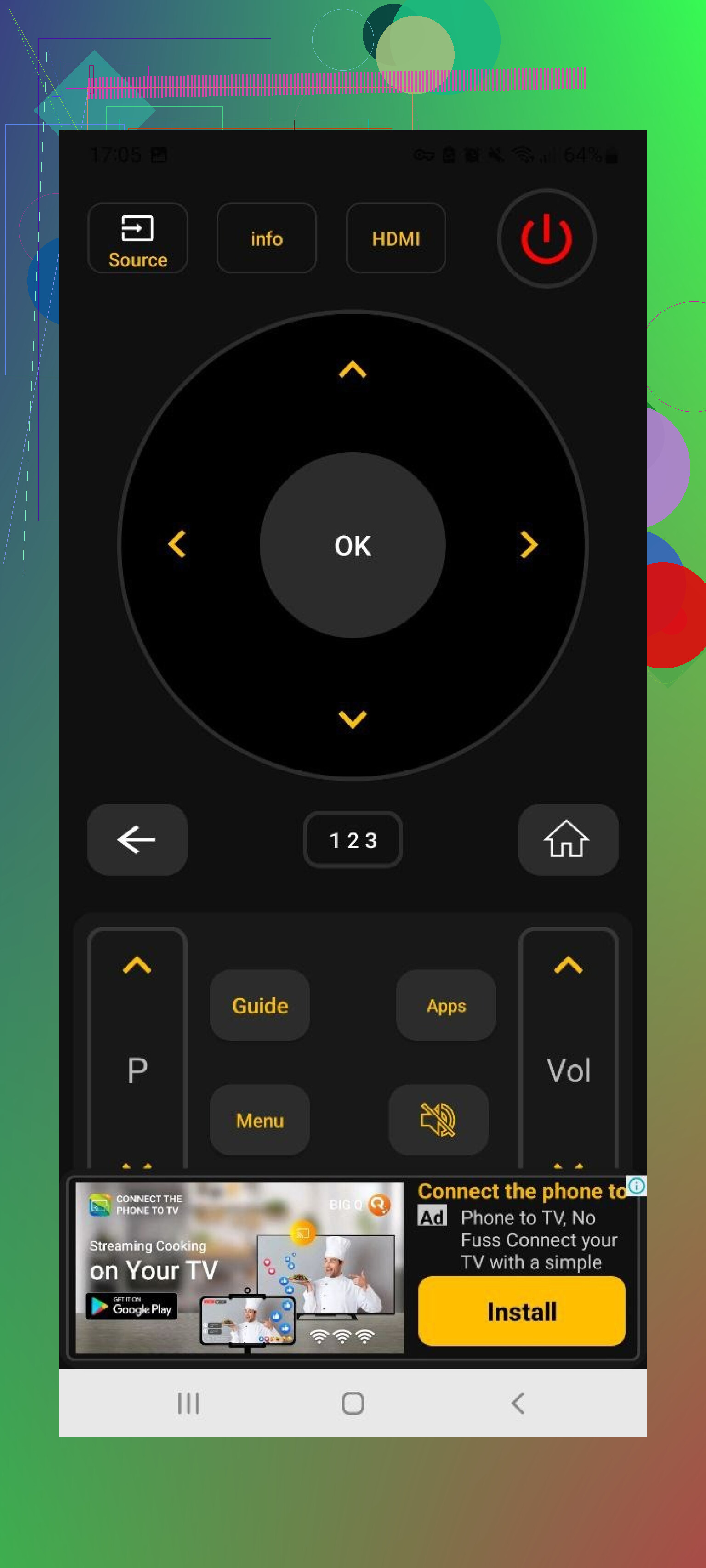
Link: https://play.google.com/store/apps/details?id=codematics.universal.tv.remote.control&hl=en
My take:
Functionally I liked it. The ad situation pushed it off my phone. If you are patient with ads, it might work for you. I ended up avoiding it.
Remote Control For All TV | AI
This one also tries to be a universal remote over Wi‑Fi. It supports a lot of brands as well.
The free tier gives you simple remote buttons. Volume, channels, navigation. But it took longer than I expected to detect and connect to my Samsung, compared to other apps.
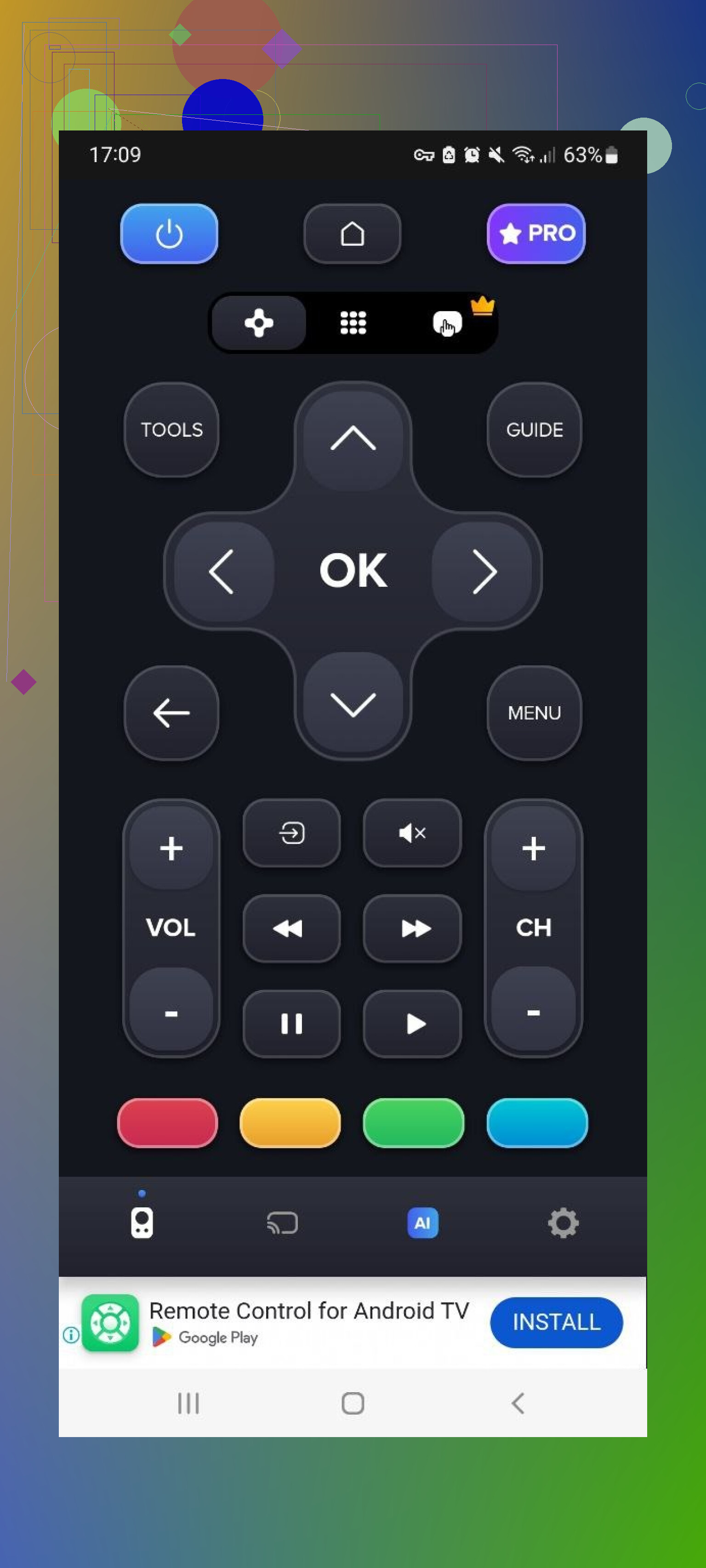
Most of the “interesting” stuff is locked to the paid plan, removal of ads, AI assistant, keyboard with voice input, screen mirroring.
Pros
- Supports many brands
- Basic remote buttons are free
Cons
- Ads in the free version
- Slow device detection compared to others
- Useful extras are paid
Price: from $4.99 and up
Link: https://play.google.com/store/apps/details?id=com.sensustech.universal.remote.control.ai
My take
If all you need is a replacement for lost up/down/volume buttons and you do not care about ads, it is fine. For heavier use it felt slower and more restricted than I wanted.
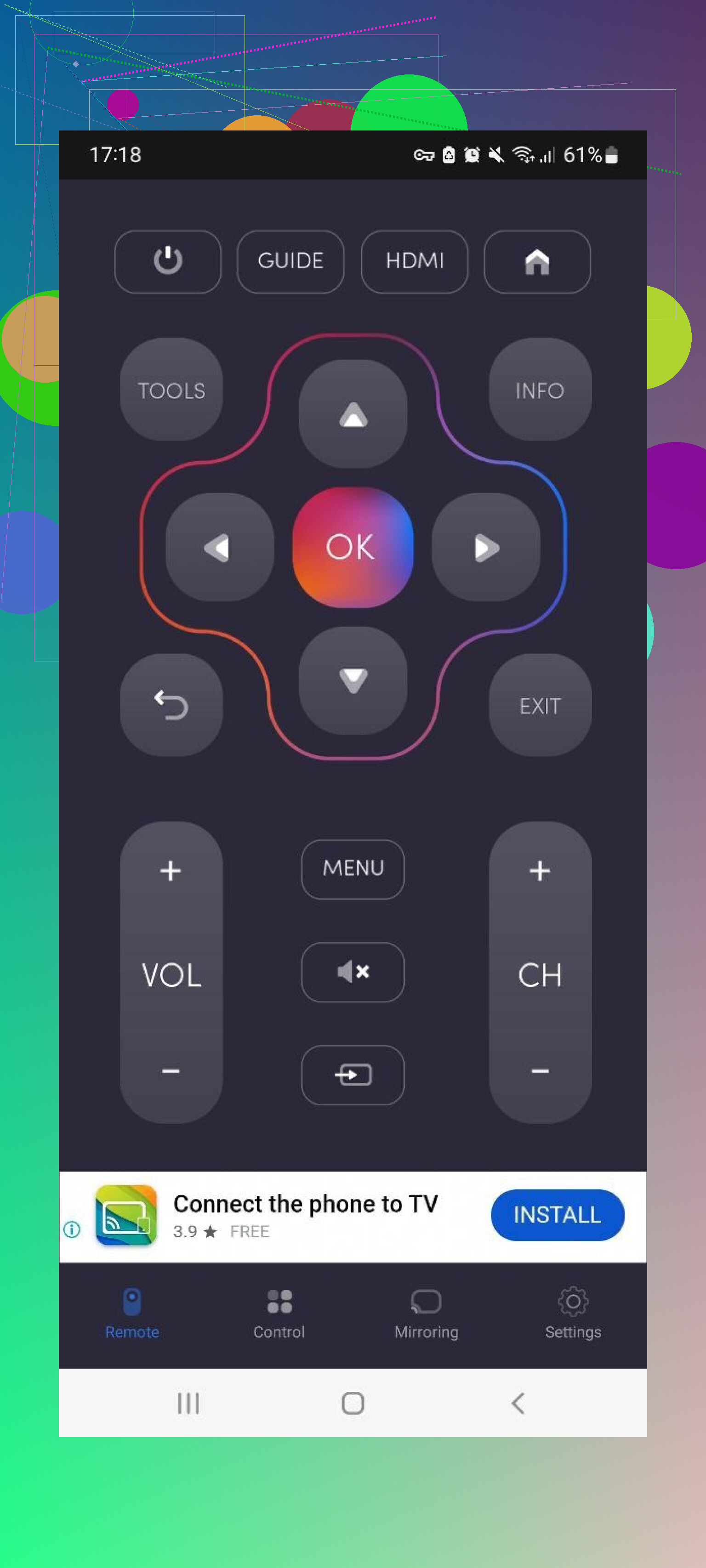
Universal TV Remote Control (Unimote)
Unimote works with smart TVs over Wi‑Fi and “dumb” TVs through IR, as long as your phone supports IR. That is handy if you have an older TV somewhere in the house.
It saw my TV quickly during the scan, but I had to try connecting a few times before it stuck. Once connected, the interface was straightforward.
The main problem again was the ad load. Full‑screen videos every few taps made simple actions like adjusting volume feel clumsy.
Pros
- Simple layout, easy to understand
- Works with both Wi‑Fi TVs and IR phones
Cons
- Heavy full‑screen ads
- Lots of stuff behind in‑app purchases
- Connection stability was not great
Price: from $5.99 and up
My take:
Works in a pinch, especially as a backup when the normal remote disappears. For daily use, the combination of ads and random disconnects was too much.
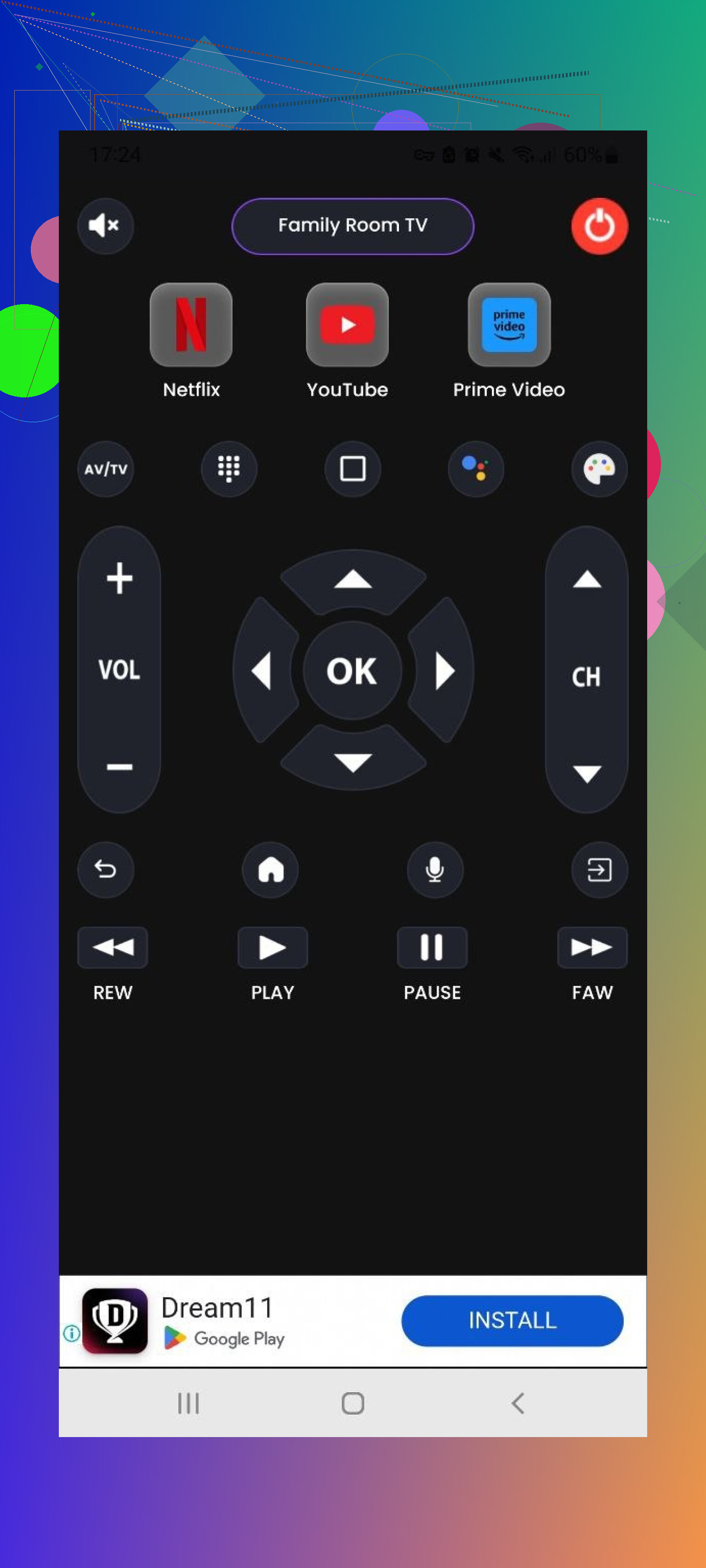
Universal TV Remote Control
This is another “universal” remote with support for brands like LG, Samsung, Sony, TCL and others. It runs over Wi‑Fi and IR, so it covers older TVs too.
It offers a standard control screen, power toggle, home/menu navigation, and simple playback buttons, play, stop, back, forward.
Pros
- All required basic buttons are available
- Free trial exists
Cons
- Lots of ads
- Most real functionality is tied to payment
Price: from $3.99 and up
Link: https://play.google.com/store/apps/details?id=com.uzeegar.universal.smart.tv.remote.control&hl=uk
My take:
It does have everything you would expect from a remote, but you pay for it, and while you decide, you sit through plenty of ads. If ad tolerance is low, this one is not ideal.
Part 3: Mac apps to control your TV
This part surprised me a bit. I did not expect to prefer controlling the TV from the Mac, but it turned out useful when I was already working on the laptop.
TVRem Universal TV Remote (Mac)
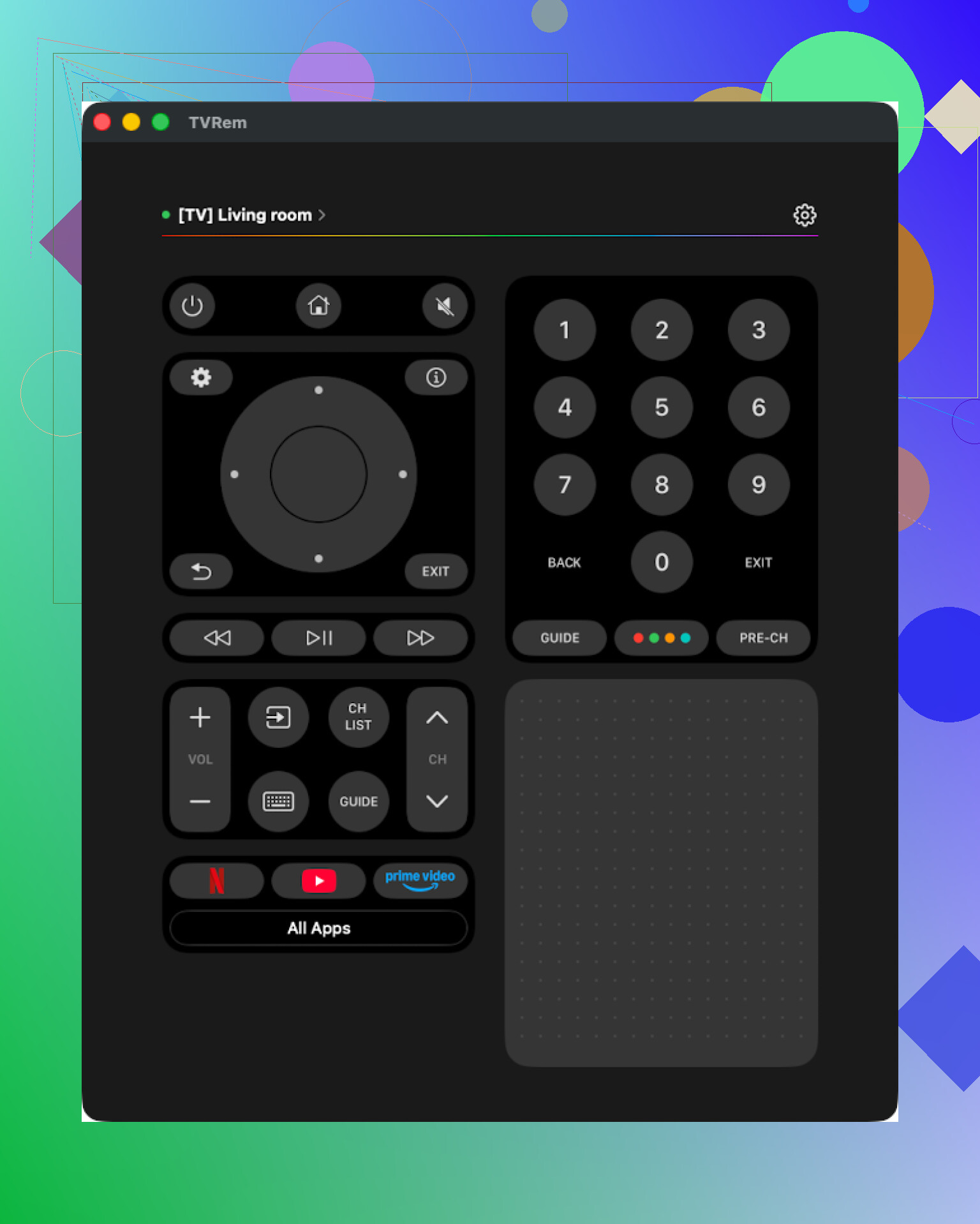
This is from the same family as the iPhone app above. You download it from the Mac App Store and connect it to your TV over Wi‑Fi. I used it with my Samsung first.
Connection was quick. The interface is minimal and easy enough that I did not need to poke around any help menus.
It is free and does not throw ads or paywalls in your face.
Things I used:
- Touchpad for navigation
- Keyboard for search fields and passwords
- App launcher
- Standard remote controls
Pros
- Simple UI
- No ads
- Supports many TV brands
- All key functions included
Cons
- No Vizio support
Price: free
Link: https://apps.apple.com/us/app/tvrem-universal-tv-remote-app/id6746162794
My take: Reliable option if you sit at a Mac and want to pause or switch apps without grabbing a remote or your phone. Lack of Vizio support is the only real gap.
TV Remote, Universal Remote (Mac)
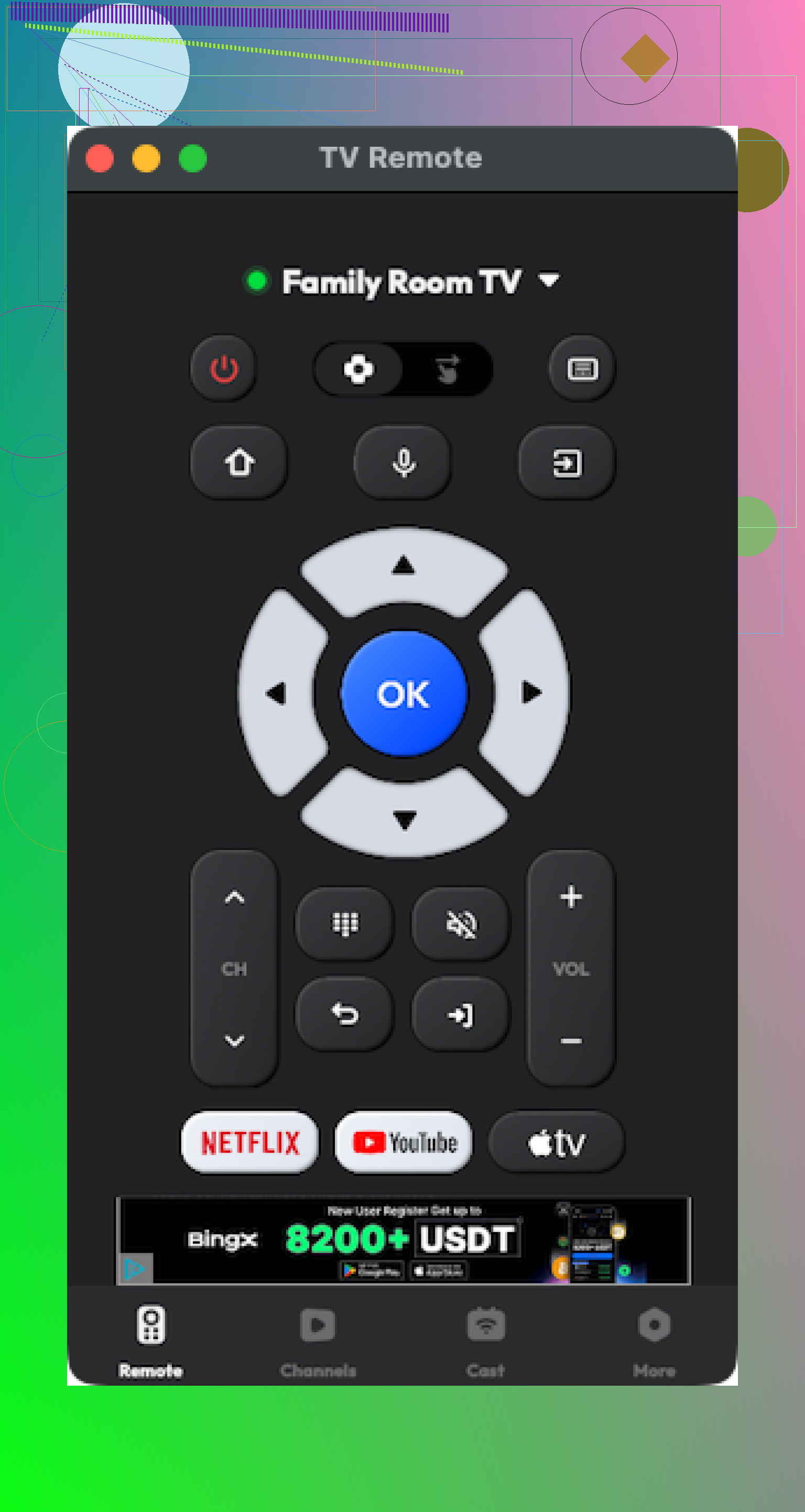
Also available on the Mac App Store. It supports quite a few big brands. It did connect fine to my TV on the first attempt.
The issue was reliability and pricing. Most of the interesting options are paid. During my tests the app crashed a few times and I had to relaunch and reconnect.
Pros
- Looks OK and not cluttered
- Covers basic remote actions and supports common TV brands
Cons
- Only partial functionality without paying
- Random crashes
Price: from $4.99 and up
Link: https://apps.apple.com/us/app/tv-remote-universal-remote/id1660719609
My take
Usable if you want to pay and you get lucky with stability on your setup. I would not rely on it as the only remote, given the crashes I saw.
Part 4: Physical remote vs app on your phone
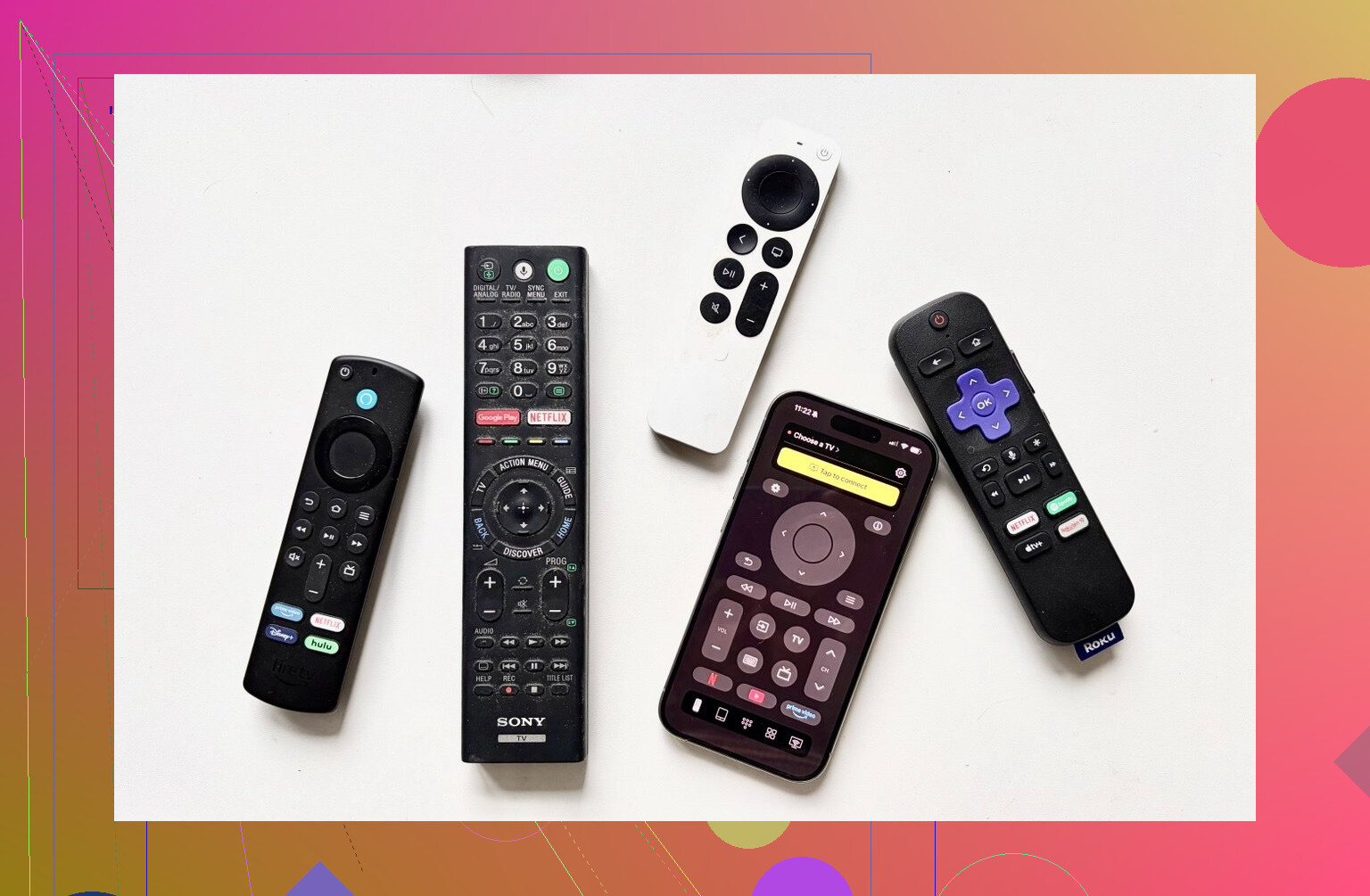
To keep it simple:
- Physical remote is the plastic device that came with your TV or you bought as a replacement.
- Remote app is software on your phone or tablet or computer that sends commands over Wi‑Fi, Bluetooth or IR.
Why apps ended up more practical for me
1. Harder to lose
My phone sits on my desk, pocket, or nightstand most of the time. The TV remote somehow ends up in the kitchen, under blankets, or near the dog. Phone wins here for me.
2. Text entry is less painful
Typing passwords or searching on Netflix using arrow keys on a plastic remote feels slow. With the remote apps, I type on a normal keyboard on my phone or Mac. That alone saved a lot of time.
3. Cost
On Amazon, replacement remotes for Samsung TVs from around 2019–2025 sit roughly between 15 and 20 dollars. For LG, I saw 13 to 35 dollars depending on the model and whether it is “magic” or not.
Many remote apps are either free or have a free tier that is enough for daily navigation. So if your goal is “I lost my remote again and I want a cheap fix”, software feels more sensible.
4. Multiple devices in one place
We have two TVs and a few streaming boxes. A single app controlling all of them is cleaner than four different physical remotes scattered around.
5. UI on phone is often nicer
On a phone, scrolling and tapping on a touchpad feels smoother than clicking plastic buttons. Especially on smart TVs where you navigate rows of apps and long lists.
Where remote apps fall short
- You need Wi‑Fi or Bluetooth in many cases. If your network is down or your TV is in a weird state, the app might not see it.
- You need your phone unlocked and nearby. If your battery dies, so does your remote.
- Support level depends on TV model. Some older or cheaper sets only allow basic actions like volume and power.
What I ended up using
After going through all of this, I stuck with remote apps and almost stopped touching the original remotes.
On iPhone, my clear favorite is TVRem Universal TV Remote. It is free, there are no ads, and it does everything I do daily. Touchpad and keyboard made the biggest difference. The only real problem is no support for Vizio.
TV Remote – Universal is the one I would point to if you are fine paying. During the trial it felt like a decent paid option, and once unlocked it works fine.
On Android, my wife uses Universal TV Remote Control. I still hate the amount of ads in it, but she is less bothered by that and likes the IR support and feature set, so we left it on her phone.
If you are tired of hunting for the physical remote every day, one of these apps will likely save you some time. I would start with TVRem on Apple devices, and for Android, test a few and see which one annoys you the least with ads while still supporting your TV model.
53 Likes
If you want a physical universal remote and not a phone app, here is what I would look at. I like apps too, but I do not fully agree with @mikeappsreviewer that they replace a real remote for everyone. For guests, kids, and quick volume changes, a plastic remote still wins.
First, quick checks before buying:
- List the devices you want to control
TV brand and model, soundbar or AVR, streaming box. - Decide if you want backlight and programmable buttons
- Decide budget range, 20 to 70 dollars covers most good options.
Concrete picks that are easy to set up and support many brands:
-
Sofabaton U1
- Price: usually around 50 to 60 USD
- Supports: 1 to 15 devices, TVs, receivers, streaming boxes
- Connection: programs over Bluetooth via phone app, then works as a physical remote
- Why it fits your case:
• Works with many brands through IR plus some Bluetooth devices like Fire TV
• Scroll wheel to switch devices
• Big code library, you pick your brand and model in the app - Downsides:
• No backlight on older batches
• Setup app feels clunky, but you do it once - If your gear is a mix of older and newer boxes, this is solid.
-
Sofabaton X1
- Price: usually 150 to 200 USD
- Overkill if you only have a TV, but great if you have multiple boxes and want activities like “Watch TV” to turn on TV, AVR, set inputs.
- If the OEM replacement is insane and you also want to consolidate 3 to 5 remotes, X1 starts to make sense.
- Downsides:
• Higher learning curve
• More expensive than your TV’s OEM remote.
-
One For All URC 7880 / URC 7960 (or similar OFA smart remotes)
- Price: around 30 to 45 USD
- Supports: multiple devices, large code database
- Setup:
• Enter brand codes printed in the manual
• Or use “Magic” / learning function from your old remote if it still works partially - Why it is good:
• Good balance of price and features
• Simple physical layout, feels like a normal remote - Downsides:
• Code search can take a bit
• Less friendly if you hate manuals.
-
Cheap IR remotes like GE 4‑Device or 8‑Device Universal
- Price: around 10 to 20 USD
- Good if you only need power, volume, channel, input
- Supports: major brands, not great with very new smart TVs features
- Why it fits some people:
• Dirt cheap
• Simple to program with printed code list - Downsides:
• No fancy smart TV buttons or app keys
• No activity macros on most models.
If you want one clear pick for most people today:
• Single TV plus maybe a soundbar, want cheap and simple:
- One For All URC 7880 or a similar OFA 6 or 8 device model
• Multiple devices and you like control and flexibility:
- Sofabaton U1
Practical setup tips so you avoid headaches:
- Before buying, check the remote maker’s compatibility page and search by your TV model number, not only the brand.
- Buy from a place with easy returns, if codes do not match you send it back.
- When you program, write down the working device code on a piece of paper or your phone. If the kids mash buttons and reset it, you do not repeat the full search.
- If you use a soundbar through HDMI ARC, program volume on the remote to control the soundbar only. Many universal remotes allow “volume lock”.
If you are open to a hybrid setup, a nice combo is:
- One universal physical remote for guests and daily use
- One phone app, like the TVRem app that @mikeappsreviewer mentioned, for text entry and advanced stuff.
That way you are not stuck if Wi‑Fi dies or your phone battery is low, and you still avoid paying for a flimsy OEM remote with bad reviews.
Short version: if you want a physical universal remote that actually works and isn’t a pain to set up, I’d look at these, in this order:
- SofaBaton U1
- One For All URC 7880 (or similar OFA 6/8‑device models)
- GE 4‑ or 8‑device universal (cheap backup)
@mikeappsreviewer is all‑in on phone apps, and @jeff already covered a nice mix, but I’m with Jeff here: apps are great as a backup and for typing, but for guests / kids / “where’s my phone?” moments, a real remote still wins.
Here’s how I’d match what you want:
1. “Easy to set up, works with multiple brands”
SofaBaton U1 hits this best. You use their phone app once to pick your TV brand/model, soundbar, streamer, etc, it syncs to the remote, and then you forget the app exists. It controls up to 15 devices and you just spin the scroll wheel to switch between them. For most people this replaces 3 or 4 OEM remotes pretty cleanly.
2. “Reliable and not crazy expensive”
U1 usually sits in that 50–60 dollar zone. Not cheap, but if the OEM is already overpriced and only controls one device, the U1 is a better value long‑term. Once programmed it’s stable; no ads, no “free trial,” no network issues like with phone remotes.
If that still feels high:
- One For All URC 7880: more old‑school setup (enter brand codes from the booklet, or auto‑search) but very solid. Handles multiple devices, layout feels like a normal remote, and it is usually cheaper than the U1.
- GE 4‑ / 8‑device universals: around 10–20 bucks. They’re basic IR remotes. Great if all you really need is power / volume / input and you don’t care about smart app shortcuts.
3. A couple gotchas people don’t tell you upfront
- Before buying, google “SofaBaton U1 compatibility” or “URC 7880 code list” and check your exact TV model number, not just the brand.
- If you use a soundbar, look for “volume lock” in the manual so the remote always sends volume to the soundbar even when you’re on the TV device.
- Newer streaming boxes (Fire TV in particular) can be a little fussy. U1 is better here than most cheap universals, but still not perfect.
And yeah, I slightly disagree with @mikeappsreviewer on one thing: phone remotes don’t fully replace a physical one in a living room where multiple people use the TV. They’re awesome as a second option, especially for typing passwords, but I’d treat them as “nice extra,” not your only solution.
If the OEM remote is pricey junk, you basically have three paths: “real” universal remote, phone / desktop apps, or a hybrid of both. @jeff and @voyageurdubois are firmly in the physical‑remote camp, while @mikeappsreviewer leans hard into apps. I’d actually mix their approaches instead of picking a side.
1. Physical universal remote picks
If you want something you can toss on the couch and everyone can figure out:
-
SofaBaton U1
- Pros:
- Controls up to ~15 devices, scroll wheel to switch devices
- Setup through a phone app but after that it works offline
- Good brand coverage for TVs, soundbars, streaming boxes
- Cons:
- No backlight, which is annoying at night
- Learning curve for less techy guests
- Not ideal if your setup is extremely Fire TV–heavy
- Pros:
-
One For All URC 7880 (or similar OFA 6/8‑device)
- Pros:
- Classic “enter code from leaflet” setup, very reliable IR
- Solid build, familiar layout
- Cheaper than the SofaBaton in most regions
- Cons:
- Programming is old‑school and slightly tedious
- Advanced actions / activities are more limited
- Pros:
-
GE 4‑ / 8‑device remotes
- Pros:
- Dirt cheap backup that usually covers power / volume / input
- Good as a “kids and guests” remote so you do not care if it gets lost
- Cons:
- Basic, no smart‑TV app buttons or macros
- Code hunting can be trial and error
- Pros:
This is where I slightly disagree with @mikeappsreviewer: relying only on apps sounds nice until Wi‑Fi glitches or your phone is in another room at 5 percent battery. A simple IR remote still wins for the “just turn the thing on” moments.
2. Use apps as your “smart layer,” not your main remote
Where I think @mikeappsreviewer is absolutely right is text entry and multi‑device control. Use phone / Mac apps as a complement:
-
For iPhone / Mac, TVRem Universal TV Remote is a solid free pick if you do not own a Vizio.
- Pros:
- No ads spam
- Touchpad + keyboard so passwords and search are painless
- Quick auto discovery on the same Wi‑Fi
- Cons:
- No Vizio support
- Needs network and TV in a sane state; cannot rescue a frozen set like an IR remote can
- Pros:
-
If you have Vizio, the “TV Remote – Universal” family that @jeff mentioned fills that gap, but with more upsells and ads unless you pay.
Android side, I would treat the ad‑heavy options that @voyageurdubois listed as “emergency backup” apps, not daily drivers, unless you are extremely patient with full‑screen spots.
3. Practical combo that tends to work best
Given what you want (reliable, easy, multi‑brand, and not stupid money):
- Get a mid‑range physical universal like SofaBaton U1 or a One For All model and let that be the primary couch remote.
- Add TVRem Universal TV Remote on your iPhone or Mac as your secondary “smart” remote for typing, quick navigation, or when the physical remote is buried in cushions.
- If you must keep cost rock bottom, swap SofaBaton for a GE 4‑ or 8‑device remote and still pair it with a free or cheap app.
That split setup avoids all the “subscription and ads” pain that @mikeappsreviewer ran into, while still giving you the convenience perks that pure physical remotes lack.
You covered physical remotes and apps, then a hybrid. Picks: SofaBaton U1 for multi device control. One For All for simple, reliable IR. GE for cheap backups. Apps: TVRem on iPhone and Mac, others heavy on ads. Setup tips included model lookup, volume lock, easy returns.
Simpler path, different approach: turn on HDMI CEC. Use your Roku, Fire TV, or Apple TV remote to run TV power and volume. Steps: enable CEC in TV setttings, enable ARC or eARC audio, pair the streamer remote, pick TV or soundbar for volume. Zero new spend if you own a streamer.