My YouTube TV remote control suddenly stopped working, and now I can’t change channels, navigate menus, or control playback. I’ve already tried replacing the batteries and restarting the device, but nothing fixed it. I need help figuring out whether the remote needs to be reset, re-paired, or replaced.
If you want to run YouTube on your TV from your phone, there are a few solid ways to do it. Which one works best depends on what your TV is using.
Common ways to control YouTube on a TV
1) Use the Cast button in the YouTube app
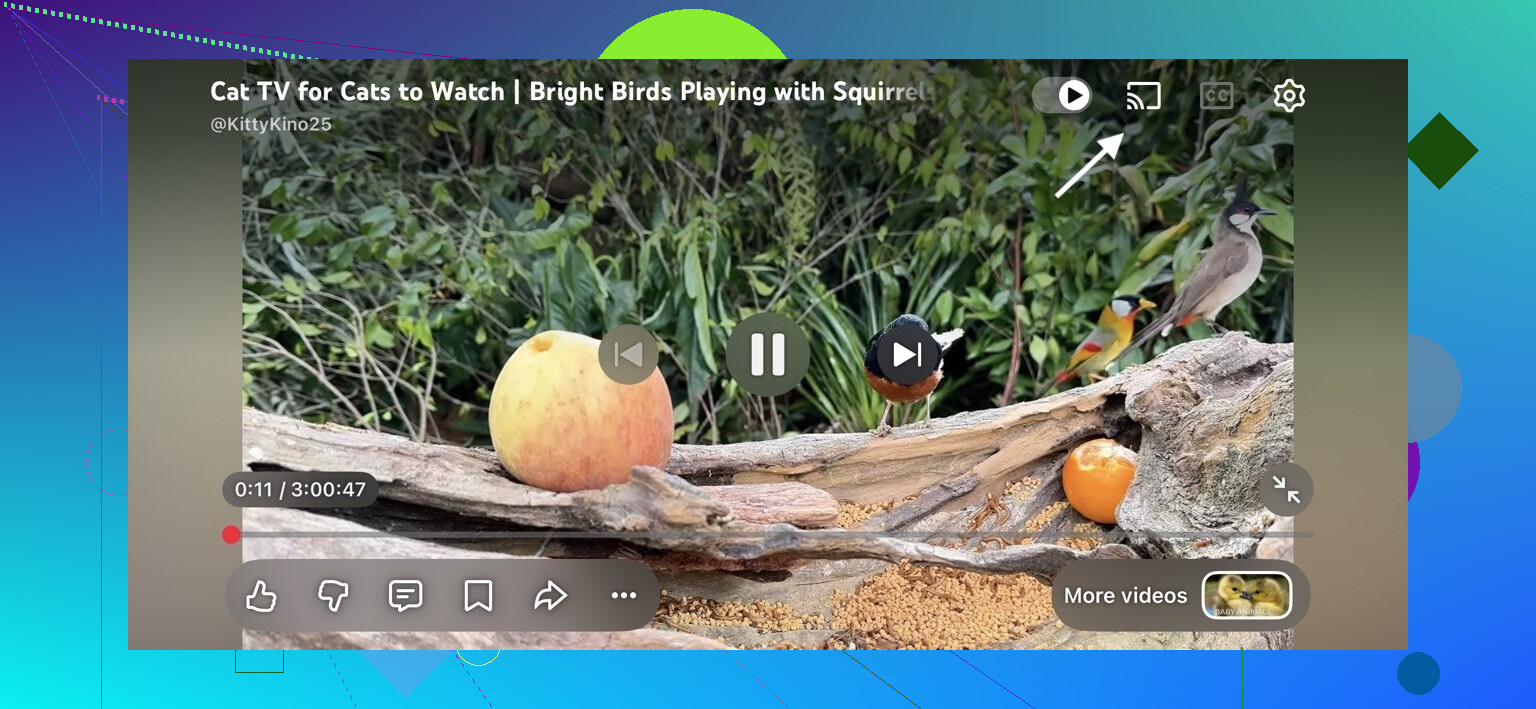
This is the one I used first, and it worked with almost no setup. Open YouTube on your phone, tap the cast icon near the top, then pick your TV. After that, your phone handles browsing, search, pause, skip, and queue. The video plays on the TV, but control stays in your hand.
The catch is simple. Your phone and TV need to be on the same Wi-Fi network. If one device is on guest Wi-Fi and the other is not, it often fails.
2) Link the phone with a TV code
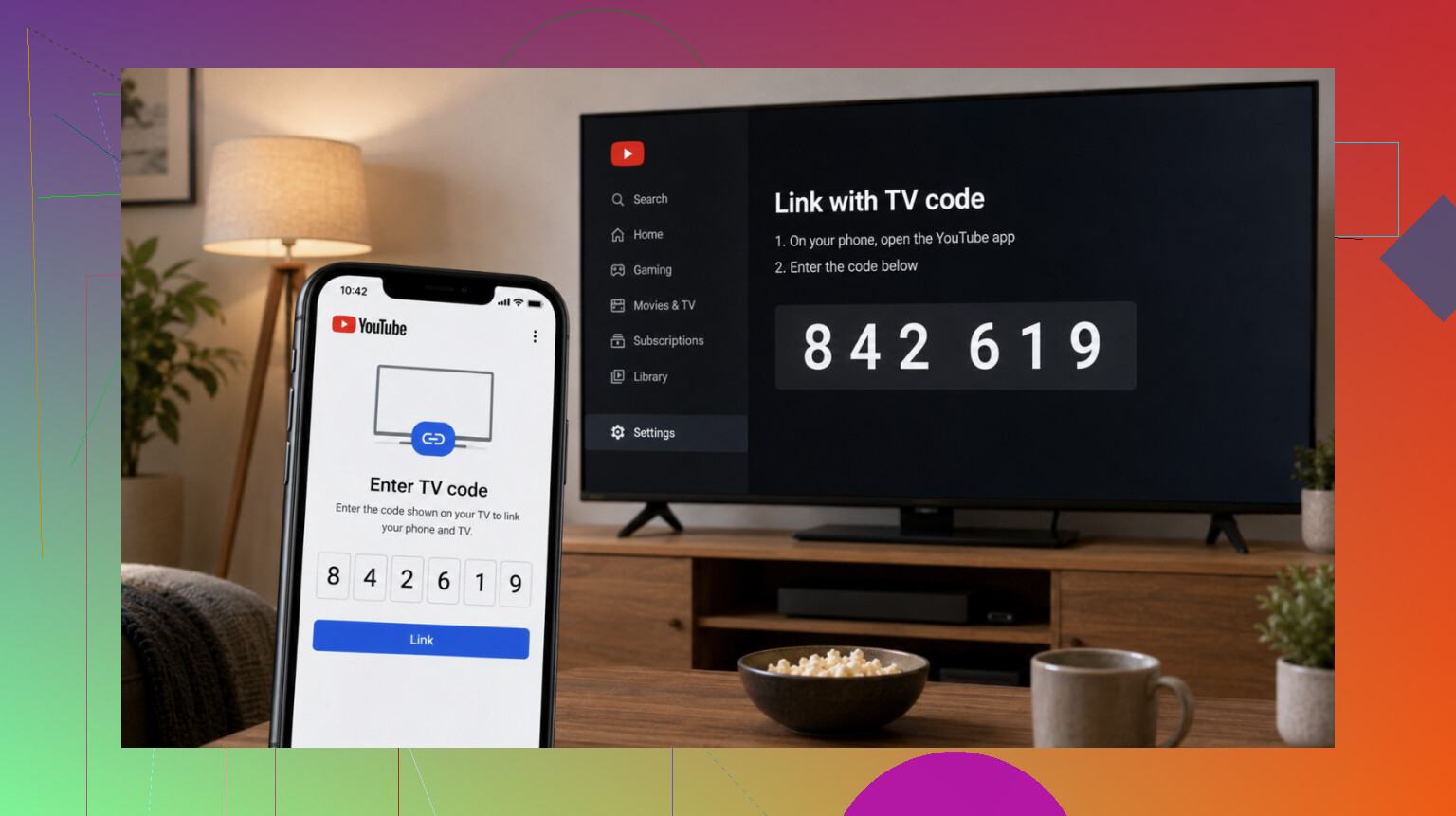
If the TV does not show up in casting, I’d try the built-in code pairing. On the TV, open YouTube and go to Settings, then Link with TV code. A code appears on screen. Enter it in the YouTube app on your phone.
I’ve seen this work when auto-detection did nothing. It also helps when your network setup is messy, or when the TV sits on a different segment of the same home network.
3) Use a phone remote app
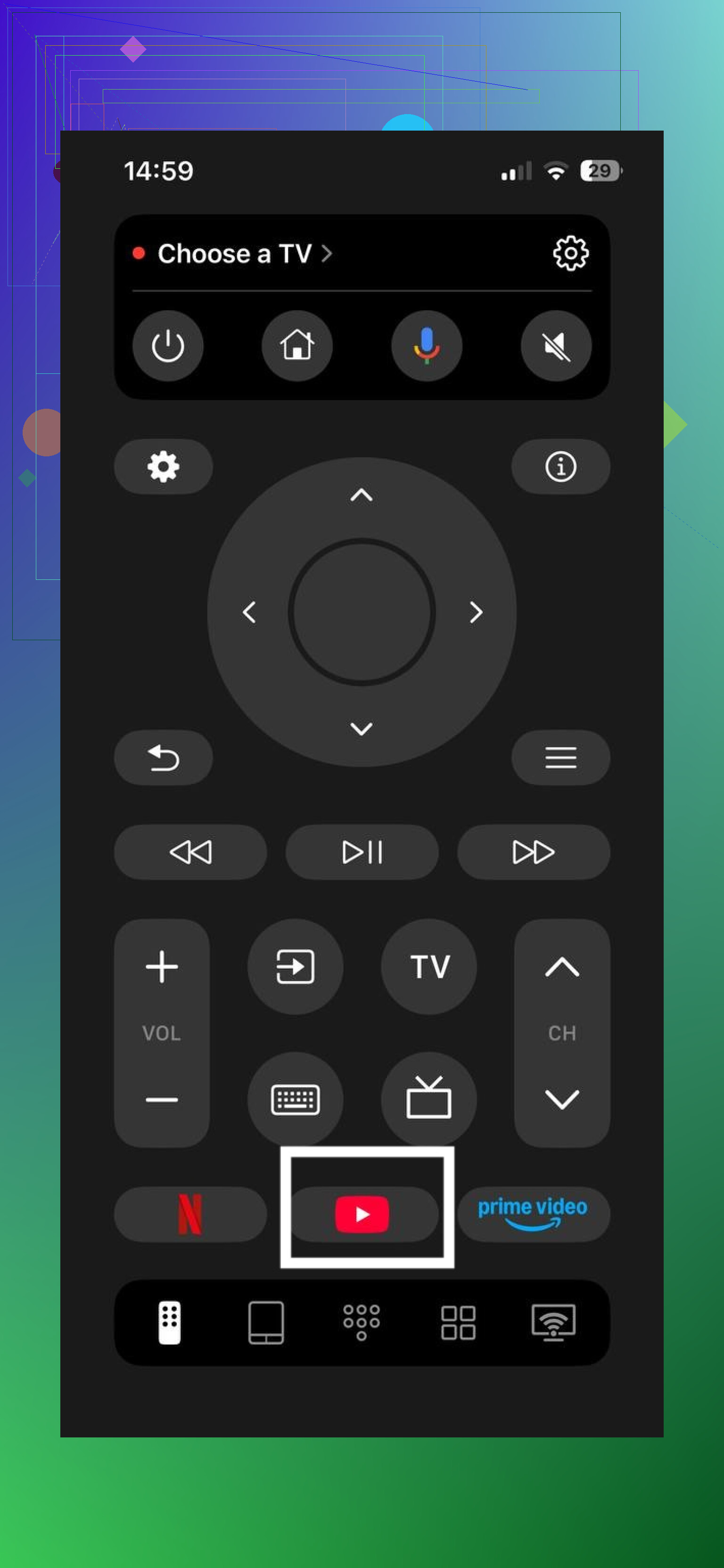
I tested apps like this because typing with a TV remote gets old fast. One option is Universal Remote Control TVRem.
Once the phone and TV are on the same Wi-Fi, you open the app and use your phone like a full remote. The part I found useful for YouTube is direct app launch. You tap once and open YouTube right away, instead of digging through the TV home screen. Search is also easier since you type on your phone keyboard instead of clicking letters one by one.
It supports multiple platforms, including Samsung, LG, Roku, Fire TV, Android TV, Google TV, and Apple TV, so you are not boxed into one brand. More info is here: https://mac.eltima.com/tvrem-universal-tv-remote/
4) Use voice commands
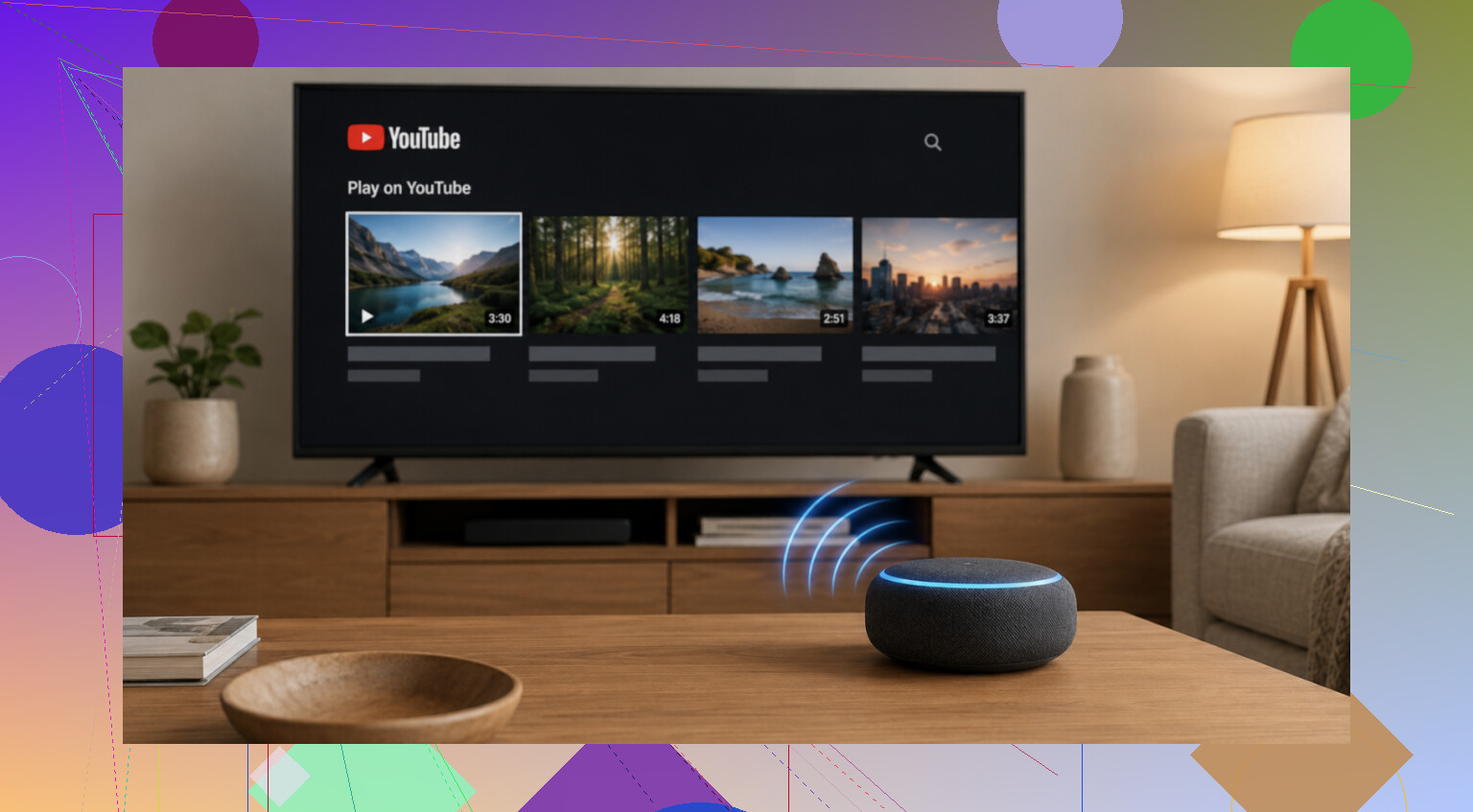
If your setup includes Google Assistant or Alexa, I’d use voice for simple stuff. Saying “play [video name] on YouTube” is faster than tapping through menus. I’ve found it fine for casual viewing, less great when the title is obscure or spelled weird.
One thing people miss
These options depend on the TV device being online and smart. If your older TV is running YouTube through a Roku, Fire TV Stick, Apple TV, Chromecast, or another box, control the streaming device, not the TV panel itself. I tripped over this once and spent 20 minutes blaming the wrong thing. Typo of the day, my bad.
So the short version is this. If you want the easiest route, start with casting. If detection fails, use the TV code. If you want full remote control and faster typing, use a remote app. If you hate buttons, use voice.
19 Likes
If the YouTube TV remote stopped after batteries and a restart, I’d check pairing first. A lot of these remotes are Bluetooth, not plain IR, so new batteries do nothing if the link dropped.
Try this:
Unplug the YouTube TV device for 60 seconds.
Plug it back in.
When the home screen loads, hold the remote Pair or Back + Home buttons for 5 to 10 seconds. The combo depends on the device model.
Watch for a pairing prompt on screen.
If nothing happens, test the remote’s IR or button output with your phone camera. Point the remote at the camera and press buttons. If you see no flash on IR models, the remote itself is likely dead.
Also check for stuck buttons. One jammed key kills the whole remote sometiems.
I’d also swap in the TV maker’s remote app as a temp fix, but I disagree a bit with @mikeappsreviewer on starting with casting first. If your remote unpaired, fixing the pair issue is faster than changing your whole control setup. If pairing fails after 2 to 3 tries, the remote is prbly bad and needs replacement.
I’d look at the device/app side, not just the remote side.
Since @voyageurdubois already covered re-pairing and @mikeappsreviewer went into phone control options, the thing I’d check next is whether the YouTube TV app itself is frozen or the streaming box lost CEC control.
A few non-obvious checks:
- Try another app first, like Netflix or the home screen. If the remote fails everywhere, it’s a device/remote issue. If it only fails inside YouTube TV, that points to the app.
- Force close YouTube TV and reopen it. On Roku, Fire TV, Google TV, etc, the app can bug out without the whole box being dead.
- Clear cache if your device allows it. This fixes a shocking amount of dumb behavior.
- Check HDMI-CEC settings if you use one remote for both TV and streamer. Sometimes the TV still turns on, but navigation stops working. Super annyoing.
- If you have a streaming stick plugged into the TV’s USB port, move it to wall power. Low power causes weird half-working remote stuff.
- Make sure nothing is blocking the box itself. Bluetooth remotes don’t need line of sight, but many streamers still use IR for some functions, so placement matters more than ppl think.
One small disagreement with the “test with camera” advice: that only helps on IR remotes, so if yours is Bluetooth-only, it can send you down the wrong path.
If you can still control YouTube TV from the mobile app or from the TV buttons, I’d uninstall and reinstall the YouTube TV app before buying a new remote. I’ve had that fix it twice, no joke.
I’d check the boring hardware side next, because @voyageurdubois, @cazadordeestrellas, and @mikeappsreviewer already covered pairing, app control, and fallback options pretty well.
Two things get missed a lot:
-
Battery contacts inside the remote
Even with fresh batteries, if the metal contacts are bent, dirty, or slightly corroded, the remote acts totally dead. Roll the batteries a bit, clean contacts with a dry cloth or a tiny bit of isopropyl on a cotton swab, then try again. -
Interference
Weird one, but real. If the streaming box is tucked behind the TV, next to a router, soundbar, or USB 3 device, the remote signal can get flaky. Move the box out into the open for a test.
I slightly disagree with jumping straight to reinstalling apps unless you already know the remote works in other menus. If you cannot navigate anywhere at all, that usually points lower level than the app.
If you need a temporary workaround, a phone-based option like ’ can help.
Pros: faster text entry, quick navigation, no battery issues.
Cons: depends on Wi-Fi, not as convenient as physical buttons, some features can vary by device.
Also, try the physical buttons on the streaming device itself, if it has any. If the box responds there but not to the remote, that narrows it down fast. If nothing responds, the device may be the real problem, not the remote.