I accidentally deleted a folder from my USB drive that had important files I still need, and I realized it was gone too late. I’m looking for help with safe ways to recover deleted files from a flash drive before anything gets overwritten.
Deleted files on a USB stick are not always gone
I ran into this before. A flash drive does not act like your system drive. When you delete something there, it often skips the Recycle Bin and disappears right away. Annoying, yep. Still, deleted is not always erased.
First thing, stop touching the USB.
Do not copy one last file to it. Do not rename stuff. Do not format it. Do not run cleanup apps. When files get deleted, the data often stays in place until something new writes over it. On small USB sticks, overwrite happens fast. One dumb file with a name like final_final_v9_fixed.docx is enough to wreck your shot at recovery.
What I’d do:
- Unplug the USB and leave it alone until you’re ready.
- Download tools to your computer or to a different drive.
- Save recovered files somewhere else, never back onto the same USB.
- Skip repair tools at the start unless the drive has mounting or read issues.
Check the simple stuff first
Before you scan, open the USB and show hidden files.
I’ve seen cases where the files were not deleted at all. They got hidden after a bad eject, some malware junk, or a weird file attribute change. Also look for hidden trash folders like $RECYCLE.BIN, RECYCLER, RECYCLED, or .Trashes if the stick was used with a Mac.
This step does not fix most cases, from what I saw. Still worth 30 seconds.
My first pick for recovery
I’d start with Disk Drill.
Not saying it fixes every mess. I liked it because the workflow is easy to follow, and the preview feature saves time. If you recover 400 files with random names and half are broken, you wasted your evening for nothing.
Here’s the order I’d use:
- Install Disk Drill on your computer, not on the USB.
- Plug in the flash drive and pick it from the device list.
- Run a lost data scan.
- Let the scan finish. Don’t stop early if the files matter.
- Use search, file type filters, and preview to narrow it down.
- Restore the results to your PC, an external hard drive, or another flash drive.
The preview feature matters more than people think
This was the part I cared about most.
If a file opens in preview, your odds are usually better. If you still see the old file name and folder path, even better. When recovery software shows only names like recovered_file_001, recovered_file_002, you still might get stuff back, but sorting it later is a chore. I did this once with a batch of photos and docs, and it was a slog.
Why this tool tends to work well on flash drives
Most USB sticks use FAT32, exFAT, or NTFS. Disk Drill handles those well enough in my experience. It looks at file system records when they still exist, and it also does signature-based scanning when those records are damaged or missing.
That helps if the drive was pulled out wrong, got flaky, or started acting off before the deletion.
Recuva is fine for lighter jobs
You can try Recuva too.
I’d treat it as the backup plan. It’s older, Windows-only, and I had mixed results with odd file formats. For a handful of JPGs, PDFs, Word docs, stuff like that, it’s still worth trying. For mixed folders or anything you care about, I’d start with Disk Drill because the scan results are easier to sort through.
One mistake I would skip
Don’t run CHKDSK first because some random post told you to.
CHKDSK is for file system repair. It is not an undelete tool. Sometimes it changes the structure of the drive and recovery gets messier after. My rule stayed simple, recover first, repair later.
When software stops being enough
If the USB is not detected, shows 0 bytes, disconnects over and over, or the connector is bent, this stops being a normal deletion problem. At that point I’d quit the home fixes and look at a recovery lab if the files matter.
Software won’t do much when the hardware itself is failing.
10 Likes
If the folder was deleted and the USB still mounts fine, I’d do one extra step before running recovery apps. Make an image of the USB first.
Why. Recovery scans read the drive a lot. If the flash memory is worn or the controller is flaky, repeated scans make things worse. An image file gives you one stable copy to work from. On Windows, USB Image Tool or HDD Raw Copy Tool works. On Linux or Mac, dd or ddrescue works. Save the image to your computer, not the stick.
Then scan the image, not the USB. Disk Drill supports this, and it’s one reason I rate it for jobs like this. You keep the original untouched. Safer if the files matter.
I agree with @mikeappsreviewer on not writing anything new to the drive. I disagree a bit on waiting too long, though. Flash drives sometiems fail with no warning, so I’d image it soon rather than set it aside for days.
A few checks people skip:
- Look at file dates and sizes in recovery results. Zero-byte files are junk.
- Sort by original folder path if the app shows it.
- Recover small test files first, open them, then pull the rest.
- If the deleted folder had photos or videos, expect some renamed files. Content matters more than names.
If the USB asks to format, stop there. Don’t click yes.
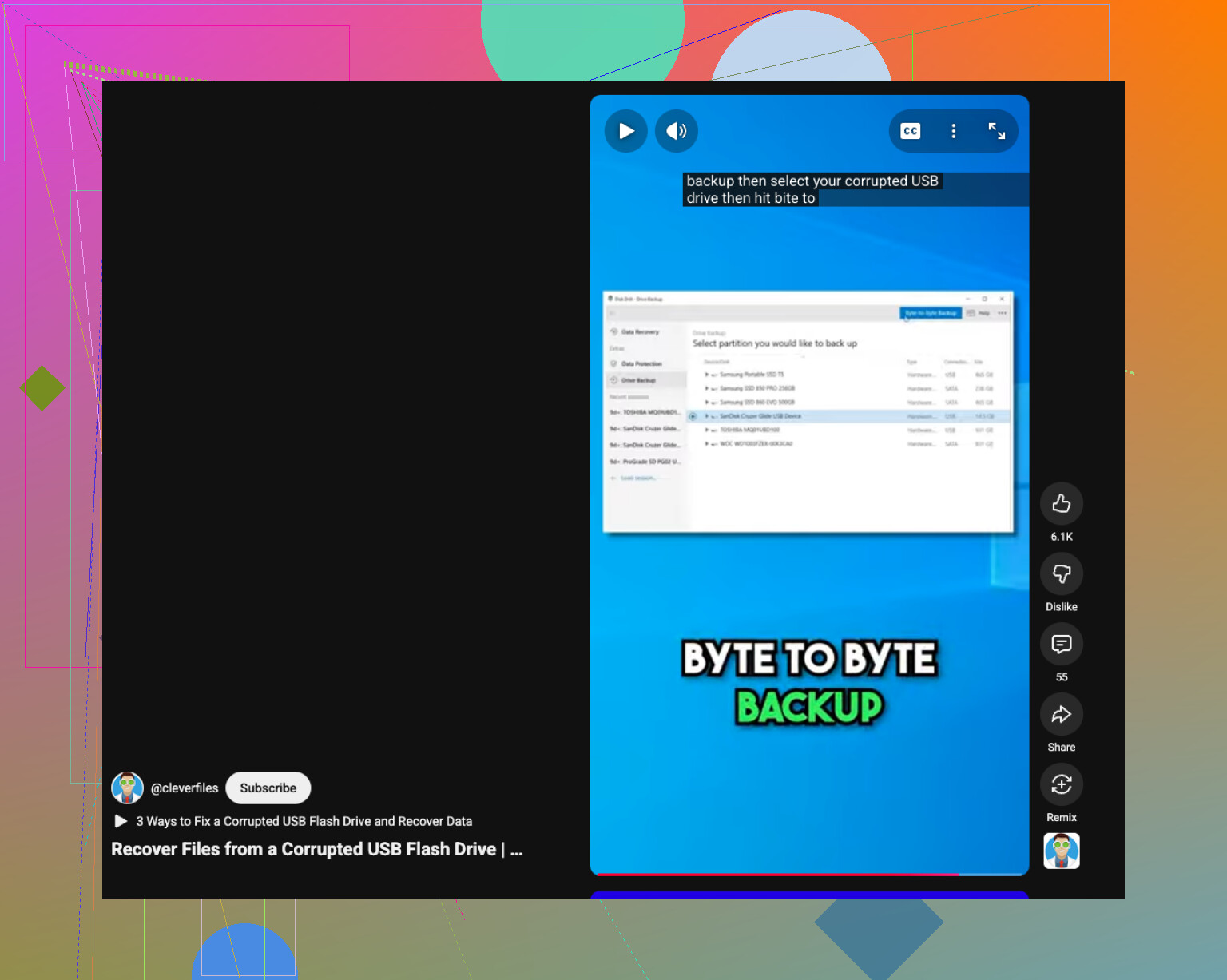
Also, this video is a decent quick guide if your USB is corrupted, how to recover data from a corrupted USB drive.
If you want the safest route, image first, then scan with Disk Drill, then restore to another drive. That’s the cleanest path imo.
One thing I’d add to what @mikeappsreviewer and @himmelsjager said: if the folder deletion happened on a Windows PC, check whether the files were ever synced or cached somewhere else first. People jump straight to recovery software, but sometimes the “recovery” is just finding an older copy in File History, OneDrive, Recent Files, Office temp folders, or even Photoshop/AutoRecover leftovers. Boring answer, but sometimes it saves hours.
Also, I slightly disagree with the “always image first” crowd for every case. If the USB is healthy, mounts normally, and this was just a plain delete, making an image can be overkill for some people and just adds another step they might mess up. If the stick is acting weird, yes, image it. If it’s stable, a direct read-only style scan is usually fine.
What I would not do is keep trying random “fix USB” tools. Those apps love to “repair” stuff into oblivion. Same with format prompts. If Windows says the drive needs to be formatted, that is not an invitation, that is a trap.
Since you asked for safe recovery, I’d focus on software that lets you preview files before restoring. That’s where Disk Drill is actually useful on flash drives, especially if you deleted a whole folder and need to figure out what’s still intact. Recover a few test files first, open them, then pull the rest. If previews work, that’s a very good sign.
If you want a solid walkthrough, this Disk Drill review and USB file recovery guide is pretty easy to follow.
And one more annoying but real thing: if the folder had lots of tiny files, recovery odds can be worse than with a few big ones. Flash drives are cheap, fast, and kinda janky sometiems. That’s just how it is.

One angle I don’t see stressed enough: check the USB’s file system before choosing the recovery mode. On exFAT and FAT32, deleted entries can vanish from the directory table faster, so deep scan tends to matter more. On NTFS, you sometimes get better original names and folder structure back. That changes expectations a lot.
I slightly disagree with @espritlibre on imaging being overkill. For a tiny healthy stick, maybe. But for anything irreplaceable, I’d still rather spend 10 extra minutes being cautious than regret one flaky reconnect later. On the other hand, I also think people overdo imaging when the files are low value and the drive is obviously stable.
A few extra things to try that complement what @himmelsjager, @espritlibre, and @mikeappsreviewer already covered:
- Try a different USB port, preferably direct on the motherboard, not a hub
- Disable autoplay and antivirus scans on insertion if your AV tends to “clean” removable media
- If it was deleted on Windows, check whether the folder was actually moved with a drag mistake instead of deleted. Use search on the USB by file type or partial filename
- If the files were documents, search your PC for temporary copies like
~Office files or autosaves
If you scan, Disk Drill is a reasonable pick because the preview and file grouping make triage easier.
Pros for Disk Drill:
- clean interface
- scans images and removable drives
- preview helps avoid restoring junk
- decent file system coverage
Cons:
- deeper scans can return lots of renamed files
- free recovery limits depend on platform/version
- not the fastest on messy drives
If Disk Drill misses stuff, PhotoRec is ugly but sometimes surprisingly good with raw recovery. Just expect lost filenames and folders.