I’m staying in a hotel and the TV remote is missing or not working, so I can’t change channels, adjust the volume, or access the input settings. I tried the buttons on the TV and my phone’s basic remote features, but nothing has worked so far. I need help figuring out whether there’s a hotel TV remote control app that actually works or another way to control the TV without the original remote.
If you want to run a hotel TV from your phone, the answer depends on what the hotel stuck in the room.
Some rooms use Samsung sets. Others have LG, Roku, Android TV, or Fire TV. I’ve seen all of those in hotels, and they do not behave the same way. The first thing I check is whether the phone app needs the TV and my phone on the same Wi-Fi. A lot of them do.
- Start with a universal remote app
When I didn’t know the TV brand, I had better luck starting with a broad app instead of hunting for the exact one. A decent first try is a universal remote app built for multiple TV systems.
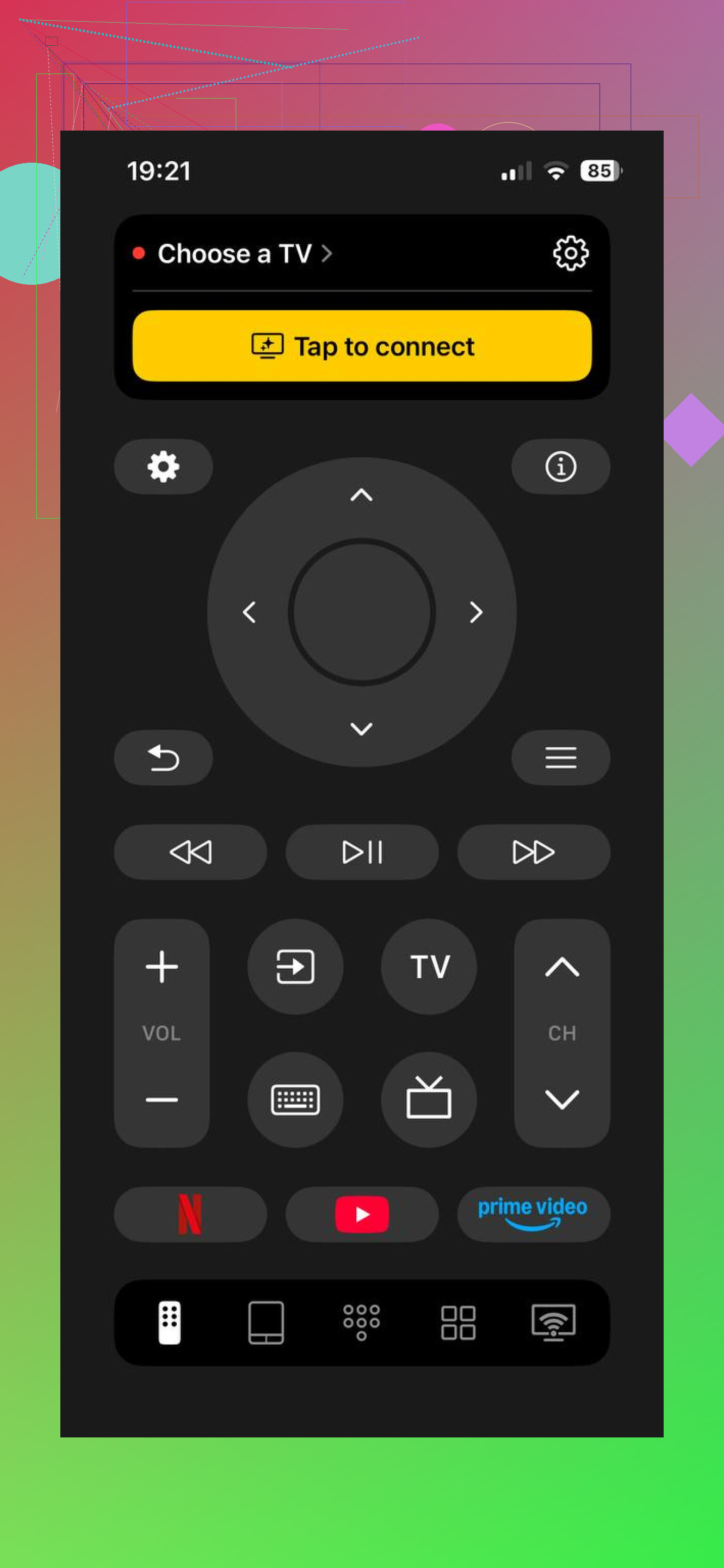
I’d try TVRem first. It’s made for different smart TVs and streaming boxes, which helps in hotels because the model info is often hidden, worn off, or buried in menus.

Why this route makes sense in hotels:
It covers a bunch of TV brands in one app.
It often finds TVs on the network without much setup.
You get the usual controls, volume, channel switching, inputs, app navigation.
You do not need to go digging through drawers for the original remote, which is half the battle in some rooms.
Most universal remote apps use Wi-Fi. If the TV shows up, you usually get the core stuff, power, volume, navigation, and sometimes input control.
- Other apps worth a shot
If the first one refuses to connect, I’d move on fast and test a few more.
Universal TV Remote Control. Good for a large range of brands, usually quick over Wi-Fi.
TV Remote • Universal Control. Covers a long list of models and gives standard controls like volume, channels, and input switching.
Brand apps. If you spot Samsung, LG, Roku, or another label on the TV frame or in settings, the official app sometimes works better than the all-in-one apps. Not every time, but enough times that I check.
- One hotel-specific snag
This part trips people up. Hotel TVs are often locked down. Some are set up with custom firmware, restricted menus, or weird network rules. I’ve had solid apps fail for no clear reason in those setups.
What I’d do next:
Make sure your phone is on the same Wi-Fi as the TV.
Look for the brand name on the back of the set or inside the TV menu.
If the apps all fail, call the front desk and ask for another remote. Annoying, yep, but faster than wrestling with a locked setup for 30 minutes.
Bottom line:
The app you need depends on the TV in the room. If you do not know the model, starting with TVRem usually makes more sense than guessing brand by brand. If it fails, try another universal app, then switch to the official app for Samsung, LG, Roku, or whatever brand the hotel installed.
62 Likes
I’d go a different direction from @mikeappsreviewer on one part. I would not spend too long testing random Wi-Fi remote apps first. Hotel TVs are often on isolated guest networks, so phone-to-TV pairing fails even when the app is fine.
Best path is this.
-
Check if your phone has an IR blaster.
Older Android phones, some Xiaomi, Huawei, a few Samsungs. If yes, use an IR remote app. IR does not need hotel Wi-Fi at all. Point it at the TV like a normal remote. This works on a lot of hotel setups where network remotes fail. -
Look for the hotel box, not the TV.
Many hotel rooms use a cable box, DirecTV box, or Enseo/SONIFI system hidden behind the TV stand. If you control the TV but not channels, the missing remote might belong to the box. Search the room desk, nightstand, behind curtains, under the bed. Sounds dumb, but I found one in a drawer next to the bible once. no joke. -
Try HDMI-CEC from your own device.
If you have a Fire Stick, Roku, game console, or laptop, plug it in. Many TVs let you control input or volume through CEC once your device wakes up the port. Not always, but I’ve seen it work in chain hotels. -
Use the hidden control stick on the TV.
A lot of sets have a joystick under the center logo or on the back right side. Press for menu, move for input and volume. Hotels love hiding these. -
Ask staff for the engineering or maintenance remote.
Front desk often says “we don’t have extras.” Maintenance often does. Different answer, same hotel. Kinda dumb, but true.
If you post the TV brand and whether your phone is iPhone or Android, people here can narrow it down fast.
One thing I’d add that @mikeappsreviewer and @viajeroceleste only touched on sideways: hotel TVs are often tied into a hospitality control system, so even the “right” app can be useless unless you bypass the hotel layer.
What I’d try is figuring out whether the TV has a locked startup screen or hotel welcome screen. If yes, the set may be in hotel mode. In that case, brand remote apps usually won’t expose input/settings even if they connect. That’s why I kinda disagree with spending too much time testing app after app. Sometimes the problem isn’t the app, it’s the lockout.
A few less-obvious things:
- Scan for a QR code on the TV frame, channel guide, or desk card. Some hotels now use their own control web app.
- Check Bluetooth settings on your phone. A few newer hospitality systems pair remotes over BT, not IR.
- If the TV has USB power, plug in a mouse. Seriously. Some smart TVs let you navigate menus with it.
- Ask front desk to “re-provision” the room TV, not just replace the remote. If the remote stopped syncing, that fixes it faster.
If you can see the exact TV model number, post it. That changes everything real fast.
I’m with @vrijheidsvogel more than @mikeappsreviewer on this: don’t assume an app is the main fix. In hotels, the fastest non-obvious move is to check the TV’s side button lock or hospitality panel. Some sets have local controls disabled until the room system wakes properly, and unplugging the TV for 30 seconds sometimes restores basic button control. Not elegant, but it works more often than people expect.
Another angle nobody really stressed: if the TV has a casting splash screen or built-in Chromecast/AirPlay prompt, you may be able to send content directly from your phone and bypass channel/input hassles entirely. That won’t help with cable channels, but if you just want Netflix, YouTube, or screen mirroring, it can be the least painful route.
If you still want an app, a universal remote app can be worth a quick test.
Pros for ’
- Easy first pass if you don’t know the TV brand
- May handle multiple TV platforms in one place
- Good for basic navigation if pairing works
Cons for ’
- Hotel Wi-Fi isolation often kills discovery
- Hospitality mode may block settings/input controls
- Can waste time if the TV is controlled by a hidden box
So I’d rank it like this:
- Power-cycle TV
- Check for built-in cast/AirPlay
- Look for hidden side joystick/panel
- Ask maintenance to re-sync or re-provision
- Only then test a universal app like ’
@viajeroceleste had the right instinct about hotel lockouts. That’s usually the real enemy, not the remote app itself.
A simpler fix is a cheap physical universal remote from a nearby pharmacy, supermarket, or electronics shop. Many cost under $15.
Check the TV brand first. Insert batteries, press the setup button, then use the remote’s automatic code search. This often takes 2 to 5 minutes and avoids hotel Wi-Fi, pairing apps, and phone compatibility issues.
Keep the receipt. If the TV stays locked in hospitality mode, return it. Ask the front desk if they have one to borrow before buying, alot of hotels keep spares in storage.
A TV that simply lost its remote and a TV stuck in hospitality mode are two different problems, and most of the fixes above only solve the first one. If the set just needs any working remote, half the suggestions here work. If the room is locked down by an Enseo or SONIFI system, you can throw five apps and a $12 universal remote at it and still get nowhere on the input menu.
That’s my main worry with @qadata4’s pharmacy remote idea. It’s genuinely the fastest cheap fix when the TV is a normal consumer set, and I’d reach for it before fighting with phone apps. But a code-search universal remote talks to the TV’s IR receiver, and a lot of hospitality TVs ignore volume-past-limit, input switching, and menu access no matter what remote sends the signal. So it can end up controlling power and nothing useful. The receipt tip is smart for exactly that reason.
Same catch applies to the IR blaster phones @viajeroceleste mentioned. IR dodges the Wi-Fi isolation problem, which is real, but it doesn’t dodge the lockout. IR is a good bet only if the TV is behaving like a regular TV.
Before any of this, figure out where the channels actually come from. If there’s a little box behind the set feeding it over HDMI, the remote you’re missing probably belongs to that box, not the TV, and every TV-side trick is a dead end. Look at what’s on screen when it powers up. Live cable channels usually mean a set-top box. A grid of Netflix and YouTube tiles usually means a smart TV you can control directly.
Honestly, if the goal is just watching something tonight, casting to it or asking maintenance for the sync remote beats troubleshooting. The universal app someone tries first is fine as a quick sanity check to see if the TV even shows up on the network, but I wouldn’t sink twenty minutes into it. If it doesn’t connect in the first couple tries, the network or the lockout is the reason, and no app fixes that.