My NTFS hard drive was working fine yesterday, but today it suddenly shows up as a RAW partition and I can’t open any of my files. Disk Management sees the drive, but Windows says it needs to be formatted before I can use it. I have important data on it and need help figuring out what caused this and the safest way to repair a RAW NTFS drive without losing everything.
I hit this once on an old NTFS drive, and I went for the files first. I did not try to 'fix' the RAW partition at the start.
RAW usually means Windows lost its grip on the file system. Your data is often still sitting there, but the structure got damaged enough that the OS stops recognizing it. I saw this after a rough shutdown, a bad USB unplug, sectors going bad, and one time after nothing obvious at all. The partition had been NTFS, then one reboot later, RAW. So I would treat this like file system damage until proven otherwise.
If CHKDSK says, 'The type of the file system is RAW. CHKDSK is not available for RAW drives.', that lines up with what Windows does. I would not force repair attempts. I would not format it yet either. Both moves can make recovery messier.
What I would do, in order
- Stop writing anything to the drive.
- Pull the files off first.
- Deal with the partition after.
- Put the recovered files back once the drive is stable again.
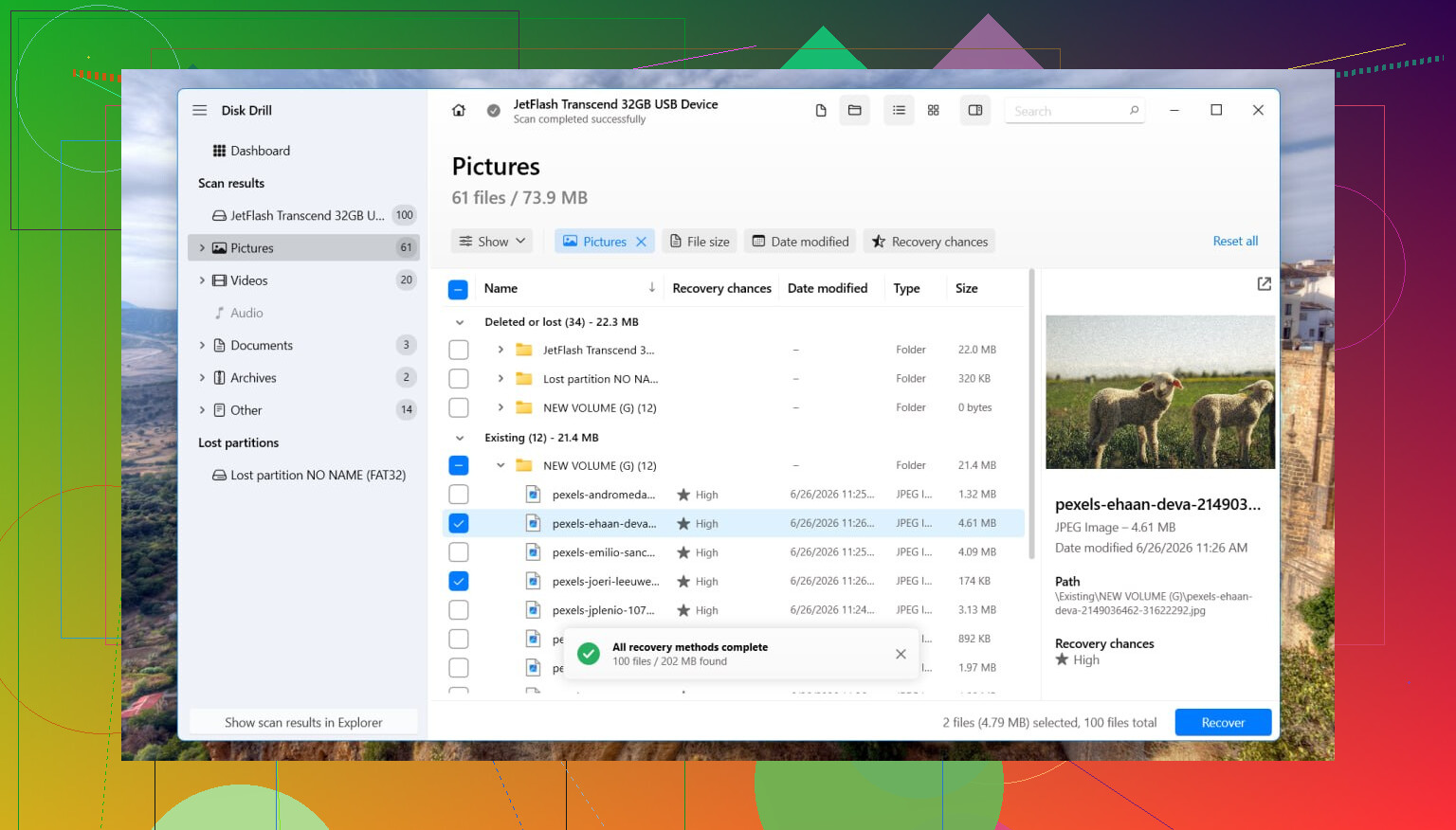
For recovery, I had decent luck with Disk Drill. What helped in my case was simple. It scanned the disk surface for recoverable data instead of depending on the broken file system metadata.
How I would run it
- Install Disk Drill on a different disk. Do not install it onto the RAW one.
- Launch it, then pick the affected drive or the RAW partition.
- Hit Search for Lost Data.
- If it asks for scan type on an external device, I would pick Universal Scan almost every time.
- I would only switch to Advanced Camera Recovery if you are chasing fragmented video from something like a dashcam, drone, or camera card.
- Let the scan finish. Don’t poke at the drive while it’s working.
- Open Review found items and preview a few files before saving anything.
- Select what matters, click Recover, then save everything to another drive.
After you verify the recovered files open cleanly, then I’d touch the partition itself.
What to do with the RAW partition later
If you want to try restoring the old partition layout, TestDisk is worth trying. I’ve seen it recover partition table entries in cases where Windows gave up too early.
If TestDisk fails, or if you don't care about restoring the original structure, I’d go the plain route in Disk Management. Delete the RAW partition if needed, make a New Simple Volume, do a quick format, then copy your recovered files back over.
One thing people forget with SSDs
If this drive is an SSD, I would not sit on it for days. TRIM changes the math. Deleted blocks on SSDs tend to become unrecoverable over time. A RAW state does not always trigger TRIM right away, from what I saw, but extra writes and pointless retries still work against you.
When I would stop using software
If the drive drops in and out, vanishes during a scan, starts clicking, starts grinding, or disconnects over and over, I’d stop there. That starts looking less like file system damage and more like hardware trouble. In that case, a professional recovery shop is the safer move, esp if the files matter.
75 Likes
RAW on an NTFS drive does not always mean your files are gone. It often means Windows lost the file system map. I agree with @mikeappsreviewer on one big point, do not format first.
Where I differ a bit, I like checking the hardware path before a long recovery scan. Swap the USB cable. Try another port. If it is an external drive, try a different enclosure or SATA dock. I have seen weak USB bridges make a healthy NTFS volume show up as RAW. Takes 5 minuts to rule out.
A quick triage list.
- Check SMART health with CrystalDiskInfo or smartctl.
- If health looks bad, clone the drive first with something like ddrescue.
- If health looks okay, recover files to another disk.
- After recovery, wipe and rebuild the partition.
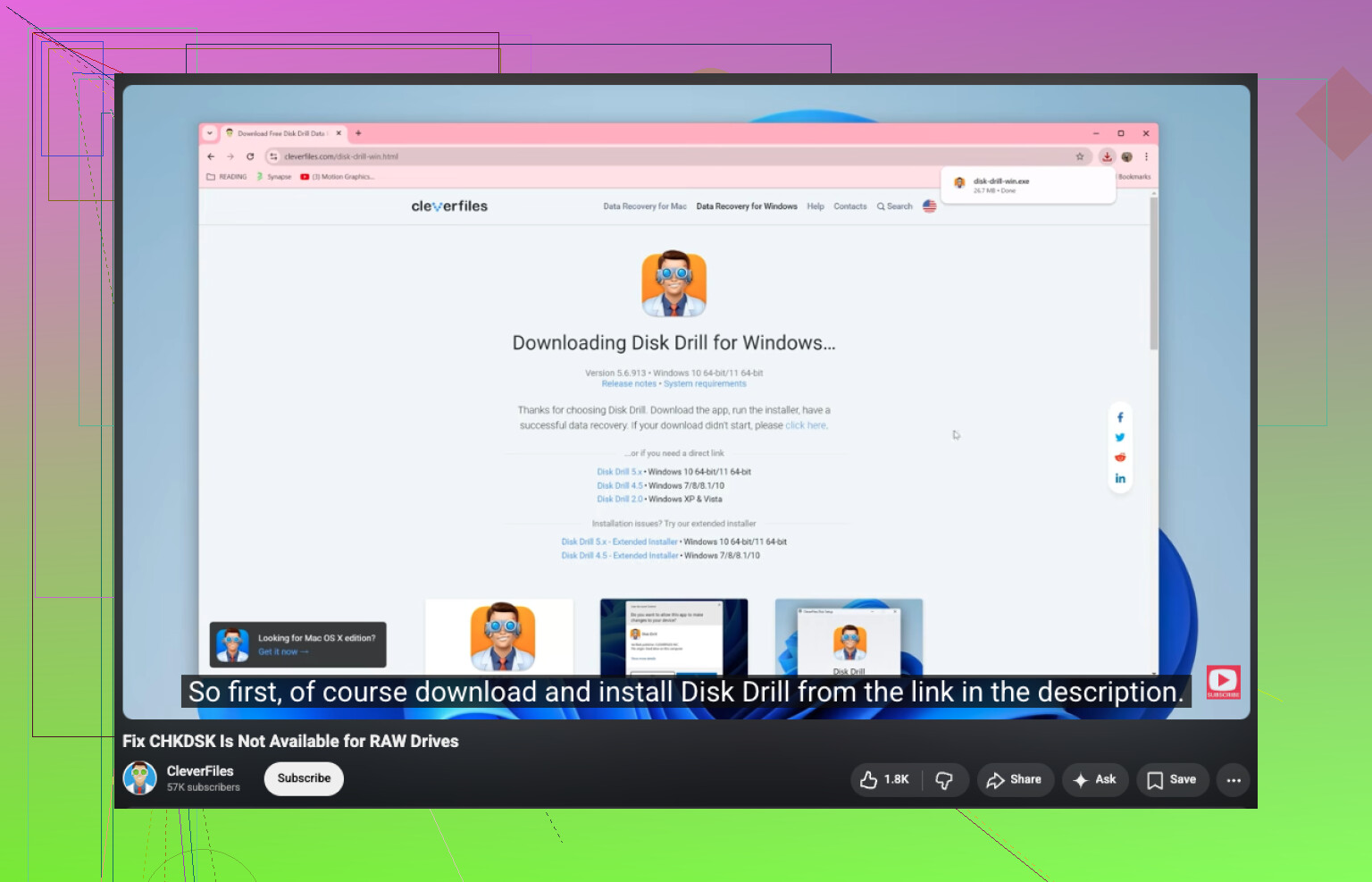
For file recovery, Disk Drill is a solid pick because it reads past broken NTFS metadata and pulls files out by scanning the disk. If you need a plain-English explainer for the common error, this covers it well, how to fix CHKDSK not available for RAW drives.
One more thing. If this happened overnight on the system drive after a crash or forced shutdown, run:
sfc /scannow
DISM /Online /Cleanup-Image /RestoreHealth
Those won’t fix a RAW data partition, but they help if Windows storage drivers or system files got messed up too. Small diference, but worth knowing.
If SMART shows reallocated or pending sectors climbing, stop messing with repairs and pull data first. That is usuallly the point where drives get worse fast.
I mostly agree with @mikeappsreviewer and @viajantedoceu on one thing: don’t hit Format just because Windows is nagging you. But I’m a little less eager to “repair” the partition early, because RAW is often a symptom, not the real problem.
What I’d add is this: check the partition type and size in DiskPart before doing anything invasive. If the volume suddenly shows the wrong size, no label, or weird offsets, that can point to a damaged partition table instead of pure NTFS corruption.
Also, look in Event Viewer under System for Ntfs, Disk, and storahci errors around the time it flipped to RAW. That can tell you if this was a one-off filesystem glitch or the drive/controller hiccuping all nite.
If the data matters, make a sector-by-sector image first if you have the space. Work from the image, not the original. That’s safer than repeatedly scanning a shaky disk. If you just need files out, Disk Drill is a reasonable option because it can scan a RAW partition and recover files to another drive without depending on the broken NTFS structure.
One thing I would not do right away is try random “RAW to NTFS converter” tools. Most are sketchy junk.
For more real-world cases, this thread is useful: see how people recovered files from an external hard drive that turned RAW
Short version: yes, a RAW partition can often be fixed, but recover or image the data first, then rebuild the partition after. If the drive is making noises or freezing, stop messing with it becuase that’s hardware-failure territory.
I’d split this into two separate questions: is the data still there, and is the drive itself trustworthy. @viajantedoceu, @techchizkid, and @mikeappsreviewer already covered the recovery-first angle well, but I’m a bit less convinced that every RAW flip is just NTFS damage. Sometimes Windows reports RAW because the first readable NTFS structures are landing on bad sectors, and the rest of the volume may still be fine underneath.
A couple checks I’d do that weren’t stressed enough:
- In Disk Management, compare the partition’s exact capacity to what it used to be.
- In Device Manager, uninstall the drive under Disk drives, unplug it, reconnect it, and let Windows re-detect it.
- If it is an external HDD, listen for spin-up retries or a faint rhythmic click. That matters more than people think.
One thing I would not rush into is TestDisk if the disk is unstable. Great tool on healthy hardware, risky on a drive that keeps timing out.
If you mainly need files, Disk Drill makes sense.
Pros
- Good at scanning RAW partitions
- Easy preview of recoverable files
- Less intimidating than a lot of recovery tools
Cons
- Deep scans can take forever
- File names/folders may be partially lost if NTFS metadata is badly damaged
- Best results still depend on drive health
My take: if the drive disconnects, freezes Explorer, or gets slower by the minute, stop software attempts and image it first. If it stays stable, recover to another disk with Disk Drill, then fully wipe, repartition, and test the drive before trusting it again. If it turns RAW a second time, retire it.
Try a Linux live USB before running recovery tools. Create an Ubuntu USB on another computer, boot from it, then choose “Try Ubuntu” instead of installing.
Open Files and select the RAW drive. Linux sometimes reads NTFS volumes Windows rejects. If your folders appear, copy them straight to another external disk. Start with your most important fies.
Do not save anything onto the damaged drive. If Ubuntu also shows errors or the drive disconnects, shut down and stop. This approach takes around 20 minutes, costs nothing, and avoids changing the partition while you rescue your data.
The Linux live USB tip needs a fix before anyone runs with it. Booting Ubuntu and opening the drive in Files will often mount NTFS read-write by default, and ntfs-3g will happily try to replay the journal the moment it mounts. On a healthy volume that is nothing. On a RAW or shaky one, that is a write you did not ask for. If you go the Linux route, mount it read-only from the terminal, or at least confirm it is not auto-mounted rw. Otherwise the ‘costs nothing, changes nothing’ pitch from @binaryrouter1169hq quietly stops being true.
Same logic actually strengthens what @techchizkid and @himmelsjager said about imaging. If the drive is unstable, every mount attempt, every scan, every ‘let me just peek’ is a roll of the dice. Make the image once, then abuse the copy all you want. People skip this because imaging a full drive is boring and slow, but it is the one step that lets you be careless later without regret.
Where I’d push back a little: the thread is leaning hard on ‘recover files, then rebuild.’ Fine, but nobody flagged the obvious question of why it went RAW. If this is an external on a cheap USB bridge, or a drive that shares a flaky powered hub, you can recover everything, reformat, copy back, and watch it flip to RAW again next week. Rule out the enclosure and the cable before you trust the disk itself. @viajantedoceu already touched the cable swap, and honestly that five minute check should happen before any recovery software gets installed.
On the tool itself, Disk Drill is a reasonable first pass for pulling files off a RAW partition, and its preview is handy for confirming files actually open instead of coming out as corrupt junk. Just set your expectations on folder structure. When the NTFS metadata is trashed, a lot of recovery tools give you the file contents but garbage names in big unsorted piles. That is normal, not a bug. If your data was well organized and you needed the folder tree intact, budget time for sorting, or lean on TestDisk first to see if the original partition entry can come back cleanly.
Quick decision rule I’d use: stable drive, files matter, structure matters, try TestDisk to restore the partition before wiping anything. Stable drive, you just want the files, scan and dump to another disk. Drive drops out or sounds wrong, stop, image it, and don’t touch it again until you have the clone.