My old iPad has gotten really slow lately, with apps taking forever to open and frequent lag when I browse or stream videos. I noticed the storage is almost full, and I’m wondering if deleting photos, apps, and cached files will actually improve performance or if there’s something else I should try to speed up an older iPad.
Been there. My old 6th gen iPad got so slow I started avoiding it. Safari would hang. YouTube took forever to open. It felt less like broken hardware and more like the system was dragging a backpack full of junk.
If the slowdown started right after an iPadOS update, I’d wait a bit before doing anything drastic. After updates, iPads churn through background tasks, photo indexing, file cleanup, all of it. Mine got warm and sluggish for most of a day once. I left it alone, then did a full shutdown and powered it back on. Not sleep mode. A real reboot. Small step, but I saw random lag disappear after that.
Storage is the first thing I’d check. On older iPads, low free space hits performance harder than people think. Apple mentions keeping some room open, but from what I saw, once free space dropped below around 10 to 15 percent, the tablet started dragging. Apps opened slower. App switching felt rough. If your iPad is packed full, iPadOS has less room for temp files and cache, and stuff starts to bog down.
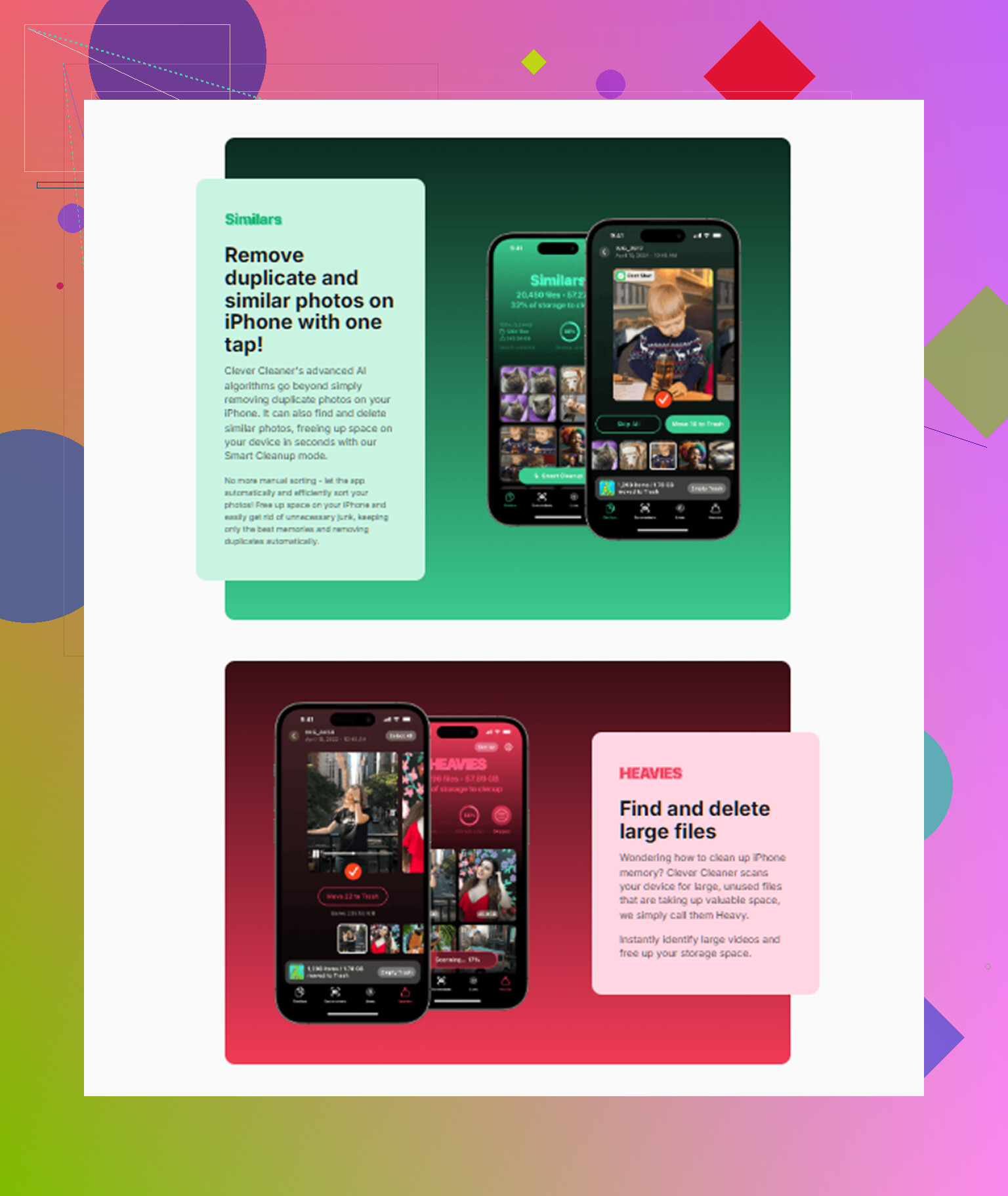
I used to clean it by hand and, honestly, it was a time sink. Scroll photos, delete a few, remove an app, barely gain anything. What worked better for me was a cleanup app doing the sorting first. The one I kept using was Clever Cleaner. I didn’t expect much, but it helped fast because it pointed straight to the space hogs instead of making me hunt for them.
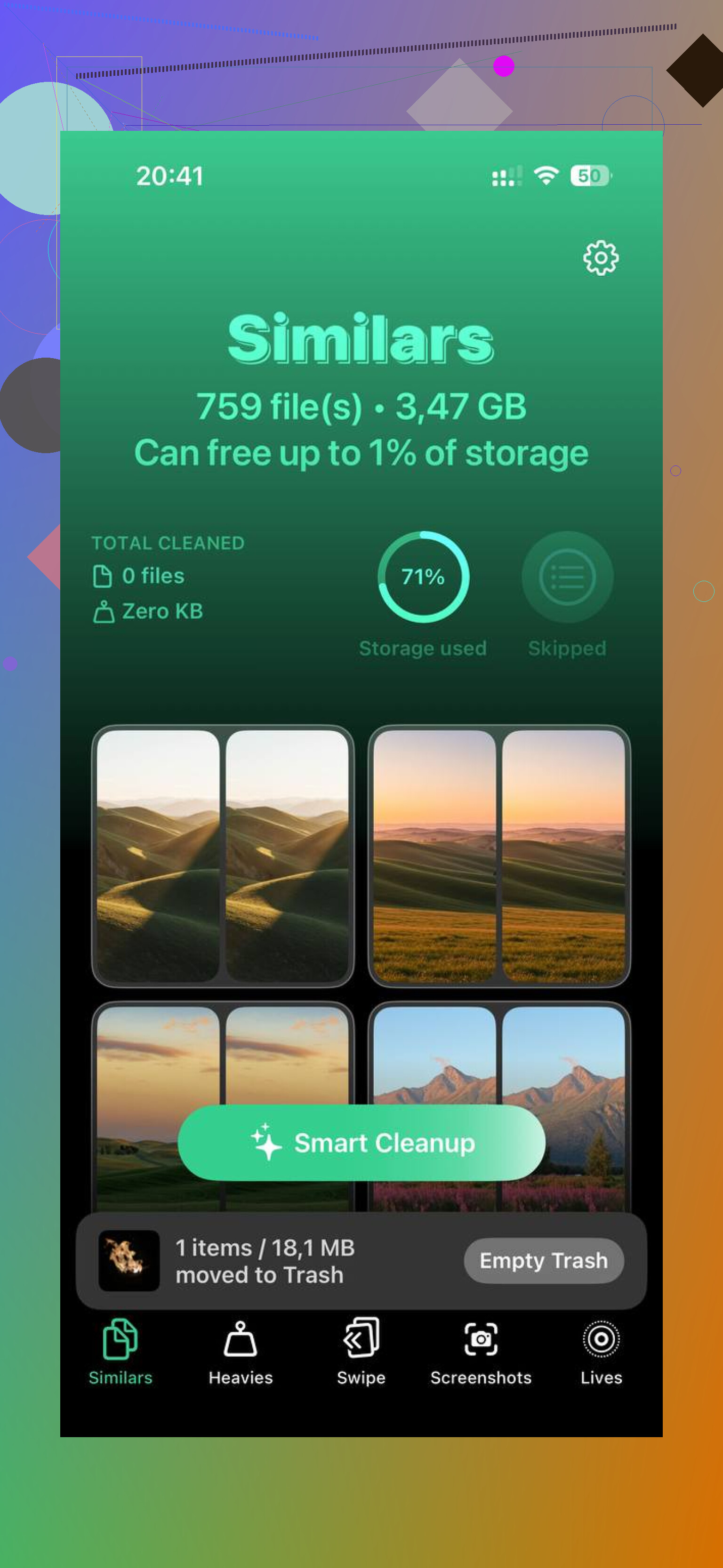
The useful part for me was how it grouped large files. There’s a Heavies section, so you spot the giant videos right away. Then there’s a Similars section, which caught duplicate-looking shots, blurry pics, and junk screenshots I forgot existed. I also liked seeing file sizes listed clearly. On my iPad, cutting around 5GB freed enough space to make the whole UI feel less sticky. What sold me was privacy stuff staying on-device, since I didn’t want my photo library shipped off somewhere.
Then I changed a couple settings. Those mattered more than I expected. In Accessibility, I turned on Reduce Motion. The fancy zoom animations got replaced with simpler transitions, and the iPad felt quicker even though the chip didn’t change at all. I also switched on Reduce Transparency under Display & Text Size. Less blur, less visual overhead, smoother menus. Not magic, still worth doing.
Another thing I shut off was Background App Refresh. Settings > General, then disable it. I don’t need half my apps checking for updates while sitting idle. News apps, shopping apps, social stuff, all of it was nibbling away at battery and system resources. Once I turned it off, the iPad felt less busy in the background.
One weird case I ran into, the iPad seemed slow, but the issue was Wi-Fi. If your router has both 2.4GHz and 5GHz, try the 5GHz network. Mine loaded pages and streams faster there. And if Safari is the main pain point, go to Settings > Safari and clear History and Website Data. Mildly annoying since you get signed out of sites, but mine stopped acting clogged up after I did it.
As for replacing it, I’d judge it by software support first. If the iPad no longer gets current iPadOS versions, then yeah, looking at a newer refurbished model makes sense. If it still gets updates, I wouldn’t write it off yet. A lot of older iPads aren’t dead. They’re stuffed full, overworked, and carrying settings aimed at newer hardware. Clean storage, restart it properly, trim the visual effects, kill background refresh. That got mine from annoying to usable again. Not perfect, but way better.
22 Likes
Yes, clearing storage helps, but only up to a point.
If your iPad is near full, performance usually drops first in Safari, streaming apps, and app installs. iPadOS needs free space for temp files, swap, downloads, and updates. I’d aim for at least 8GB free, or around 10 percent of total storage. More is better on older models.
I’ll disagree a bit with @mikeappsreviewer on one part. Freeing 5GB helps, but if the iPad has 32GB total and the battery is worn out, storage cleanup alone won’t fix the whole problem. Old batteries cause throttling. Check Settings, Battery, then Battery Health if your model shows it. If not, lag during heavy use and random slowdowns are a clue.
What I’d do:
- Offload apps you rarely use, don’t delete your data first.
- Remove downloaded Netflix, YouTube, Spotify files.
- Delete big Messages attachments. Those pile up fast.
- Close out old Safari tabs. Some people have 200 open and wonder why stuff crawls, lol.
- Update apps, because old app builds run worse on newer iPadOS.
- If one app is bad, delete and reinstall it. Cache gets messy.
For cleanup, Clever Cleaner is worth a look if you want a faster way to spot large files and photo clutter. If you want a readable take on it, this covers it well: see how Clever Cleaner helps free up iPhone storage. Same cleanup idea applies if you’re sorting Apple device storage in general.
If the iPad still lags after freeing space, the limit is the chip, RAM, or battery. At tht point, a reset and restore is the last serious fix before replacement.
Clearing storage does help, but I think people oversell it a little. @mikeappsreviewer and @jeff are right that a nearly full iPad can feel awful, especially with Safari, streaming apps, and updates. But the bigger question is whether the slowdown is from lack of free space or from the iPad just being old enough that modern apps bully the hardware.
My rule: if storage is above 85 to 90 percent used, free some up. Not because it magically boosts speed, but because iPadOS needs breathing room for temp files, app data, and background housekeeping. When it has no room, everything gets kinda sticky.
What I’d add that they didn’t really stress:
- Check available RAM behavior indirectly. If apps constantly reload when you switch back to them, that’s more of a memory/age issue than storage.
- Look at widget overload on the home screen. Older iPads can get weirdly laggy with too many widgets updating.
- Turn off unnecessary location access. A bunch of apps set to “Always” can make an old device feel busy for no reason.
- Mail can be a sneaky culprit too. If you have several accounts pushing mail constantly, switch some to fetch.
Also, don’t go crazy deleting every photo first. Videos, offline downloads, giant game files, and bloated app caches usually give faster results. If you want a quicker way to find the worst offenders, Clever Cleaner is actually useful for spotting large files and duplicate photo junk without digging through everything manually. And if you want to see Clever Cleaner speed up storage cleanup on Apple devices, that’s a decent visual walkthrough.
If freeing space barely changes anything, that’s your answer. It’s probly the chip, RAM, or battery age, not your photo library. At that point, cleanup helps usability, but it won’t turn a 6 year old iPad into a new one.
I’m a little less convinced than @jeff and @chasseurdetoiles that storage is the main cause most of the time. It matters, yes, but on older iPads the silent killer is often Safari website bloat, old app permissions, and system settings stacking up over years.
A few things I’d check that weren’t really covered:
- Reset network settings if streaming is the main complaint. Bad saved Wi-Fi configs can make an iPad feel “slow” when it’s really just stalling online.
- Review Location Services app by app. Maps needs it, your random shopping app probably doesn’t.
- Disable Live Photos going forward if your library is huge. They eat space and make photo management heavier over time.
- In Messages, switch message history from Forever to 1 Year if you’ve had the iPad forever.
- Remove old VPN or profile configs if you ever installed school/work stuff. Those can cause weird lag and connection hiccups.
On cleaning tools, Clever Cleaner is decent for finding the obvious junk fast.
Pros:
- easy to spot large files and duplicate-ish photos
- faster than hunting manually
- helpful if you’re bad at storage triage
Cons:
- won’t fix weak RAM, old battery, or an aging chip
- photo suggestions still need human review
- cleanup apps can make people expect a miracle speed boost
I’d say @mikeappsreviewer is right that freeing space helps usability, but if app reloads and stutter stay the same after cleanup, that’s hardware age talking. If you use Clever Cleaner, use it to reclaim breathing room, not as a magic repair button.