My iPhone has been lagging when opening apps and switching screens, but I’m not ready to replace or mess with the battery. I’m looking for safe ways to improve iPhone performance, reduce slowdowns, and make it feel faster without affecting battery hardware.
An older iPhone feeling slow does not automatically mean the hardware is done. A lot of the time, you can get a decent amount of speed back by turning off a few heavier features and freeing up storage. No upgrade needed.
The big thing is that restarting only helps for a minute. It clears some temporary junk and can stop a frozen process, but it does not fix the stuff that keeps dragging the phone down. Older iPhones usually slow down because newer iOS features are harder on the chip, or because the storage is so full that iOS has no room to work properly.
Start with the settings that actually matter
Turn off Background App Refresh unless you really need it. You can find it under Settings - General - Background App Refresh. On older phones, apps quietly refreshing in the background can make the whole device feel heavier, especially if a bunch of them are doing it at once.
Also enable Reduce Motion and Reduce Transparency. Go to Settings - Accessibility - Motion for Reduce Motion, then Display and Text Size for Reduce Transparency. This removes some of the blur effects, animations, and visual extras that look nice but make older hardware work harder. The phone may look a little less flashy, but it usually feels more responsive.
If Low Power Mode is always on, turn it off when you care about speed. It saves battery by limiting performance, so leaving it enabled all the time can make the phone feel slower than it needs to.
Then check Battery Health under Settings - Battery - Battery Health. If maximum capacity is below 80 percent, iOS may be managing performance to prevent random shutdowns. At that point, replacing the battery can do more than any settings tweak.
Do not ignore storage
Storage is the part a lot of people miss. iOS needs open space for temporary files, indexing, updates, and basic system work. Once the phone is around 90 percent full or more, normal things start getting laggy. Apps open slower, the camera can hesitate, and the phone may run warm because it is constantly fighting for room.
For older iPhones, keeping roughly 10 to 20 percent free is not just “nice to have.” It makes a real difference.
Easy stuff first: clear Safari data in Settings - Safari - Clear History and Website Data. Then check Settings - General - iPhone Storage and offload apps you never use. But for most people, the real storage problem is the photo library.
The cleanup that makes the biggest difference
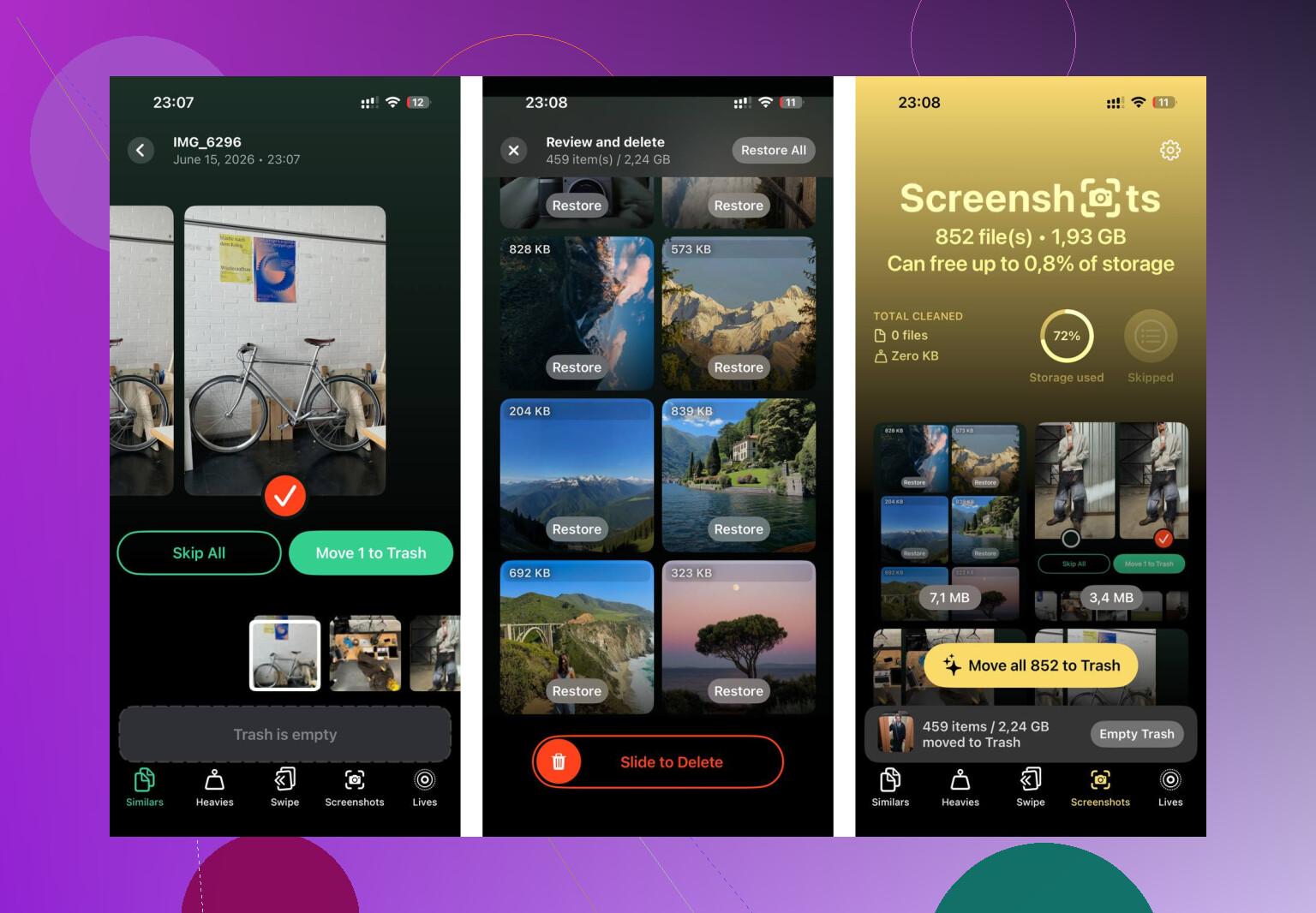
Manually sorting through thousands of photos, screenshots, screen recordings, and duplicate-looking shots is miserable. Clever Cleaner makes that part a lot less annoying, and it is free with no ads or subscription.
The Heavies section is useful because it sorts files from biggest to smallest and shows the exact size. Old screen recordings and 4K videos are often sitting at the top taking up multiple gigabytes each. Deleting just a few of those can free more space than removing a huge pile of normal photos.
The Similars section groups near-duplicate photos and picks the sharpest one from each set. So if you took ten versions of the same shot, you do not have to inspect every single one by hand.
It also shows file sizes on screenshots before you delete anything, which helps because screenshots can quietly add up to several gigabytes. The scan and cleanup happen on the device, so the photos are not uploaded somewhere else for processing.
After doing the settings changes and then clearing about 30GB of storage, the difference was obvious. Apps opened faster, the camera launched normally again, and the phone stopped getting warm during regular use. The heat was probably from iOS constantly working around a packed storage index.
The settings help. The storage cleanup usually helps more. Doing both is the best shot at making an old iPhone feel usable again without spending money.
17 Likes
Don’t chase speed tweaks until you know whether the lag is system-wide or just a few apps. If Safari, Settings, Messages, and the keyboard are all slow, then storage and visual effects are worth fixing like @mikeappsreviewer said. But if it is mainly Instagram, Maps, banking apps, or games, delete and reinstall those apps first because their cache can get bloated and iOS does not always give you a clean way to clear it. I’d also avoid “RAM cleaner” apps and random performance tools, since they usually do nothing useful. Apple’s own iPhone performance checklist is a safer baseline than most cleanup advice.
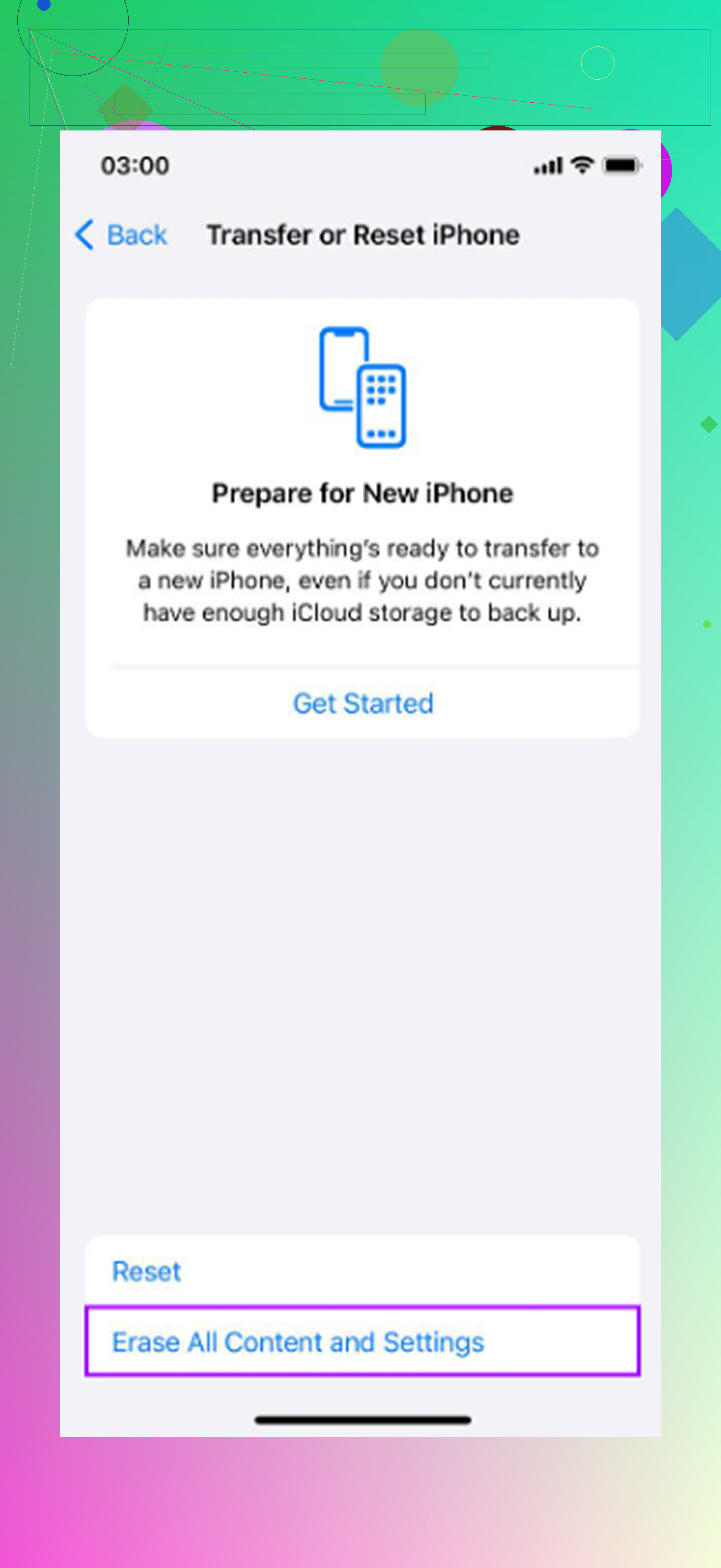
Do not start by factory resetting the phone or installing “speed booster” apps. That is usually wasted effort, and in the worst case you end up with missing data or some sketchy app asking for permissions it does not need.
A boring thing that gets missed is heat. If the phone is warm, charging, in a thick case, sitting in the sun, or doing a big iCloud Photos sync, it can feel slow even if nothing is technically broken. Let it cool down, take it off the charger, close whatever is actively syncing or downloading, and test it again after 10 minutes. Same with VPNs, ad blockers, and bad Wi-Fi. Sometimes “apps are slow to open” is really “apps are hanging while trying to load data.”
I agree with the storage point above, but I would treat cleanup apps as optional, not the first move. Go to iPhone Storage and look for anything obviously huge first: downloaded podcasts, offline maps, old message attachments, music, videos, and games you no longer play. Then update the apps that are lagging, reboot once, and leave the phone plugged in on Wi-Fi for a while so iOS can finish indexing and background maintenance. If it still stutters in Settings, keyboard, and app switching after that, you may be hitting the limits of the phone itself, and there may only be so much you can do without dealing with the battery or upgrading.
Force-quitting every app is not a speed fix. A lot of people do the swipe-up-all-apps ritual thinking it clears the phone out, but iOS is already managing memory. If an app is frozen, sure, close that one. If you constantly close everything, the phone may have to reload apps from scratch each time, which can make it feel slower instead of faster.
A missing low-risk thing to check is Home Screen clutter. Widgets, big Smart Stacks, weather widgets, calendar widgets, news widgets, and Live Activities can all make an older iPhone feel less snappy because they keep refreshing little bits of data. Try removing most widgets for a day and see if app switching and unlocking feel smoother. It is reversible, costs nothing, and does not touch the battery.
I’d also trim Siri/Search stuff if the lag shows up when swiping down to search or opening apps from suggestions. Go to Settings > Siri & Search and turn off suggestions for apps you do not care about. It will not turn an old iPhone into a new one, but it can remove some background busywork. Pair that with the storage advice above and you have the safest set of changes before you start thinking about battery service or a new phone.
Careful with iOS updates on older hardware. If your phone keeps prompting you to install the newest version, that update alone can be what tipped it into feeling sluggish. Apple supports old models longer than most companies, but ‘supported’ and ‘runs well’ are not the same thing. Once you’re on the latest iOS, you usually can’t roll back, so read what other people with your exact model are saying before you tap install. And check Settings, General, iPhone Storage for a downloaded update sitting there waiting. It parks a few gigs and nags the system until you either install or delete it.
The storage advice earlier in the thread is solid, and @mikeappsreviewer is right that photo libraries are where the space actually goes. Clever Cleaner is fine for that grunt work, especially the big-videos-first sorting. I’d just treat it as a cleanup step, not a performance fix. Freeing space helps a full phone breathe, but it won’t make a chip faster. If your storage is only half full, cleaning it does close to nothing for speed.
Where I partly disagree with @andarilhonoturno: widgets and Siri suggestions are worth trimming, but on most phones that’s a small win. The bigger hidden drag I rarely see mentioned is Photos and iCloud doing analysis in the background. If you recently added a big library or turned on iCloud Photos, the phone spends days scanning faces and building its index, and it feels slow the whole time. Plug it in overnight on Wi-Fi and a lot of that quietly finishes.
My honest take: work from cheapest and least risky to most. Reboot, cool it down, kill any active sync, delete a pending update if one’s stuck. Then storage and the visual-effect toggles. If it still stutters in plain stuff like Settings and the keyboard after all that, you’re hitting the ceiling of the hardware, and no cleanup app changes that.