I’m trying to compare two pictures side by side on my iPhone without paying for an app, but I can’t find a simple free option. I recently took several similar photos and need help choosing the best one for posting and storage, so I’m looking for an easy way to view iPhone photos next to each other.
Comparing photos on an iPhone should be easy. It isn’t. I ran into this while trying to sort a pile of near-duplicate shots from a weekend trip, and the built-in Photos app still feels clumsy for this.
Why the Photos app doesn’t help much
There is no real side-by-side compare view in Photos. You open one image, back out, open the next, then try to remember small details from the first one. I did this while checking focus on a few portrait shots and it got old fast. Tiny differences, soft eyes, slight motion blur, a better smile, all of it is harder to judge when you’re flipping back and forth.
If you shoot a lot of similar frames, this usually ends with you keeping both. Then ten more. Then your storage is cooked.
How I put two photos next to each other with Shortcuts
If what you want is a single combined image, like a before-and-after or a simple comparison pic, iPhone already has a way to do it through Shortcuts. No extra app needed.
Steps:
- Open the Shortcuts app.
- Tap the plus button to make a new shortcut.
- Add the ‘Select Photos’ action, then turn on ‘Select Multiple.’
- Add the ‘Combine Images’ action, then set it to horizontal.
- Add ‘Save to Photo Album.’
- Save the shortcut and give it a name you won’t forget.
- Run it, pick two photos, and it saves a new image with both side by side.
This works fine if your goal is sharing a comparison or making a quick collage. I used it for before-and-after edits once and it was fine. The catch is obvious. It makes a new file. If you’re trying to decide which of six near-identical shots to delete, this doesn’t solve the annoying part.
A better way if you’re sorting duplicates
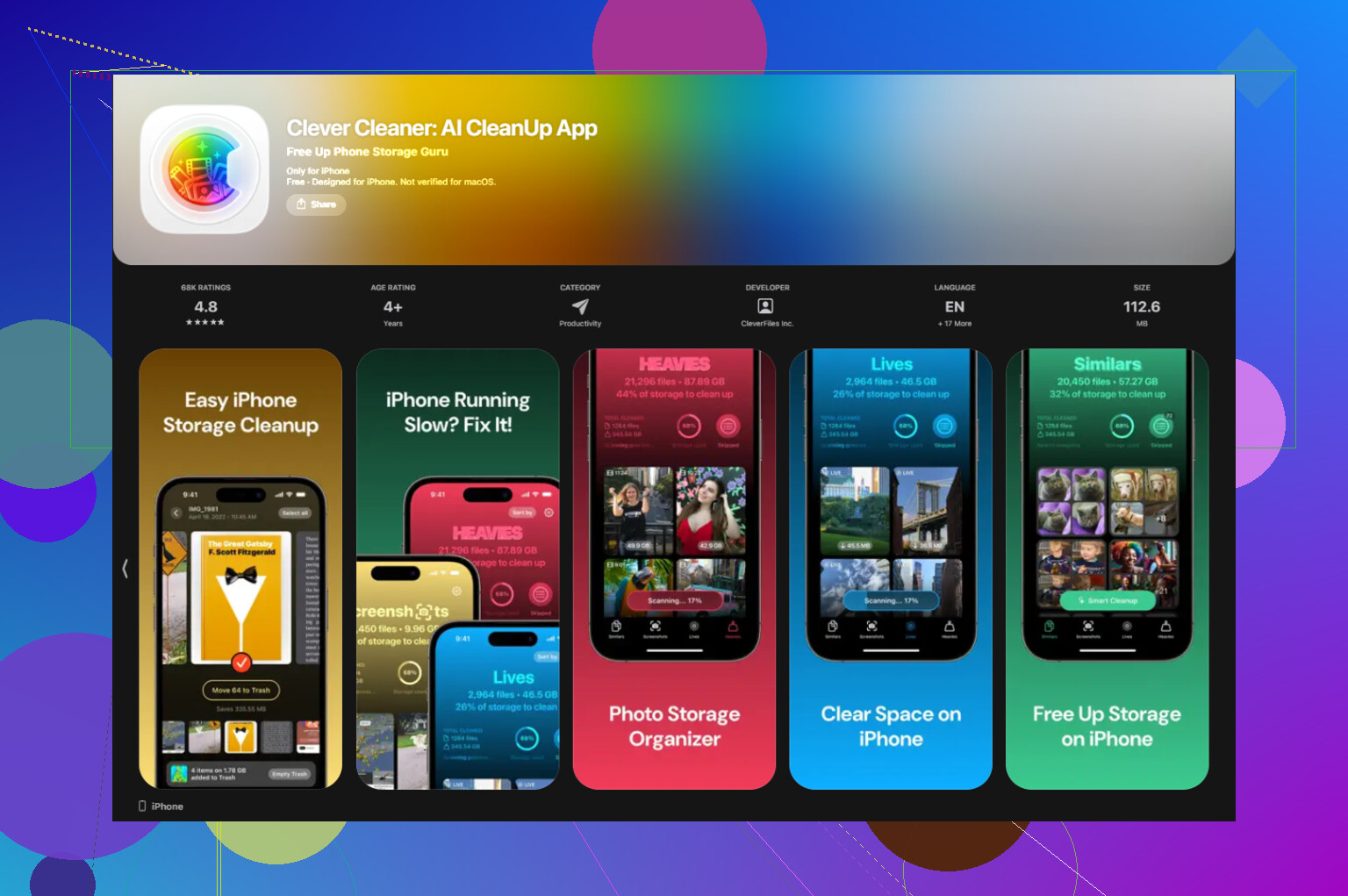
If you’re dealing with batches of similar photos, the swipe method in Photos is slow, and the Shortcuts trick adds more files to clean up later. What helped me more was Clever Cleaner.
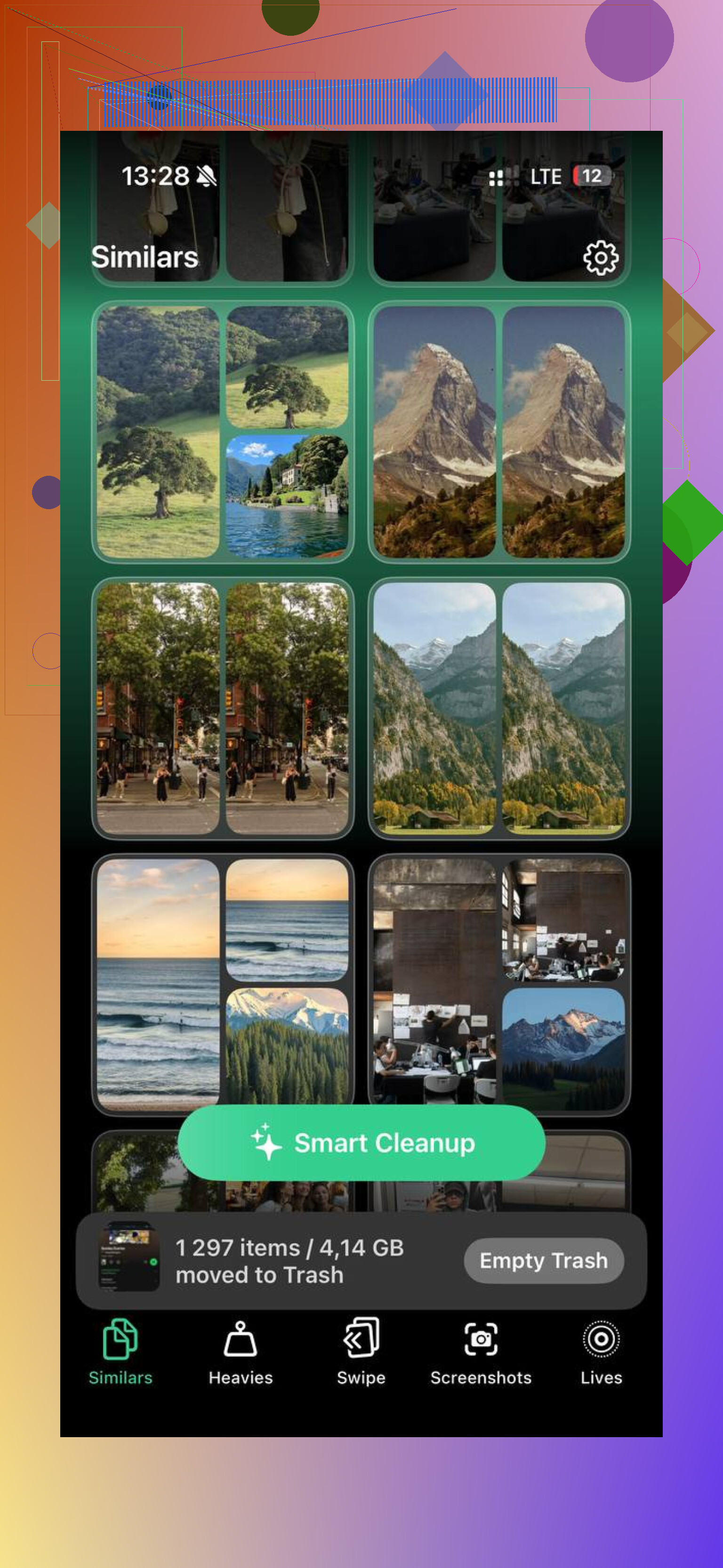
The useful part is the Similars section. It scans your library and groups shots which look close enough to be the same moment, burst photos, repeat angles, slight lighting changes, stuff like that. Then it marks one image as the best pick. In my test, it usually got the sharpest frame right. A few times I changed it myself because I liked a different expression, so you still need to look.
How I used it
- Open Clever Cleaner.
- Go to the Similars tab.
- Let it scan your photo library.
- Open each group and check the photo marked as Best Shot.
- Change the selection if you want.
- Confirm deletion for the extras.
- Empty the app trash later, after you make sure nothing important got tossed.
That setup is better if your real goal is cleanup, not collage-making.
Other parts I ended up using too
The Heavies tab is blunt in a good way. It lists the biggest files first, with file sizes shown. If your storage is getting eaten by 4K video, you see the damage right away.
The Screenshots tab is quicker than digging through the Photos app folder. You see the size of each screenshot before deleting it, which helps more than I expected.
There is also a swipe view sorted by month. Left to delete, right to keep. Sounds dumb simple, but when I had months of junk sitting there, it felt easier than staring at the full library all at once. A bit less mentally draining, tbh.
One part I checked first
Everything runs on the device. Nothing gets sent off somewhere else. For photos, I care about tht more than I thought I would.
What ended up working best for me
I split this into two jobs.
Use Shortcuts when you need one combined side-by-side image.
Use Clever Cleaner when you need to choose the best shot and dump the rest.
That covered both cases without paying anything. On a library I hadn’t cleaned in ages, the scan took a few minutes and I cleared out around 12GB. I was expecting less, if I’m honest.
18 Likes
Free, yes. Simple, not realy.
iPhone still does not give you a true photo compare view inside Photos. I disagree a bit with @mikeappsreviewer on one part though. If you only need to pick between 2 or 3 shots, the fastest free trick is often this.
Open one photo in Photos.
Tap Edit.
Memorize the sharp area, eyes, text, edges.
Swipe down, open the next one, tap Edit again.
Edit mode removes some UI clutter, so flaws stand out faster. It is still clunky, but for a small batch it works better than normal flipping.
If you want actual side by side on iPhone for free, your best no-pay option is usually a collage app with a free layout, or the Shortcuts route Mike mentioned. For sorting lots of similar shots, I would skip making collages. It creates extra files and gets messy fast.
For cleanup, Clever Cleaner makes more sense. Its Similar Photos grouping is closer to what most people want, pick the best shot, remove the rest, save storage. That solves posting and storage in one pass.
Also, this Apple thread explains the limitation pretty clearly if you want the official-user-community angle:
how to compare photos side by side on iPhone
Short version:
- Few photos, use Edit view and compare manually.
- Need one combined image, use Shortcuts.
- Many duplicates, use Clever Cleaner.
Apple should have built this in by now, tbh.
Honestly, I slightly disagree with @mikeappsreviewer and @caminantenocturno on one thing: if your goal is just choosing the best pic, making a side-by-side image first is kind of extra work. It solves sharing, not comparing.
Free iPhone trick I use:
Select the photos in Photos, tap the three dots, and start a slideshow. Then pause and scrub back/forth fast. It’s not true split-screen, but differences jump out quicker than opening/closing each image over and over. Zooming in on eyelashes, text, or edges after that helps a ton.
Also, if the shots are Live Photos, turn Live off/on while viewing. Sometimes the “best” frame isn’t the one that felt best in the moment. Weird but true.
If you’ve got a lot of near-dupes, Clever Cleaner is probly more useful than forcing a side-by-side workflow. Its similar-photo sorting is basically a faster way to review matching shots and clear the junk. This breakdown of a simple tool for finding similar photos and picking the best ones explains it pretty well.
So yeah:
- 2 pics: use quick swipe/slideshow compare
- want a combined image: Shortcuts/collage
- tons of dupes: Clever Cleaner
Apple really should’ve made this easier by now tbh.