I lost my Hisense TV remote and need to control my TV from my iPhone. I tried a couple of iOS remote apps, but they either wanted payment right away or would not connect to my Hisense TV. I need help finding a truly free Hisense TV remote app for iPhone that actually works.
I went through a few iPhone remote apps for Hisense TVs, and the main thing I learned was simple. Your TV’s system matters more than the brand name on the frame.
If you want one app that covers the most ground, this one stood out first:
TVRem – Universal TV Remote App
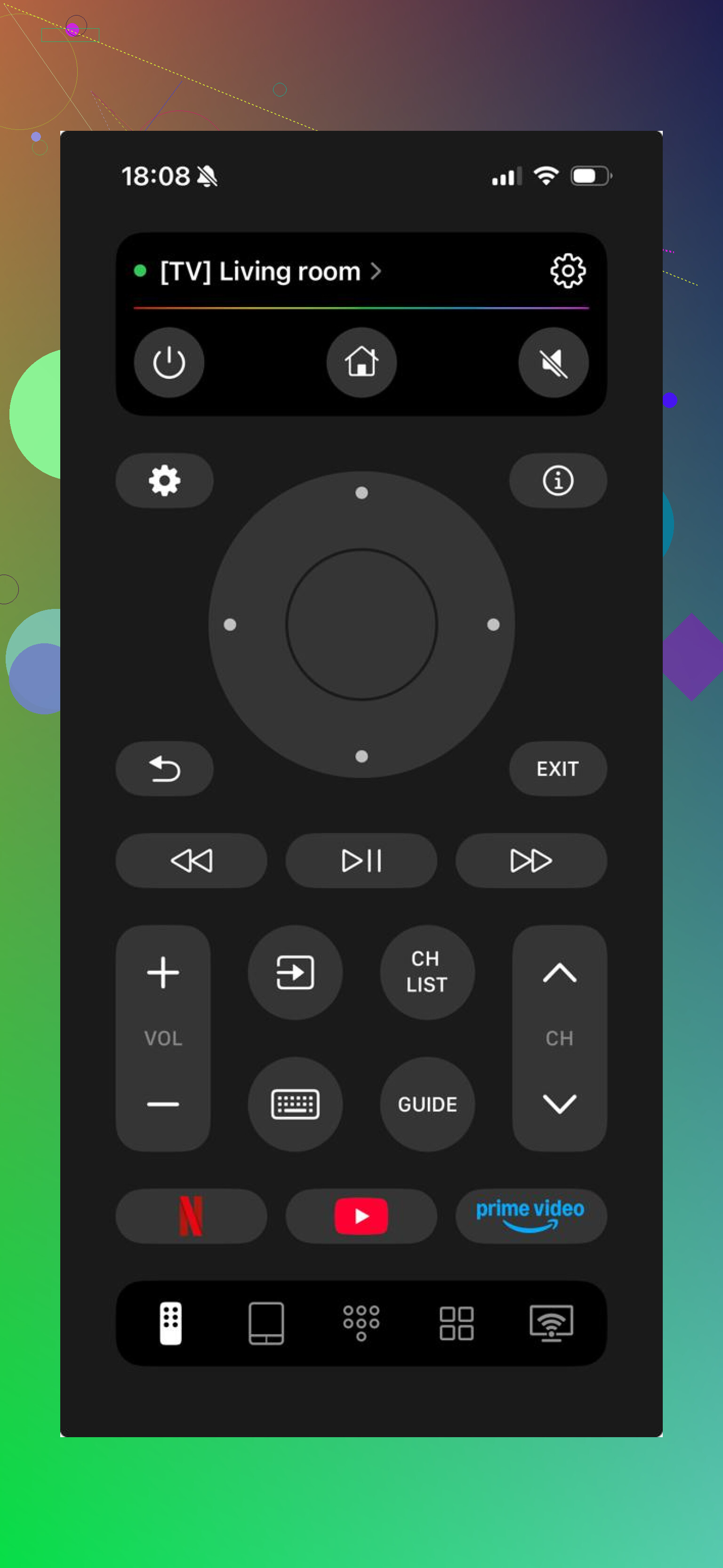
I liked it because it does not assume your Hisense set uses one single platform. A lot of people miss this part. Some Hisense TVs run Google TV. Some use Fire TV. Others are Roku-based. This app covers all three.
What I saw in use:
Works with Hisense Google TV
Works with Hisense Fire TV
Works with Hisense Roku TV
Pairs over Wi-Fi when your phone and TV are on the same network
Gives you the usual remote controls, navigation, volume, channels, playback, and the rest
Has touchpad control, which felt smoother than the button-only apps I tried
Includes a keyboard, which helped a lot when typing into YouTube or Netflix search
The layout is clean, so I did not spend time hunting for basic controls
Also works with more than one TV brand, if you keep different sets around the house
The listed features are free
The part I would pay attention to is compatibility. If you do not know whether your Hisense TV is running Google TV, Fire TV, or Roku TV, this app gives you better odds of getting connected without trial-and-error across three separate apps.
Another one people bring up is Universal Remote TV Smart.
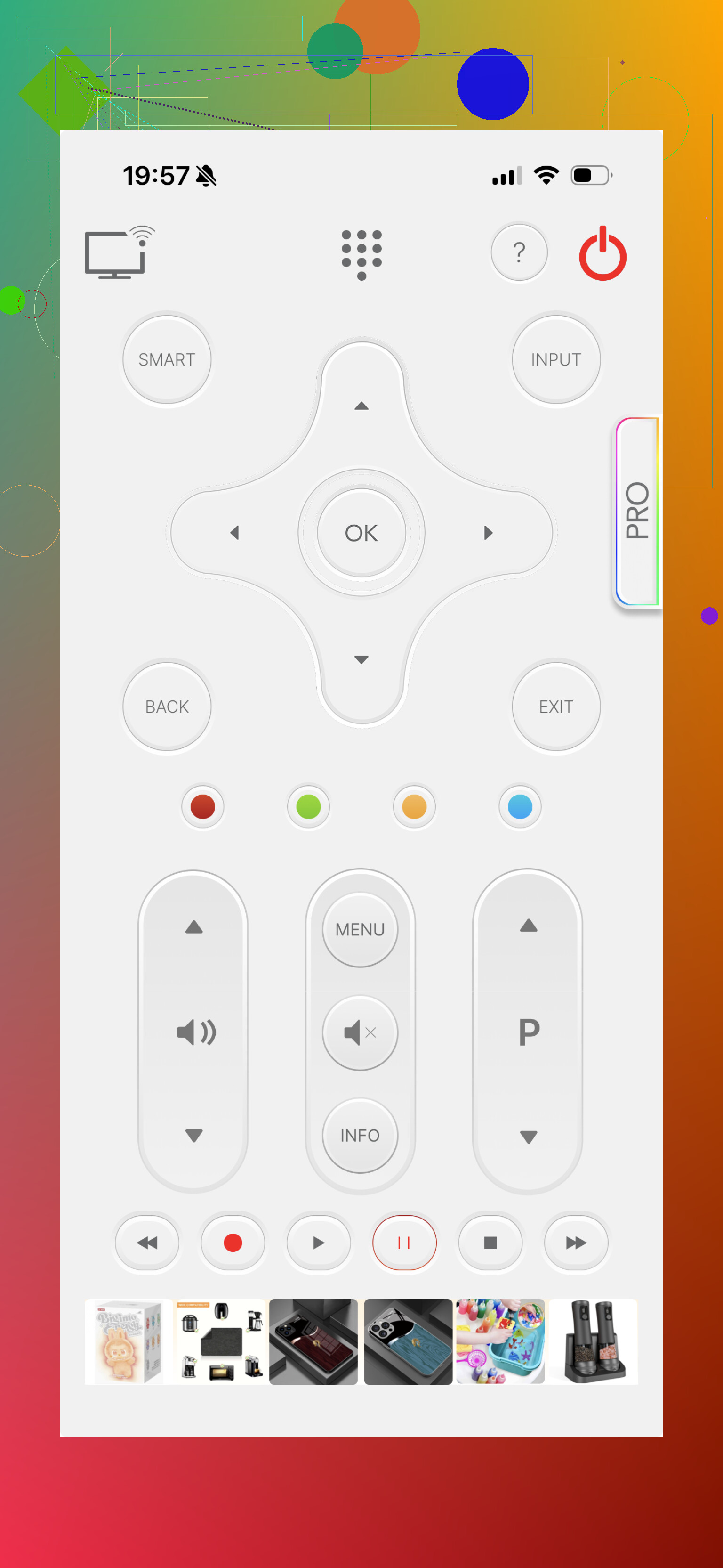
I’d put it in the decent-enough bucket. It handles the core remote stuff and supports multiple brands, including some Hisense TVs. Still, it felt more like a broad generic remote than something tuned well for Hisense sets. Fine for basics, less nice once you start typing, switching apps, or trying to make it your main remote.
Then there is VIDAA.
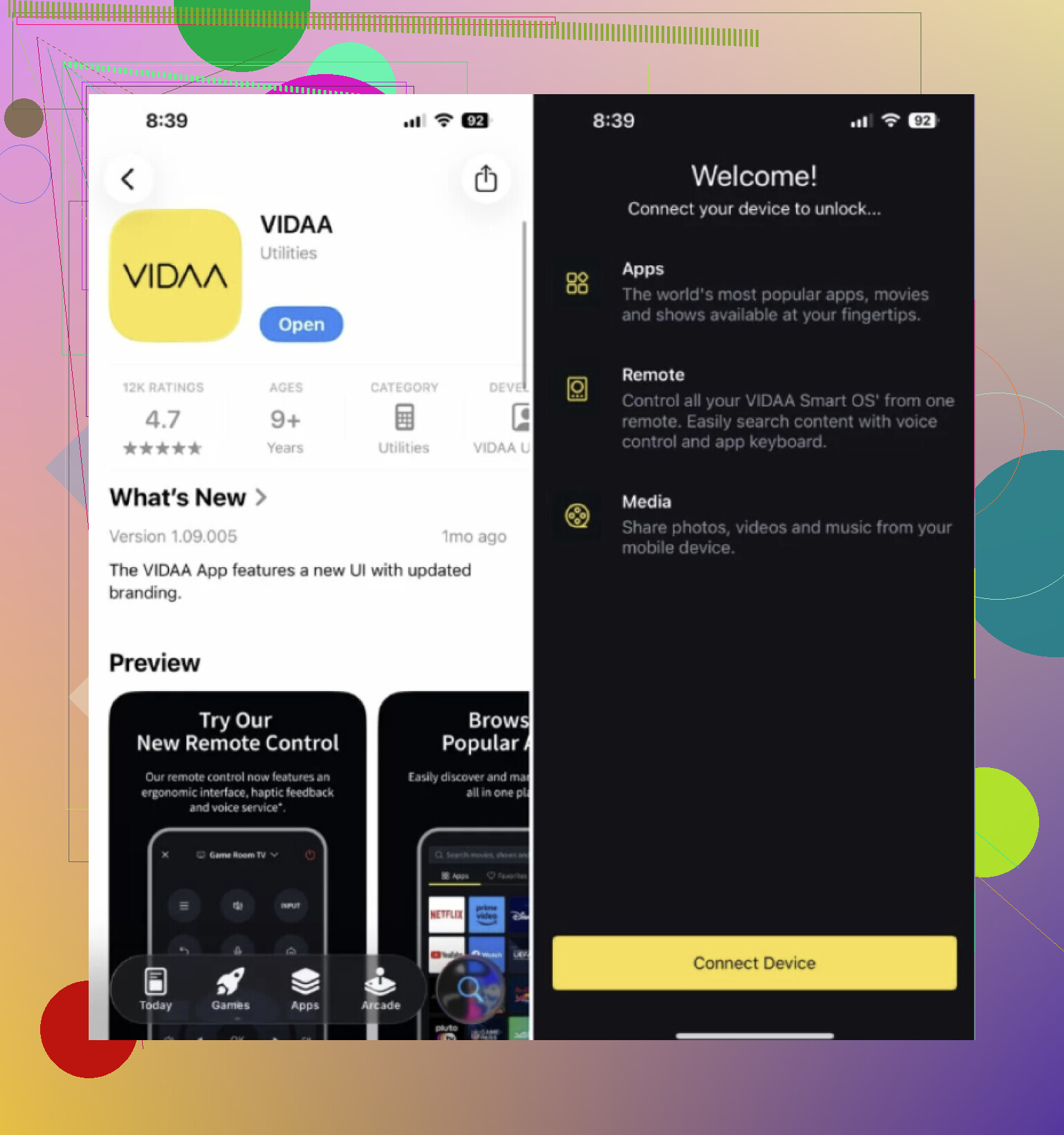
This one is more specific. It is meant for Hisense TVs running VIDAA OS.
If your TV uses VIDAA, this is the app I’d check first because it is built for that setup. If your TV runs Google TV, Fire TV, or Roku TV, then VIDAA is the wrong lane. I saw a lot of confusion around this, espeically from people who assumed all Hisense TVs use the same software. They don’t.
So the short version is this.
TVRem makes the most sense for most people because it supports the widest spread of Hisense TV systems, including Google TV, Fire TV, and Roku TV, and it includes the stuff people end up needing, touch controls, keyboard entry, and full remote functions.
VIDAA only fits if your television is a VIDAA model.
If you want one starting point for a free Hisense remote app on iPhone, I’d look at TVRem first.
9 Likes
Yes, but the word free gets messy on iPhone.
I partly disagree with @mikeappsreviewer on one thing. I would not start with a generic universal remote unless you know your TV OS. For Hisense, the OS decides everything.
Fast check:
If your Hisense home screen looks like Roku, use the official Roku app. Free.
If it runs Google TV or Android TV, use Google TV. Free for basic remote control.
If it is a Fire TV edition, use the Amazon Fire TV app. Free.
If it runs VIDAA, use the VIDAA app first.
Why this works better:
Official apps connect faster.
They usually ask for less junk.
They do not hide the remote behind a trial as often.
Important catch, your TV and iPhone need to be on the same Wi-Fi. If the TV was on ethernet and your phone is on guest Wi-Fi, it wont show up. That trips people up a lot.
If none of those connect, your TV model number is the next thing to check. Hisense sells too many diff systems under one brand name.
I’d split the answer into two parts: free app and actually usable. Those are not always the same thing on iPhone.
I agree with @nachtdromer more than @mikeappsreviewer on one point: chasing random “universal remote” apps is usally where people waste time. A lot of them are free to install, then paywall the only buttons you need. Super annoying.
What I’d add though: if your Hisense TV is already linked to Apple HomeKit or AirPlay settings on your iPhone, check Control Center and the built-in Apple TV remote tile anyway. No, it does not turn every Hisense into a full Apple TV, but if you have an Apple TV box, streaming stick, or another connected device on that TV, you may only need to control the input/device, not the TV itself. People forget that workaround.
Also, if no app connects, the issue may not be the app at all. Many Hisense TVs have a setting like:
- Wake on Wi-Fi
- Network standby
- Remote start / Mobile remote control
If that setting is off, iPhone apps can fail even when both devices are on the same network. Kinda dumb, but that’s how it is.
So, truly free options exist, but usually through:
- the official app for your TV OS
- or a workaround through a connected streaming device
If you post the exact Hisense model number, people can stop guessing and tell you the right app in like 2 mins. That’s probly the fastest path.
I’d push back a little on @mikeappsreviewer here. A generic app can be fine, but “fine” is not the same as free long-term on iPhone.
What usually gets missed is this: some Hisense TVs support remote control from inside the TV’s own settings menu, and if that toggle is off, even the right app looks broken. So before deleting apps, check Settings for anything like mobile remote, device connect, or external control.
If you want one catch-all starting point, TVRem – Universal TV Remote App is worth a look.
Pros
- supports multiple Hisense platforms
- easier if you do not know your TV OS
- keyboard/touch controls are handy
Cons
- may not power on a fully sleeping TV
@nachtdromer is right that official apps are usually cleaner. @byteguru is right that TV settings can block pairing. My take: test one official app first, then a multi-platform fallback like TVRem – Universal TV Remote App if your model is unclear. If nothing works, your TV likely has network standby disabled, not an app problem.