My external hard drive is showing up in Windows 11, but a lot of my files and folders suddenly disappeared. I didn’t delete anything, and I need help figuring out if the files are hidden, corrupted, or if the drive is starting to fail. I have important photos and work documents on it, so I’m looking for the safest way to recover missing files from an external hard drive on Windows 11.
I ran into almost the same mess a while ago. Plugged in an external drive, opened it, and a pile of folders had vanished. My first dumb thought was, great, I deleted my own stuff. Turned out the drive had file system damage, not some clean wipe. I got most of it back, so I wouldn’t treat missing folders as a lost cause yet.
First rule, stop using the drive.
Don’t format it. Don’t move new files onto it. Don’t hit repair tools right away. If your data is still sitting there but the file system is scrambled, writing anything new raises the odds of making recovery worse.
Before doing anything heavy, I’d check the simple stuff:
- Turn on Hidden items in File Explorer.
- Look at used space on the drive. If your folders are missing but it still says something like 800 GB is used, I’d take that as a decent sign.
- Swap the USB cable or try another port. I’ve had bad cables fake a bigger problem.
- If the drive keeps dropping, crawls along, or throws file system errors, stop poking through folders over and over. Every extra read adds stress.
If you don’t have a backup, I’d skip the repair-first route and go straight to recovery. That’s the path I took.
I used Disk Drill. For me it went like this:
- Install it on your computer’s internal drive, not the broken external one.
- Plug in the external drive and open the program.
- Pick the drive, then click Search for lost data.
- If the drive feels unstable, make a disk image first and scan the image. I’d do this before running repeated scans on a shaky drive.
- Let the scan finish. Preview a few files. If they open fine, recover them to a different drive.
I wouldn’t even think about repair or reformatting until your important files are copied somewhere else.
There are also cases where I would stop the do-it-yourself route and hand it off to a recovery shop:
- The drive clicks, grinds, or beeps.
- It disconnects every few seconds.
- No computer sees it anymore.
- Scans freeze all the time, or the drive keeps going offline mid-scan.
- The files matter enough where one bad move is too much risk.
Those signs lean more toward hardware trouble. Software won’t fix a dying mechanism.
If you do get your files back, I’d retire the drive. I mean it. Once an external drive starts losing folders, going unreadable, or corrupting its file system for no clear reason, I stop trusting it. You can check SMART diagnostics and see what the drive reports, but even a pass there wouldn’t make me feel good. At best, I’d use it for throwaway storage.
Drives are cheaper than losing years of photos, tax files, project folders, all of it.
Mine still worked after recovery, sort of. I replaced it anyway. Now I keep a second backup on another drive too. Cost a bit more up front, sure, but way less pain than sitting there waiting for the same drive to flake out agian.

48 Likes
If the drive still shows normal used space, your files often are still there. Windows 11 is bad at making this look worse than it is.
I’d check these in this order.
- Open Command Prompt as admin.
- Run:
attrib -h -r -s /s /d X:*.*
Replace X with your external drive letter.
That clears hidden, read-only, and system attributes from files and folders. Malware and bad USB removals sometimes flip those flags. I’ve seen whole folder trees come back after this.
Next, check Disk Management. If the drive shows the right size and one healthy partition, the issue leans file table corruption, not total failure. If the partition shows RAW, don’t mess with it in Explorer.
I slightly disagree with @mikeappsreviewer on one point. I would not rush to CHKDSK first, but I would use it after recovery if the drive is stable and you want to test it. CHKDSK fixes structure, but it also moves things around. Bad choice before saving your important data.
Another useful check:
Run Windows Security, or any decent AV scan, against the external drive. Shortcut-hiding junk still exists. Old probelm, still happens.
If you need file recovery, Disk Drill is a solid option for missing files on an external hard drive in Windows 11. Preview first. Recover to a different disk. If scan results show original folder names and file types, your odds are decent.
Also, if you ever ended up formatting the drive by mistake, this guide is worth a look:
watch how to recover files from a formatted hard drive
If the drive is silent, stable, and fully detected, this is often fixable. If it starts clicking, freezes Explorer, or disconnects, stop. That’s where DIY goes sideways fast.
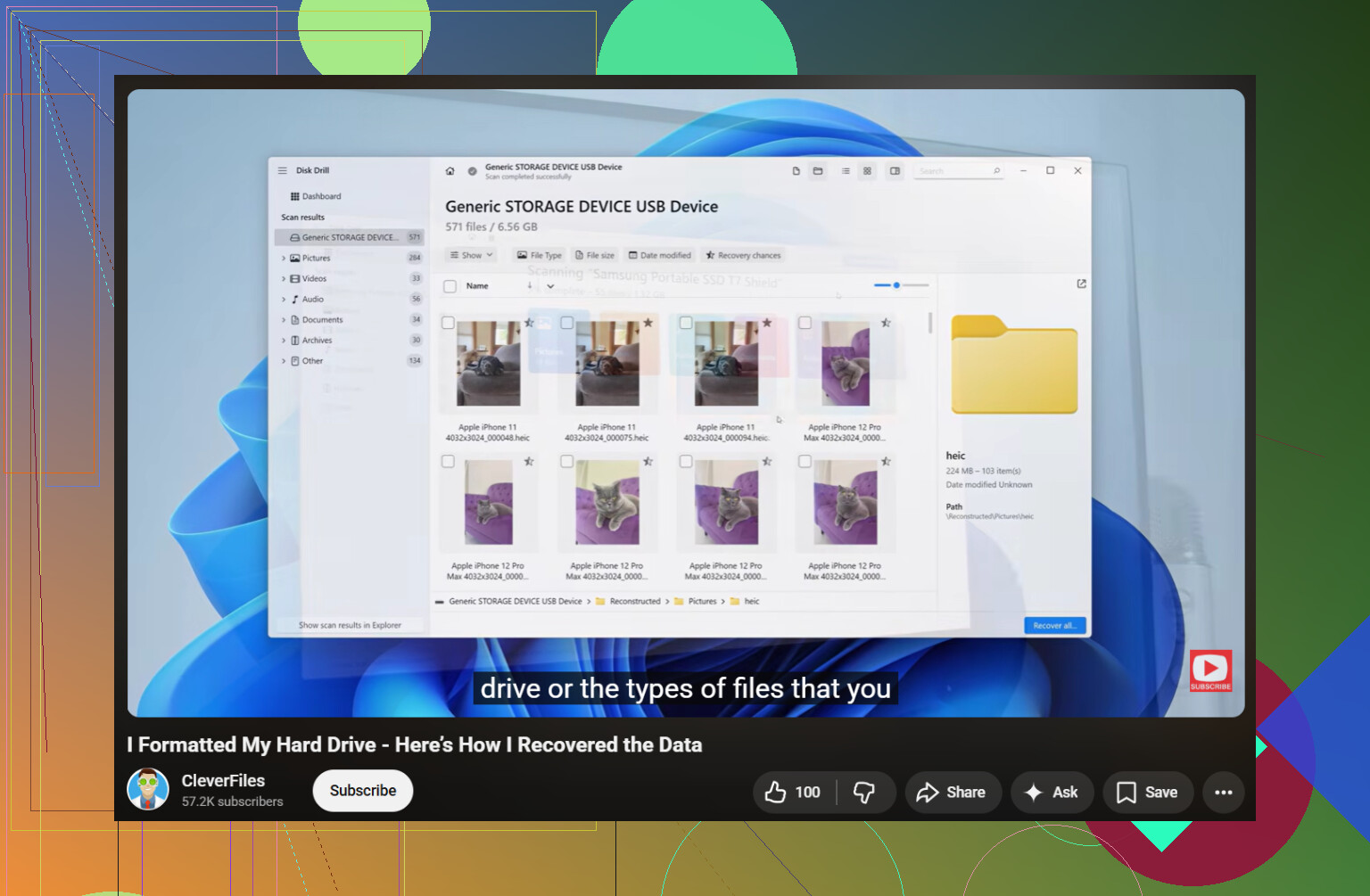
If the drive is still visible and the missing stuff is only part of the data, I’d also check whether the folders got filtered out by Windows search/indexing weirdness. Sounds dumb, but I’ve seen people think files were gone when File Explorer was just not showing the full directory properly. Try opening the drive from the address bar directly, then browse actual folder paths instead of relying on search or Quick Access.
Also, I’d check Event Viewer. Not glamorous, but useful. Go to Windows Logs > System and look for disk, ntfs, or volmgr errors around the time files “vanished.” If you see repeated I/O or bad block events, that points more to a failing drive than simple hidden files. That’s where I differ a bit from @mikeappsreviewer and @chasseurdetoiles. I would not spend too long testing random Windows fixes if the logs already show hardware trouble. At that point, every extra mount is a gamble.
Another thing people miss: check file ownership and permissions. Sometimes folders are there but inaccessible, so it looks like they disappeared. Right click the drive > Properties > Security, and see if your account can actually read everything. Rare, but it happens after moving between PCs.
If you need recovery software, Disk Drill is a legit option for external hard drive missing files on Windows 11, especially if the drive mounts but the folder structure is messed up. Just recover to another disk, not the same one. If you want more opinions, this thread on best hard drive recovery software for storage devices is worth reading.
If SMART shows reallocated sectors climbing or pending sectors, honestly, retire the thing. Drives don’t do “mystery disappearing files” for fun. They do it because they’re starting to go bad. Kinda rude, but that’s hardware for ya.
One angle I’d add that @chasseurdetoiles, @caminantenocturno, and @mikeappsreviewer only touched lightly is checking whether the files are there but the directory is damaged enough that Explorer cannot enumerate them properly.
A few useful checks that do not overlap much with the usual hidden-files/CHKDSK advice:
- Try the drive on another Windows PC, or even a Linux live USB. If the folders appear there, the problem can be Windows-side, not true data loss.
- Use
dir X:\ /a /s > C:\drive-listing.txtin Command Prompt. Sometimes Explorer shows less than the file system actually reports. - Check Properties on the root folders for weird zero-byte folder entries or broken timestamps. That often hints at MFT or directory index issues.
- If the drive is exFAT, corruption can show up as “missing files” more often after unsafe removal than on NTFS.
I slightly disagree with the idea of spending much time in permissions unless you already know the drive was moved between systems with restricted folders. Usually, vanished files on an external drive are corruption or failing hardware, not ACL drama.
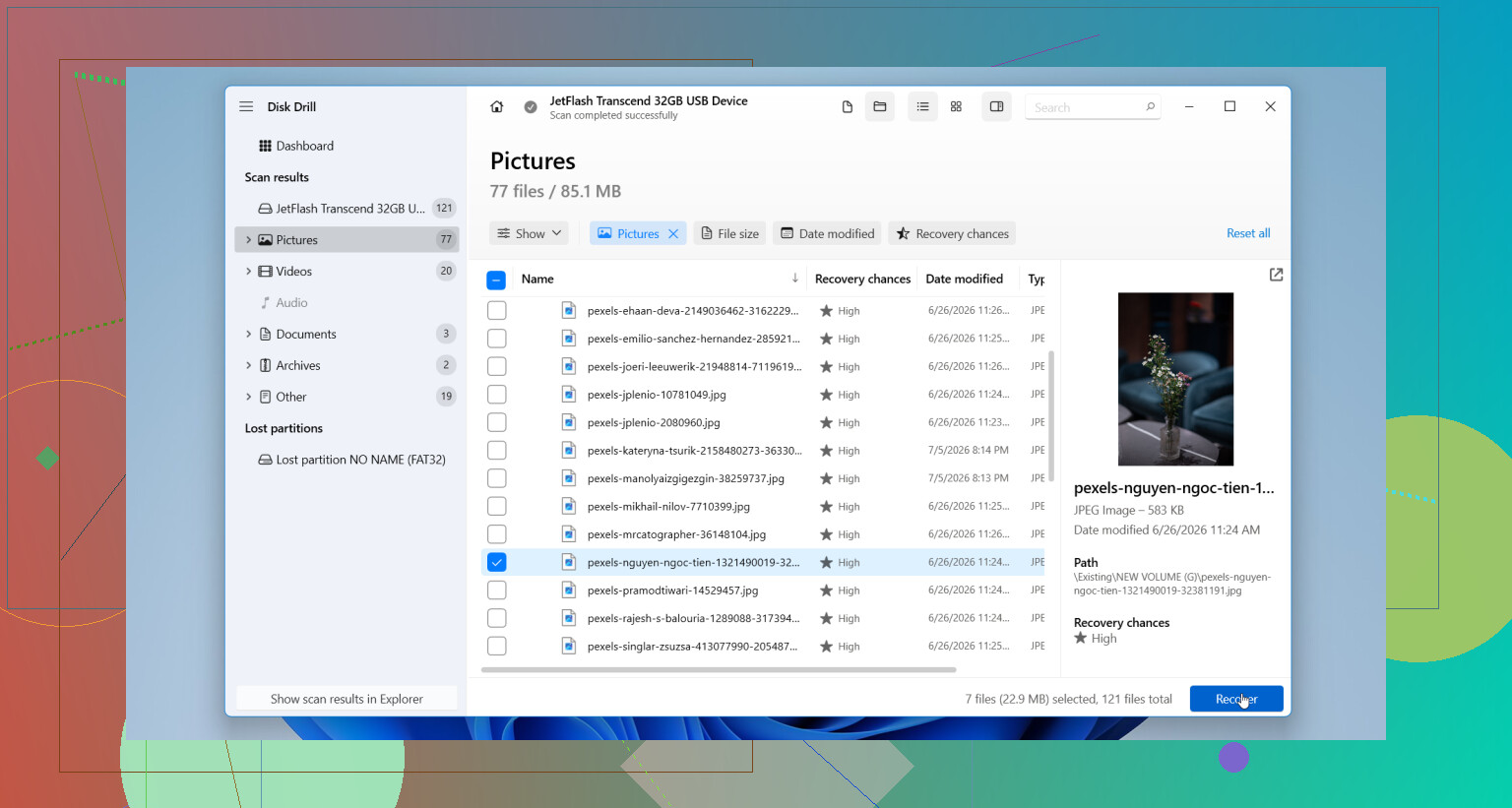
If you need recovery software, Disk Drill is a reasonable pick.
Pros:
- easy preview
- can scan a mounted external drive or image
- decent at rebuilding lost folder trees
Cons:
- deep scans can take a long time
- recovered filenames are not always perfect
- best results still depend on drive health
If the drive starts lagging badly, clone first, then recover from the clone. That is the safer play than repeated live scans.
Try a full drive search before recovery tools.
Open the external drive in File Explorer. In the search box, enter a known filename or use:
*.jpg
*.docx
*.pdf
Sort results by Folder path and Date modified. Files often get accidently moved into a nested or wierd folder after drag-and-drop.
Also open the Recycle Bin while the drive stays connected. Sort by Original location, find entries from your external drive, then select Restore. This takes minutes and makes no changes to the drive structure.
The attrib command @chasseurdetoiles posted can bite you if the drive is already unstable. Stripping hidden, system, and read-only flags across an entire volume with /s means Windows walks every folder and rewrites metadata on each one. On a healthy drive that’s fine. On a drive that’s dropping files because the file table is half-broken, you just forced thousands of small writes onto the exact thing you’re trying not to disturb. I’d only run that trick after you’ve confirmed the drive is stable and the used-space number still looks right.
Same reason I’d hold off on @techcloud8302’s Recycle Bin idea being a real fix. Worth a 30 second look, sure, but files dragged off an external drive or wiped by a bad file system don’t usually land in the Recycle Bin at all. External drives often skip it entirely depending on size and how the delete happened. If the folders vanished on their own, the Bin is probably empty of anything useful.
Here’s the part I think everyone’s circling but not saying plainly: figure out first whether this is a Windows display problem or an actual file system problem, because the fixes are opposite. @ombrasilente’s suggestion to plug it into a Linux live USB is the cheapest, safest test in this whole thread. It reads the drive without Windows touching anything, no writes, no repair prompts. If your folders show up clean over there, stop stressing, it’s a Windows-side mess and you can copy everything off calmly. If Linux also sees garbage or an unreadable partition, now you know it’s real corruption and you switch to recovery mode.
For that recovery step Disk Drill is fine as a first pass, especially the scan-an-image approach people already mentioned. Just don’t expect the folder names and structure to come back perfectly. Deep scans that rebuild from file signatures often dump everything into generic folders with mangled names, so budget time to sort it afterward. That’s normal, not a sign the tool failed.
One last thing nobody’s flagged: back up whatever still opens right now, today, before you run a single repair or scan. If the drive is genuinely starting to fail, the safest data is the data you already copied somewhere else. Everything after that is a bonus.