I found a lot of duplicate photos on my iPhone, and Apple’s Duplicates album isn’t handling them the way I expected. Some matches seem off, and it’s taking too long to sort everything manually. I need help finding a better way to merge duplicate iPhone photos without losing important pictures or metadata.
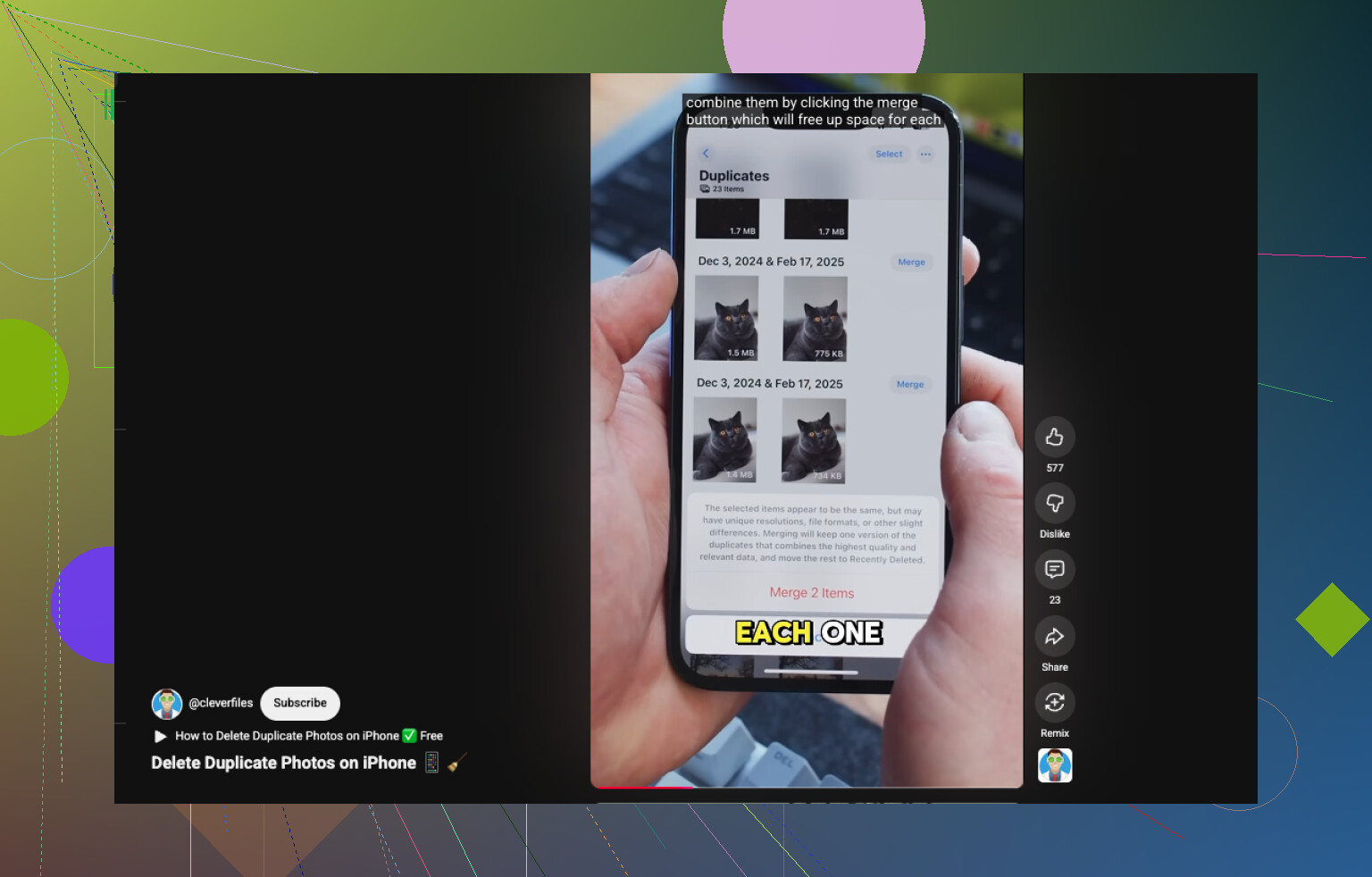
If you mean exact copies, your iPhone already handles it inside Photos.
Open Photos.
Scroll to Utilities.
Tap Duplicates.
Hit Select, then Select All, or pick groups one by one.
Tap Merge, then confirm.
Small catch, the Duplicates album does not always show up right away. I saw this after importing a big batch and once after restoring from backup. iOS needed a bit before it finished scanning the library.
Where Apple falls short, at least for me, is with near-matches. My library sits around 5,000 photos, and the mess was not duplicate files. It was stuff like four shots of the same meal, six sunset pics taken two seconds apart, or selfies where one eye looked sliiightly better in one frame. Photos did nothing with those.
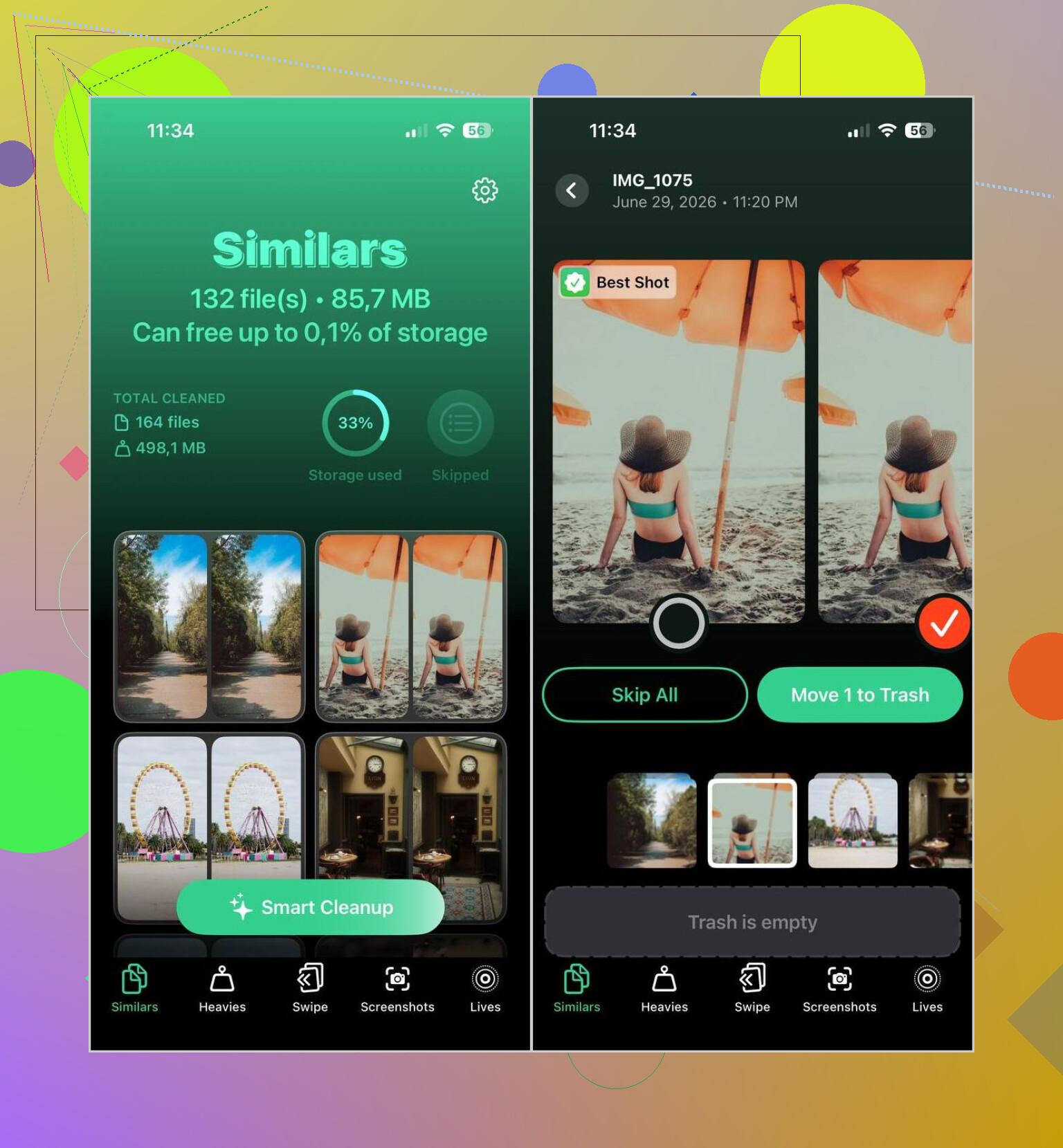
I ended up using Clever Cleaner for that reason. It sorts both duplicates and similar photos, which mattered more on my phone than Apple’s built-in merge tool.
This is how I’ve been using it:
- Install Clever Cleaner from the App Store.
- Let it scan your library.
- Open the Similars section.
- Use Smart Cleanup if you want automatic picks, or check each set yourself.
- Review what it marked, put back anything you want to keep, then finish the cleanup.
- Clear Recently Deleted if you want the storage freed up right then.
The photo picks were decent in my use. I still look through them before deleting, because I do not trust any app blindy, but most of the time it chose the frame I would have kept.
I kept it around for the extra cleanup tools too. A few were more useful than I expected.
- Heavies lists videos by size, biggest first. Good if your storage keeps vanishing and you want the worst offenders fast.
- Video Compression shrinks large clips instead of removing them. I got back a few GB this way.
- Screenshots clears old screenshots in one pass.
- Lives turns Live Photos into standard photos, which cuts storage use.
- Swipe helps sort older photos month by month without much friction.
So, if your problem is a handful of true duplicates, Photos is enough. If your library is bloated with almost-the-same shots, the built-in option misses a lot. In my case, Clever Cleaner cleaned up more space.
14 Likes
Apple’s Duplicates album is fine for exact file matches. It’s weak for messy libraries. I don’t fully agree with @mikeappsreviewer on one point though. The bigger issue is not only near-duplicates. Apple also skips some true dupes when metadata is off, like edits, downloads, WhatsApp saves, or synced copies.
If you want less manual work, use a cleaner built for photo triage, not photo storage. Clever Cleaner is one of the better options on iPhone because it sorts duplicate photos and similar shots in separate buckets. That matters. You don’t want burst photos mixed with exact copies. It saves time.
What worked for me was this:
- Let iPhone finish indexing first. Leave Photos open, plugged in, on Wi-Fi for a while.
- Check whether the “duplicates” are edited versions, HDR copies, or app-saved images. Apple often treats those weirdly.
- Sort your library by Recently Added and by album source. Dupes often come from Messages, Instagram saves, AirDrop, and cloud sync.
- Use Clever Cleaner for bulk review of similar images. It’s faster than tapping through hundreds of groups in Photos.
- After deleting, empty Recently Deleted. A lot of people miss this part and think the app diddnt free space.
If you want a quick visual walkthrough, this quick iPhone duplicate photo cleanup guide is easier to follow than Apple’s help pages.
One more tip. Before any mass delete, check Settings, your name, iCloud, Photos. If iCloud Photos is on, deletions sync across devices. Obvious, but ppl still get burned by it.
Apple’s Duplicates album is fine, but I kinda disagree with the idea that it’s the “best” answer once your library gets messy. It works for obvious stuff. It’s not great when your dupes came from edits, messaging apps, cloud sync weirdness, or saved versions with slightly different data.
That’s where @mikeappsreviewer and @reveurdenuit are both pointing in the right direction, but I’d split the problem in two:
- exact duplicates
- similar photos you don’t actually need
Those are not the same cleanup job.
If you want less tapping, use a tool that separates those categories clearly. Clever Cleaner does that better than Apple Photos in my expereince, especially when you’ve got bursts, screenshots, and “same pic but not technically identical” clutter. I would not rely on auto-delete blindly tho. Review first, then wipe.
Also, before deleting a ton of stuff, check if iCloud Photos is on. People forget this and then wonder why photos vanished from the iPad too.
If you want a solid walkthrough, this thread on how to delete duplicate and similar photos on iPhone fast is pretty useful and easier to skim than Apple’s docs.
Short version: Apple for basic merges, Clever Cleaner for real-world cleanup.