I downloaded Recuva from a third-party website before realizing it was not the official source, and now I’m worried it could be unsafe or bundled with malware. I haven’t run a full scan yet and need help figuring out how to check if the installer is legit, what warning signs to look for, and what steps I should take next to protect my PC and recover deleted files safely.
Is Recuva safe?
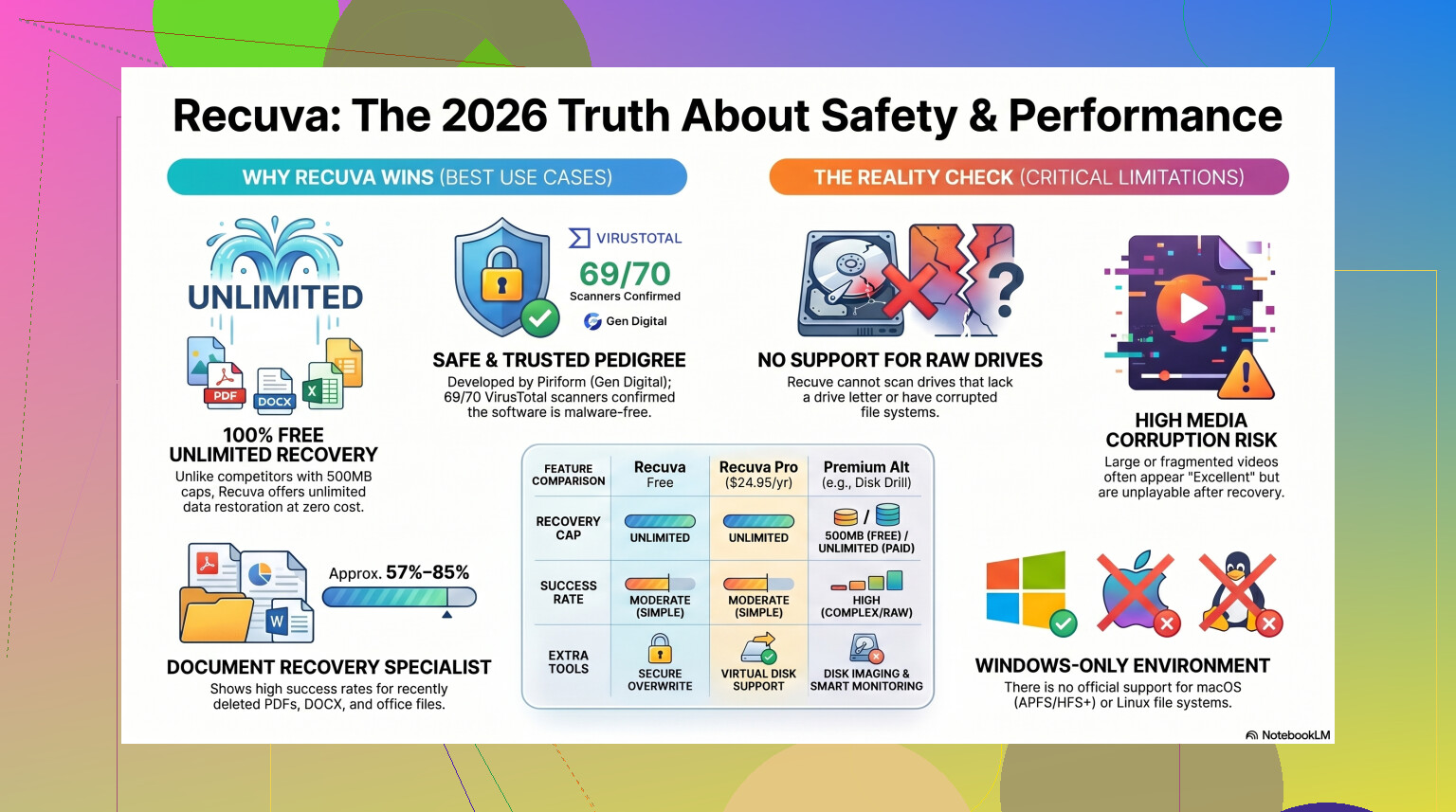
Short version from my own testing, yes. Recuva is safe in the malware sense. It is not some fake cleaner app, it does not try to wreck your PC, and the current installer is not known for sneaking in a virus.
Where people get tripped up is the other kind of ‘safe.’ Privacy. And whether your deleted files stay recoverable after you start messing with the drive. Those two parts matter more than most people expect.
I spent a while trying recovery apps on old SSDs, junk USB sticks, and one laptop drive I should have stopped using sooner. Recuva was fine in some cases. In others, it felt old fast.
The malware concern people keep bringing up
A lot of the fear traces back to the CCleaner mess in 2017. Same company line, same baggage. Piriform got hit in a supply chain attack, and a poisoned CCleaner update went out to a huge number of users. Bad situation. No point sugarcoating it.
Still, 2026 is not 2017. Piriform ended up under Avast, then under Gen Digital. Current Recuva builds get picked apart often enough, and if you toss the installer into a scanner like VirusTotal, it usually comes back clean or close to it. Once in a while one tiny antivirus vendor throws a warning. I saw that too. It looked more like a heuristic complaint than proof of malware, since recovery tools poke around low level disk data and some scanners hate anything with deep access.
If you grab it from the official source, the virus risk looks low.
Privacy, which is a different issue
This part is less dramatic, but I think people should know it before installing.
Recuva’s parent company collects routine data. IP address, device info, OS details, and location data for licensing or fraud checks. Pretty normal for modern software, still annoying if you like keeping tools quiet.
First thing I did after install was open Options, then Privacy, then turn off the usage sharing setting. You should do the same if you do not want the app phoning home more than needed.
One part stuck with me. IP data may be kept for 36 months before anonymization. Some folks won’t care. I do care, or at least enough to disable what I can.
Where users damage their own recovery chances
This is the big one.
Recuva is safe. Your habits might not be.
If the deleted files were on drive C, do not install Recuva on drive C. Do not save recovered files to drive C either. I know this sounds obvious once you hear it, but people still do it, and then they wonder why the photos come back half dead.
Deleted data is often still sitting there until something new overwrites it. Installers, temp files, updates, browser cache, all of it chips away at those old sectors. I did this wrong years ago with a folder of audio files. Installed recovery software onto the same partition. Recovered half of them, and a bunch were broken. Learned the hard way.
Safer setup:
- Use the portable version.
- Put it on a USB stick.
- Scan the damaged drive from there.
- Recover files to another drive, not the one being scanned.
If your files matter, stop using the affected drive before you do anything else.
How well it works in 2026
Here is where I stopped recommending it blindly.
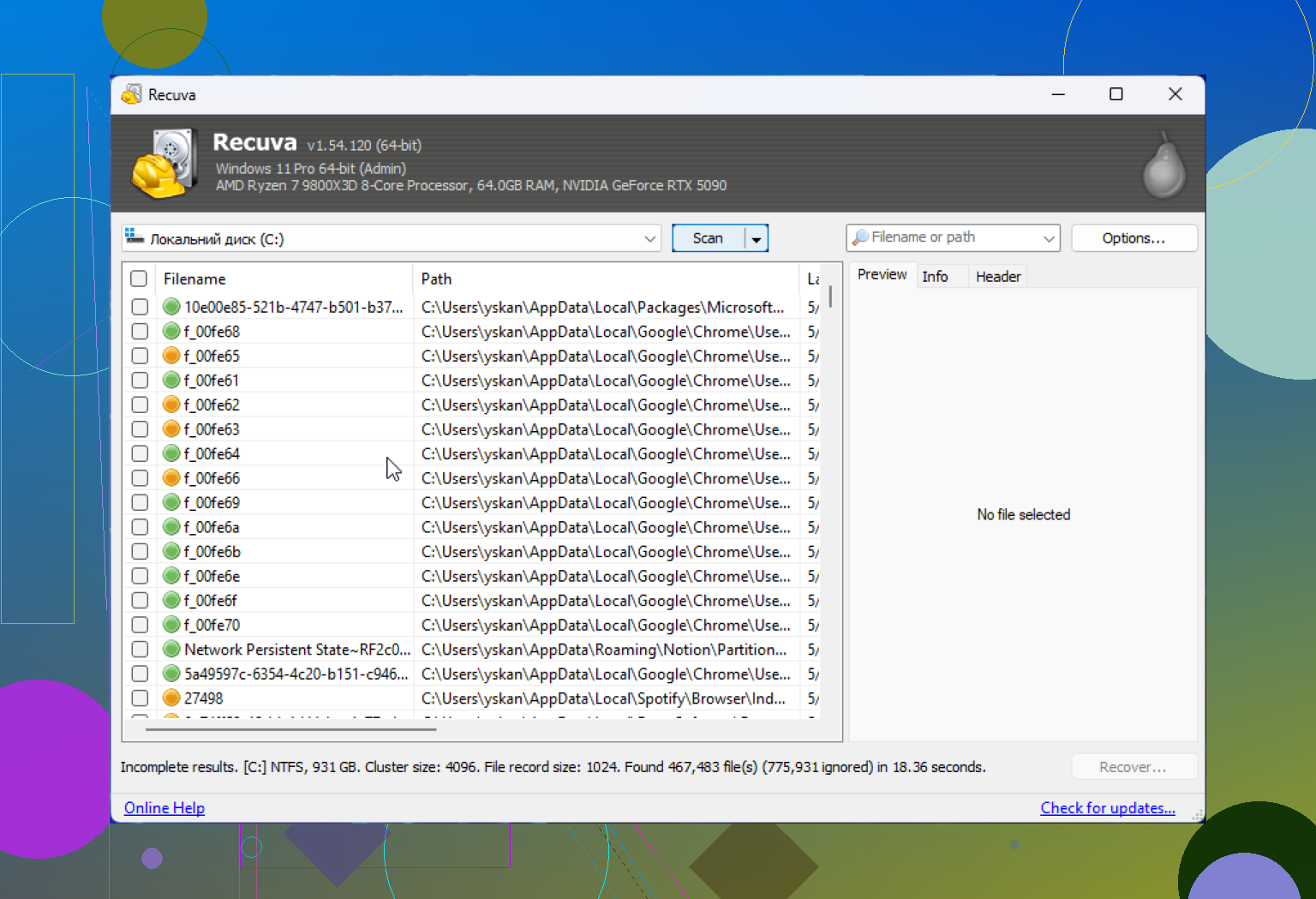
For simple undelete jobs on a healthy Windows system, Recuva still does okay. Empty Recycle Bin by mistake, deleted a doc ten minutes ago, removed a folder from a normal hard drive, stuff like that. It is quick. It is light. The wizard is easy enough for people who do not want to mess with advanced options.
Past that, things get shaky.
The core app feels old because it is old. It never got the kind of full rebuild newer recovery suites got. There were compatibility touch-ups for Windows 11, sure, but under the hood it still behaves like an older undelete utility.
Stuff I ran into:
- RAW drives were a problem
- damaged partitions often did not show up right
- formatted USB recovery was inconsistent
- recovered files sometimes opened corrupted even when marked healthy
- folder structure was often a total mess
That last one is brutal. I had one test where thousands of photos came back renamed into a giant pile. No original folders, weak filenames, no timeline I trusted. At that point recovery becomes sorting duty.
The rough success range people quote for formatted USB recovery, around 63 percent to 67 percent, does not feel crazy to me. It lines up with what I saw. Fine for low stakes. Not great if the missing files are the only copy.
When I would stop using Recuva
If the files are important, I would not spend too long hoping a free undelete app pulls off a miracle.
I mean things like:
- family photos with no backup
- work files due tomorrow
- video projects
- camera RAW files
- a drive throwing errors
- a partition Windows wants to format
In those cases, every extra scan adds wear, and if the drive is already unstable, you are burning time.
I had better luck moving to Disk Drill when Recuva hit a wall. It reads more like a current recovery tool than something carried forward from the Windows 7 era. It handled cases Recuva skipped over, especially damaged partitions and RAW volumes.
One feature I wish more people used sooner is byte to byte disk imaging. Make a full clone first, then scan the clone instead of hammering the failing drive. That is a safer workflow, period. If the hardware dies during a scan, your image still exists.
For media files, especially video and camera formats, Recuva felt weak to me. Fragmented video was rough. Some proprietary RAW formats were hit or miss. Disk Drill did better there.
For a side by side look, this review is worth watching:

So, should you use it?
I would, under these conditions:
- you deleted files recently
- the drive is healthy
- you are on Windows
- you need a free first try
- you understand it might fail on harder jobs
What I would do right away:
- Download it from the official site only.
- Pick the portable version if it is available.
- Turn off usage data sharing in Privacy settings.
- Save recovered files to a different drive.
- Quit early if results look bad.
If Recuva finds nothing, or gives you files which do not open, stop poking the drive. At that point the problem is bigger than a basic undelete pass.
My take, Recuva is safe enough to try. It is not the tool I trust for serious recovery anymore. For easy mistakes, fine. For ugly cases, I moved on.
14 Likes
If it came from a non-official site, I would not trust it. Recuva itself is usually fine. The problem is the installer you got, not the app name on the file.
Do this first.
- Do not run it again.
- If you installed it, disconnect from the internet for a minute and check what got added in Apps and startup.
- Right click the installer or EXE, check Properties, Digital Signatures. If there is no valid signer, that is a bad sign.
- Upload the installer to VirusTotal.
- Run Microsoft Defender Full Scan, then Microsoft Defender Offline Scan.
- Run a second opinion scan with Malwarebytes or ESET Online Scanner.
- Check browser extensions and scheduled tasks. Bundled junk loves both.
I disagree a bit with @mikeappsreviewer on one point. Privacy settings are not your main issue right now. Source trust is. A third-party download site is where bundleware, adware, and trojans show up.
If your goal is file recovery, stop using the affected drive first. Then get the tool from the official vendor only, or skip Recuva and use Disk Drill if you want a more current data recovery app for Windows. If you want a solid list of recovery options, see top data recovery software for recovering deleted files.
If you already ran the fake installer, check Task Manager, startup apps, and installed programs today. That step matters a lot. Thrid-party sites are sketchy for this stuff.
If it came from a non-official site, I would treat that copy as untrusted even if the real Recuva app is normally fine. That’s the part I slightly disagree on with @mikeappsreviewer. The app’s reputation matters less than the installer source you used.
What I’d do is simpler than a giant malware checklist:
- Delete that installer.
- Uninstall that copy of Recuva if it’s already on the system.
- Check whether it installed any weird browser companion, “driver updater,” or other bonus junk.
- Then download a clean copy only from the official vendor.
Also, don’t assume “it opened and looked normal” means safe. Bundleware often does exactly that.
If you want background on the tool itself, here’s a readable overview of Recuva data recovery software for Windows.
One thing @espritlibre said that I do agree with: if you’re recovering deleted files, the bigger risk is writing more data to the same drive. So if the deleted files matter, stop using that drive as much as posible before trying recovery again.
My take: use a fresh official copy, or just skip to Disk Drill if you want a more current recovery tool with a cleaner workflow. Recuva is legit software. A random download portal is the sketchy part. That’s the whole issue, realy.
If it came from a third-party site, I’d treat that installer as compromised until proven otherwise. @espritlibre and @shizuka are right to focus on source trust first, and I slightly disagree with @mikeappsreviewer on one thing too: whether Recuva is “generally safe” matters less than whether your specific copy is clean.
One extra thing I’d check that hasn’t been stressed enough: look at network activity. If you already ran it, open Resource Monitor or your firewall history and see whether any new process started making odd outbound connections. A lot of junk installers leave behind downloaders, not just obvious apps.
Also check Windows Security Protection History and Reliability Monitor. Those sometimes show blocked changes, installer failures, or suspicious behavior that doesn’t appear in normal app lists.
My take:
- If you only downloaded it, delete it and empty the bin.
- If you ran it, assume cleanup is needed until scans say otherwise.
- If you installed it on the same drive you wanted to recover from, that may have hurt recovery odds more than the Recuva brand itself.
For recovery, I would not keep using that copy. Re-download from the official vendor only, or switch to Disk Drill if you want a more modern interface and broader recovery support.
Disk Drill pros:
- better preview and scanning workflow
- good for newer Windows setups
- can handle more than basic undelete cases
Disk Drill cons:
- free recovery is limited
- heavier than Recuva
- some people find the extra features overkill
So no, I would not call your non-official Recuva download “safe” just because Recuva is a legit app. The file source is the whole problem.