I’m running low on iPhone storage and turned on Optimize iPhone Storage, but now I’m worried my full-resolution photos might disappear or get deleted from iCloud. I use my photo library all the time and really need to know if this setting is safe and how to avoid losing any pictures.
I ran into this after my iPhone kept throwing the storage warning, and I spent way too much time poking through settings to figure out what Apple was doing.
The short version is no, it does not work without iCloud. “Optimize iPhone Storage” depends on iCloud Photos. Your phone keeps smaller preview versions on the device, while the full files sit in your iCloud library. If iCloud Photos is off, or your iCloud storage is full, optimization stops. There has to be a full copy online or the phone has nothing to swap out.
I was nervous about this part too, since I did not want to mess up years of photos. From what I saw, the feature is safe. Your photos are not being erased. The full version is stored in iCloud, and your phone pulls it back down when you open or edit the image. The catch is internet access. If you are offline, on a plane, or stuck with weak service, you might only get the lower quality preview until your connection comes back.
One thing Apple does not spell out clearly, optimization is slow. I turned it on and expected instant results. Nope. My storage stayed near full for a while. iOS tends to wait until space gets tight before it starts being aggressive about removing local originals. The other blocker is the free 5GB iCloud plan. It fills fast. Once it is full, nothing else gets moved off the phone.
If you are trying to choose between “Optimize iPhone Storage” and “Download and Keep Originals,” it comes down to how much space your phone has and how you use it. On a 512GB iPhone, keeping originals makes sense if you want all your photos available offline. On a smaller device, optimize is the only setting that kept my phone usable.
Still, I found out storage pressure was the bigger issue. When my phone was nearly full, it got sluggish. Apps hung. The camera opened slower. A few things crashed for no clear reason. And even with optimization turned on, I still had piles of junk sitting there, screenshots, duplicate shots, blurry photos, random long videos I forgot about.
So I stopped treating iCloud like a cleanup tool, because it isn’t one. It moves originals around. It does not fix a messy library.
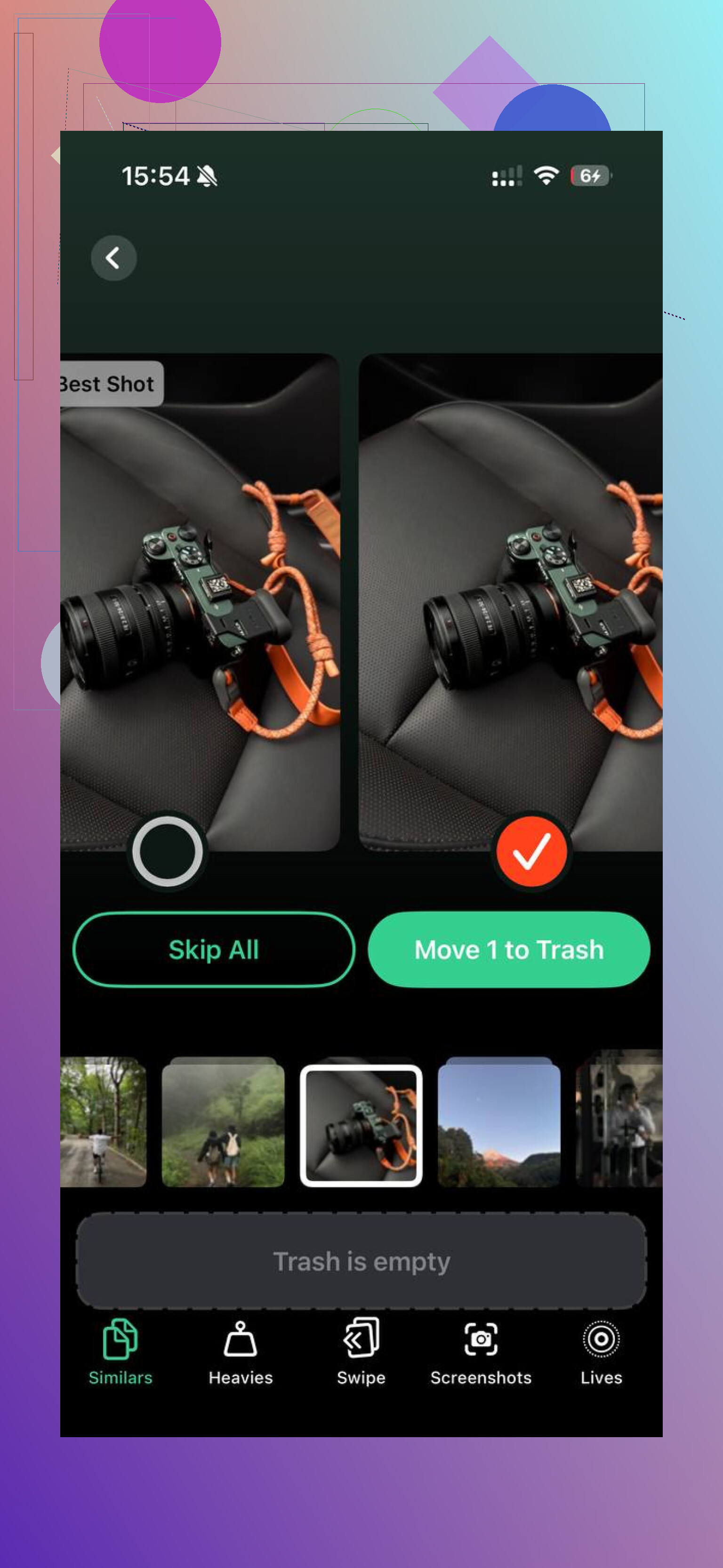
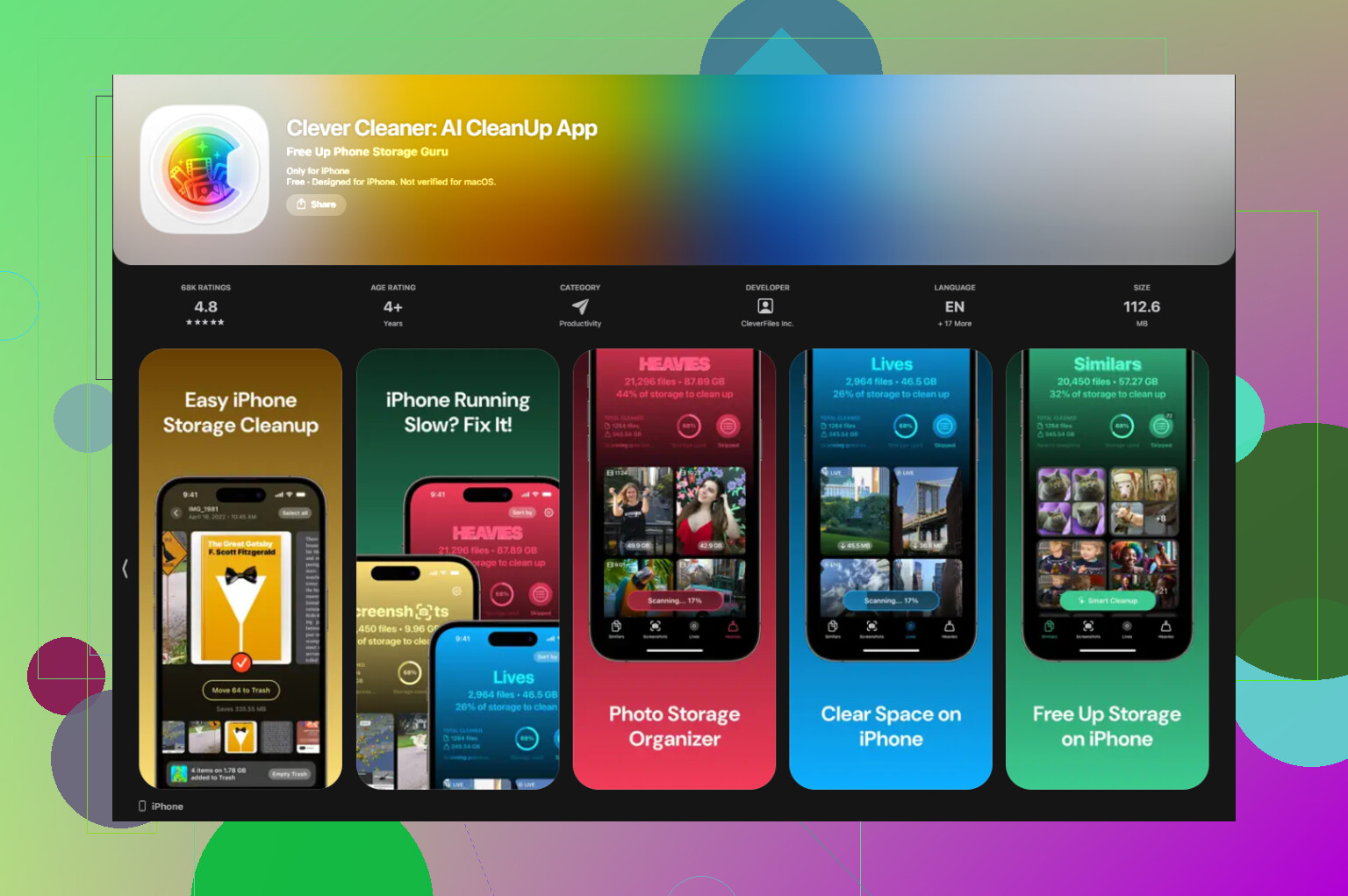
I tried a few cleaner apps and most of them felt shady, pushy subscriptions, weird limits, fake scanning screens, all of it. The one I stuck with was Clever Cleaner. What made it useful for me was the plain stuff. It showed file sizes clearly, so I was not guessing. I could sort through screenshots fast. The “Heavies” section made it easy to spot huge videos. I found one accidental 4K clip eating a couple GB by itself, which was annoyng in hindsight.
The similar photo tool helped too. I had bursts of near-identical shots where I only needed one. It grouped them well enough that cleanup stopped feeling like a chore. I also liked that it handled processing on the phone, not by shipping my library off somewhere else.
After I went through my junk, I got back around 15GB. More important, the lag disappeared right after.
If optimize is turned on and your storage still looks wrecked, check Settings > General > iPhone Storage first. Look at what is using space before you start deleting apps you need. If photos or system data are the main problem, clean the library first. For me, that worked better than waiting for iCloud to sort it out on its own.
12 Likes
Yes, it’s safe if iCloud Photos is on and your iCloud storage has room.
What Optimize iPhone Storage does:
- Keeps smaller device versions on your iPhone.
- Stores full-resolution originals in iCloud.
- Downloads the full file when you open or edit a photo.
So no, your originals do not vanish from iCloud because of this setting. They stay in your iCloud Photos library. I do think @mikeappsreviewer is right on the big point, but I’d push back on one part. It’s not only about weak internet. If a photo already got downloaded once, iPhone often keeps it around for a while. It is not preview-only all the time.
The real risk is user error:
- Turning off iCloud Photos and choosing the wrong delete option.
- Running out of iCloud storage mid-sync.
- Signing into a diff iCloud account by mistake.
Best move, check this:
Settings, your name, iCloud, Photos.
Make sure Sync this iPhone is on.
Then check iCloud storage usage.
If your library is huge, free up local junk first. Clever Cleaner is decent for duplicate pics, screenshots, and big videos. That helps more than staring at the Photos setting waiting for space to appear, lol.
Also worth reading this iLounge review of Clever Cleaner for freeing up iPhone storage if you want a simple breakdown.
Yes, it’s safe in normal use. “Optimize iPhone Storage” does not mean Apple is deleting your originals. It means the full-res versions live in iCloud Photos, and your iPhone keeps smaller device copies until you need the original again.
Where I slightly disagree with @mikeappsreviewer and @andarilhonoturno is this: people make it sound scarier than it is. If iCloud Photos is on, sync is finished, and you have enough iCloud space, your photos are generally fine. The bigger danger is not the setting itself, it’s people toggling stuff off too fast or assuming sync already completed when it didn’t.
A couple things to watch:
- if your iCloud storage is full, syncing can stall
- if you’re offline, some pics may take a sec to load full quality
- if you turn off iCloud Photos, read every prompt carefully so you don’t remove local copies by accident
Also, “Optimize” is not a cleanup tool. It saves space, but it won’t magically remove duplicate screenshots, giant videos, or blurry junk. If your phone is still packed, that’s where something like Clever Cleaner actually helps more. It’s better for trimming photo clutter than waiting for iOS to be smart about it.
If you want a clearer visual guide, this easy guide to Optimize iPhone Storage and iCloud Photos explains the process pretty well.
So, short answer: you should not lose your photos just because Optimize iPhone Storage is on. Just make sure iCloud Photos is enabled and synced first. That’s the part ppl miss.
I mostly agree with @andarilhonoturno, @sognonotturno, and @mikeappsreviewer, but I’d add one practical detail: Optimize iPhone Storage is safe for your library, but it is not a backup strategy by itself.
If iCloud Photos is enabled, your originals are meant to live in iCloud and your iPhone can offload full-res local copies when space is tight. That part is normal. The thing people mix up is sync versus backup. If you delete a photo on one synced device, it deletes from iCloud Photos everywhere. So your photos are not at risk from the optimize setting alone, but they are still vulnerable to accidental deletion if iCloud Photos is your only copy.
That’s why my advice is:
- Use Optimize iPhone Storage if you need space
- Make sure sync has fully completed
- Keep a second backup of important photos somewhere else if they matter
One place I slightly disagree with the others is the “offline” concern getting overstated. For most people, this is only annoying occasionally, not a dealbreaker. iPhone usually manages cached originals pretty well for recent photos.
Also, if storage is still bad after enabling optimize, the problem is often clutter, not Photos syncing. That’s where Clever Cleaner can help.
Pros of Clever Cleaner
- good for duplicates, screenshots, large videos
- quick way to reclaim space without touching your whole library
- easier than digging through Photos manually
Cons
- you still need to review before deleting
- no cleaner app is magic, it won’t fix iCloud sync issues
- some people prefer doing cleanup manually inside Photos
So: no, turning on Optimize iPhone Storage should not make you lose your full-resolution photos, assuming iCloud Photos is working properly. Just don’t treat it like a true archive.