I’m trying to clean up my iPhone Photos library by deleting pictures that aren’t marked as favorites, but I’m worried they might also disappear from iCloud Photos. I need help understanding whether deleting non-favorite photos on my iPhone will remove them from iCloud too, and what the safest way is to free up storage without losing anything important.
iPhone makes this more annoying than it should be. You can favorite photos with the heart, but Apple doesn’t give you a simple “delete everything except favorites” button.
The main thing to understand is that Favorites is not really a separate folder. Those photos still live in your main library. They’re just marked as favorites. So if you go to the Library tab, select everything, and delete it, your favorites go with it.
Use the Hidden album as a workaround
The cleanest built-in method is to temporarily move your favorites out of the way:
- Open the Favorites album.
- Tap Select, then Select All.
- Tap the three-dot menu and choose Hide.
- Go back to your main library.
- Select everything that is still visible and delete it.
- Open the Hidden album.
- Select the photos there and tap Unhide.
After that, your favorites show back up in the main library like before. The stuff you deleted is only the non-favorites, assuming you hid all favorites first.
You can also do it with Shortcuts
If you have a big library, Shortcuts can filter photos by favorite status:
- Create a new shortcut.
- Add Find Photos.
- Set the filter to Is Not Favorite.
- Add Create Photo Album and name it something like Cleanup.
- Run the shortcut.
- Open that album, select everything, and delete it.
Just don’t be surprised if Shortcuts chokes on a huge library. If it freezes or takes forever, add date filters and do it in smaller chunks instead of trying to process years of photos at once.
Check iCloud Photos first
This part matters: if iCloud Photos is turned on, deleting from your iPhone also deletes from iCloud and any synced iPad or Mac. It is not a “delete from phone only” action. If there’s anything you might need later, copy it somewhere outside iCloud before doing a big cleanup.
Free space may not show up right away
Deleted photos sit in Recently Deleted for 30 days, and they still count against your storage while they’re there. After deleting, go to Photos - Albums - Recently Deleted - Delete All. Then restart the phone if the storage bar still looks wrong, since iOS sometimes needs a nudge to recalculate.
Also, if your phone was lagging before this, it’s probably because storage was almost full. iOS needs free space for temporary files and background stuff. Once it runs out of room, basic things like opening the camera, scrolling Photos, or deleting a large video can start dragging badly.
The Photos app does not help much here because it won’t sort your library by file size. That’s often the fastest way to clear space.
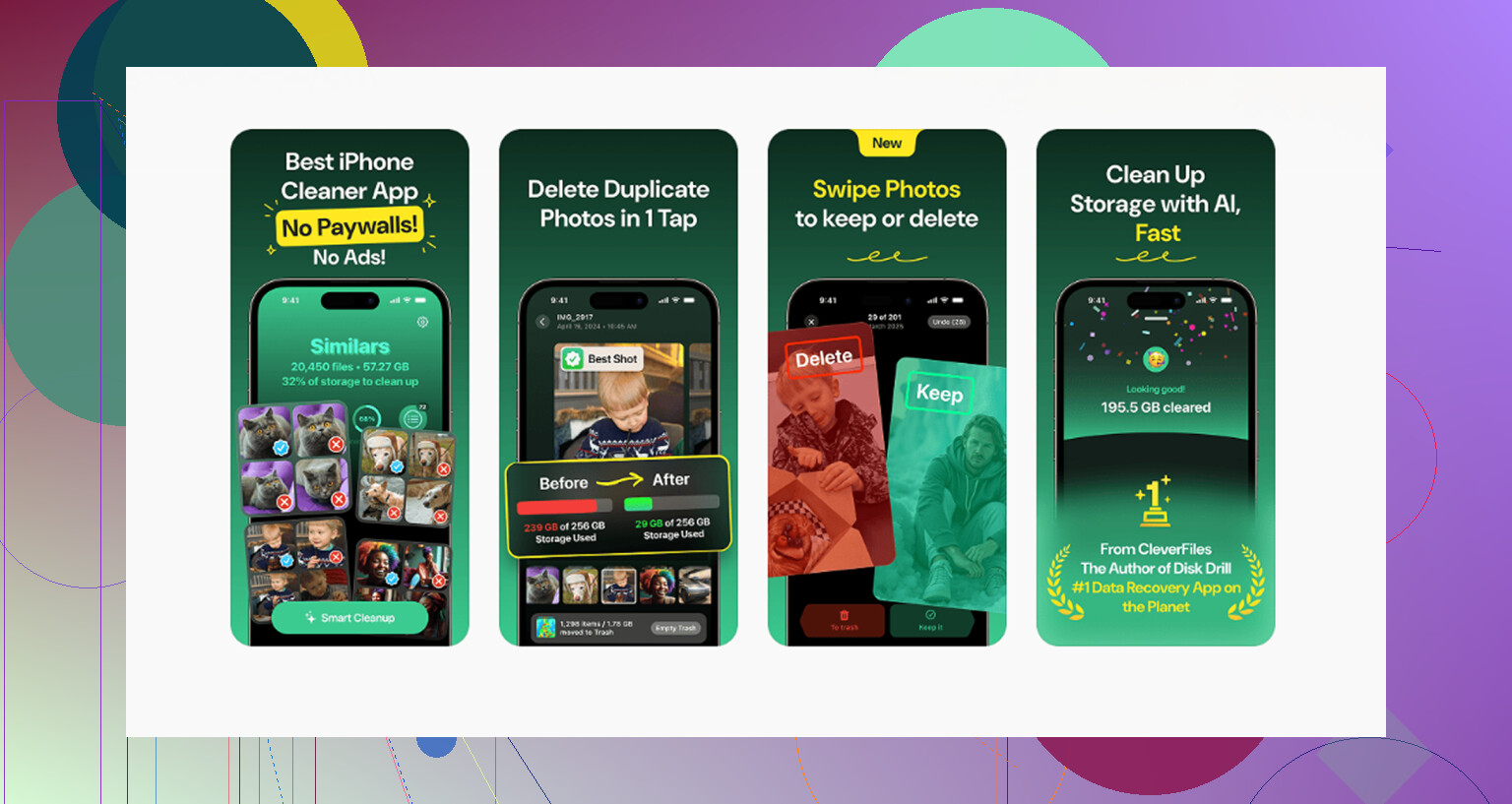
Clever Cleaner fills that gap pretty well, and it’s free with no ads or subscription. The Heavies tab sorts files from largest to smallest and shows the exact size, which is useful because a few old 4K videos can take up more space than tons of normal photos. The Similars tab groups near-duplicates and picks a Best Shot from each group, so you can clear out burst shots faster. The Screenshots tab also shows file sizes before you delete anything. It processes everything on-device, so your photos are not being uploaded to a server.
Basically, use the Hidden album trick or the Shortcuts method to protect your favorites, then use Clever Cleaner if you also want to find the big junk that Apple Photos does not make obvious.
15 Likes
The sneaky trap is that “Optimize iPhone Storage” does not mean your originals are safely parked in iCloud while you delete the local copies. With iCloud Photos on, your iPhone is basically editing the same library that iCloud and your other Apple devices see. Delete a non-favorite on the phone and, after sync, it is deleted from iCloud Photos too.
I agree with @mikeappsreviewer on the main point, but I’d be cautious about doing a giant delete based only on the Favorites heart. Favorites is just a label. It is not a backup, not a protected folder, and not a separate copy. If the goal is “keep these photos in iCloud but remove them from this phone,” the normal delete button is the wrong tool.
If you only need phone space, first try Settings > Photos > Optimize iPhone Storage. If you want the non-favorites gone forever, then deleting them is fine, just understand that iCloud will follow. If you want to keep them somewhere else, export them first to a computer, external drive, Google Photos, Dropbox, etc., then delete from Photos after you know the separate copy is real. I would also check iCloud.com from a browser before emptying Recently Deleted, because that is your last easy undo if you realize the wrong batch got selected.
Check Settings > your name > iCloud > Photos before you touch the delete button. That screen is the whole answer, really. If “Sync this iPhone” is on, Photos is not treating iCloud like a storage locker. It is treating iCloud as the master library. Delete from the phone, and the delete syncs upward.
The thing I think gets missed in these cleanup threads is that there are two different goals people mix together:
If your goal is “I do not want these photos anywhere anymore,” then deleting non-favorites is fine. They’ll go to Recently Deleted first, and then they’ll be gone from iCloud too once that deletion syncs.
If your goal is “I want them out of my phone storage but still saved in iCloud,” deleting is the wrong move. iCloud Photos does not work like Dropbox where you can easily remove a local copy and keep the cloud copy photo by photo. Optimize iPhone Storage is Apple’s version of that, but it decides what to keep locally. You don’t get a clean manual “remove download only” button for selected photos.
There is a workaround, but it is not as neat as people expect: turn off iCloud Photos on that iPhone, then manage the local library separately. But be careful there too, because when you turn it off you need to read the prompt. Depending on whether your phone has originals or optimized versions, you may be offered choices like removing photos from the iPhone or downloading originals. Don’t just tap through that screen while half asleep. That is how people end up with a mess.
I agree with the basic warning from the other replies, but I’d be more suspicious of the Hidden album method for a large cleanup. It can work, but it does not make the hidden photos safer in any real backup sense. It only changes what is visible while you are selecting things. If you accidentally include hidden items later, or if you misunderstand which view you’re deleting from, there is no magic protection. The Favorites heart and Hidden status are metadata, not armor.
A safer way to do this, if you’re about to delete a lot, is boring but reliable:
- Go to iCloud.com/photos from a browser and confirm the library looks the way you expect.
- Export or download anything you would be upset to lose.
- Delete a tiny test batch first, maybe 2 or 3 throwaway photos.
- Wait for sync.
- Check iCloud.com again and check another Apple device if you have one.
- Only then do the big delete.
That test step sounds unnecessary until it saves you from deleting the wrong side of the sync. It also confirms whether you actually have iCloud Photos enabled, because some people have iCloud Backup turned on and think that means the same thing. It doesn’t. iCloud Backup and iCloud Photos behave differently.
Another small trap: albums do not usually create extra copies. If you made an album called “Keep” or “Favorites Backup,” those photos are still the same library items. Deleting the photo from the library deletes it out of albums too. Albums are organization, not separate storage.
So the short version is: yes, if iCloud Photos sync is on, deleting non-favorites from the iPhone will delete them from iCloud Photos too. If you want to keep them, copy them somewhere outside Photos first, or let Optimize iPhone Storage handle the space problem instead of trying to manually delete local-only copies.
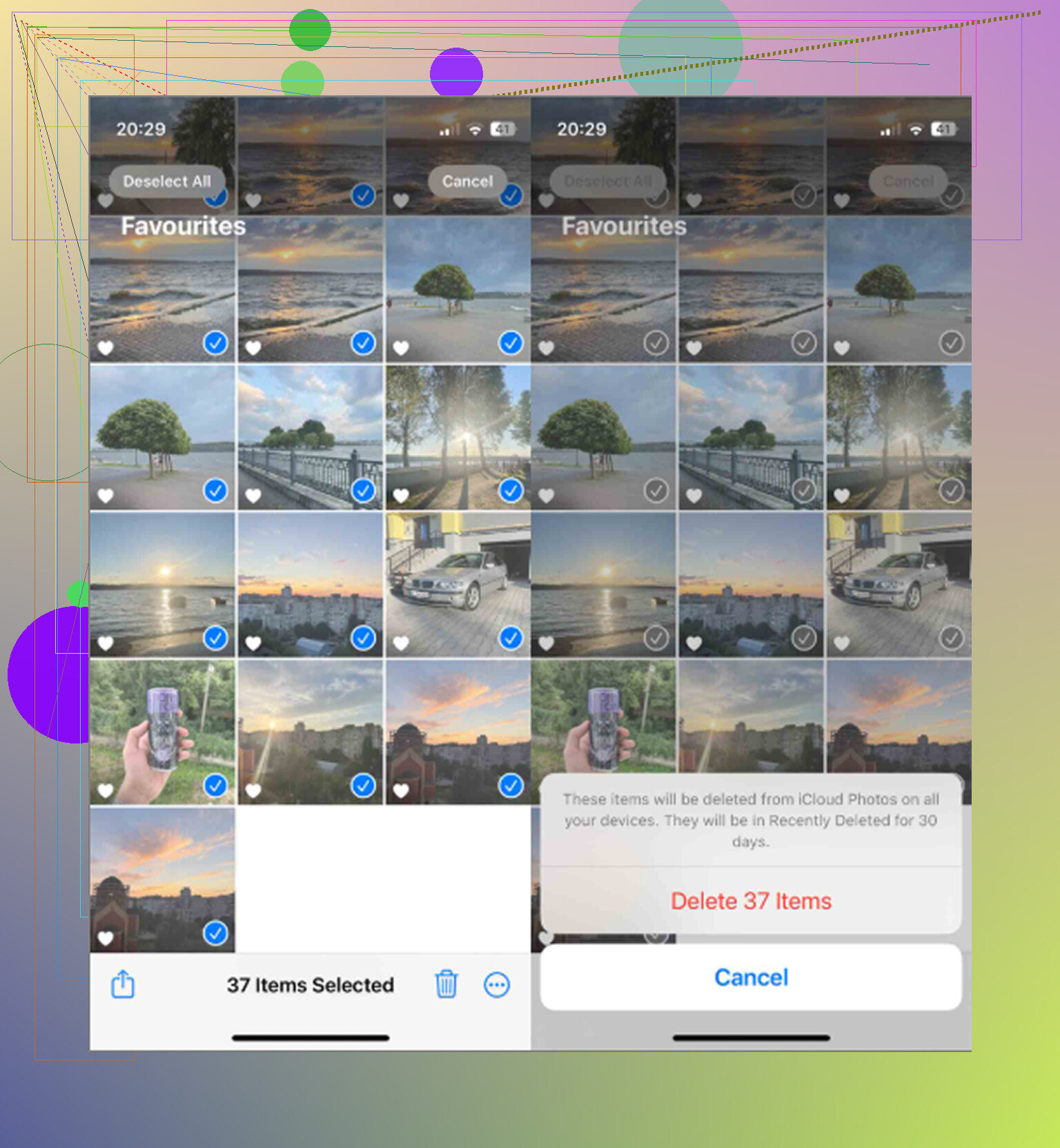
Expect the delete to follow the photo, not the device. If iCloud Photos is on, deleting non-favorites on the iPhone will delete them from iCloud Photos too, even if the phone is set to Optimize Storage. Don’t rely on Airplane Mode or “I’ll sync later” as a safety trick, because the deletes can catch up once the phone reconnects.