My iPad used to run smoothly, but lately apps take longer to open, scrolling feels laggy, and the battery seems to drain faster. I’m trying to figure out whether iPads naturally slow down with age, low storage, or software updates, and what I can do to fix the performance issues.
Yeah, I ran into this with two iPads, and both times it felt random until I checked the boring stuff first.
If the slowdown started right after iPadOS updated, I would wait a day before doing anything drastic. Mine usually acts off for several hours after a big update. Indexing, cleanup, background jobs, all of it seems to keep grinding for a while. I left mine plugged in overnight and by the next morning it had settled down. If you are past that window and it still drags, then I’d start checking storage and a few settings.
The storage part gets ignored way too often. Once the device is packed too full, performance starts falling apart. My rough rule is to avoid going past 80 percent used space. When free storage gets tiny, the system has less room for cache, temp files, and swap. Newer iPads lean on storage for virtual memory during multitasking, so if your disk is stuffed, the whole thing starts to feel clogged.
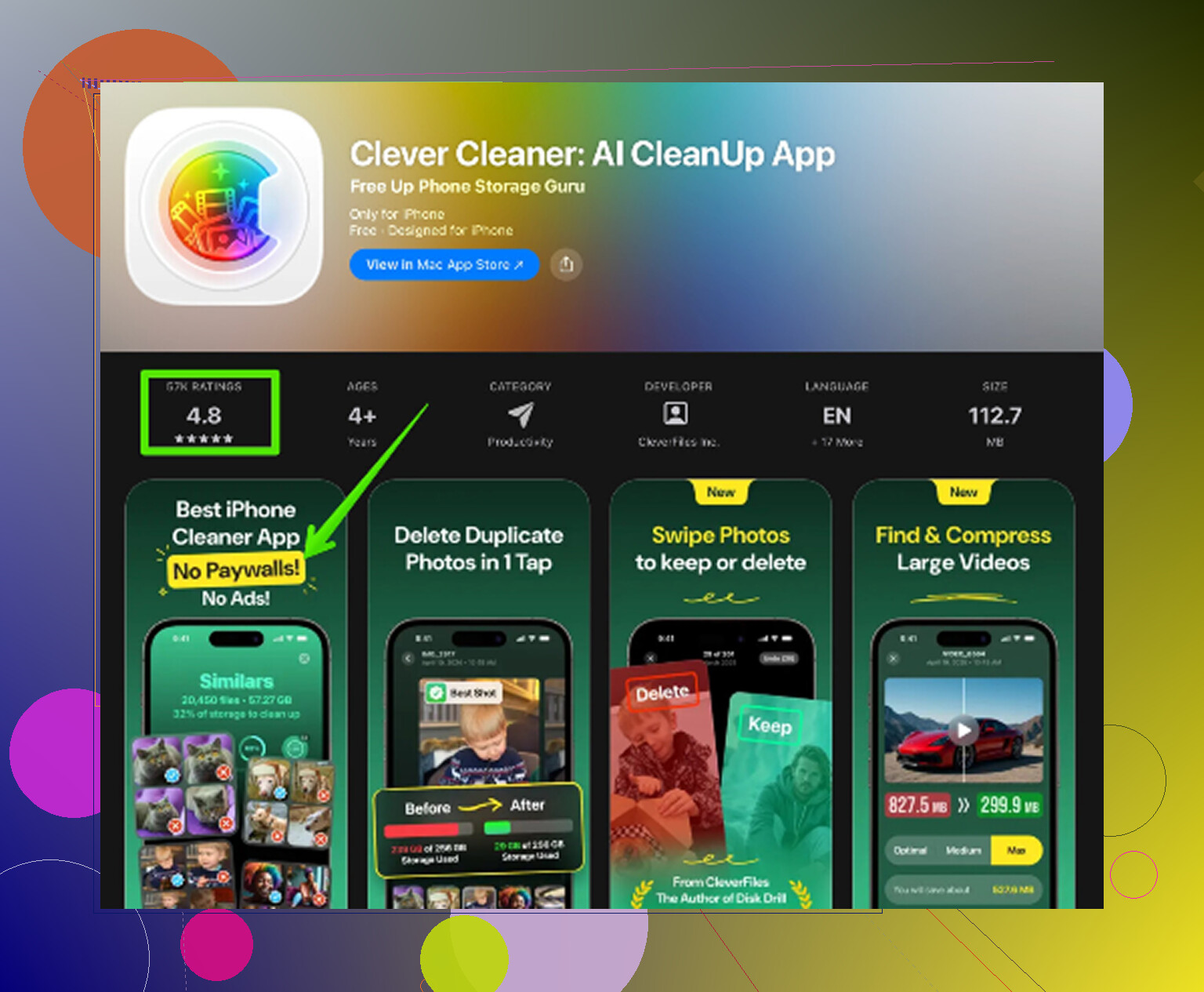
I learned this the dumb way. Safari was lagging, apps were hanging, keyboard input had a delay. I opened storage and found years of screenshots, duplicate photos, and old video clips I forgot existed. Manual cleanup was a mess, so I used Clever Cleaner. It sorted the biggest files fast, flagged similar photos, and made screenshots easy to purge. I cleared around 15GB, and the iPad stopped choking right after. If your tablet feels slow for no clear reason, I’d check free space before anything else.
A few low-risk tweaks helped me too:
Turn off Background App Refresh for apps you do not need updating all day. Too many apps polling in the background adds up.
On older iPads, switch on Reduce Motion in Accessibility. The simpler animations felt smoother on mine right away.
Reboot the device. Old advice, still useful. It clears temporary memory and shuts down stuck processes.
If the lag shows up mostly in web browsing, clear Safari’s history and website data in Settings. I’ve seen Safari get sluggish all by itself after the cache builds up.
One more thing, battery age matters. Older batteries do not always keep up with peak power demands, and the system may throttle performance to avoid crashes or shutdowns. If your iPad is 4 or 5 years old, some slowdown might be hardware aging. Still, I would try storage cleanup and the lighter setting changes first, becuase a lot of the time the issue is software clutter, not a dead device.
I’d start here, in this order: wait out the update, free up storage, reboot, trim background refresh, clear Safari, then think about battery age. That sequence fixed it for me more than once.
13 Likes
Yes, some slowdown with age is normal. No, it is not always “planned obsolescence.” Most of the time it is a mix of battery wear, heavier apps, and iPadOS doing more than it did 3 years ago.
I agree with @mikeappsreviewer on storage mattering, but I think people blame storage too fast. If your iPad feels slow and the battery drains fast at the same time, I’d look at battery health and app behavior first. One bad app syncing in the background will wreck both.
What I’d check:
-
Battery menu.
Settings, Battery. Look for apps with huge background activity over the last 24 hours and 10 days. If one app is way out of line, remove it and test for a day. -
Heat.
If the iPad runs warm during simple stuff like Safari or Notes, a process is stuck or the battery is aging badly. Heat and lag usually show up togther. -
Safari tabs.
People leave 100 tabs open and act shocked when RAM gets hammered. Close them. Same for split-screen apps you never quit. -
Widgets and location.
Too many home screen widgets, always-on location, and mail push eat battery and make older iPads feel rough. -
Battery age.
After around 500 charge cycles, lithium batteries tend to hold less charge and sag more under load. Older devices sometimes slow performance to stay stable.
If you need space cleanup, Clever Cleaner is fine for clearing photo junk and big files fast. Also, this step by step guide to speed up your iPad with Clever Cleaner is easier to follow than poking around blind.
If none of this changes anything, backup, factory reset, restore. It sounds annoying, but it fixes a lot of weird slowdowns. I’ve had to do it twice. Annoyng, but it worked.
Yes, some of it is normal, but “normal” does not mean unavoidable.
I mostly agree with @mikeappsreviewer and @byteguru, but I think people jump to battery or storage a little too fast. Sometimes the bigger issue is that your iPad is simply running a newer, heavier version of iPadOS than it was designed around. Same hardware, more demanding apps, more background frameworks, more visual effects. That adds up.
A few things I’d check that they did not really get into:
- RAM pressure, not just storage. Older base-model iPads with less memory start choking first when apps get bigger.
- Ad-heavy apps and websites. Some “lag” is really just garbage web content hammering Safari.
- Accessibility settings beyond Reduce Motion. Turning off transparency can help older models feel less stuttery.
- Keyboard lag can point to dictation, predictive text, or third-party keyboards going weird.
- If it only lags while charging, your charger/cable might be junk. Seriously, I’ve seen this.
Also, if battery drain and slowdown started at the same time, check Analytics data for repeated app crashes or panic logs. That can hint at a bad app or deeper hardware issue. Bit nerdy, but useful.
If your storage is bloated with photos/videos, Clever Cleaner is a legit shortcut for trimming duplicates and large files without spending all day doing it manualy. And if you want a solid breakdown, this Clever Cleaner review for freeing up iPhone and iPad storage is easier to skim than guessing in Settings.
If the iPad is like 5 to 7 years old, though, some slowdown is just the tax of aging hardware. Not a conspiracy, just physics and software creep.

Some slowdown over time is normal, but I slightly disagree with @byteguru and @voyageurdubois on one point: people often chase “cleanup” first when the real issue is the update path. If your iPad is technically supported but sitting on the oldest chip Apple still allows, each major iPadOS jump can make the device feel heavier even when storage and battery are only moderately worn.
What I’d look at that they only touched on indirectly:
- Compare performance on the same tasks. Notes, Files, Safari with one tab, App Store. If even Apple apps stutter, that points more to system load than one rogue app.
- Check whether lag happens only on websites. A lot of “slow iPad” complaints are really bad modern webpages, autoplay video, trackers, and bloated ads.
- Test with Low Power Mode on for a while. Weirdly, if it feels about the same, the battery may not be the main bottleneck. If it gets much worse, battery wear is more suspicious.
- Look at your available RAM indirectly by usage style. If reopening apps constantly dumps them from memory, your model may just be hitting its age ceiling.
I also think factory reset gets recommended a little too quickly. It works, sure, but it is the last move, not the first.
If storage is part of the problem, Clever Cleaner is a reasonable shortcut.
Pros:
- fast at finding duplicate photos and large videos
- easier than digging through Settings manually
- can free enough space to help swap/cache behavior
Cons:
- it will not fix aging RAM, battery wear, or a heavy iPadOS build
- photo cleanup is helpful, but not magic for system lag
- you still need to review what it flags so you do not delete stuff you wanted
So yes, aging matters. But “my iPad is old” and “my iPad is doomed” are not the same thing. I’d treat it as three separate suspects: newer software load, battery condition, and storage pressure. @mikeappsreviewer is right that storage matters, just not in every case.