I’m trying to free up storage on my phone and noticed a lot of message attachments taking up space. I’m worried that if I delete them, they might also disappear from my account or other synced devices. Can someone explain whether deleting attachments only removes them from my phone or everywhere?
I ran into this mess on my own iPhone, so I’ll keep it plain.
If you delete a photo or video from Messages, it does not wipe the copy in Photos, if you saved it there first. Those are separate items.
What gets deleted, and what stays
Here’s the part I had to test myself because Apple’s wording is fuzzy.
When somebody sends you an image in iMessage, it sits inside the message thread. If you tap it and save it to Photos, your phone keeps another copy in the Photos library. So if you later remove the attachment from Messages storage, you’re only removing the Messages version.
Same thing with stuff you sent. I recorded a video, texted it, then deleted the attachment from the conversation. The original clip was still sitting in Photos.
So the short version is this. Delete from Messages, and you remove the message copy. Delete from Photos, and you remove the library copy. If the file exists in both places, they do not vanish together unless you remove both.
The annoying part, there is no real Select All
I looked for it too. It’s not there.
If you go through:
Settings > General > iPhone Storage > Messages > Review Large Attachments
you get the list, then you hit Edit, then you tap files one by one. If you’ve got years of videos, screenshots, memes, voice notes, all of it, this part is brutal. I did it for a while and got sick of tapping circles.
The only broad cleanup Apple gives you is message retention:
Settings > Messages > Keep Messages
You can switch it to 30 Days or 1 Year. Problem is, this wipes old conversations too, not only the bulky attachments. For me, that was too much.
What iCloud changes
If you use Messages in iCloud, deletions sync. So when I removed an attachment on my phone, it disappeared from my iPad and Mac message history too. That part is expected.
Photos is separate again. If the image or video had already been saved into Photos, deleting the message attachment did not remove the Photos copy. My library stayed intact.
Why the phone starts feeling slow
Once my storage got cramped, the phone turned awful. Apps stalled. Camera took longer to open. Messages hung for a second or two. I used to think people were exaggerating about low storage slowing iPhones down. Nah. It did on mine.
After I cleared space, the lag dropped off fast. Not magic. The phone simply had room to breathe again.
What I used instead of manual cleanup
I got tired of the built-in route and tried Clever Cleaner.
I’m usually suspicious of cleaning apps because a lot of them are stuffed with ads or push some weekly fee after two taps. This one felt different when I used it. No ad spam, no paywall popping up every minute.
The part I liked was how it grouped storage hogs fast.
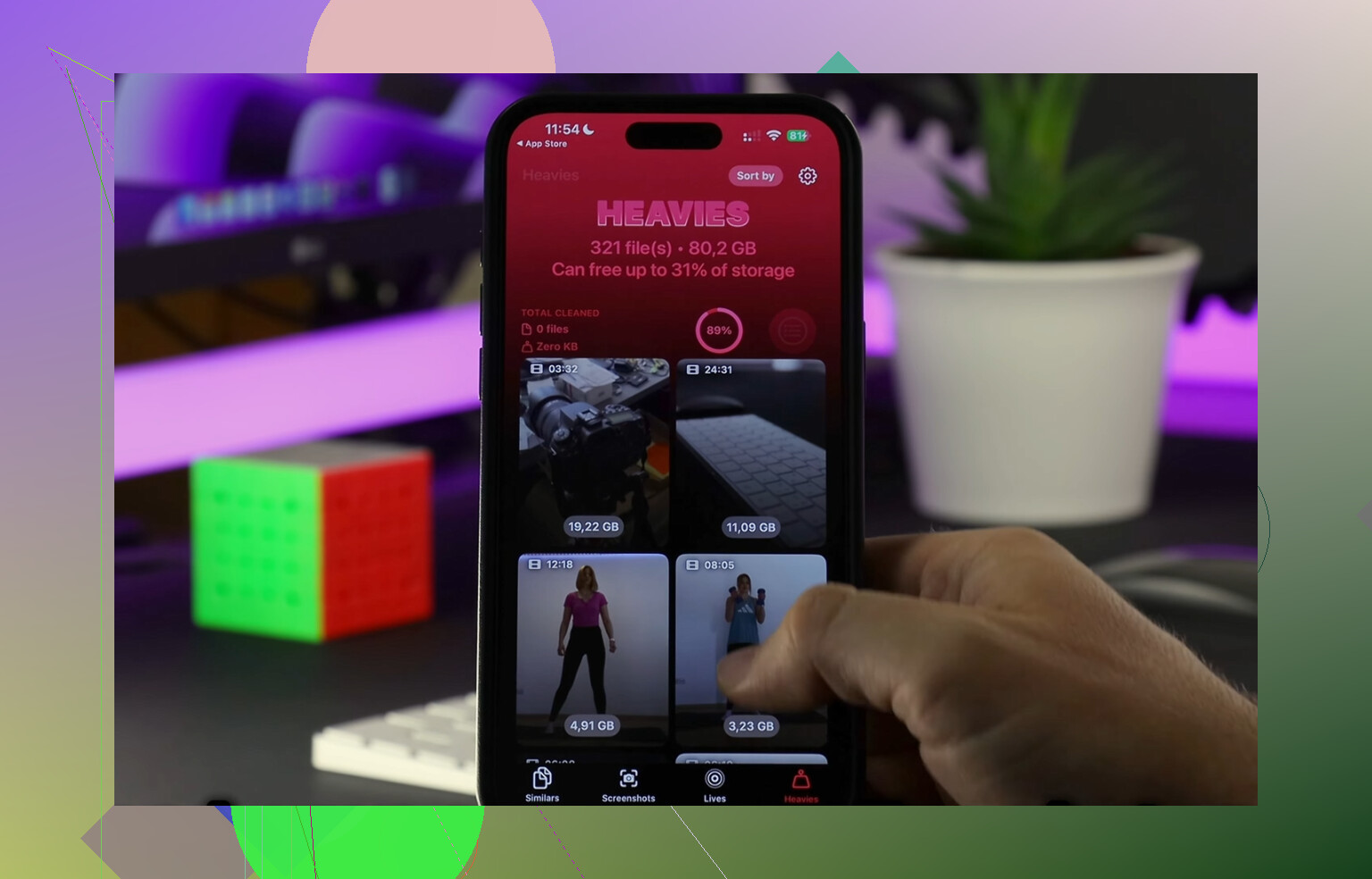
There’s a Heavies section for big files, so I could spot giant videos fast instead of scrolling through random threads and albums. There’s also a Similars section for duplicate-ish photos. Mine was full of repeat shots, blurry retries, and accidental screen recordings. I cleaned out a pile of junk I’d ignored for months.
I also liked that the scanning stayed on-device. I’m picky about photo privacy, and I didn’t want my library sent off somewhere.
On my phone, I cleared around 15 GB. After that, performance felt normal again. Maybe not magic, but close enough after how bad it was before, lol.
One thing people forget
After deleting stuff, check Recently Deleted.
In Photos, Apple keeps removed files for 30 days unless you erase them yourself. So your storage total might look almost unchanged at first. Same idea inside Messages if deleted items are still sitting there.
I missed this the first time and thought the cleanup failed. It didn’t. The trash was still full. Once I emptied Recently Deleted, the free space showed up right away.
Short answer
No, deleting an attachment from Messages does not remove it from your camera roll, if you already saved it to Photos first.
If you want your space back fast, clear large attachments, clear duplicates, then empty Recently Deleted. That’s what fixed it for me, typo-level frustration and all.
233 Likes
If you delete message attachments, they delete from the Messages database. If you use Messages in iCloud, the deletion syncs to your other Apple devices too. So no, it is not only your phone.
Where I slightly disagree with @mikeappsreviewer is this part trips people up more than Apple admits. The key issue is where the file lives.
Quick breakdown:
-
In Messages only.
Delete it there, it disappears from synced message history on your iPhone, iPad, and Mac. -
Saved to Photos too.
Delete the Messages copy, the Photos copy stays. Delete the Photos copy, the Messages copy stays. -
Downloaded to Files.
Same idea. Files is separate storage.
If your goal is space, check what is eating it first. A 4 minute 4K video in a thread might be 300 MB to 700 MB. Ten of those adds up fast. Screenshots and memes usually matter less.
One more thing people miss. If you back up your phone, deleting from Messages removes it from current synced data, but older backups might still contain older copies until those backups rotate out. So it is not “gone everywhere forever” on day one. That part gets glossed over a lot.
If you want faster cleanup beyond Apple’s clunky menus, Clever Cleaner is worth a look for finding big media and duplicate junk. This short explainer is decent too: see how Clever Cleaner frees up iPhone storage fast
Short answer, if it’s only in Messages, deleting it removes it from synced Messages devices. If you saved it somewhere else first, those copies stay. Kinda annoyng, but also useful.
Not exactly “just on your phone,” and this is where Apple makes it more confusing than it should be.
If you delete an attachment from a message thread, you’re deleting the Messages copy. If Messages in iCloud is turned on, that deletion usually syncs across your other Apple devices too. So I agree with @shizuka on that part.
Where I slightly push back on @mikeappsreviewer is this: people sometimes assume “attachment” always means one file in one place. Nope. It can exist in multiple places at once. Message thread, Photos app, Files app, backup, etc. Deleting one version does not always nuke the others.
What matters:
- Deleted from Messages only = removed from synced message history
- Saved to Photos = still stays in Photos
- Saved to Files = still stays in Files
- Included in old backups = may still exist there for a while
Also, sometimes storage numbers don’t update right away. iPhone can be annoyngly slow to recalculate. Give it a bit, or restart.
If your main goal is freeing space without playing detective in every thread, Clever Cleaner is honestly the more practical route for spotting large videos and duplicate junk. This article is decent too: see why Clever Cleaner is a top free iPhone cleaner app
Short version: delete from Messages, and it may disappear from other synced Apple devices. But it will not automatically erase copies you saved elsewhere.
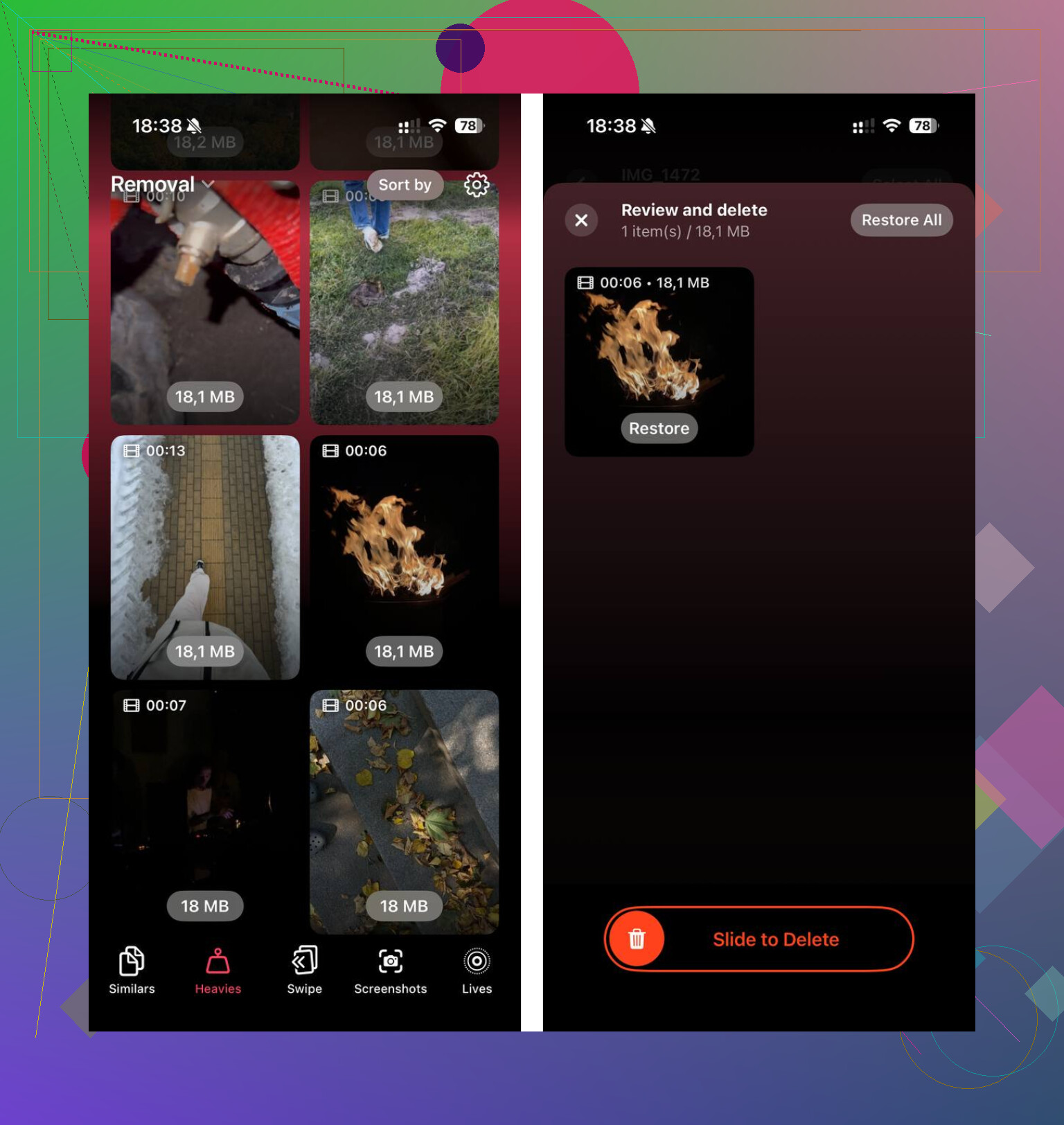
Deleting Messages attachments removes them from synced Messages on your iPhone, iPad, and Mac when Messages in iCloud is enabled. Copies saved in Photos or Files stay.
A simpler option is to offload unused apps instead. Go to Settings, General, iPhone Storage. Pick a large app, then tap Offload App. Your documents and login data stay, while the app itself gets removed. Reinstall it later from the App Store.
This often frees several GB without touching photos, videos, or chats. Start with games and streaming apps. Their cached downloads eat storage fast and are annoyngly easy to forget.
A phone with Messages in iCloud turned on behaves completely differently from one where it’s off, and half this thread assumes it’s on. If iCloud syncing is active, yeah, deleting an attachment pulls it from your iPad and Mac too. But if you never enabled Messages in iCloud, deletions stay local. Your other devices keep their own separate copies until you clean each one by hand. So before anyone panics about things vanishing ‘everywhere,’ check Settings, your name, iCloud, See All, Messages. That single toggle decides the whole answer.
@egor_bash’s offload trick is the one I’d actually try first, honestly. It’s low risk and reversible, and it dodges the whole ‘did I lose my kid’s video’ worry entirely. Attachments are worth clearing only if you’ve confirmed the big files aren’t the ones you care about keeping. A 500 MB video from a group chat two years ago, sure, delete it. But going thread by thread tapping little circles is a soul-crushing way to spend an evening, so I get why the cleaner apps keep coming up.
On Clever Cleaner, it’s fine for spotting the heavy videos and near-duplicate photo piles fast, which is the tedious part. Just don’t expect it to touch your Messages attachments directly, since that’s Apple’s walled-off storage. Use it for the Photos side, handle Messages separately, and remember what @mikeappsreviewer said about Recently Deleted. Nothing frees real space until that 30-day trash is emptied, and people forget that step constantly then assume the cleanup failed.