My iPhone storage is almost full, and I keep finding deleted files, photos, emails, and notes sitting in separate trash or recently deleted folders. Is there a way to empty trash on iPhone all at once without checking every single app manually?
The annoying part is that deleting stuff on an iPhone doesn’t always mean it’s actually gone yet. Apple doesn’t have one big trash bin like Windows or macOS. A lot of apps keep their own “Recently Deleted” area, so your storage can look unchanged even after you just deleted a ton of photos, files, or messages.
What’s happening is pretty simple: the phone is holding those deleted items for a while before removing them for real. Photos and files usually sit there for about 30 days, and messages can stick around longer, sometimes up to 40 days. During that time, they’re still using the same storage.
So if you want the space back now, you have to empty the deleted-items folders manually. The main ones to check are:
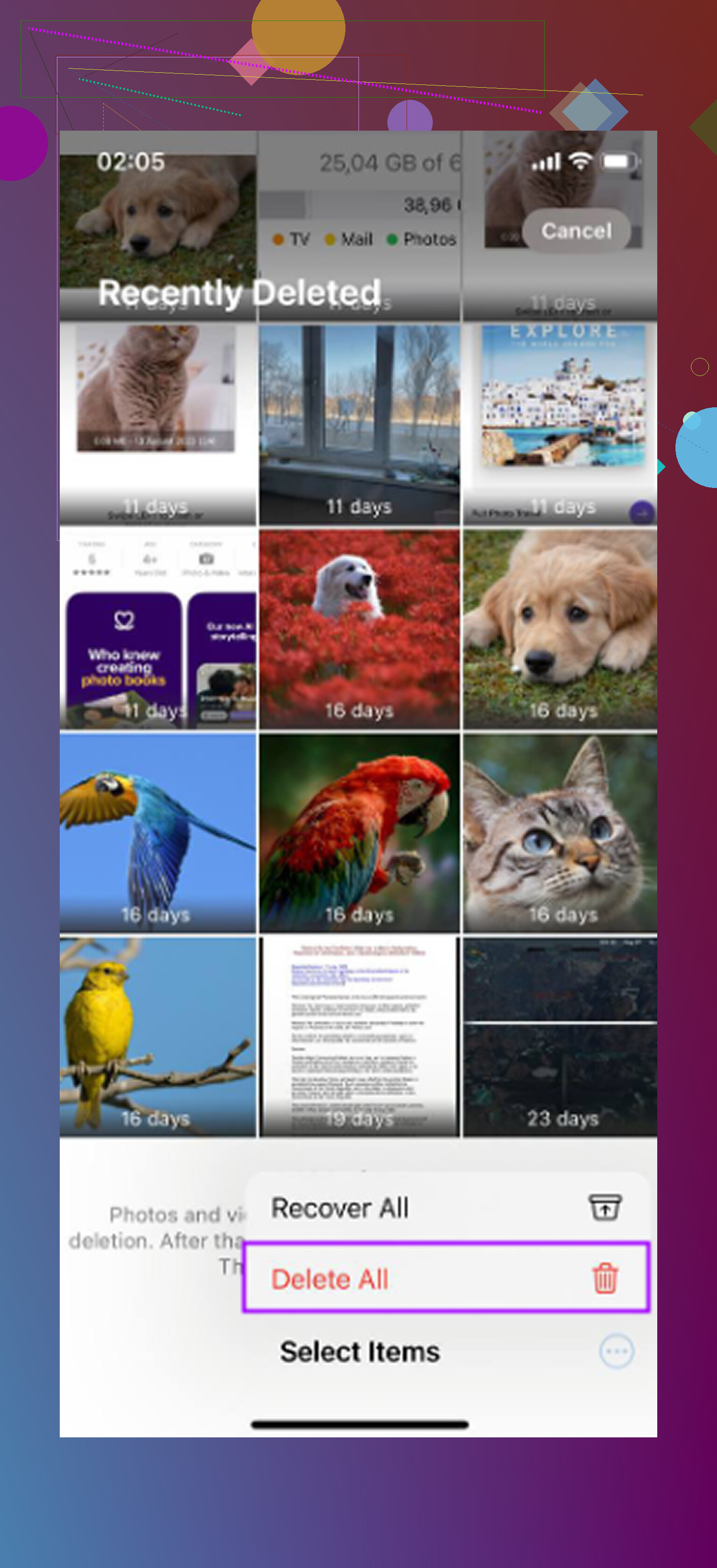
- Photos: Open Photos, go to Albums or Collections, then scroll down to Utilities. Open Recently Deleted. You may need Face ID or your passcode. Then tap Select and choose Delete All.
- Files: Open the Files app, tap Browse, then look under Locations for Recently Deleted. Open it, tap the three dots, choose Select, then delete everything permanently.
- Notes: If you delete notes with attachments, scans, or drawings, those can still take up space too. Go back to the main Folders view in Notes and check Recently Deleted.
- Messages: On iOS 16 and newer, deleted conversations can also be recovered for a while. From the message list, tap Edit or Filters, then choose Show Recently Deleted and remove them from there.
If you don’t see a “Recently Deleted” folder, it usually means either there’s nothing in it or your iOS version doesn’t support that specific feature. Photos also hides it pretty far down in the Utilities section now, so it’s easy to miss if you stop scrolling too early.
I ran into this when my iPhone got almost unusable. Apps were crashing, everything felt slow, and I couldn’t even take another picture. Low storage can absolutely make an iPhone act weird because the system needs some free space for temporary files and cache.
I tried cleaning everything by hand first, but it got old fast. I’d clear out Photos, then notice a bunch of space was still tied up in System Data, old videos, duplicate shots, and random junk spread across apps.
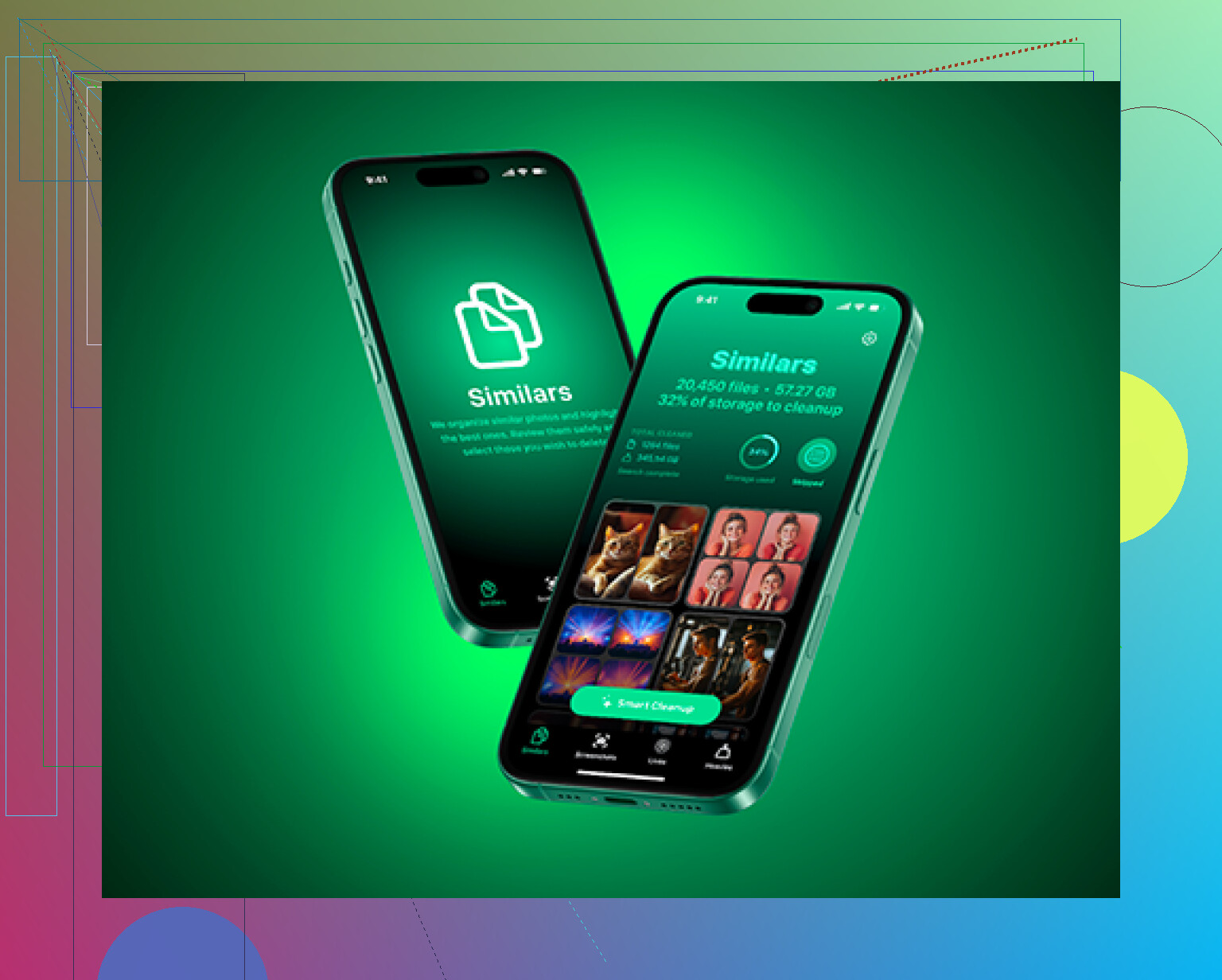
After that I tried Clever Cleaner. I’m usually suspicious of cleanup apps because so many of them are just ads or subscription traps, but this one is free, with no paywall, no premium tier, and no ads.
The useful part is that it shows the actual file size for screenshots and videos, so you can quickly see what’s eating storage. The Heavies section is good for finding huge files, like old screen recordings you forgot about. The Similars section finds near-duplicate photos, so you can keep the best shot and delete the rest. It also runs on-device, so your photos aren’t being uploaded somewhere else.
One more thing to try after clearing all this out: restart the phone. A hard restart can sometimes help clear stuck cache or shrink down some of that “System Data” / “Other” storage. Between emptying the actual Recently Deleted folders and using something like Clever Cleaner for duplicates and big files, you should finally see the storage number move.
24 Likes
Don’t start by deleting random apps or turning off iCloud Photos just because Storage looks bad. That can make the mess harder to understand, and with iCloud Photos especially, “delete” usually means delete from iCloud and your other devices too, not just from this one iPhone.
@mikeappsreviewer is right that there isn’t a master iPhone trash can. The annoying extra caveat is that some of the “trash” is not really controlled by iOS at all. Mail is the big example. Gmail, Outlook, Yahoo, and iCloud Mail can each have their own Trash folder, and emptying one account’s trash may not touch the others. Same thing with third-party apps like Google Photos, Dropbox, WhatsApp, or voice recorder apps. If the app has its own deleted-items folder, Apple’s storage screen won’t give you one button to purge all of it.
The fastest safe route is usually: clear Photos Recently Deleted first, then Files Recently Deleted, then Mail trash for each mail account, then Messages Recently Deleted if you use it. After that, check Settings > General > iPhone Storage and sort by the biggest apps. If one app is huge, open that app and look for its own downloads, cache, attachments, or deleted folder. That gets you more space than hunting through every tiny app one by one.
Cleanup apps can help with duplicate photos and large videos, but I wouldn’t treat any of them as a universal trash empty button. They can’t permanently empty every app’s private trash folder because iOS sandboxes apps. Use them for finding bulky media, then still check the main Apple folders manually.
“Empty trash” is the wrong target on iPhone. What you really want is to find which app is holding the storage, then clear that app’s deleted items or local data. If Photos is using 80 GB, emptying Mail trash won’t matter. If Messages is huge, clearing Files won’t move the needle.
Go to Settings > General > iPhone Storage first and wait for the list to fully load. That screen tells you where the space is actually going. I would not start opening every app randomly. Start with the top five apps only. If one of them is Photos, Messages, Files, Mail, WhatsApp, Spotify, Netflix, YouTube, Gmail, Google Photos, or a podcast app, that is usually where the real storage is hiding.
A detail that gets missed a lot: “Offload App” is not the same as deleting the app’s data. Offloading removes the app itself but keeps its documents and data, which is often the bloated part. So if an app says it has 12 GB of Documents & Data, offloading may barely help. For apps with giant caches or downloads, you usually need to open the app and remove downloads/cache from inside it, or delete the app completely and reinstall it. Obviously don’t do that for anything where you have unsynced local files, drafts, recordings, or game saves you care about.
Mail is another trap. Emptying Trash in Gmail or Outlook may free mailbox space on the server, but it may not free much iPhone storage if the Mail app’s problem is cached attachments. If Mail is huge in iPhone Storage, sometimes removing the account from the phone and adding it back is cleaner than poking around folder by folder. That does not delete the mail account itself, but you should still make sure you know your login and that the mail is synced online before doing it.
For Messages, don’t only check Recently Deleted. Go into Settings > General > iPhone Storage > Messages and look at the categories there. Big attachments, videos, photos, GIFs, and conversations can be removed from that screen. That is often faster than scrolling through old chats. Same with downloaded music, podcasts, offline maps, streaming app downloads, and Safari website data. None of that is “trash,” but it eats storage the same way.
Cleanup apps are a side tool, not the main fix. Something like Clever Cleaner can be useful if your Photos library is the mess, especially for finding huge videos, screenshots, and duplicate-ish shots. If you want to see what people are saying about it before installing, there’s a Reddit thread here: Reddit discussion about Clever Cleaner. Just don’t expect any cleaner app to empty Gmail trash, WhatsApp deleted media, Files Recently Deleted, and every private app cache with one magic button. iOS does not give apps that kind of access.
The fastest realistic cleanup order is probably this:
- Check iPhone Storage and identify the biggest apps.
- Empty Photos Recently Deleted if Photos is large.
- Clear Messages attachments if Messages is large.
- Remove offline downloads from streaming, podcast, map, and cloud storage apps.
- Empty Files Recently Deleted only if Files/iCloud Drive is actually taking space.
- For bloated third-party apps, clear cache/downloads inside the app or delete and reinstall the app if your data is safely synced.
After that, restart the phone and give Storage a few minutes to recalculate. Sometimes the number does not update instantly, especially after deleting a lot of photos or videos. The annoying answer is still no, there is no single “empty all trash” button, but you can avoid checking every app by letting iPhone Storage tell you which few apps are worth bothering with.
Expect this to be a targeted cleanup, not a single purge button. iOS just does not have a system-wide trash can that reaches into Photos, Mail, Files, Notes, Messages, Gmail, WhatsApp, Google Photos, etc. Each app owns its own deleted area, and some of those deleted areas are synced to a cloud account rather than stored only on the phone.
A detail I think gets mixed up a lot: check whether the warning is about iPhone Storage or iCloud Storage. They are not the same problem. If Settings says your iPhone storage is full, you need to remove local data, downloads, cached media, big videos, attachments, apps, and local copies. If it says iCloud storage is full, emptying Photos Recently Deleted, iCloud Drive Recently Deleted, backups, and synced app data matters more. You can clear a bunch of iCloud trash and still have a packed phone, or delete local app data and still have a full iCloud account.
For a quick pass, I would do this instead of opening every app:
Go to Settings > General > iPhone Storage and look at the first few items. If Photos is at the top, deal with Photos and Recently Deleted. If Messages is at the top, clean attachments and deleted conversations. If Files is at the top, check Files > Recently Deleted and any big local folders. If Spotify, Netflix, YouTube, Audible, Podcasts, Maps, or similar apps are huge, look for offline downloads. Those are often faster wins than “trash.”
Be careful with cloud photo apps too. Apple Photos, Google Photos, and iCloud Photos can behave differently depending on sync settings. If you delete from a synced library, you may be deleting from the cloud and other devices, not just clearing space on this iPhone. That is why “turn off iCloud Photos” or “delete the app” is not something I’d do casually unless you know where the originals are.
Clever Cleaner or similar photo cleanup apps can be useful for the Photos side of the problem, especially if the real issue is large videos, screenshots, or repeated shots. But it will not empty every app’s private trash folder, and it will not fix Mail, WhatsApp, or streaming downloads by itself. Treat it as a photo-sorting helper, not an iPhone-wide garbage disposal.
After deleting a lot, restart the phone and give the storage screen time to update. Sometimes iOS does not recalculate immediately, and sometimes the phone needs free space before it can even clean itself up properly. The realistic answer is no, you cannot empty all trash everywhere at once, but you can avoid checking every app by chasing only the apps that are actually using the storage.