I’m trying to free up storage on my iPhone, but my downloads seem to be scattered across different apps and folders. I recently noticed my storage is almost full, and I can’t figure out if there’s one place to delete all downloaded files, photos, and attachments at once. I need help finding the fastest way to clear iPhone downloads and recover space.
I ran into this on my own iPhone and lost way too much time on it. The annoying part is simple. iOS does not keep all downloads in one spot. Safari, Files, Photos, and app-specific offline storage all behave a little differently, so there is no single wipe button.
The first place I checked was the Files app. Safari usually drops downloads there. Open Files, tap Browse, then look in both On My iPhone and iCloud Drive. In both places, there is often a Downloads folder. I had to open each one, tap the three-dot menu, choose Select, then remove the files myself.
What tripped me up was Recently Deleted. I deleted a batch, came back later, and thought the phone had ignored me. It hadn’t. The files were sitting in Recently Deleted for 30 days. In Files, go into Locations, open Recently Deleted, and clear it out again. If you use iCloud, stuff sometimes shows back up when sync lags or the deletion does not finish across devices.
For files stuck in place, I had better luck with a couple dumb little fixes than with anything fancy. I closed Safari, rebooted the phone, then tried again. A half-finished download seems to get hung sometimes. When normal delete failed, I also tried pressing and holding Recently Deleted in the Files sidebar. Weirdly, I saw it force a cleanup once when the usual taps did nothing.
Safari’s download list confuses a lot of people. The arrow icon in Safari only shows the history list. If you tap Clear there, you are clearing the list, not removing the file from storage. The file still lives in Files unless you delete it there. If you want less clutter in Safari itself, go to Settings > Safari > Downloads and change Remove Download List Items to After One Day or Upon Successful Download. That keeps the list shorter. You still need to clean the folder now and then.
Then there’s the stuff outside Files. A photo or video saved from a browser or social app often lands in Photos, not Files. Downloads inside Netflix, Spotify, Podcasts, or other apps stay inside those apps. Files will not show them. I had to open each app and clear offline content there, or use Settings > General > iPhone Storage to see what was eating space. That screen is the closest thing iOS gives you to a central view.
This matters more than people think. My phone felt slow for weeks, and I first blamed iOS updates. Turned out storage was packed with old downloads, duplicate pics, and random saved videos. I found close to 40 GB of junk. Once storage gets tight, the phone starts to feel bad in small ways first. Apps pause, photos lag, keyboard feels late, stuff like tht.
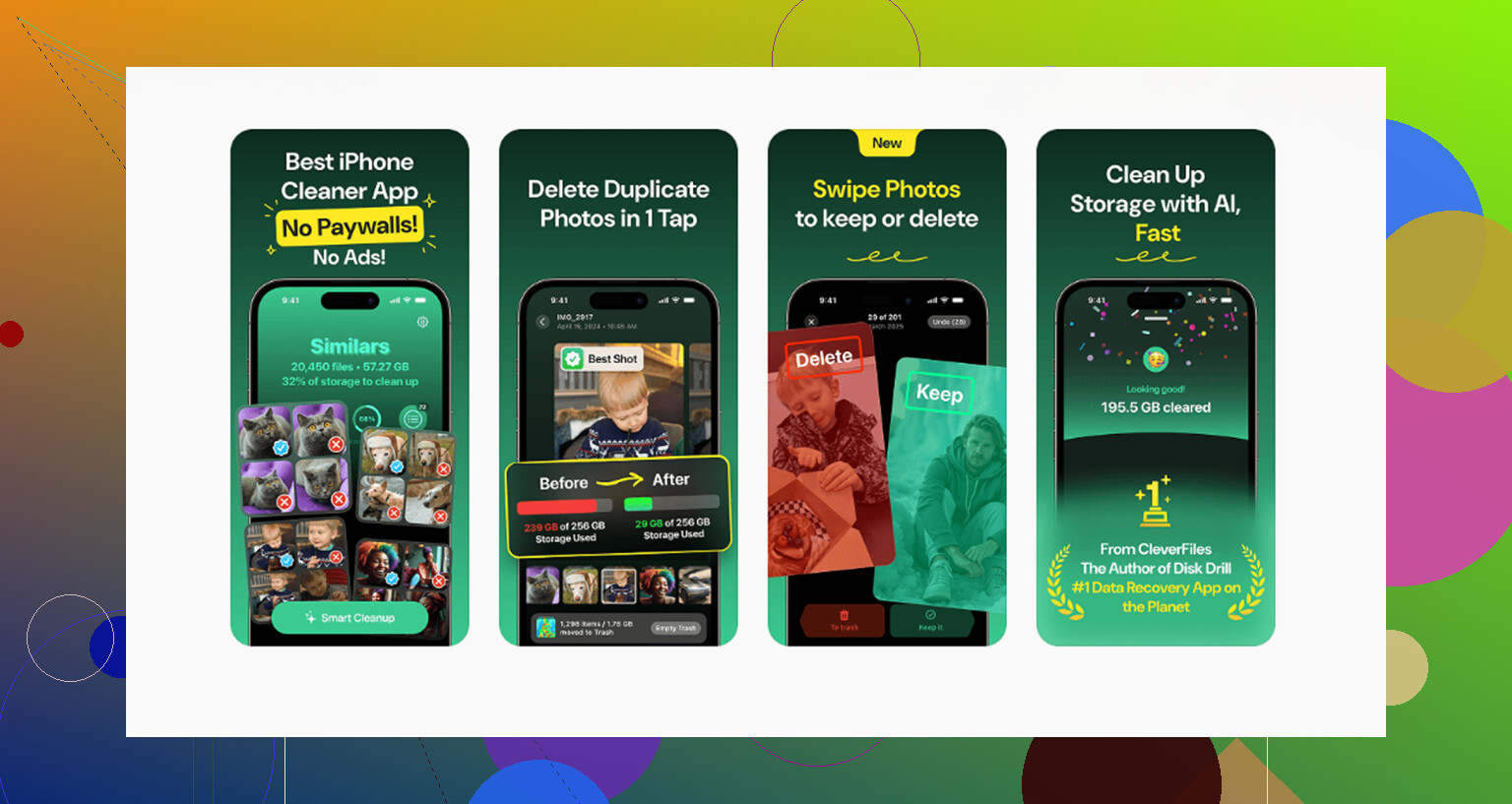
I ended up using a cleanup tool for the media mess because doing it by hand was a slog. The one I kept was Clever Cleaner. What I liked was the plain part of it. No subscription wall, no ad spam every two taps, and it processes on-device instead of shipping your library off somewhere else.
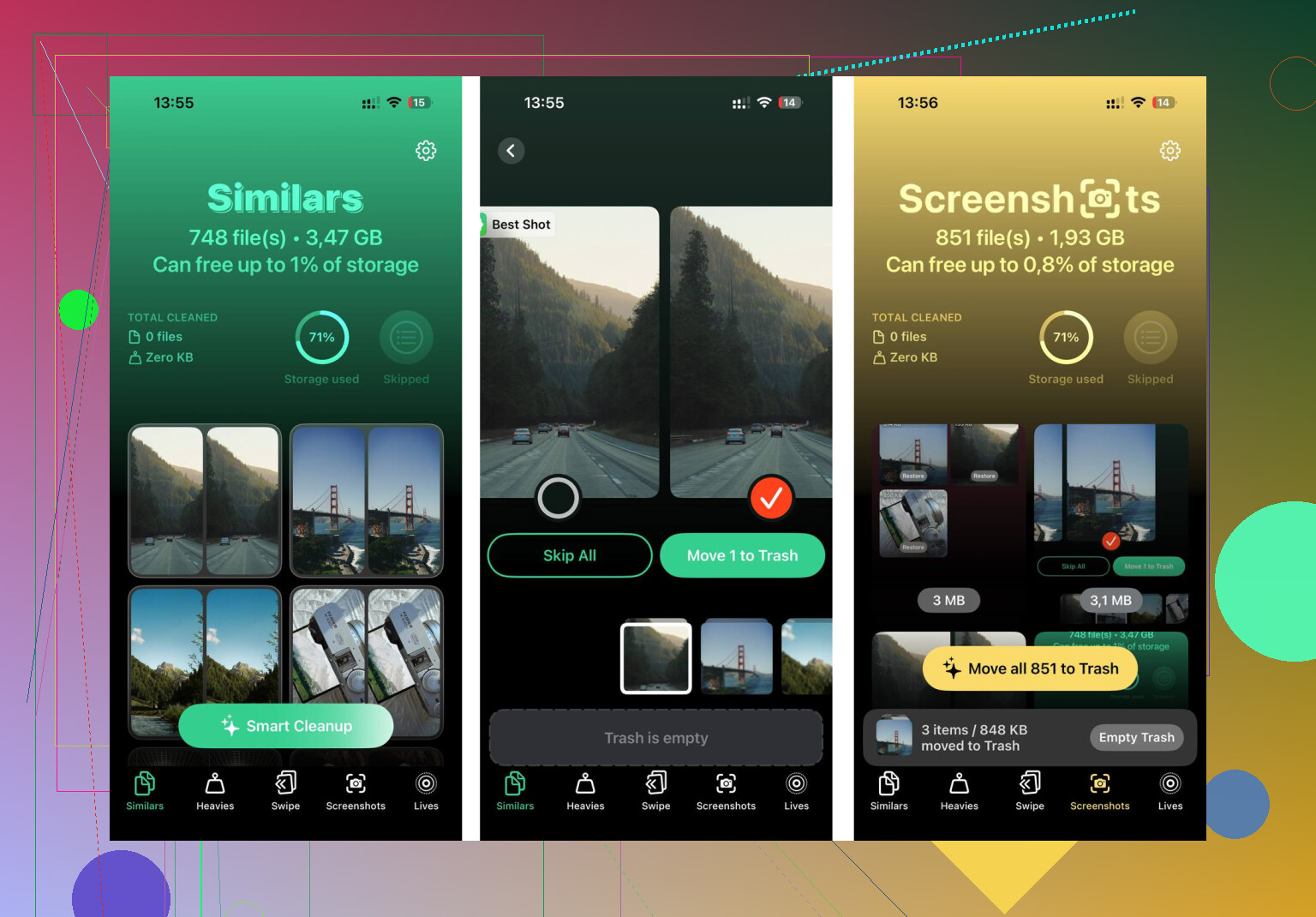
The useful bits were the size-based sorting and the duplicate finding. I used the Heavies section to spot giant videos fast, mostly old 4K clips I forgot I had. The Similars section caught near-duplicate photos my iPhone had ignored. It also showed file sizes clearly, so I knew what was worth deleting and what was not.
The last part is the one people skip. After deleting, empty Recently Deleted in both Files and Photos. If you leave those bins full, the space is not back yet. I missed this the first time and thought nothing worked.
94 Likes
There isn’t one master Downloads trash bin on iPhone. Apple keeps stuff split by app. Annoying, yep.
I agree with @mikeappsreviewer on one part, Settings > General > iPhone Storage is your best control panel. I’d start there first, not Files. It shows which apps eat the most space, so you stop guessing. If Photos says 25 GB and Files says 2 GB, you know where to spend your time.
A faster cleanup flow:
- Open Settings > General > iPhone Storage.
- Wait for the size chart to load.
- Tap the biggest apps first.
- Check Messages, Photos, Music, Podcasts, Netflix, YouTube, Spotify, Telegram, WhatsApp.
- Remove downloaded content inside those apps.
A lot of people miss Messages. Saved videos, voice notes, and attachments pile up fast. In iPhone Storage, tap Messages, review Large Attachments, and delete the junk. I freed 6 GB there on my mom’s phone last wek.
For browser stuff, Safari downloads are only part of it. Chrome, Firefox, Drive, Dropbox, and PDF apps often keep their own copies. Files won’t show all of it. If one app looks bloated in iPhone Storage, delete and reinstalling the app sometimes clears cached downloads faster than hunting file by file. Do this only if your data is synced.
I slightly disagree on cleanup apps as a first move. For mixed storage, app-by-app cleanup usually gets bigger results. But if your main problem is duplicate photos, screenshots, and giant videos, Clever Cleaner is worth a look. This Clever Cleaner iPhone storage cleanup review shows what it sorts and how it helps trim media faster.
Short version, there is no all-in-one delete place. iPhone Storage is the closest thing Apple gives you. Use it first. Then clean the worst apps. Then empty deleted folders so the space comes back for real.
Nope, not really. iPhone does not have a true “delete all downloads in one place” screen. @mikeappsreviewer and @sognonotturno already covered the usual paths, but one thing I’d add is this: stop thinking in terms of downloads, and think in terms of storage categories.
A lot of “downloads” are actually:
- app caches
- message attachments
- saved media in Photos
- offline files hidden inside apps
That’s why it feels all over the place.
What helps more, in my opinion, is using Offload App strategically. I know people love deleting files manually, but if an app is hogging space and you don’t care about its temp data, go to Settings > General > iPhone Storage > app name > Offload App. That removes the app but keeps its documents/settings. Reinstalling often clears junky cached downloads without nuking everything. Sometimes that’s faster than digging through folders for 20 mins like a raccoon in a trash can.
Also check:
- Mail app for downloaded attachments
- Books for saved PDFs/ebooks
- Voice Memos if you ever recorded long audio
- Files app tags/favorites, because stuff can be buried there and not just in Downloads
Tiny disagreement with the “just use Files first” approach: for most ppl, Files is not where the biggest problem is. Usually it’s Photos, Messages, or streaming apps. Files is just the obvious place, not always the useful one.
If your main issue is photo clutter, duplicate pics, screenshots, and huge videos, Clever Cleaner is one of the better options people mention because it targets the mess fast. If you want to read about a free iPhone cleaner app that helps remove duplicates and large files, that’s probably the most relevant angle here.
So yeah, closest thing to “all in one place” is:
- iPhone Storage to find the worst offenders
- app-by-app cleanup
- empty Recently Deleted everywhere
Annoying system, but that’s iOS bein iOS.
Try iCloud Photos with Optimize iPhone Storage. It frees local space without hunting through every app.
Open Settings, tap your name, iCloud, Photos, then turn on Sync this iPhone and Optimize iPhone Storage. Full-resolution photos stay in iCloud while smaller copies remain on your phone.
This works best when Photos uses most of your storage. You’ll need enough iCloud space and Wi-Fi. Check progress overnight. It’s simpler than deleting files one by one, tho syncing may take awhile.
Half the storage panic on iPhones comes from System Data, and nobody here mentioned it. That’s the gray slice in the storage bar that iOS labels vaguely. It holds streaming caches, mail attachments, log files, and leftover download fragments, and it can quietly sit at 10 to 15 GB. No manual file delete touches it directly, so you can clean Files, Photos, and Messages all day and still watch a huge chunk refuse to budge.
The Offload App tip from @cacadordeestrelas is decent, but worth a caveat. Offload keeps the app’s documents and data on purpose. If the bloat lives inside that data, which is common for streaming and messaging apps, offloading barely moves the needle. For clearing cached downloads you usually want a full delete and reinstall, not offload. Offload is really for apps you rarely open, where you want the icon and login state to stick around.
Also, the storage screen lies for a while. After a big cleanup the numbers can take an hour or more to catch up, and a reboot sometimes forces the recalculation. I’ve seen people delete the same stuff twice because the chart hadn’t updated yet. Give it time before you assume nothing worked.
On the cleaner tool that keeps coming up, I’d treat Clever Cleaner as a photo and video problem solver, not a storage fix. It’s fine for spotting duplicate shots and giant 4K clips fast, which is real work you’d otherwise do by hand. But it won’t clear System Data or in-app caches, so if Photos isn’t your main hog it won’t help much.
My honest take: check the storage bar first, and look at how big System Data is before you touch anything. If Photos is the giant, a cleaner or the Optimize trick @mr_lynx mentioned pays off. If System Data is the giant, your fastest fix is deleting and reinstalling the worst offender apps, then rebooting. Everything else is just moving files around.