I’m trying to free up storage on my iPhone, but some apps show a large amount of Documents and Data and I can’t find any clear delete option. I already checked iPhone Storage and the app settings, but nothing lets me remove it without deleting the whole app. Is there a way to clear Documents and Data on iPhone without losing everything?
I ran into the same mess on my iPhone a while ago. “Documents and Data” was swallowing storage, and the number barely moved no matter what I deleted. Apple hides the useful details, so it turns into guesswork fast.
What helped me first was understanding what sits inside that label. It’s not one neat folder. It’s the leftover pile apps keep around, cache files, cookies, saved sessions, browsing history, downloaded clips, streamed media fragments, message junk. Scroll through Instagram, Facebook, or TikTok for a week and those apps start hoarding data like crazy. Feels small day to day. Then you look later and it’s 4GB, 6GB, worse.
If your target is one app, Facebook for example, start inside the app itself. In Facebook’s settings, under Browser Settings, there’s an option to clear cookies and cache from its built-in browser. I did it. It helped a bit. Not much. More like trimming loose threads than fixing the whole thing.
The only method I found which wiped the bulk of it was deleting the app and installing it again. Not offloading. Offloading keeps the Documents and Data part, so you don’t get the cleanup you wanted. You need “Delete App” from iPhone Storage. After reinstalling, the app comes back lean, and the old multi-gigabyte junk pile usually drops hard.
Photos is another trap. A lot of people delete images and expect storage to free up right away, then nothing happens. I made the same mistake. The missing piece is the Recently Deleted album. Your iPhone hangs onto deleted photos and videos for 40 days unless you empty it yourself. Go to Albums, scroll down, open Recently Deleted, then clear it out manually. I’ve seen storage stay frozen because of this one thing alone.
Mine got ugly when free space dropped to the last 1GB or 2GB. The phone slowed down, apps quit mid-use, and the camera took forever to open. At that point it didn’t feel like an old phone issue. It felt like storage starvation. iOS needs spare room for temp files, and once you squeeze it too far, the whole phone gets weird.
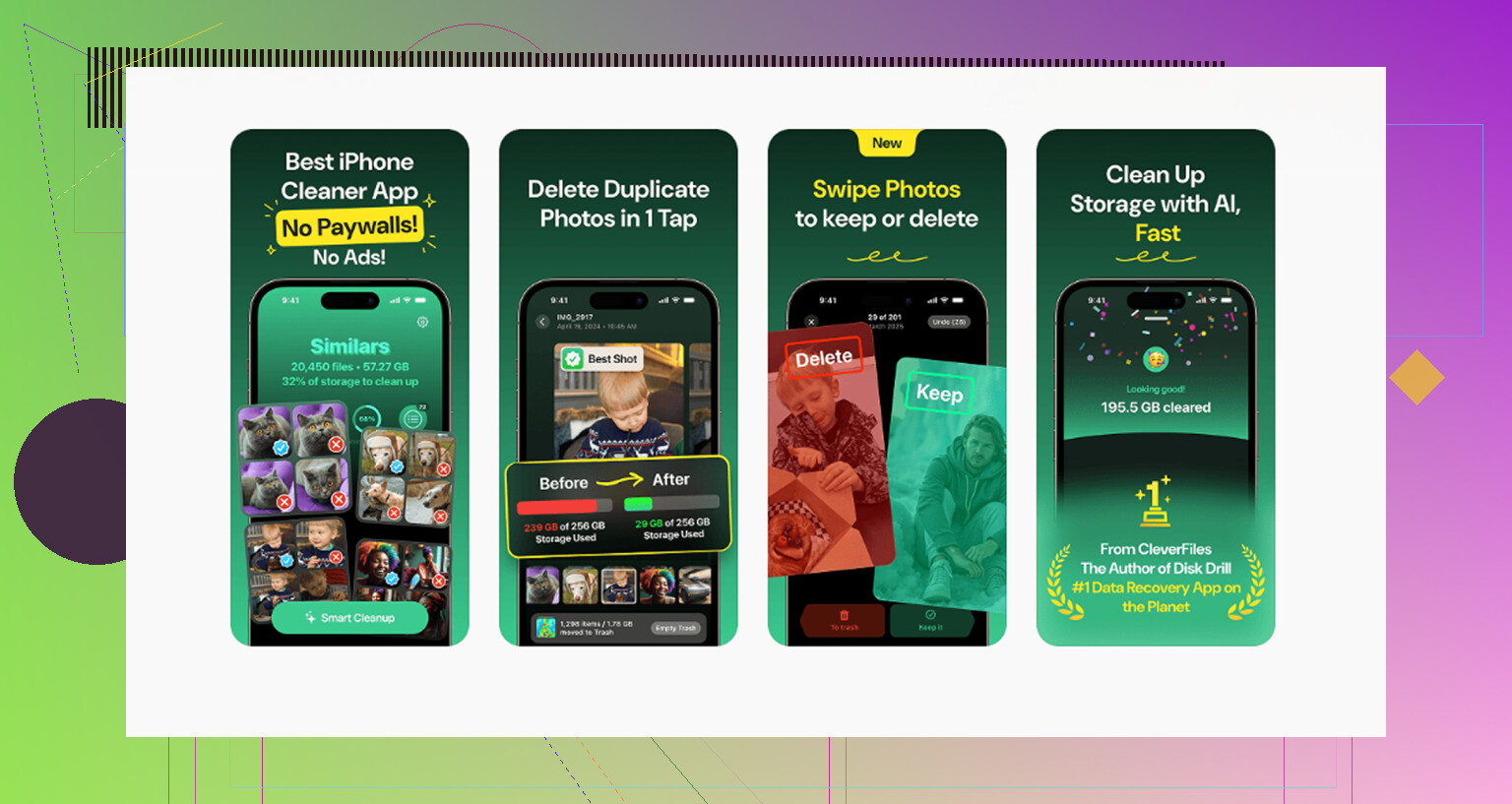
I spent too long trying to clean everything by hand. What kept slipping past me were giant video files, message attachments, and duplicate shots buried in the photo library. I tested a few cleanup apps, most were junk, and the one I stuck with was Clever Cleaner. I expected a paywall in the first two minutes. Didn’t hit one. No ad circus either, which surprised me tbh.
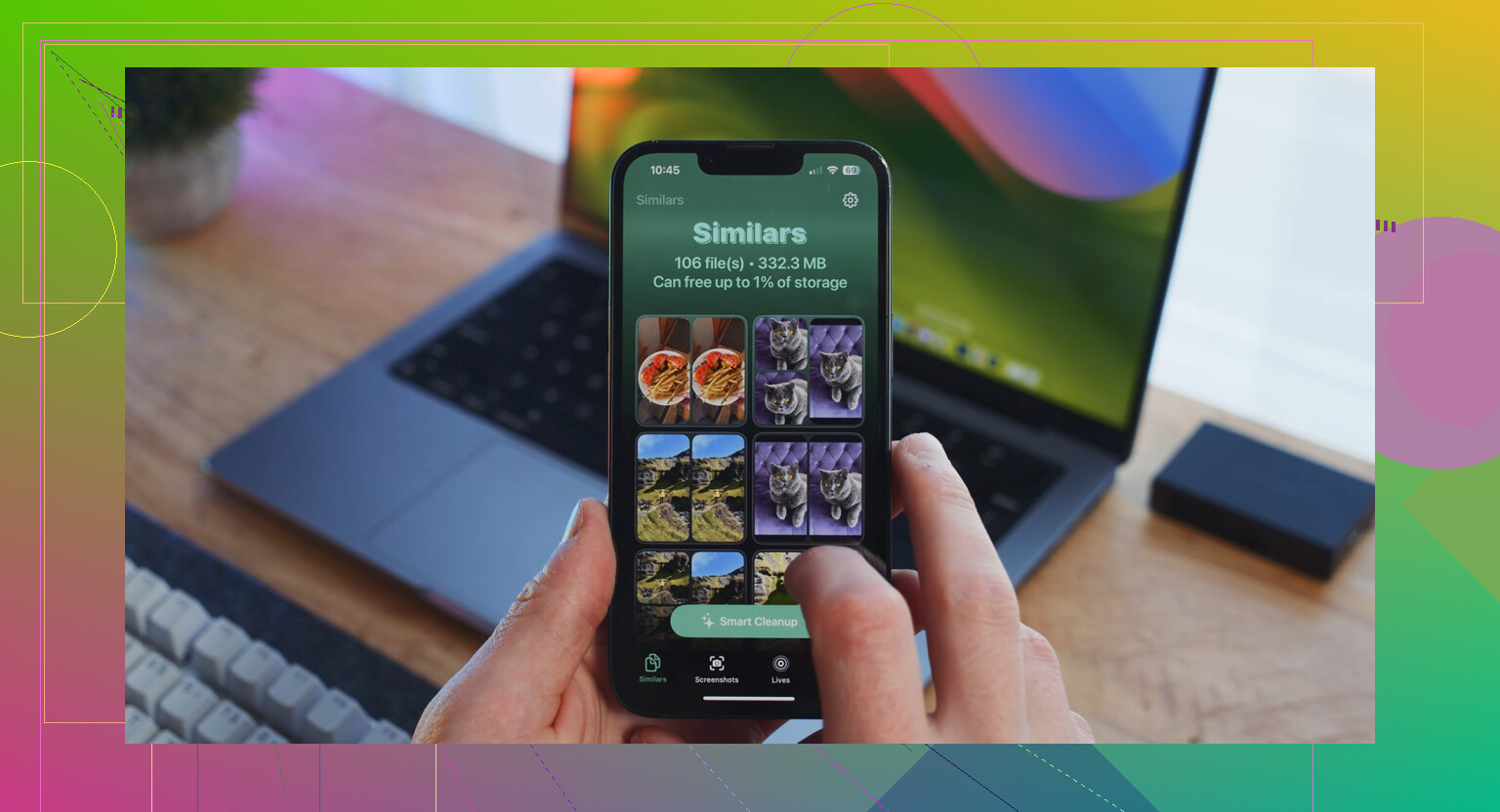
The useful part for me was the Heavies section. It sorts media by size, so the worst offenders show up first instead of making you hunt for them. There’s also a Similars section which groups near-duplicate photos. If your camera roll is full of five takes of the same meal, pet, receipt, sunset, whatever, it cuts the sorting time way down. I also liked one privacy detail. It processes on the device, so your photos aren’t being shipped off somewhere else. And before deleting screenshots, it shows the size of each file, which made it easier to decide what was worth removing.
After I cleared around 8GB of junk and oversized videos, the lag pretty much stopped. If your storage total still looks stuck after a cleanup, try a restart. I had to do that once before iOS updated the number properly. Checking for an iOS update also helped on one older device I had. Still, the biggest gains came from hidden attachments, bloated social apps, and the Photos trash folder. That’s where I found most of the wasted space, easy.
65 Likes
If iPhone Storage shows big Documents and Data with no delete button, your best move is often to clear the data source, not hunt for a hidden switch.
A few things people miss.
For Messages, go to Settings, General, iPhone Storage, Messages. Review Photos, Videos, GIFs, Stickers, Top Conversations. Delete the biggest attachments first. A single chat thread with videos eats gigabytes fast.
For Safari, clear History and Website Data in Settings, Safari. Also check Downloads in the Files app. Safari downloads often sit there forever.
For streaming apps like Netflix, Spotify, YouTube, Prime Video, open the app and remove offline downloads. Those files often get counted inside app data.
For Files, check On My iPhone. Some apps dump data there and iOS counts it under the app.
I kinda disagree with @mikeappsreviewer on one point. Reinstalling is not always the first move. If the app stores drafts, chats, or offline work locally, deleting it nukes all of it. Check inside the app first.
If you want a faster way to spot huge media and duplicate pics, Clever Cleaner helps. This review explains why it stands out as a free iPhone cleanup app, see how Clever Cleaner frees up iPhone storage without ads or paywalls.
Also restart after cleanup. iOS storage numbers lag sometimes. Annoying, but true.
One extra thing neither @mikeappsreviewer nor @viaggiatoresolare really touched enough is backups and sync apps. Sometimes the bloated “Documents and Data” is from stuff you don’t even realize is mirrored locally.
Check these:
- Mail app: huge attachments and offline mail cache can get absurd. If you use the built-in Mail app, removing and re-adding the account sometimes shrinks it.
- Podcasts: downloaded episodes stay around way longer than ppl think.
- Voice Memos: deleted recordings can still sit there until fully removed.
- Notes: scans, PDFs, and embedded images count too.
- iCloud Drive, Dropbox, Google Drive: files marked for offline use are sneaky storage hogs.
Also, for apps with no clear cache button, I actually half-disagree with the “just delete and reinstall” advice being the main answer. Sometimes the app’s data comes right back after reinstall because it re-syncs old cached junk from your account/cloud settings. Annoying, but yeah, it happens. So before reinstalling, sign out of the app if possible, then delete it, then reinstall.
A less obvious iPhone trick:
Settings > App Store > Offload Unused Apps = turn this OFF temporarily while cleaning. iOS can make storage behavior confusing when it starts auto-managing apps in the background.
If you want to find the worst photo/video offenders faster, Clever Cleaner is honestly useful for spotting giant files and duplicates without a bunch of nonsense. And if you want a simple walkthrough, this iPhone storage cleanup video for clearing hidden junk and duplicate media is easier to follow than Apple’s menus.
Sometimes the answer is just that iOS hides cache controls on purpose. Super helpful, Apple.
One angle missing from @viaggiatoresolare, @vrijheidsvogel, and @mikeappsreviewer is app-specific storage caps.
Some apps let you shrink hidden data without a full reinstall:
- Maps apps: delete downloaded maps
- Messenger apps: reduce kept media or voice-note history
- Music/photo editors: remove project renders and exports
- Browser apps besides Safari: clear site data inside the app
Also check:
Settings > Accessibility > Per-App Settings? No.
Settings > General > iPhone Storage > look for “Review Downloaded Videos” if shown.
Settings > Camera > formats/video settings, because future files may be the real problem.
I slightly disagree with the delete-and-reinstall camp as a default fix. For apps like GarageBand, CapCut, or Canva, that can wipe local projects.
If Photos is the main culprit, Clever Cleaner is decent for surfacing giant videos and duplicates fast.
Pros:
- easy size-based cleanup
- duplicate detection
- simple UI
Cons:
- mostly useful for media, not every app cache
- review before deleting, it can group similar shots imperfectly
If storage still looks wrong after cleanup, give iPhone 24 hours on Wi-Fi and power. iOS recalculates slowly sometimes.
A simpler fix for widespread storage bloat is a clean setup. Back up your photos, contacts, passwords, and files to iCloud or a computer. Go to Settings, General, Transfer or Reset iPhone, Erase All Content and Settings. Set up the iPhone as new instead of restoring a full backup. Then reinstall only apps you use. This removes old caches, abandoned app files, and alot of hidden data in one pass. It takes longer upfront, but avoids checking every app seperately.
Erasing the whole phone to clear cache, like @primedev32 suggested, is overkill for most people. iOS actually dumps a lot of that ‘Documents and Data’ on its own once free space gets tight, so chasing every megabyte by hand is often wasted effort. Clear the obvious stuff, the big video attachments and old downloads, and let the system handle the rest.