I’m trying to give a Hyper-V virtual machine direct access to a physical RS-232 serial port on the host so I can manage some older network and industrial equipment. I can’t find a straightforward option in Hyper-V Manager to map the host COM port to the guest, and the documentation I’ve seen is either outdated or unclear. What’s the correct way (if any) to passthrough a serial port to a Hyper-V guest, and are there reliable workarounds if native passthrough isn’t supported?
You’re not missing a magic checkbox. Hyper‑V just doesn’t support raw, direct serial passthrough from host COM1 to guest COM1 like some other hypervisors do.
You’ve basically got three realistic paths:
1. Use named pipes in Hyper‑V
Hyper‑V does support “virtual COM ports” via named pipes. It’s not direct hardware passthrough, but it’s how you bridge things.
On the host:
-
Make sure you know which physical port you’re using
Example: COM1 on the host. -
Use a small helper tool or driver to bridge the hardware COM port to a named pipe. Some options:
- A local serial to named‑pipe bridge utility
- A serial-over-TCP app plus
np:tricks - Or something like the Serial to Ethernet Connector app that can:
- Share a physical serial port over the network
- Or present it locally as a virtual interface / pipe
In Hyper‑V Manager:
- Shut down the VM.
- Right click VM → Settings.
- Under “Hardware” click Add Hardware.
- Add a COM port.
- Choose Named pipe.
- Set:
- Pipe name: something like
\\.\pipe\MySerial - Direction: server or client according to how your bridge app expects it.
- Pipe name: something like
Inside the guest, that virtual COM port will show up like a normal serial port, and the host software does the real work of talking to the actual RS‑232.
2. Share the serial port over TCP and connect from guest
This is usually the cleanest workaround if you just want your VM to talk to the device, not own the hardware.
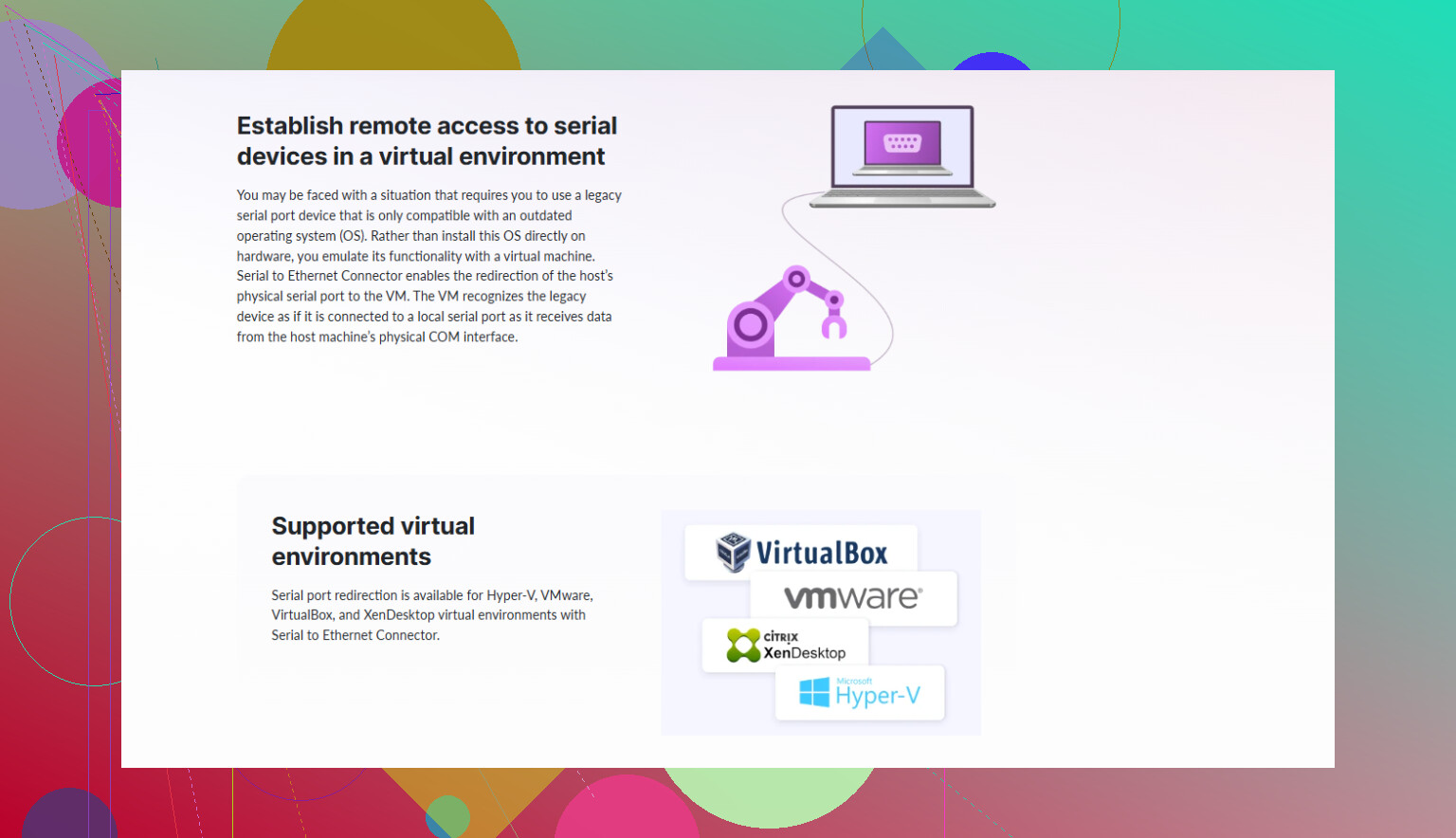
Install Serial to Ethernet Connector on the host:
- Add your physical RS‑232 port (for example COM1) in the app.
- Configure it as a TCP server that exposes that COM port over a specific IP and port.
- In the VM:
- Install the same tool (or any client that supports serial‑over‑TCP).
- Create a virtual COM port in the guest that connects to the host’s IP and TCP port.
- Your legacy app in the VM talks to that virtual COM port, which tunnels to the host’s real serial port.
That way your guest thinks it has a local serial port, but it’s actually going across the virtual network. For most “manage some old routers / PLCs” type stuff, this works perfectly.
If you want a guide that’s focused on getting a Hyper‑V guest talking to a serial port, this walkthrough helps a lot:
set up Hyper‑V serial communication the easy way
3. Use USB to serial and pass USB at a different layer
Hyper‑V also doesn’t do generic USB passthrough nicely, but some folks:
- Use a USB‑to‑serial dongle on a remote machine
- Share it via a serial‑over‑Ethernet / USB‑over‑network tool
- Then the VM connects over the network just like option 2
End result is the same concept: network tunnel in the middle.
So, short version: direct “host COM1 passthrough” is not supported. You need either a named pipe bridge or a serial‑over‑Ethernet style solution. Serial to Ethernet Connector hits the use case pretty squarely and saves you from a lot of manual glue scripts.
12 Likes
You’re not overlooking some hidden “map COM1 to VM” checkbox; Hyper‑V just doesn’t do bare‑metal serial passthrough like that. Where I’ll slightly disagree with @sternenwanderer is: for very simple use cases, you don’t always need extra third‑party bridges and GUIs. There are a few other angles you can try first.
Here are some alternatives that don’t repeat the same pipe/TCP steps:
1. Use a hardware serial‑over‑IP device instead of host passthrough
If this is for managing old routers / PLCs and reliability matters more than “purity,” a dedicated serial device server is often cleaner:
- Get a small RS‑232 to Ethernet box (Lantronix, Digi, Moxa, etc.).
- Plug your industrial gear into that box instead of the PC’s COM port.
- In the VM, install the vendor’s “virtual COM port” driver, which creates COM3/COM4 that tunnels over TCP/IP to the box.
Result: the VM owns a COM port that doesn’t depend on the Hyper‑V host at all. Reboots, host changes, etc. hurt a lot less.
2. Use a PCIe serial card and assign the whole host to lighter duties
Hyper‑V cannot PCI passthrough individual cards like VMware ESXi can, so you can’t just map a PCIe serial adapter directly into a guest. But you can shift the “serial logic” one layer up:
- Put a multi‑port serial PCIe card in the host.
- Run only minimal OS / services on the host, keep it very stable.
- Treat the host as a serial server:
- Run Serial to Ethernet Connector on the host and present each PCIe serial port as a TCP serial endpoint.
- In the VM, use the same tool to map each TCP endpoint to a virtual COM port.
This is closer to “semi‑dedicated” hardware. Latency is low, timing is usually fine for management consoles and SCADA config tools.
If you go this route, grab Serial to Ethernet Connector from here:
get the Serial to Ethernet Connector installer
It lets the VM see stable virtual COM ports while the host handles the ugly hardware details.
3. For console access only: use network features instead of serial
If some of your “old” devices actually support:
- Telnet / SSH console
- Web UI
- Out‑of‑band Ethernet console adapters
…then using those instead of serial will save you a lot of pain. Hyper‑V is really good at networking, pretty bad at legacy physical I/O. So if your use case is just “I need to get to the CLI,” it’s worth double‑checking what the device offers.
4. Time‑sensitive protocols: reconsider Hyper‑V entirely
If you’re dealing with:
- Old CNC controllers
- Motion controllers
- Anything that relies on strict serial timing or custom handshaking
then all these network and virtual‑COM tricks can be flaky. In that case, the brutally honest answer is:
- Either run the legacy software on bare metal with the COM port
- Or use a hypervisor that does support strong device passthrough (like ESXi with proper PCI passthrough, or specialized industrial virtualization platforms)
Hyper‑V is fine for “I just need a console cable to this router.” It is not great for “this serial link controls something expensive and time‑critical.”
5. Quick mental checklist
Ask yourself:
-
Do I need direct hardware control, or just a working console?
- If “just console”: network serial server or Serial to Ethernet Connector is usually enough.
-
Are these devices onsite, and is cabling flexible?
- If yes: a hardware serial device server near the gear is often way more robust than host COM passthrough hacks.
-
Is migration / host reboot downtime a concern?
- If yes: minimize dependence on the physical Hyper‑V host, push the serial “endpoint” into network‑reachable gear.
So: direct host‑COM‑to‑guest‑COM passthrough simply does not exist in Hyper‑V. You either:
- Turn the host into a serial server (software: Serial to Ethernet Connector, etc.), or
- Use dedicated serial‑over‑IP hardware, or
- Drop Hyper‑V for something that actually supports PCI / serial passthrough if timing is critical.
Anything else is just different wrappers around those same three ideas, no matter how nice the GUI looks.
Use Remote Desktop COM port redirection.
Open mstsc on the Hyper-V host. Select Show Options, Local Resources, More, then enable Ports. Connect to the VM through RDP. Windows redirects the host’s COM ports into your VM session.
Check Device Manager or run mode in Command Prompt to find the assigned port. Configure your terminal or PLC software to use it.
This is session-based, so keep the RDP conection open. It suits router consoles and basic configuration work, with no extra software or hardware.
Don’t expect the RDP trick from @turboserver6318 to survive a reboot or an unattended VM. It only works while your session is live, so the moment you log off or the connection drops, that COM port vanishes mid-task. Fine for a quick console poke, useless if anything needs to keep talking to the port on its own.