My iPhone’s Safari browser keeps logging me out of some sites while others stay remembered, and a few pages aren’t loading correctly. I think it might be a cookies issue, but I’m not sure which settings to use or what I might lose by clearing them. Can someone walk me through the right way to clear cookies in Safari on iOS and explain what each option actually does for my data and logins?
Yeah, this sounds like a cookies / site data mess in Safari. Here is what to try on your iPhone, step by step.
-
Check if you block cookies
- Open Settings.
- Tap Safari.
- Scroll to Privacy & Security.
- Make sure
• Block All Cookies is OFF.
• Prevent Cross-Site Tracking can stay ON, that usually does not break logins.
If Block All Cookies was ON, sites will log you out all the time.
-
Clear cookies and data for problem sites only
This helps fix “some pages not loading” without wiping everything.- Settings.
- Safari.
- Tap Advanced at the bottom.
- Tap Website Data.
- Use the search box to find the specific site that logs you out or does not load.
- Swipe left on that entry and tap Delete.
Then reopen Safari and log in again on that site.
-
Clear all Safari history and cookies
If things still act weird.- Settings.
- Safari.
- Tap Clear History and Website Data.
- Choose All history.
This logs you out of most sites and removes cached data. Good reset, but a bit annoying since you need to log in again.
-
Check content blockers or VPN
If you use ad blockers, content filters, or a VPN, they sometimes break logins or loading.- Settings.
- Safari.
- Under General, tap Extensions. Try turning them off for a test.
Also try disabling any VPN app and reload the problem page.
-
Make sure iCloud sync is not fighting you
If you use iCloud for Safari, old data sometimes causes strange behavior.- Settings.
- Tap your name.
- Tap iCloud.
- Check Safari. Toggle it OFF, choose to keep data on device. Wait a minute. Then toggle it back ON.
-
Free some storage
When iPhone storage gets tight, Safari caching and cookies behave badly.- Settings.
- General.
- iPhone Storage.
If storage is nearly full, remove unused apps, large videos, old messages.
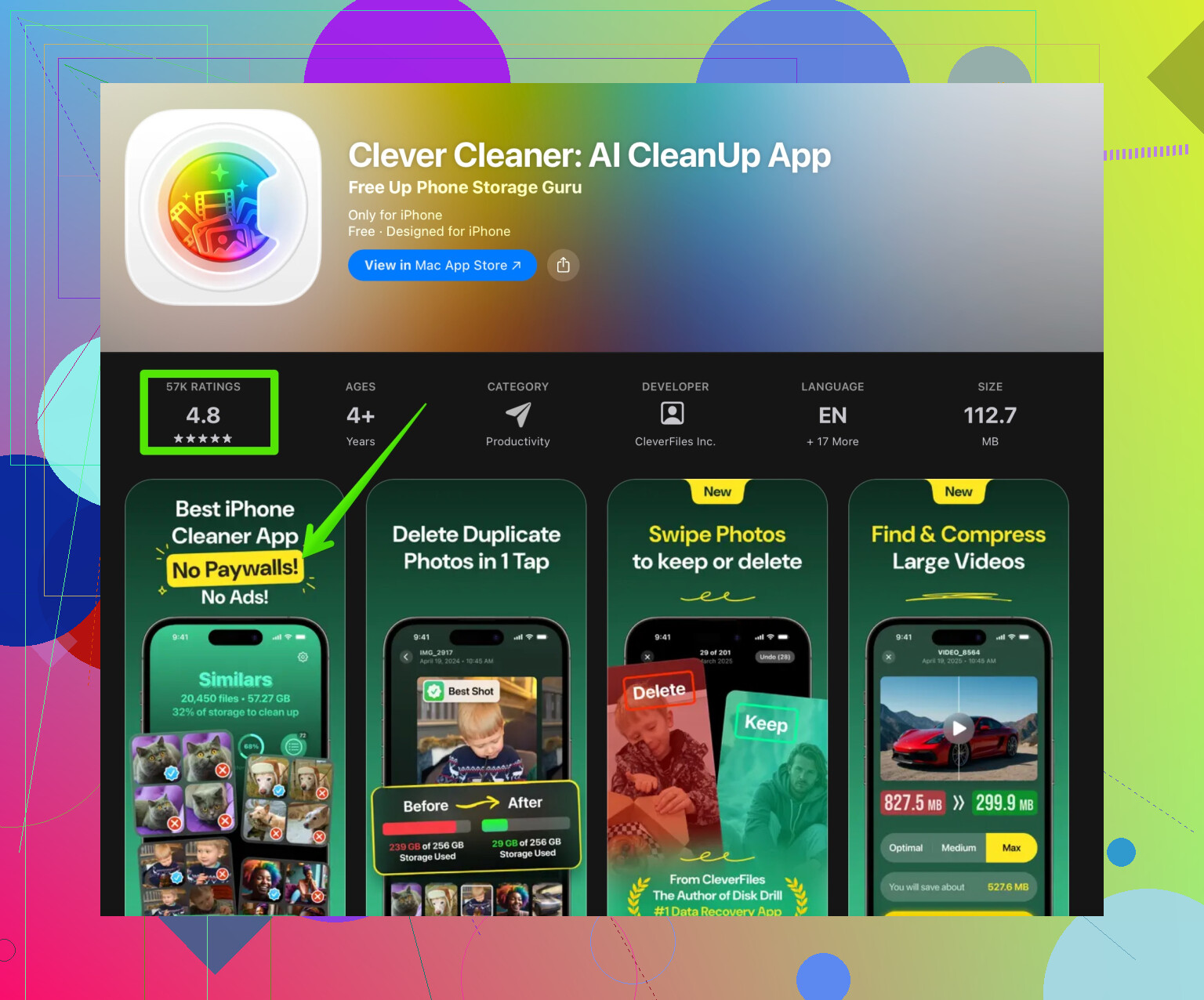
For easier cleanup, a lot of people use a utility like Clever Cleaner App to clear junk files, duplicates, and old stuff. It tends to help Safari run smoother when the phone is not packed. You can grab it here:
clean up iPhone storage and hidden junk the easy way -
Quick checklist to keep logins stable
• Keep Block All Cookies OFF.
• Avoid “Clear History and Website Data” every day, do it only when you need to fix issues.
• Use “Website Data” in Safari settings to remove data for single sites when one site misbehaves.
• Keep iOS updated under Settings > General > Software Update.
If after all this Safari still logs you out randomly, test the same sites in Chrome or Firefox on your iPhone. If they work fine there, then the issue is almost always Safari cookies, cache, or an extension in play.
15 Likes
My iPhone’s Safari browser keeps logging me out of some sites while others stay remembered, and a few pages aren’t loading correctly. I think it might be a cookies issue, but I’m not sure which settings to use or what I should clear. How do I safely clear cookies on iPhone Safari without breaking every login I have?
@espritlibre already covered the basic cookie / site-data cleanup pretty well, so I’ll skip repeating all those taps and menus and hit the stuff that often gets missed:
-
Don’t just blame cookies
When Safari logs you out on only some sites, half the time it’s not “cookies broke,” it’s “Safari is juggling multiple versions” of the same site:- Example: you visit
example.com,m.example.com, andwww.example.com. They can each store their own cookies.
Sometimes one gets corrupted and you stay logged in on one version, logged out on another, and pages half-load.
What helps: - In the Website Data screen, look for all variations of a problem site and remove them together. If you only delete one subdomain, the weird log-out behavior can come back.
- Example: you visit
-
Check Private Browsing & tab groups
Sounds obvious, but a lot of people forget:- If you’re in Private Browsing, cookies are temporary, so logins won’t stick.
- Also, Tab Groups can confuse you into thinking Safari “forgot” things when you’re actually just in a different group that never visited that site.
So: - Make sure you’re using normal browsing, not Private.
- Open the tab overview and confirm you’re in the “Start Page” or your main tab group when you test logins.
-
Watch out for “Hide IP Address”
This is one I semi-disagree with people glossing over. @espritlibre mentioned VPNs and blockers, but Apple’s own “Hide IP Address” feature can mess with some logins:- Go to Settings > Safari > scroll to “Hide IP Address”.
- If it’s set to “From Trackers” or “From Trackers and Websites,” some sites that have strict session checks can freak out and log you out randomly.
Try setting it to OFF temporarily and see if the logout problem calms down. If it does, you know what’s causing it.
-
Check your time & date settings
Cookie expiration depends on your device’s clock. If your time is wrong, some cookies “expire” right away:- Settings > General > Date & Time
- Make sure “Set Automatically” is on and your time zone is correct.
Silly, but this has fixed mystery logout issues more times than I’d like to admit.
-
Don’t constantly nuke all history
Here I slightly disagree with how most people treat clearing data. If you’re in the habit of:- “Clear History and Website Data” every day or every time you leave Safari
your logins will be a mess, because you’re basically telling Safari “forget everything” nonstop.
Instead: - Do targeted cleanups for individual problem sites (what @espritlibre showed).
- Only do a full wipe when Safari is obviously buggy across multiple sites.
- “Clear History and Website Data” every day or every time you leave Safari
-
iCloud Keychain vs cookies mix-up
A lot of people think “Safari forgot my password” when actually:- Cookies store your session (keeps you logged in).
- iCloud Keychain stores your login credentials (username/password).
If Keychain is storing the password but cookies keep expiring, you’ll keep seeing the login screen but with autofilled credentials. - Go to Settings > Passwords and check if the site is saved there.
If it is, the problem is almost definitely cookie/session related, not that Safari “lost” your login.
-
Storage pressure & hidden junk
When your iPhone is nearly full, Safari can behave like trash: tabs reload constantly, logins don’t stick, pages fail to load fully. It’s not always only cookies.- Settings > General > iPhone Storage and check if you’re close to full.
If you are, clean up photos, offload unused apps, etc.
This is where something like the Clever Cleaner App is actually useful beyond just buzzwords. It can help you remove hidden junk, duplicates and other clutter so Safari has room to cache and store cookies properly. If you want a direct link, check out
decluttering your iPhone and boosting Safari performance
That won’t “fix cookies” by itself, but it can stop Safari from acting so flaky when your storage is choked.
- Settings > General > iPhone Storage and check if you’re close to full.
-
Test behavior on one site at a time
To figure out if your issue is global or per-site:- Pick one site that logs you out a lot.
- Clear only that site’s data.
- Log in again and use it normally for a while without touching global history.
If that site behaves but another doesn’t, it’s not your Safari settings in general, it’s specific sites’ data clashing.
-
When to give up on Safari for a site
Some websites are just coded with Safari as an afterthought. If:- The same site keeps logging you out even after targeted cleanup
- It works perfectly in Chrome or Firefox on the same iPhone
then the site is likely doing something Safari doesn’t like (odd session handling, aggressive redirects, whatever). In that case: - Use Safari for most stuff
- Keep another browser around for that one annoying site
It’s not elegant, but it beats spending hours fighting bad code.
If you try the targeted site cleanups, confirm you’re not in Private Browsing, check time/date, and free up a bit of storage, you’ll usually get rid of the random logouts and half-loaded pages without blowing away all your cookies every time.