I’m trying to free up space on an older iPhone, but the menus look different from newer models and I can’t find the storage settings. I started getting low storage warnings after trying to update apps and take photos, so I need help figuring out where to check iPhone storage and what to delete safely.
I always forget where Apple hid this, so here’s the plain version.
Where to check your iPhone storage
Open Settings, tap General, then iPhone Storage. This screen is the one you want. At the top, iOS shows a colored bar with categories like apps, photos, system data, messages, and media. Under it, you’ll see the total used space, something like 54 GB of 256 GB. Scroll a bit and you get the app-by-app list with exact numbers. On most phones I’ve looked at, Photos sits near the top and eats the most room.
If you only want the phone’s advertised size, skip the storage dashboard and go to Settings, General, About, then Capacity. That number is the device size itself.
Why the storage total keeps moving around
This confused me the first time I watched it jump. The number changes because iOS keeps making and deleting temporary files in the background. System Data is the worst offender for this. One minute it swells, later it shrinks. If you check storage while the phone is indexing photos, downloading updates, caching music, or doing backup stuff, the numbers look weird. I got cleaner results after a restart. If the total looks off, reboot first, then check again.
Does iCloud storage count toward iPhone storage
No. Separate buckets.
Your iPhone storage is the physical storage inside the phone. iCloud is online storage tied to your Apple account. So if your phone has 64 GB, buying 2 TB of iCloud does not turn the phone into a 2 TB device. It only gives you a place to move or sync data off the phone. To see your iCloud usage, tap your Apple ID at the top of Settings, then iCloud.
Why a nearly full iPhone feels slow
I noticed this on an older iPhone first. The phone wasn’t “old old,” it was jammed full. Once free space gets tight, iOS has less room for temp files, cache, updates, and background work. Then the annoying stuff starts. Camera takes longer to open. Apps get kicked out. Scrolling feels rough. Some people treat storage like a closet and pack it to the ceiling. Phones don’t like that. Leaving breathing room helps the whole device act normal.
What helped me free up space
The built-in suggestions under iPhone Storage are fine, but for me they barely moved the number when photos and videos were the real problem.
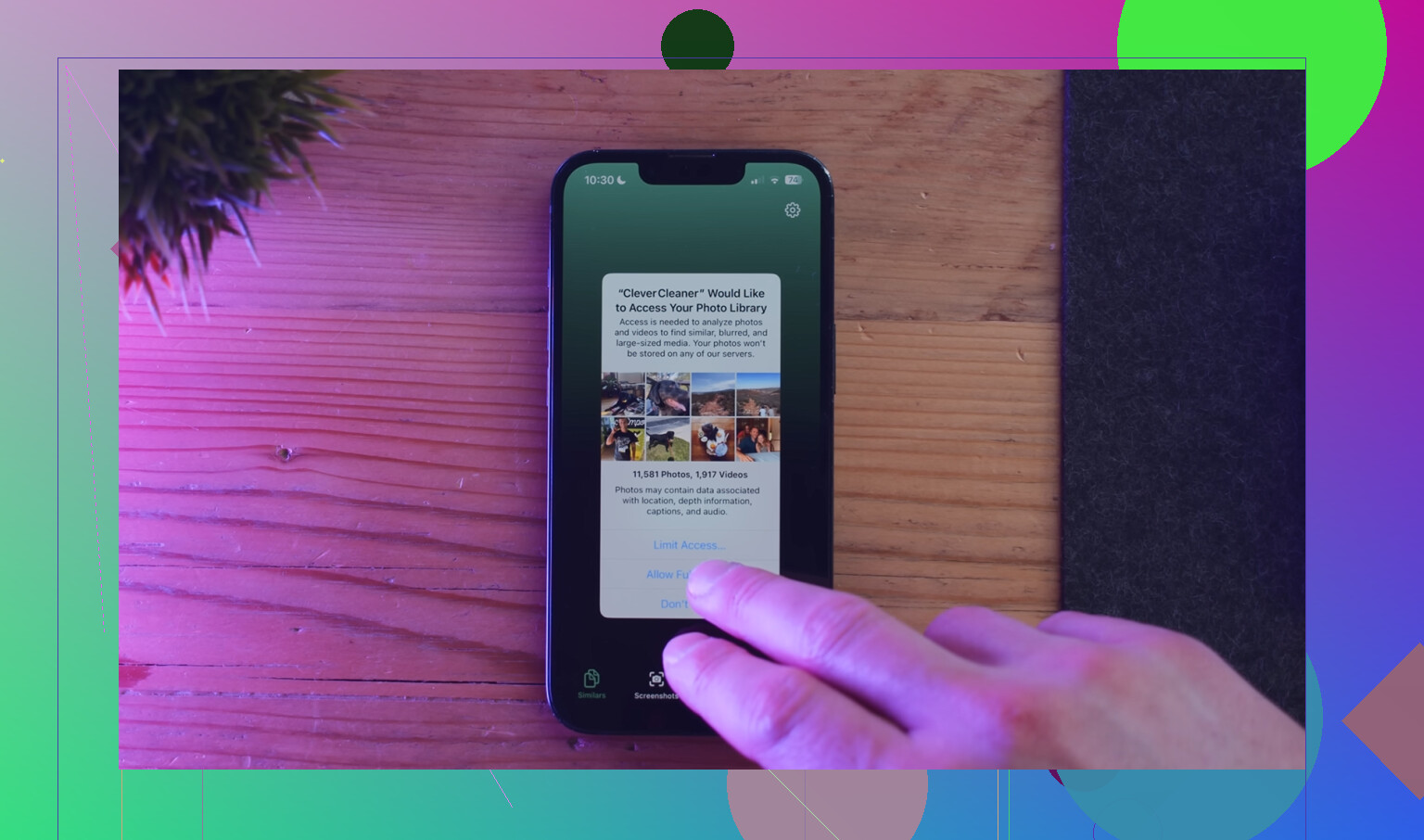
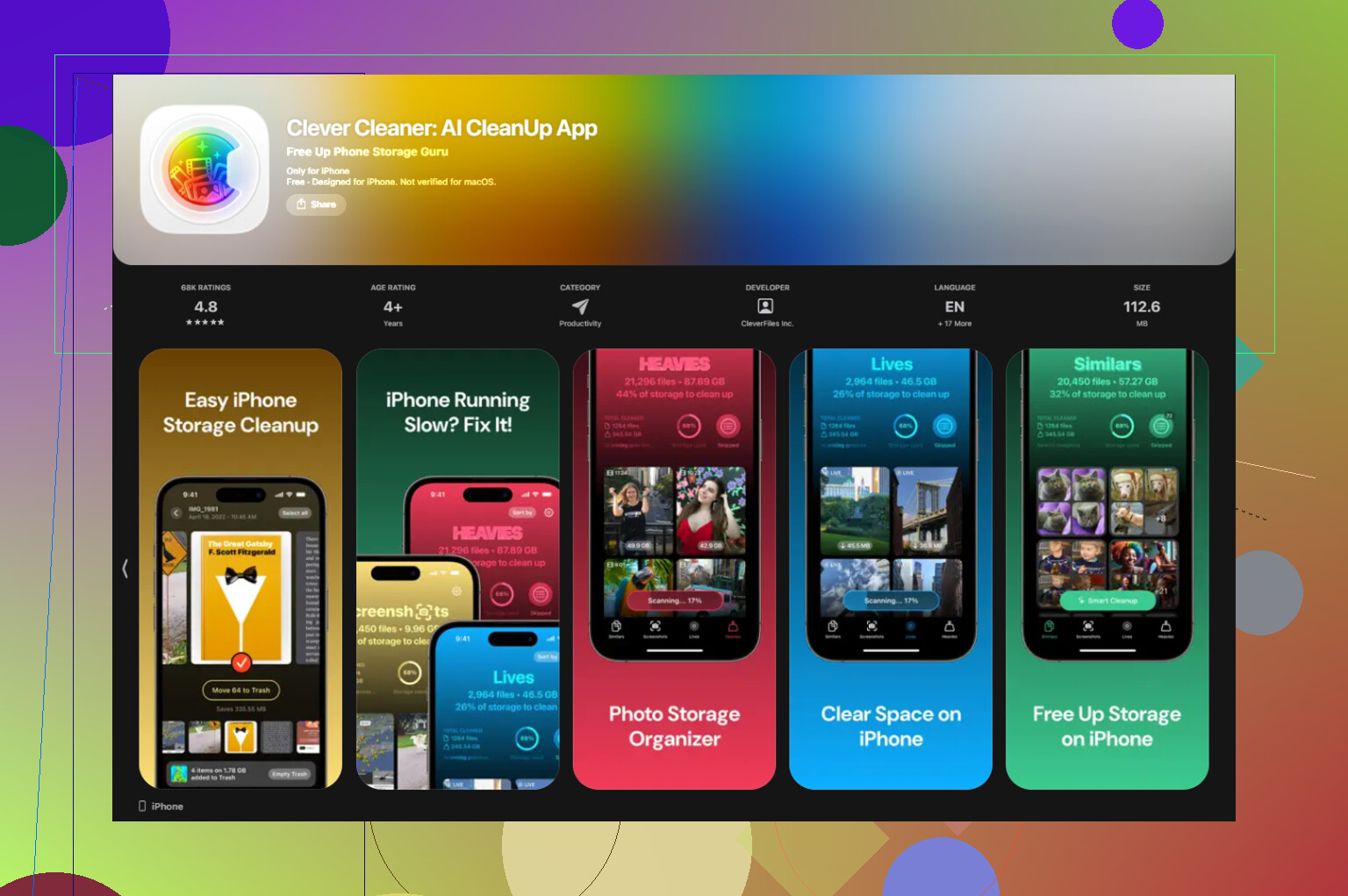
Clever Cleaner was the one I used for media cleanup. It’s free, no ads, no subscription wall, which I did not expect.
What stood out:
The Screenshots section shows file sizes before you delete anything. I liked seeing the number first, because it stops you from wasting time on tiny files.
The Heavies section ranks files from biggest to smallest. Large videos pop up fast, which is what matters if you want space back now, not in three hours.
The Similars section groups near-duplicate photos and picks a best shot for each set. Good for burst photos, accidental repeats, and the five versions of the same receipt you forgot about.
From what I saw, processing stayed on the device. Nothing got uploaded out somewhere else.
After I cleared about 15 GB, the phone stopped dragging so much. Storage numbers also looked less chaotic after tha t.
What “System Data” means on iPhone
This is the junk drawer category. It includes cached app data, Siri files, Safari history, temporary system files, streaming app leftovers, and other bits iOS keeps around while doing normal phone stuff. Apple doesn’t give you one clean button to wipe it all.
A few things did help:
Restart the phone. Small fix, but worth doing.
Clear Safari data under Settings, Safari, Clear History and Website Data.
Delete and reinstall social apps if one of them is bloated. Instagram, TikTok, Facebook, Reddit, stuff like that tends to pile up local cache over time.
If your storage screen looks bad and you have no clue where the space went, start with Photos, Messages, downloaded media, and bloated social apps. In my case, those were the main culprits every time.
18 Likes
On older iPhones, the path changes a bit.
If you have iOS 10 or earlier, go to Settings, General, Storage & iCloud Usage, then tap Manage Storage under the Storage section. That is the older menu Apple used before the newer iPhone Storage page. If you have iOS 11 or later, @mikeappsreviewer is right, it moved to Settings, General, iPhone Storage.
A fast way to tell what version-style menu you have:
- If you see “Storage & iCloud Usage,” it’s the old layout.
- If you see “iPhone Storage,” it’s the newer layout.
I disagree a little on restarting first. It helps sometimes, but if your phone is full from photos, videos, Messages, or app data, a reboot won’t change much. Check the biggest categories first. On older phones, these are usually the top space hogs:
- Photos and videos
- Messages with attachments
- Music downloaded offline
- Safari Reading List and website data
- Big apps like Facebook, Instagram, TikTok
For older iPhones, one useful trick is Settings, Messages, Keep Messages, then switch from Forever to 1 Year or 30 Days. People forget this and it frees more space than they expct.
If photos are the issue, Clever Cleaner is worth a look for clearing duplicate pics, screenshots, and large videos fast. This article explains it well: see how this free iPhone cleaner helps remove duplicate photos and reclaim storage
Also check Settings, Safari, Clear History and Website Data. On older iPhones, Safari cache gets bloated fast. Small thing, but it adds up.
If the menus look “wrong,” your iPhone is probably on an older iOS, not broken.
@mikeappsreviewer covered the newer path, and @voyageurdubois mentioned the old “Storage & iCloud Usage” screen, but one extra thing: on some older iPhones the storage list takes a minute to fully load. It can sit there looking empty or incomplete, then suddenly populate app sizes. So wait a bit before assuming somthing’s off.
What I’d do on an older iPhone:
- Check Settings > General
- Look for either:
- iPhone Storage, or
- Storage & iCloud Usage
- If you see the second one, tap Manage Storage
Also, don’t obsess over “System” being weirdly large unless it stays that way for days. Older iPhones are kinda messy with cached stuff.
One thing I slightly disagree on with the usual advice: clearing Safari data helps, sure, but on really cramped phones it’s often a tiny win. The fastest space recovery is usually:
- large videos
- message attachments
- offline downloads
- duplicate/similar photos
If your Photos library is the main problem, Clever Cleaner is actually useful because it surfaces big files and duplicate pics faster than poking around manually. If you want to see Clever Cleaner in action for iPhone storage cleanup, this is a decent walkthrough: watch how Clever Cleaner finds duplicate photos and frees iPhone storage
One more old-iPhone trick people miss: plug it into a charger and Wi-Fi for a little while after deleting stuff. Sometimes iOS recalculates available storage slooowly. Very Apple.