My iPhone storage is almost full, and I need to mass delete thousands of photos without losing the ones marked as Favorites. I’m worried that selecting large groups in the Photos app might remove my saved favorites too. What’s the safest way to bulk delete iPhone photos while keeping Favorites intact?
If you’re staring at tens of thousands of photos, don’t try to clean them up one tap at a time. That gets old fast, especially when half the library is screenshots, duplicates, blurry shots, or 12 versions of the same picture.
The best method depends on whether you want to carefully review things or just wipe out big chunks safely.
Start with bulk selecting in the Photos app
For basic manual cleanup, open Photos and tap Select in the top-right. From there, you can tap photos one at a time, but the faster way is to drag your finger across rows of photos to select a bunch at once.
If you’re dealing with older stuff, zoom out first so you’re viewing by Months or Years. It’s a lot easier to jump back to an old trip, event, or project and clear a whole section instead of scrolling forever through individual days.
Use Apple’s built-in albums when you can
Some categories are much easier to clean because Photos already separates them for you.
Go to the Collections tab and look under Media Types. Screenshots, Bursts, and Screen Recordings are good places to start. In those albums, you can tap Select and then Select All, which is one of the few spots where the Photos app actually lets you grab everything at once.
That’s usually the quickest way to get rid of obvious junk without risking your normal photos.
For a big cleanup, try Clever Cleaner
If the problem is duplicates, near-duplicates, screenshots, Live Photos, and huge videos, doing it manually can be miserable. A cleaner app is better for that kind of mess, and I’d look at Clever Cleaner.
It’s free, and it doesn’t push ads or subscriptions the way a lot of cleanup apps do. The Similars feature groups photos that look almost the same, picks what it thinks is the best version, and still lets you check the group before deleting anything.
It can also help with stuff like:
- finding and removing similar photos,
- bulk deleting screenshots,
- turning Live Photos into regular still images to save space,
- finding your largest videos in the Heavies section, which can free up more storage than deleting a ton of small photos.
If you’re trying to clean several years of clutter in one sitting, this is probably the fastest route.
Use a computer if the library is huge
For deleting thousands of photos, a computer is usually less annoying than an iPhone screen.
If iCloud Photos is turned on, sign in to iCloud.com on your computer. You can use the mouse and Shift key to select large ranges quickly, which is much easier than dragging around on a phone. Anything you delete there should sync back to the iPhone.
If you truly want everything gone, erase the iPhone
If none of the photos matter and you just want a clean start, the fastest option is a full erase.
Be careful with this one. A factory reset removes the photos, but it also removes videos, messages, downloads, app data, and anything else stored on the phone. If you’re sure there’s nothing you’ll need later, go to Settings > General > Transfer or Reset iPhone > Erase All Content and Settings.
That clears the photo library, but it clears the rest of the device too.
13 Likes
Deleting a photo from an album is different from deleting it from the main Library. If you trash a picture from Library, it’s gone from Favorites too, because Favorites is just a label on the same photo. It is not a protected copy or a separate folder.
So I’d treat this as a “protect first, delete second” job. Before doing any giant swipe-select session, go into the Favorites album and make sure those photos are backed up somewhere outside the phone, like a computer, external drive, or cloud storage you trust. Then do the cleanup. That way a bad selection mistake is annoying, not disastrous.
The computer/iCloud.com idea is probably the least painful for huge batches, but don’t assume favorites will be automatically skipped there either. If you select a range that includes favorites and delete it, they will delete like anything else. Same warning for cleaner apps, including Clever Cleaner: they can speed up review, but you still want to check what is selected before confirming deletion.
After deleting, don’t forget the boring final step: open Recently Deleted and review it before emptying it. Your storage may not fully come back until those items are removed from there, but I would not empty it immediately if you’re worried about favorites. Let it sit until you’re sure nothing important got caught.

The sneaky downside is that iCloud Photos makes your phone cleanup a cloud cleanup too. If it’s turned on, deleting from the iPhone is not “freeing space only on this device.” It deletes the photo from iCloud and your other Apple devices as well. So before you do anything big, check Settings > your name > iCloud > Photos and understand what is syncing.
There isn’t a magic “delete everything except Favorites” button on the iPhone. If you have a Mac, the safer way is actually in the Mac Photos app: make a Smart Album where Favorite is not true, then review that album and delete from there. That gives you a working bucket of non-favorites instead of trying to remember what not to touch while dragging through thousands of thumbnails. Still check it before deleting, because smart albums only protect the favorite flag, not photos you forgot to favorite.
For iPhone-only cleanup, I’d avoid huge blind swipe-selects in the main Library. Work from obvious categories first: Videos, Screenshots, Screen Recordings, Duplicates if available, and large items. Clever Cleaner or similar apps can speed that up, but I would treat them as sorting tools, not as a guarantee that Favorites are safe. The real safety net is exporting or backing up your Favorites first, then deleting in smaller batches, then checking Recently Deleted before emptying it.
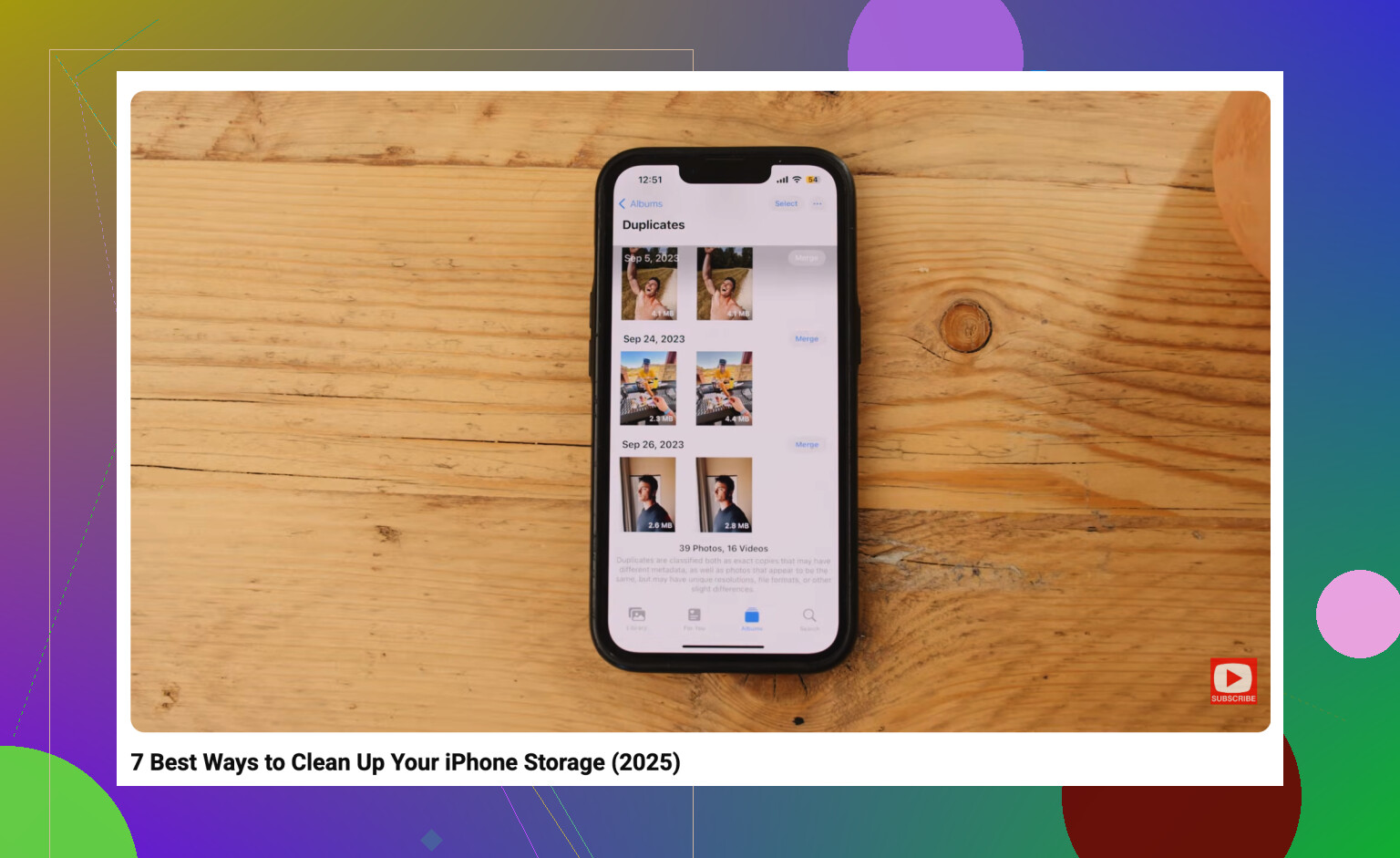
A regular album called “Keep” will not protect those photos. That’s the trap I see people fall into. Albums in Photos are basically pointers to the same library items, so if you delete the original from Library, it disappears from that album and from Favorites too.
If your favorites are scattered across years, I would not delete by big date ranges unless you have already backed them up somewhere outside Photos. A safer iPhone-only approach is to delete by type instead: screenshots, screen recordings, old videos, duplicates, downloads, blurry bursts, etc. That avoids sweeping through normal camera photos where your favorites are mixed in. Cleaner apps like Clever Cleaner can help sort that mess faster, but I’d still treat the final delete button as manual review, not automatic protection.
For the “I need space today” version, start with videos first. A few large 4K videos can free more space than deleting hundreds of photos, and you’re less likely to accidentally wipe favorite stills. Then leave Recently Deleted alone for a day or two if you’re nervous, check that your Favorites album still looks right, and only empty it once you’re sure.