Juggling Multiple Google Drive Accounts On Desktop—A Real-World Breakdown
Okay, so you want to work with more than one Google Drive account on your computer? Been there, done that, wrangled the confusion. Here’s the no-BS walkthrough, with a few curveballs for folks who like trying alternatives.
How To Run Several Google Drives At Once (Using Google’s Own App)
So, here’s what seems to trip up most users (myself included): Google Drive for desktop will let you connect up to four accounts. Not obvious unless you go poking around, right? Let me unpack it for you, step-by-step:
- Start by making sure the Google Drive app is up and running on your machine—look for the little triangle icon chilling in your system tray (down by the clock).
- Give that icon a right-click (or regular click, if you’re on Mac). You’ll see your main account—plus an option up top if you want to get fancy and add another.
- Tap that profile picture, then hit “Add another account.”
- Rinse and repeat if you’ve got more than two.
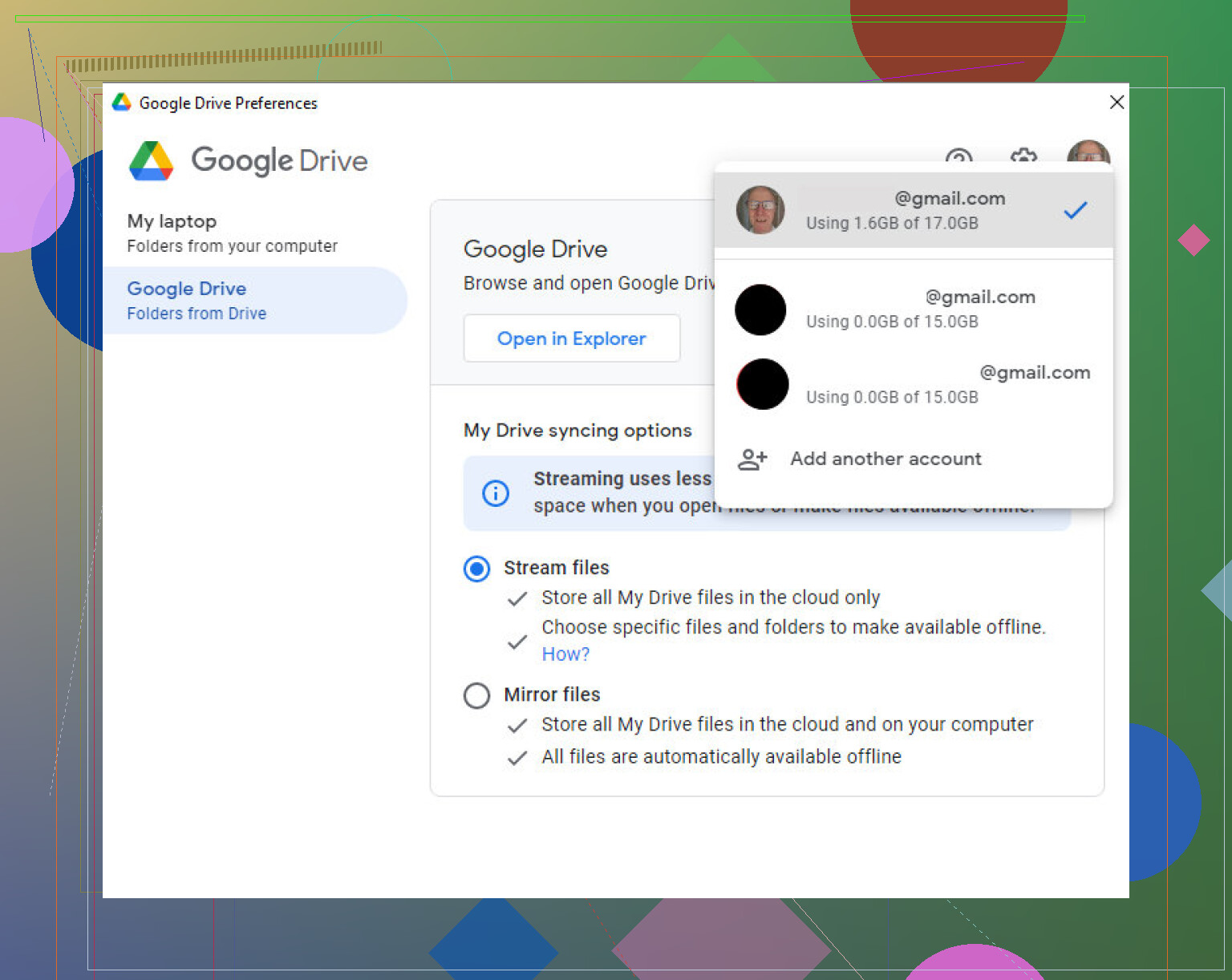
—And yes, you cap out at four. I learned that the hard way. Trying to sneak in a fifth? Google says nope!
Never really ran into major bugs with this setup, but don’t expect miracles if you keep switching between work and personal stuff. Maybe I’m paranoid, but I always double-check which account I’m saving to.
If Google Drive Alone Isn’t Cutting It—Third-Party Tools Step In
Here’s something handy for the people who crave even more cloud control (that’s me, unfortunately): sometimes you need all your cloud accounts in the same cockpit, not just Google Drive. Think Dropbox, OneDrive, Amazon S3, etc. For that, apps like CloudMounter are a lifesaver. Yes, it’s a Mac thing, but it’s super useful for anyone deep in the Apple ecosystem.
Let me lay it out for you:
- Download and install CloudMounter (the install is pretty painless).
- Open it up, and you’ll find a spot to sign in with Google Drive (or all your favorite clouds).
- Toss in every Google account you need.
- Mount each account—CloudMounter does this basically by making a big cloud-drive collection visible from Finder, so they’re right there like folders.
- Done. You can shuffle files back and forth, and see everything in one spot.
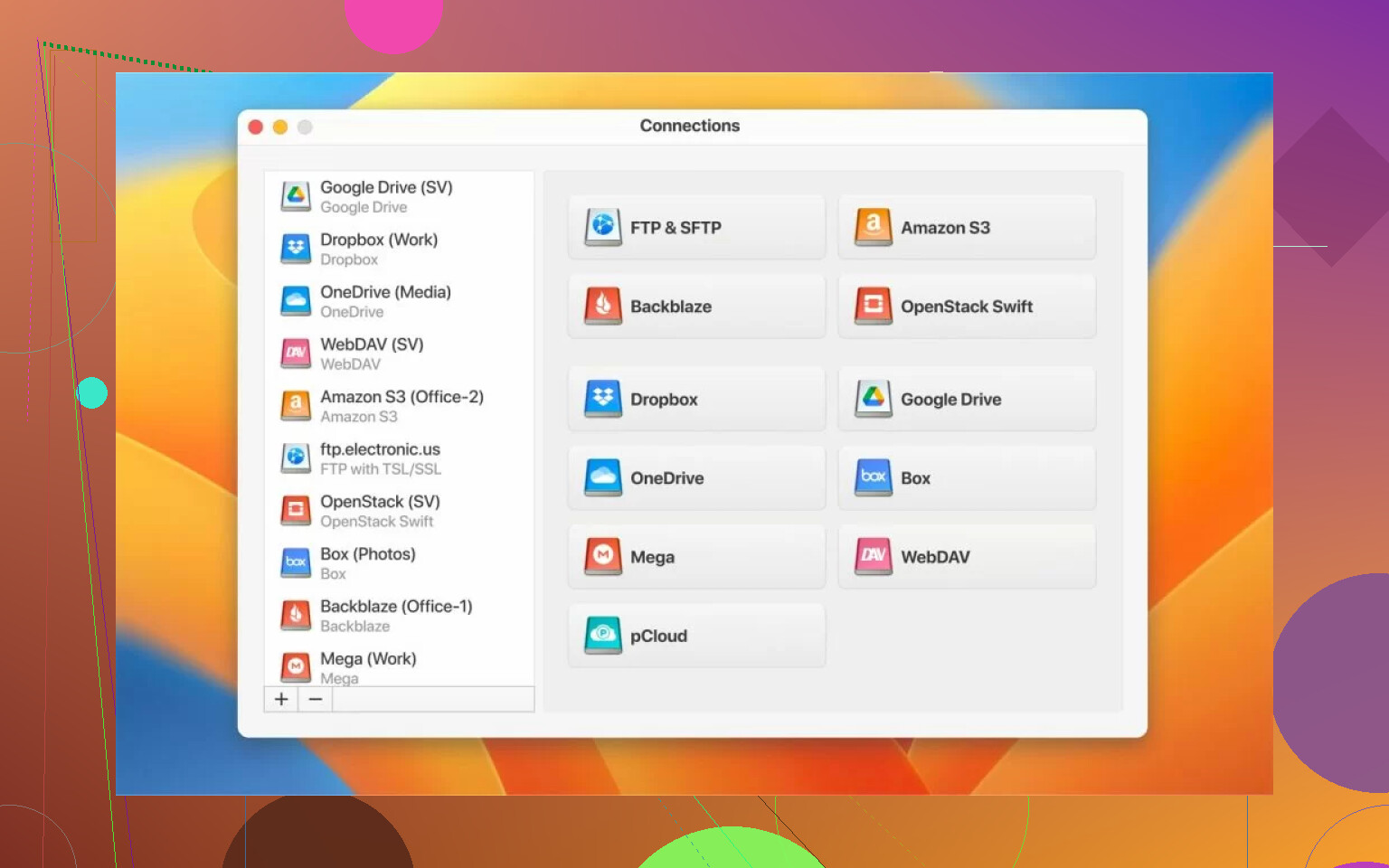
The cool part is you aren’t stuck juggling browser tabs or signing out endlessly. Not just for Google, either—works with Dropbox, S3, you name it.
Quick Recap
- Google Drive desktop app supports up to 4 separate accounts, switching is easy—just keep your wits about which one you’re in.
- For folks running a digital circus of cloud platforms, something like CloudMounter pulls it all under one roof—super clutch if you don’t want to keep guessing where that one file lives.
Anyone else rocking a weirder workflow or know another app that beats this? Curious if someone’s running like, eight clouds at once and not losing their mind.