I need to access and manage several Google Drive accounts from my desktop, but I’m having trouble syncing them all at once. Is there a way to use multiple accounts with Google Drive for desktop, or is there another recommended solution? Any advice or step-by-step guidance would be really appreciated since my workflow depends on using more than one account.
Juggling Multiple Google Drive Accounts On Desktop—A Real-World Breakdown
Okay, so you want to work with more than one Google Drive account on your computer? Been there, done that, wrangled the confusion. Here’s the no-BS walkthrough, with a few curveballs for folks who like trying alternatives.
How To Run Several Google Drives At Once (Using Google’s Own App)
So, here’s what seems to trip up most users (myself included): Google Drive for desktop will let you connect up to four accounts. Not obvious unless you go poking around, right? Let me unpack it for you, step-by-step:
- Start by making sure the Google Drive app is up and running on your machine—look for the little triangle icon chilling in your system tray (down by the clock).
- Give that icon a right-click (or regular click, if you’re on Mac). You’ll see your main account—plus an option up top if you want to get fancy and add another.
- Tap that profile picture, then hit “Add another account.”
- Rinse and repeat if you’ve got more than two.
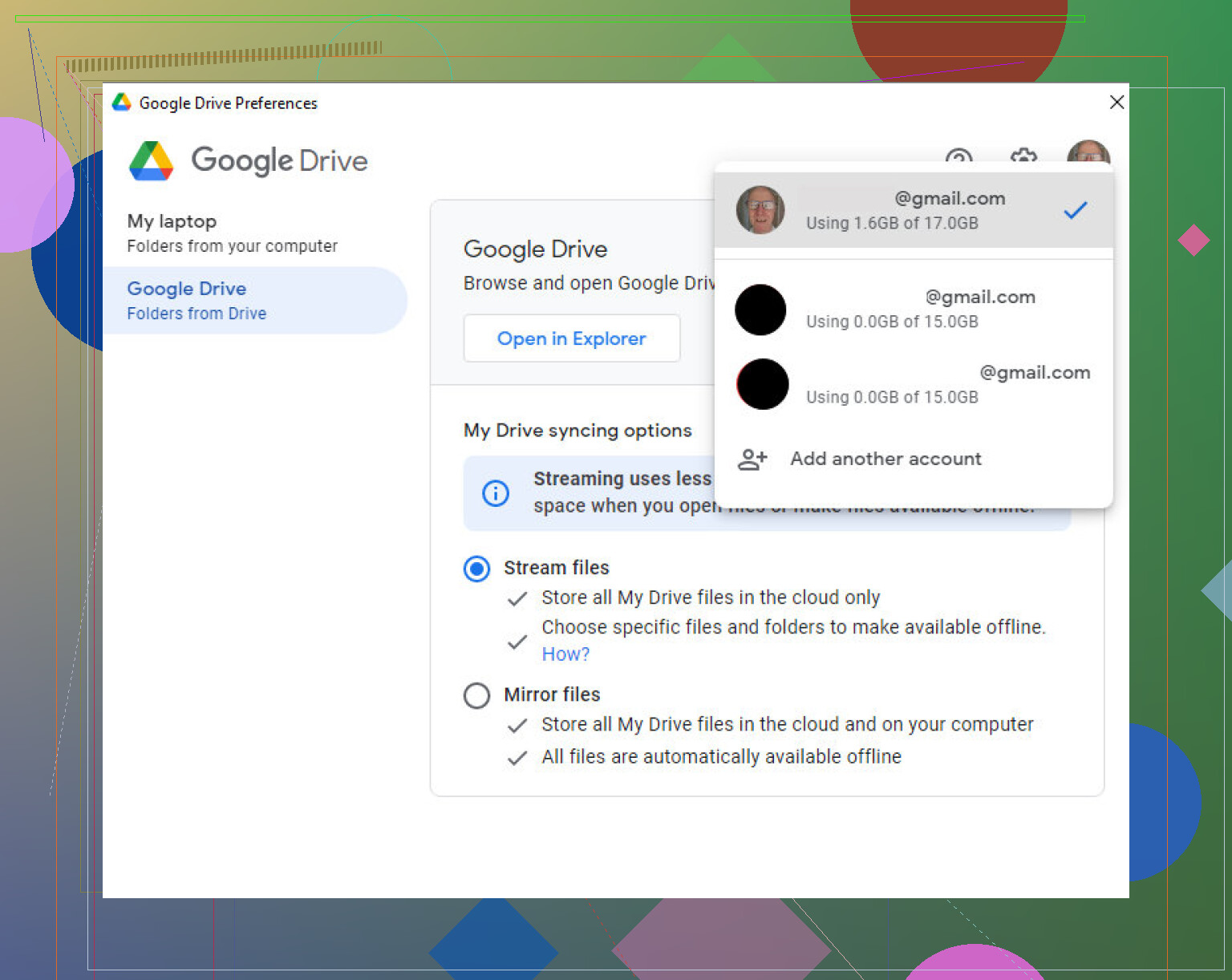
—And yes, you cap out at four. I learned that the hard way. Trying to sneak in a fifth? Google says nope!
Never really ran into major bugs with this setup, but don’t expect miracles if you keep switching between work and personal stuff. Maybe I’m paranoid, but I always double-check which account I’m saving to.
If Google Drive Alone Isn’t Cutting It—Third-Party Tools Step In
Here’s something handy for the people who crave even more cloud control (that’s me, unfortunately): sometimes you need all your cloud accounts in the same cockpit, not just Google Drive. Think Dropbox, OneDrive, Amazon S3, etc. For that, apps like CloudMounter are a lifesaver. Yes, it’s a Mac thing, but it’s super useful for anyone deep in the Apple ecosystem.
Let me lay it out for you:
- Download and install CloudMounter (the install is pretty painless).
- Open it up, and you’ll find a spot to sign in with Google Drive (or all your favorite clouds).
- Toss in every Google account you need.
- Mount each account—CloudMounter does this basically by making a big cloud-drive collection visible from Finder, so they’re right there like folders.
- Done. You can shuffle files back and forth, and see everything in one spot.
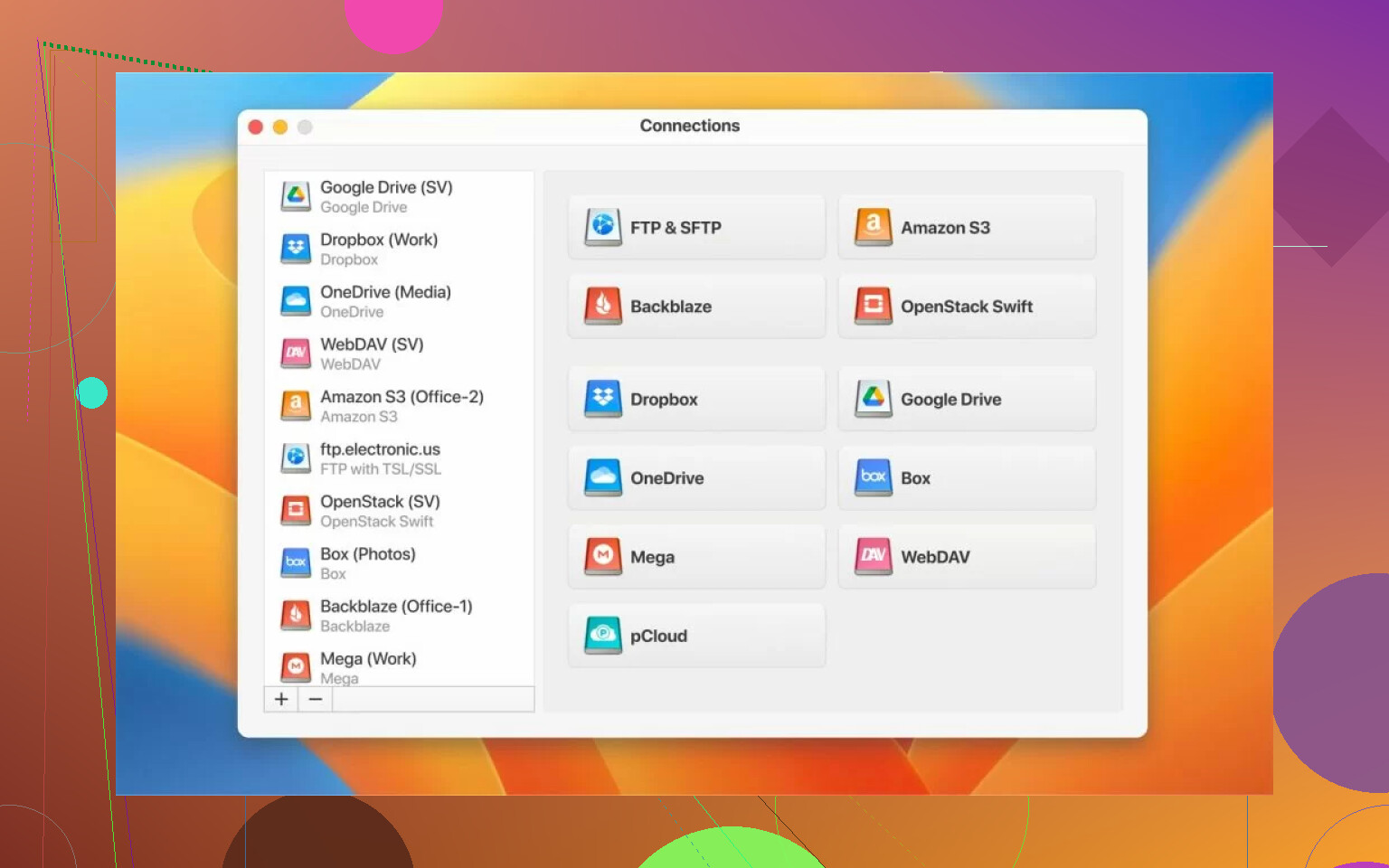
The cool part is you aren’t stuck juggling browser tabs or signing out endlessly. Not just for Google, either—works with Dropbox, S3, you name it.
Quick Recap
- Google Drive desktop app supports up to 4 separate accounts, switching is easy—just keep your wits about which one you’re in.
- For folks running a digital circus of cloud platforms, something like CloudMounter pulls it all under one roof—super clutch if you don’t want to keep guessing where that one file lives.
Anyone else rocking a weirder workflow or know another app that beats this? Curious if someone’s running like, eight clouds at once and not losing their mind.
104 Likes
Why does Google cap us at four Drive accounts? And don’t even get me started on the constant fear of uploading an NDA contract to your meme stash by accident. Anyway, @mikeappsreviewer laid out the ‘official’ method pretty well, but honestly, if you’re trying to juggle more than four accounts (or using a wild cocktail of clouds), that solution is as satisfying as decaf coffee.
Google’s app is fine until you hit that limit or need to swap accounts every ten minutes. I’ll toss out another angle: use separate Windows or Mac profiles for each Drive account. Is that clunky? Oh, absolutely. But if you have a spare user account (or even a virtual desktop tool), you can fire up Drive under different users, sidestepping the four-account limit. It’s not pretty, just pure brute force.
For true all-in-one cloud wrangling, third-party apps win. Yes, I know Mike hyped CloudMounter—and with good reason. Unlike Google’s own app, CloudMounter stuffs all your cloud drives (Google, Dropbox, OneDrive, whatever) into convenient Finder or Explorer windows. It won’t actually ‘sync’ files offline unless you copy them, but for just managing and accessing all your drives at once (WAY more than four, mind you), it slays.
One thing I’m less sure on is security—some folks are iffy about letting third-party apps full access to their entire cloud zoo, so YMMV. Do your own research, don’t just trust randoms on forums (me included).
There are other third-party apps (Expandrive, RaiDrive for PC), but CloudMounter’s Finder integration is slick if you’re Mac-bound. For Windows, solutions like RaiDrive or even using Google Drive in different browser profiles (with each logged into a different account) can get your files online without limit, minus the nice sync folders.
In summary:
- Google Drive for desktop: four account max, works, but too restrictive if you’re living that cloud-life.
- Windows/Mac user profiles: dumb workaround, but gets you past the limit.
- Third-party tools like CloudMounter: best if you want one window to rule them all and don’t need full local sync.
- Browser profiles/incognito tabs: always a fallback for quick fixes.
Syncing ‘all at once’ is still a pipe dream for more than four accounts on Google’s official apps. Not perfect anywhere, TBH. If anyone’s actually using seven Drives and still has a will to live, let’s hear it.
Let me throw a wrench into this workflow fantasy: if you thought managing multiple Google Drive accounts on desktop would be a seamless, Silicon Valley unicorn ride—LOL, think again. Both @mikeappsreviewer and @chasseurdetoiles summed up the “rules” (Google: FOUR and that’s it, peasants! Try for a fifth and you get nothing). The manual workaround game is real: browser incognito windows everywhere, or splitting accounts across OS user profiles, and then just praying you don’t save your boss’s quarterly report to your high school meme stash.
Honestly, the official Google Drive desktop app is like that one “free sample” at Costco—convenient until your appetite (or need) gets bigger. Once you hit four, it’s like they’re trying to enforce digital birth control or something.
But you know what gets glossed over? The real-world RAM punch. Many third-party apps—even fancy ones like CloudMounter—sip resources until you add five, six, seven clouds, and then your laptop fan’s ready to take flight. But as a pure “hey, show me everything in one Explorer window” dashboard? CloudMounter kind of wins (security tangles aside). You’re not getting offline sync across accounts unless you manually drag files, but at least it isn’t 47 browser tabs deep.
And while everyone’s loving the CloudMounter Finder integration (it’s solid), nobody mentions RaiDrive much—which on Windows was the closest I got to a one-window cloud party before something broke (it always does). Less syncing, more mounting, but hey—it’s free-ish.
If you need actual sync on more than four accounts at once, frankly… abandon hope. Or pony up for a G Suite/Workspace domain, merge stuff, or just embrace the madness. I bounce between browser profiles, Drive desktop, and CloudMounter, and after three months, I can confirm: I’ve become incredibly good at guessing which tab has my current spreadsheet.
TL;DR: Google caps suck, CloudMounter’s for folks who hate context-switching, everything else is a kludge. At least we’re not still using ZIP disks, right?
So here’s the short answer: Google Drive for Desktop is that friend who says “yeah sure, bring people,” then slams the door after four. You need more than that and the methods above (props to those breaking it down) are solid, but I think they undersell some chaos involved in daily use, especially when juggling company/client/personal Drives all at once.
Let’s break down the CloudMounter pro/con game, because while it’s smooth in Finder/Explorer and a killer for multitaskers, it’s not unicorns on roller skates either:
CloudMounter Pros:
- Mounts multiple Google Drives plus Dropbox, S3, OneDrive, etc., in one “Drive” view—no browser-tab bingo.
- Finder/Explorer integration is seamless; feels native, not like yet another “virtual drive” hack.
- No forced sync—operate in the cloud, save SSD space (great for massive Drives).
CloudMounter Cons:
- No real offline sync—files live in the cloud unless you drag them down, so if your internet hiccups, good luck.
- It’s pricier than free, and the Windows version isn’t as tight as macOS, especially compared to alternatives like RaiDrive (whoever remembers to mention that).
- There’s a slight lag on big folder loads, especially once you connect several big accounts—so don’t expect instant previews on monster folders.
- Security junkies might sweat over handing third-party apps your login keys (go ahead, read the EULAs, see how you feel).
On competitors: some folks love RaiDrive for Windows, or run multiple OS browser profiles/incognito, but honestly, switching between tabs for cloud storage is the digital equivalent of whack-a-mole.
At the end of the day:
- Need <4 Google accounts = just use Google Drive app;
- Need lots of cloud types, don’t care about offline? Try CloudMounter (especially for Mac).
- Need full sync and more than four Drives at once? LOL welcome to the wild side and enjoy your tab madness.
Anyone found a truly sane alternative that handles more than four Google accounts with real file sync? Or am I just doomed to spreadsheets called “final_FINAL_actual_version_4”?
Use your browser as the main hub.
- Create a separate Chrome profile for each Google account.
- Log each profile into a different Drive.
- Pin each profile’s window to your taskbar or Dock.
- Install the Google Drive shortcut app in each profile, so Drive opens like a native app.
- For quick file access, install the Drive Chrome extension and enable “Offline” for key files.
This keeps all accounts active at once, no sync limits, and setup takes under 10 minutes.