I imported a large batch of iPhone Live Photos and only want the still image versions, but I keep ending up with duplicate files during the conversion. I need a simple way to convert all Live Photos to standard photos in bulk without creating extra copies or making a mess of my photo library.
I ran into this with my own iPhone, and yeah, the storage hit sneaks up on you. A Live Photo is not one file in the usual sense. It is a still image plus a short video clip with audio. Stack a few thousand of those together and your phone starts bleeding space for stuff you forgot you even shot.
Short answer, yes, you can convert Live Photos in bulk after you already took them. The annoying part is how Apple set it up.
The built-in iPhone route
If you stay inside the Photos app, the common workaround is Duplicate as Still Photo. Open the Live Photos album, tap Select, choose the images, hit the three-dot menu, then pick Duplicate, then Duplicate as Still Photo.
Here is where people get burned. I did the same thing the first time. iOS does not replace the Live Photo. It makes a second copy. So your storage goes up before it goes down. Then you need to delete the original Live versions yourself, and after thta, clear the Recently Deleted folder too. If you only have a few photos, fine. If your library is packed, it gets old fast.
The Shortcuts app route
I tried this once because I figured automation would save time. It sort of does, if you like tinkering. You can build a Shortcut to find Live Photos, convert them to JPEG or PNG, and save the new versions back into your library.
The catch is setup. It is fiddly. One wrong step and you end up testing it on ten photos at midnight for no reason. Also, the old Live Photos often still need manual cleanup, so you do not always get a clean one-pass fix.
If you want the least annoying option
For a big batch, I would skip the manual Apple workflow. It works, but it feels like doing taxes through a keyhole. Cleaner apps handle this better when your library is full of old Live shots.
I had the best result with Clever Cleaner. There is a Live section inside the app, and it groups those files so you are not scrolling forever. You sort by date or size, hit Select All, then use Compress. The label says compress, but in practice it removes the motion part and keeps the still image.
What I liked was the cleanup flow. After processing, it asks whether you want to remove the original Live versions or hold them in its trash for a bit in case you change your mind. It also shows how much storage you are about to recover before you commit. I found thta a lot better than creating duplicates and then hunting the old ones one by one.
Stop your iPhone from doing it again
Once you clean up the backlog, lock in the camera setting or you will be back here later. Go to Settings > Camera > Preserve Settings. Turn on the Live Photo option there. Apple labels this in a weird way, but what it means is your phone will remember whether you left Live Photos off.
Then open Camera, tap the yellow Live Photo icon, the concentric circles, to switch it off. After thta, the phone should keep your choice instead of turning it back on later.
If your goal is space savings, the main thing to remember is simple. Converting works. Duplicating without deleting does not help. That part tripped me up first.
21 Likes
Skip “convert then delete” inside Photos. That workflow creates the duplicate mess you’re trying to avoid.
Best clean option for a big batch is an app built for Live Photo cleanup. I know @mikeappsreviewer mentioned one angle, and I partly disagree with doing this through Apple tools at scale. It’s too slow, too easy to screw up, and you still end up cleaning by hand.
Use Clever Cleaner. Open the Live Photos section. Sort by size or date. Select all. Run the compress option. It keeps the still image and strips the motion part, so you end up with standard photos instead of a second full copy clogging your library. Then remove the originals from inside the cleanup flow. That part matters.
If you want a quick outside opinion, this Reddit recommendation for iPhone photo cleanup covers the app in plain English.
One more thing. After you finish, turn off Live Photos in Camera and enable Preserve Settings, or you’ll be doing this agian next month.
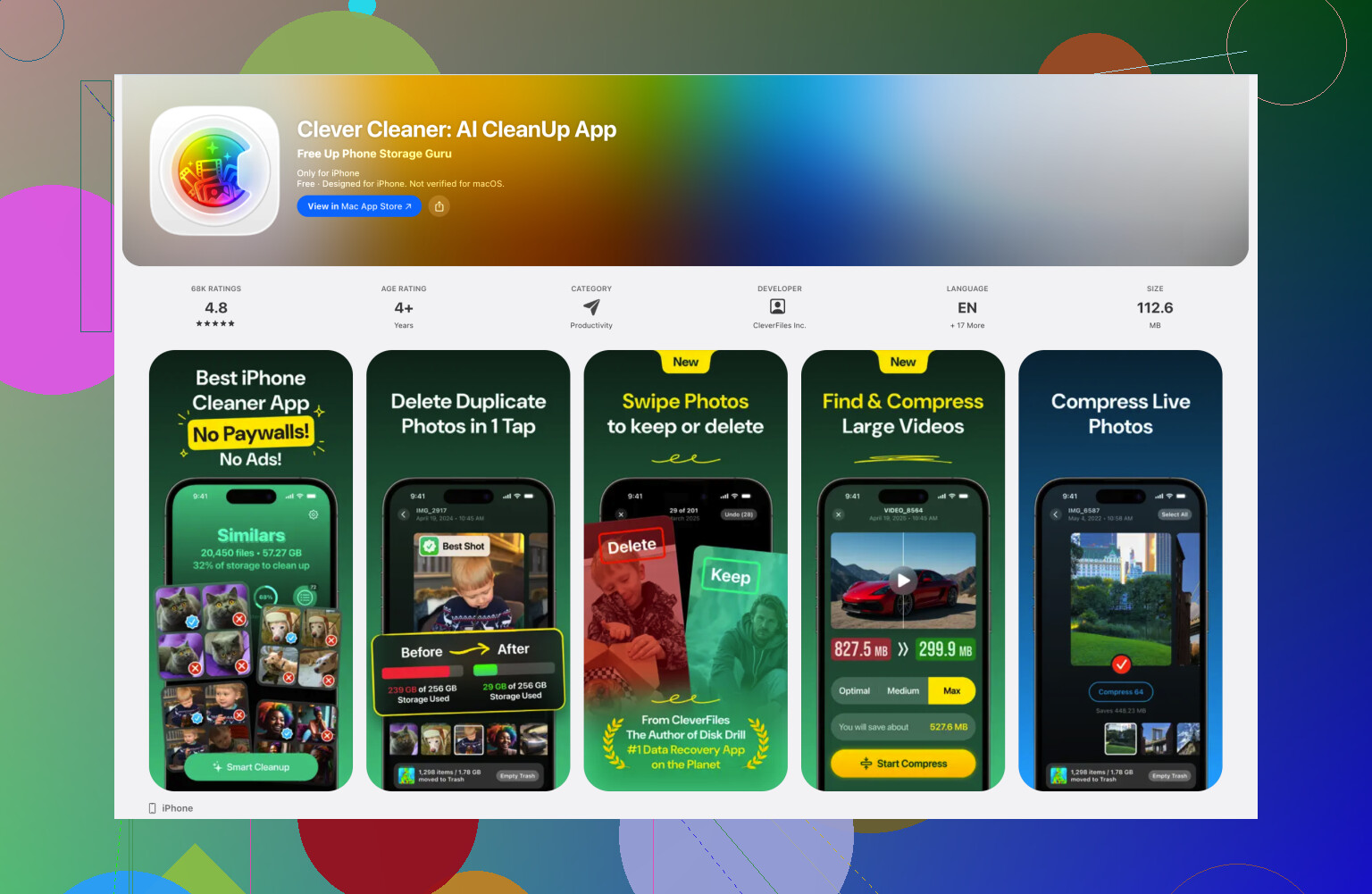
Honestly, I’d split this into two cases, because that’s where the duplicate problem usually starts.
If you already imported the Live Photos into Apple Photos on your Mac or iPhone, @mikeappsreviewer is right that Apple’s own options are kinda clunky. But I also don’t totally agree with @byteguru that you always need a cleanup app first. If you have access to the original imported files on a computer, the cleanest method is to export only the key photo frame and ignore the motion part entirely.
On Mac, Image Capture or Photos can help, but the better route is to pull the originals into a normal folder, then batch-convert only the .HEIC or .JPG still component and leave the paired .MOV files out of your library. That avoids duplicates because you are not ‘converting in place’ at all. You are basically importing just the photo half of each Live Photo set. If your Live Photos came from DCIM or an export, look for paired files with the same name, usually one image file and one short video. Keep the image, dump the video. Done. A little boring, but way less messy.
If the Live Photos are already sitting inside your iPhone library and you want an on-device fix, then yeah, Clever Cleaner is probly the easiest practical option because it handles Live Photos as a category instead of forcing the duplicate-then-delete nonsense Apple uses. That part is actually useful.
Also, if you want a quick explainer on this kind of cleanup workflow, this video is a decent overview:
one of the few iPhone cleaner features that actually converts Live Photos into plain still images
So my vote:
- If originals are still on computer/storage, keep only the image file from each Live pair.
- If everything is already in Photos, use Clever Cleaner to strip motion and remove the Live originals.
- Don’t use Duplicate as Still unless you enjoy making extra work for yourself. It’s technicly functional, but wow is it dumb at scale.
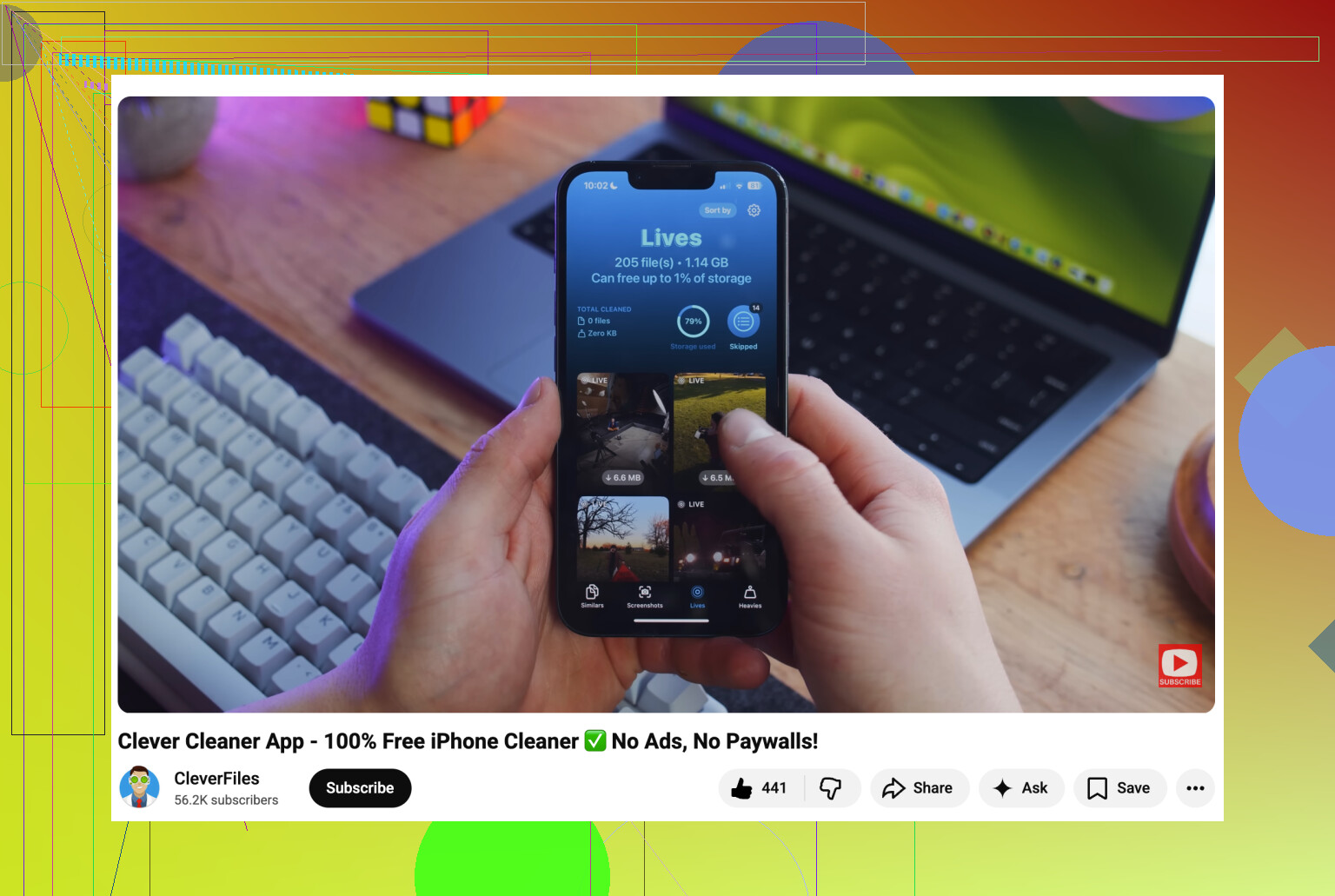
I’d avoid the Apple-only route unless your batch is tiny. @byteguru and @yozora are right that duplicates usually happen because Photos makes a new still instead of replacing the Live Photo. @mikeappsreviewer is also right about using a cleaner app, though I’d add one caveat: always test on 20 photos first.
If the photos are already in your iPhone library, **Clever Cleaner** is probably the least annoying path.
**Pros**
- Finds Live Photos as a separate group
- Bulk action is faster than Photos
- Lets you remove the motion part without manually hunting every original
- Good for reclaiming storage fast
**Cons**
- You still need to review before deleting if some Live Photos matter to you
- Any cleanup app means trusting a third-party workflow
- Best results depend on using its delete flow correctly, not stopping halfway
My take: the real fix is not “convert all,” it’s “strip Live component, then remove originals in one pass.” That’s where duplicate chaos usually stops.
Also, after cleanup, disable Live Photos in Camera and enable Preserve Settings, or the whole mess starts over.