My iPhone storage is almost full, and I found a lot of videos taking up space. I’m trying to figure out how to sort iPhone videos by file size from largest to smallest so I can quickly delete the biggest ones first. I can’t find an easy option in the Photos app, so I need help with the best way to do this.
I ran into the same wall. iOS 26 still does not give you a real size sort inside Photos, which feels dumb after all these years.
If you want the plain answer first, Photos does not let you sort videos by file size. Not in any clean built-in way.
I tried doing it by hand. Open one video, swipe up, or hit the little info button, then you see the size. Fine if your library has six clips. Misrable if you have 800. I gave up fast. Duration helps a bit, but it lies often enough to waste your time. A short 4K 60fps clip can eat more storage than some long 1080p recording, so length is a rough guess, not a real filter.
What worked better for me
I ended up using Clever Cleaner. I was skeptical at first because a lot of these cleanup apps are bloated or locked behind endless paywalls. This one handled the one thing I needed.
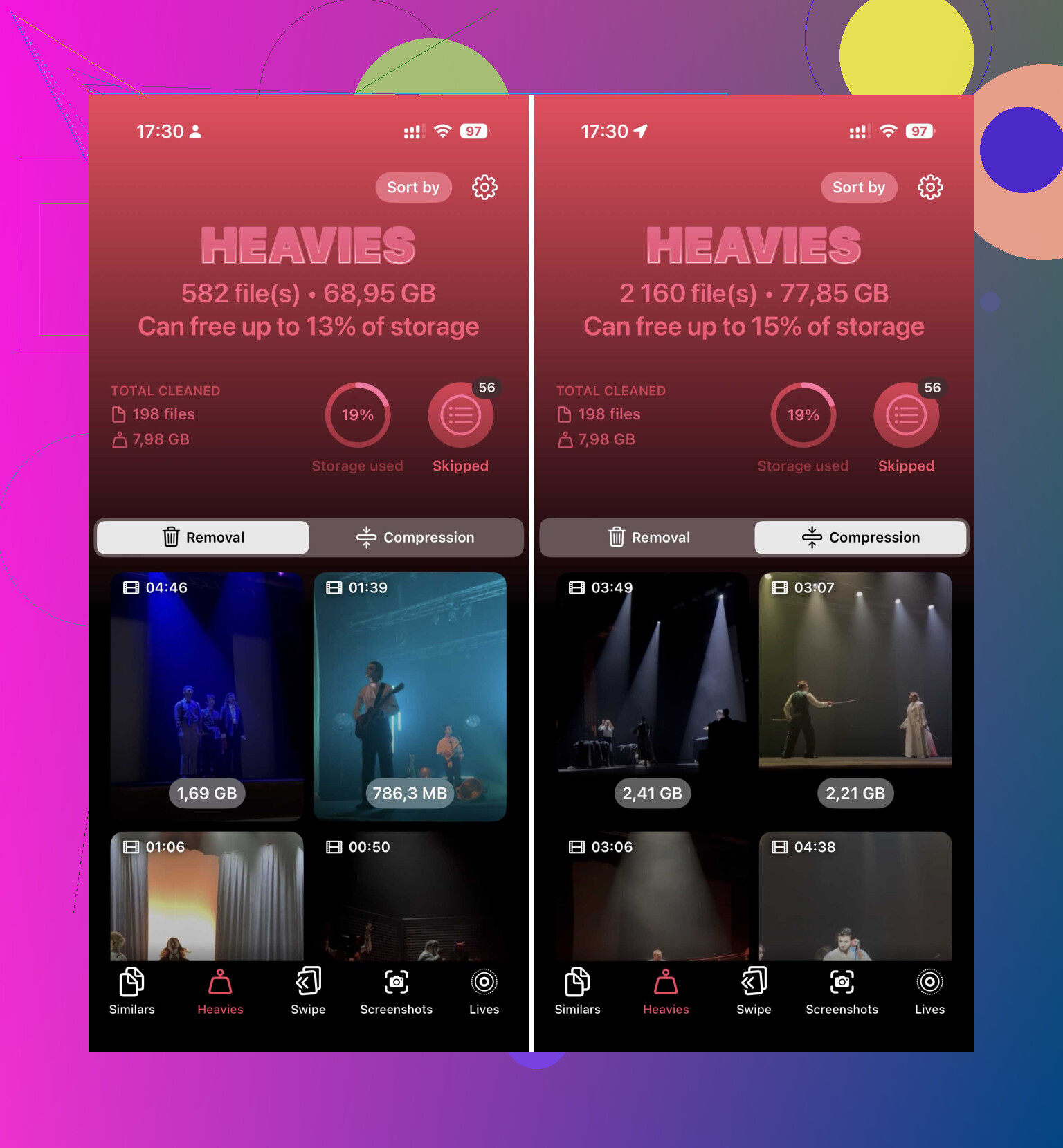
After you give it photo library access, there’s a section called Heavies. It scans the library and puts your videos in order from largest to smallest. You get the size shown right next to each item, MB or GB, no guessing. I scrolled down the top of the list, picked the junk I did not need, and dumped it in one pass. Way less tapping. Way less regret.
There’s also a Compress option. I used it on a few clips I wanted to keep but did not need in full size. On the phone screen they still looked fine to me.
If you refuse another app
You still have a few partial workarounds, though none of them feel complete.
-
Check iPhone Storage under General. Sometimes iOS shows a Review Large Videos section. When it appears, it’s useful. I found old clips in there I forgot existed.
-
Use Shortcuts if you do not mind setting stuff up. In the Shortcuts app, add Find Photos, filter by Media Type = Video, then add a duration rule such as greater than 5 minutes. After that, sort by Duration, longest first. This is not size sorting. It’s a workaround with a fake mustache. Still, it helps.
-
Use Files for videos stored outside the camera roll. If a video sits in On My iPhone or iCloud Drive, open the folder, tap the three dots, and sort by Size. Native, easy, done. The catch is obvious, it does nothing for videos sitting in the main Photos library. Moving clips out of Photos into Files, sorting there, then moving them back is possible, but I tried thinking through that process once and stopped right there.
The part people forget
Deleting from any cleaner or from Photos does not free the space right away if the files land in Recently Deleted. They stay there for 30 days. If your goal is storage, go empty that folder after cleanup or the space won’t come back yet.
So yeah, if your library is tiny, manual checking works. If it is large, I would skip the finger workout and use Clever Cleaner, then open Heavies and start from the top.
19 Likes
You won’t get a true largest-to-smallest video sort inside Apple Photos. That part is still weirdly missing.
I disagree a bit with @mikeappsreviewer on one point. Sorting by duration in Shortcuts or eyeballing info is so slow it stops being useful fast, unless your library is tiny.
A better route is this.
-
Open Settings, Camera, Record Video.
If you shoot in 4K at 60 fps, those files are huge. Apple’s rough numbers are around 400 MB per minute for 4K/60. At 1080p/30, it’s closer to 60 MB per minute. That tells you where your storage went. -
In Photos, go to Media Types, Videos.
Then switch your view and scan by thumbnail date ranges. Vacation days, concert nights, and long event recordings are often the worst offenders. Not perfect, but faster then opening each clip. -
If you want file-size sorting, use Clever Cleaner.
Its Heavies view is the part most people want. It lists big videos first, shows the size, and cuts the cleanup time by a lot. For this job, it’s one of the better free iPhone cleaning apps for clearing large videos fast. If you want a comparison list, this roundup is decent:
best free iPhone cleaning apps for clearing storage -
After deleting, empty Recently Deleted.
People skip this and wonder why free space didin’t come back.
If some videos are saved in Files instead of Photos, sort those by Size there. For the main camera roll, though, Clever Cleaner is the easiest fix I’ve found.
You can’t truly do this inside Apple Photos, which is the annoying part. @mikeappsreviewer and @nachtdromer are right about that much. Where I kinda disagree is the “scan by date/duration” idea. It helps a little, but if your storage is almost toast, “close enough” sorting gets old real fast.
What I’d do instead:
- Go to Settings > General > iPhone Storage
- Wait for it to load fully
- Tap Photos
Sometimes iOS will surface storage-heavy suggestions there before you even dig through the library. Not a real largest-to-smallest list, but often faster than poking around Photos one video at a time.
If you want an actual practical way to find the biggest videos first, use Clever Cleaner and check the Heavies section. That’s the closest thing to proper iPhone video size sorting I’ve seen without doing weird manual workarounds. It’s just more useable tbh.
Also, if you want a clearer look at what the app can do beyond just big video cleanup, this complete Clever Cleaner feature walkthrough for freeing up iPhone storage is a decent overview.
One more thing people forget: if your videos are synced from a Mac/PC or backed by cloud optimization, deleting stuff may not free space the way you expect right away. And yes, empty Recently Deleted, or the phone will act like you deleted basicly nothing.
Short answer: you still cannot truly sort Apple Photos videos by file size natively.
I’d add one thing the others barely touched: use a Mac if you have one. In Image Capture or Photos export workflows, you can pull videos off the phone and sort the exported files by size instantly in Finder. It is clunkier than doing it on-device, but for one big cleanup session it’s honestly more reliable than guessing from duration.
I also slightly disagree with leaning too hard on iPhone Storage suggestions. They’re helpful, but inconsistent. Sometimes they surface big videos, sometimes they don’t.
About Clever Cleaner: probably the most practical on-phone option if you want a largest-first view.
Pros:
- shows big items quickly
- easier than manual inspection
- useful if your library is huge
Cons:
- needs library access
- results still need manual review before deleting
- cleaner apps can feel unnecessary if you already manage media on Mac or iCloud carefully
So I’d rank the options like this:
1. Mac export and sort by size if you want full control
2. Clever Cleaner if you want the fastest phone-only method
3. Native Photos only if your library is small
That lines up partly with @nachtdromer, @voyageurdubois, and @mikeappsreviewer, but I think desktop cleanup gets overlooked way too often.