Trying to switch from Amazon Drive to OneDrive before Amazon Drive shuts down, but I’m not sure about the best or easiest way to transfer all my files over. Some folders have a lot of photos and docs. Has anyone done this or can recommend a tool or method that works well? Need help to avoid losing anything important.
So you’re trying to migrate your files from Amazon Drive over to OneDrive? Yeah, I’ve been there, and let me tell you, it’s not the most thrilling Saturday you’ll ever spend.
Old School “Drag and Drop” Method
Honestly, the method everyone dreads: downloading everything from Amazon Drive, then uploading it to OneDrive one folder at a time. It’s as exciting as watching paint dry—except you get to see your storage bar inch forward at glacial speeds. Anyway, the steps break down like this:
- Jump onto your Amazon Drive account.
- Handpick whatever files you need (double check those folders—trust me, it’s easy to miss stuff).
- Download those files all the way to your device. Prepare for some serious waiting if your connection isn’t fiber.
- Crack open your OneDrive account, head to the appropriate folder, and start uploading.
Lather, rinse, repeat. If you only have a handful of documents, you’ll survive. If you’ve got gigs of stuff, go grab a sandwich. Or three. Maybe consider a new hobby.
The Smarter (Forget-Manual) Way
Alright, so manual transfer nearly made me rage-quit the whole process. I wanted something that didn’t involve babysitting my computer all day. That’s when I stumbled upon CloudMounter.
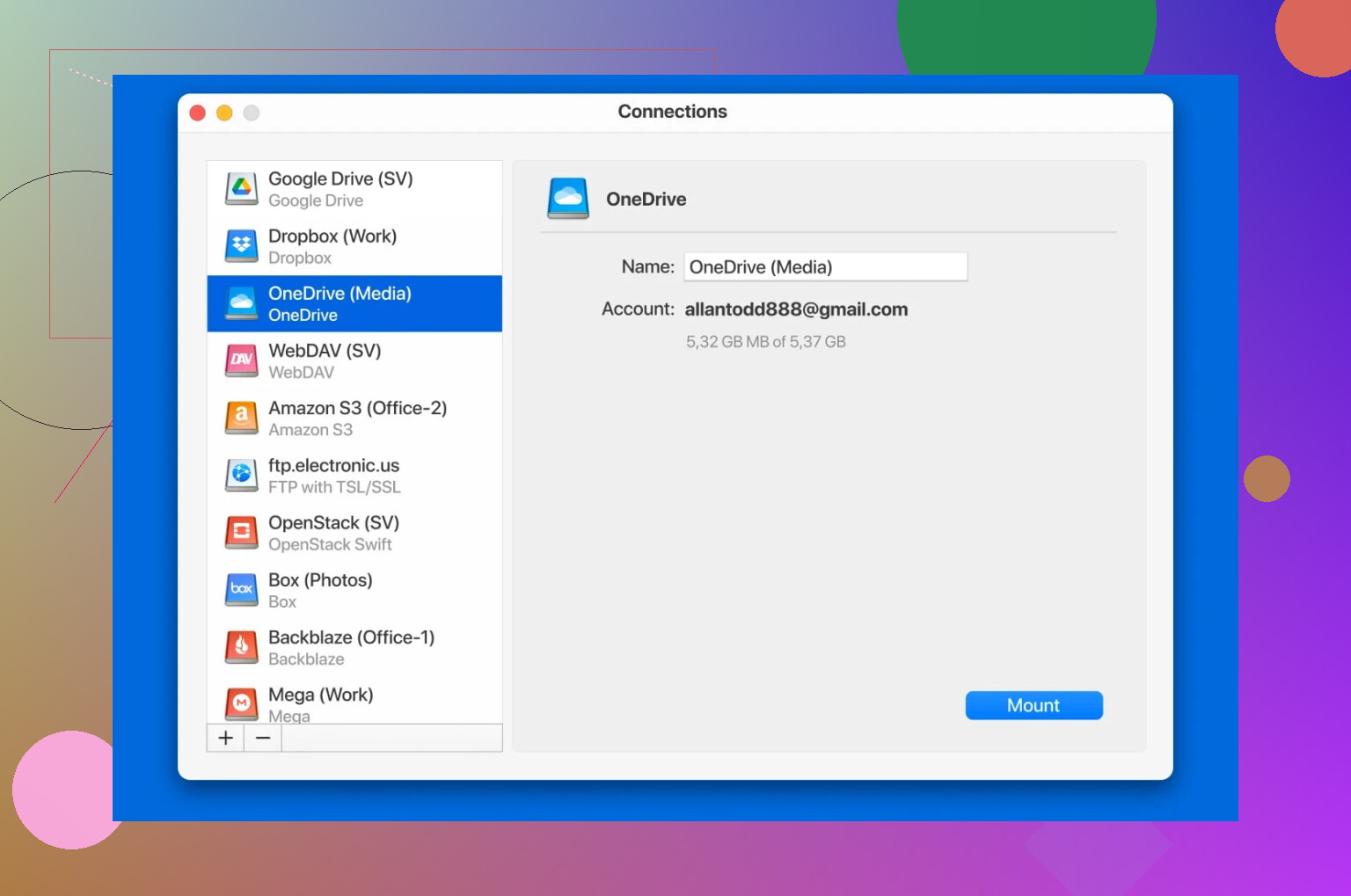
Here’s the magic trick: this tool lets you plug cloud storage accounts straight into your Mac or PC like they’re regular drives. We’re talking drag-and-drop across your clouds, pretty much like shifting files between two folders on your desktop—no endless downloads, no sacrifices to the computer gods for upload stability.
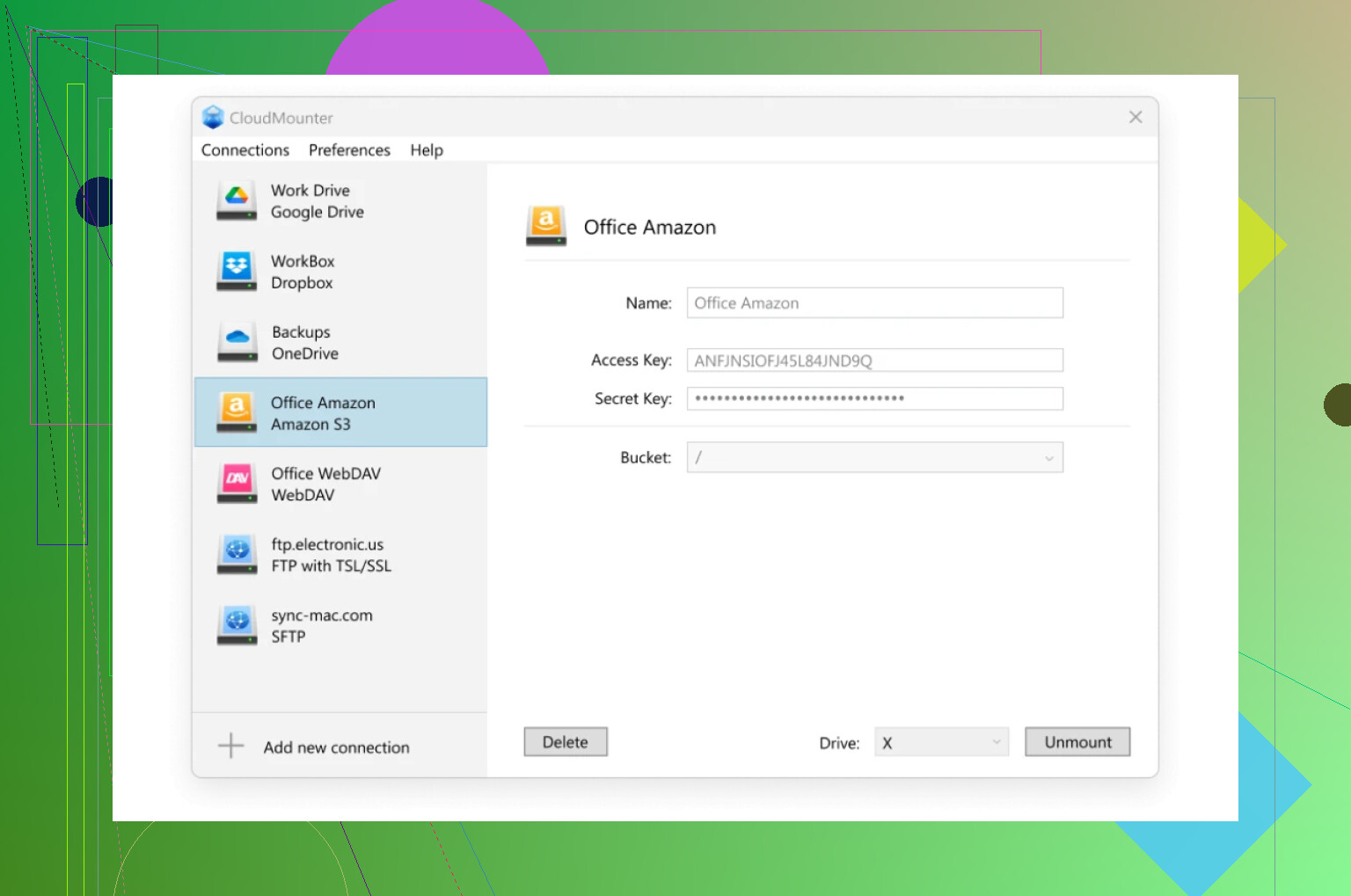
Bonus points: You’re not running out of space on your hard drive just by moving files around. That alone got me sold.
What I also noticed—CloudMounter isn’t just some janky app cobbled together last weekend. It wraps your data in solid encryption, so your stuff isn’t just sloshing around the internet exposed. Plus, on Macs, it slides right into Finder. Feels almost native—like Apple themselves actually cared about making cloud storage painless.
If you’re juggling more than one cloud account and want the whole “move it, forget it, enjoy life” experience, yeah, this tool makes a difference.
16 Likes
You know what’s wild? Every time tech companies decide to pull the plug on something, there’s a mad scramble like chairs in a game of musical chairs. Not gonna sugarcoat it: moving files from Amazon Drive to OneDrive can feel like shoving a mattress through a doggy door—possible, but not exactly elegant.
I get where @mikeappsreviewer is coming from with the “old school” approach—download, upload, rinse, repeat—but honestly, I wouldn’t wish that on my worst enemy if you’ve got loads of pics and docs. You risk running out of space on your laptop, plus if your internet hiccups, you could easily have incomplete folders and duplicates galore. Also, just the thought of my hard drive wheezing under the pressure gives me anxiety.
CloudMounter is a cool shout from the other post, especially since it cuts out the “internet traffic jam” of double-handling everything. But, and here’s my tiny beef: you’re still at the mercy of your upload/download speeds on ONE computer, just streamlined through the app. If you’re on slow DSL in the middle of nowhere? You might still need to camp out a while.
I’ll throw an alternate log on this fire: have you tried looking for automated cloud-to-cloud transfer services? Stuff like MultCloud, Mover.io, or even Otixo? Some of them let you link Amazon Drive and OneDrive directly on their servers and the files practically teleport over (okay, not literally, but close). They usually have a free tier if you’re not shifting terabytes. With Amazon Drive shutting down, though, these tools sometimes drop support fast, so—double check OneDrive and Amazon compatibility before you commit.
One last tip: check your folder and file names. Seriously. Amazon lets some characters through that OneDrive will freak out about, like colons, pipes, or question marks. You might need to rename a few oddballs or risk having stuff just disappear into the cloud void.
TL;DR: If you want minimal fuss and don’t mind a paid tool, CloudMounter is solid. But for totally hands-off (and maybe even free) transfers, explore cloud-to-cloud migration services, just move quick before Amazon Drive hits the off switch. And whatever you do, don’t rely on just drag-and-drop unless you’ve got unlimited patience—and storage.
Wish I’d seen this a month earlier—my migration from Amazon Drive to OneDrive was like a low-budget road trip: lots of stops, bad directions, and some odd existential questions along the way. Props to @mikeappsreviewer for laying out the brute force, download-and-reupload manual grind (been there: lost half a Sunday and probably some sanity), and to @espritlibre for calling out the potential risks of choking your hard drive and internet on massive folders.
Here’s where things got spicy for me, though: folder and file structure preservation. Most tools, including stuff like MultCloud or Mover.io (which I tried because, yeah, free tiers are tempting), aren’t perfect with nested directories, and weird file name quirks can nuke entire groups of photos without a peep. Mover was decent—but my OneDrive hung up on certain Unicode characters and ‘illegal’ punctuation that Amazon was totally cool with. Spent a chunk of time with Finder/Explorer trying to figure out what went missing and why.
I ended up using CloudMounter (which @espritlibre and @mikeappsreviewer both mentioned for good reason). Unlike MultCloud and bros, CloudMounter gave me way more visibility and control over what was moving and where it landed, and I didn’t murder my SSD in the process. My only complaint? Still took a while with our home WiFi being, well, vintage. But I could at least keep tabs on progress and fix snags on the fly.
Wild card tip: If you’re semi-technical (or stubborn), you CAN automate renaming weird files before the move—look for scripts or apps that bulk-rename based on OneDrive’s allowed characters. Saved me some grief.
So, if you want full oversight and don’t mind ponying up for a clean, local experience, CloudMounter’s the play. Otherwise, cloud-to-cloud stuff is fast… when it works. Just be ready for the “where did my files go?” moment if Amazon or Microsoft discards something mid-transfer. Oh, and keep backups somewhere. Trust issues with clouds are a thing now, apparently.