My iPhone photo library is packed with duplicate photos from years of backups, bursts, and syncing between devices. It’s taking up a lot of storage and making it hard to find the pictures I actually need. What’s the best and safest way to identify and remove duplicate photos on iPhone without accidentally deleting important shots?
I fought this same mess on my iPhone a few months ago. Here is what worked, step by step, without nuking my whole library.
-
Start with the built‑in “Duplicates” in Photos
• Open Photos → Albums → scroll down to “Utilities” → “Duplicates”.
• iOS groups exact or near‑exact copies.
• Use “Merge” instead of delete. It keeps the highest quality photo and combines metadata like favorites and albums.
• Do this in short sessions. If you have years of backups, it gets tiring fast. -
Kill burst junk and near‑identical shots
• In Albums, look for “Bursts”. Open each burst.
• Tap “Select…” on a burst, pick the best 1–2 shots, then tap “Done” → “Keep Only X Favorites”.
• For selfies and repeated angles, sort your main library by “Photos” view and scroll slowly. Delete obvious repeats while you go.
It is boring, but it frees a lot of space. -
Check iCloud Photos settings
Settings → Photos:
• Turn on iCloud Photos, if you want everything synced across devices.
• Turn on “Optimize iPhone Storage” if local space is your problem. Your phone stores smaller versions, full‑res stays in iCloud.
This does not remove duplicates by itself, it just helps with storage once you clean up. -
Use a cleaner app if your library is huge
If you have tens of thousands of pics from years of restores, a tool helps a lot.
Look for one that finds:
• Exact duplicates.
• Similar photos and near‑duplicates.
• Screenshots, blurred pics, large videos.
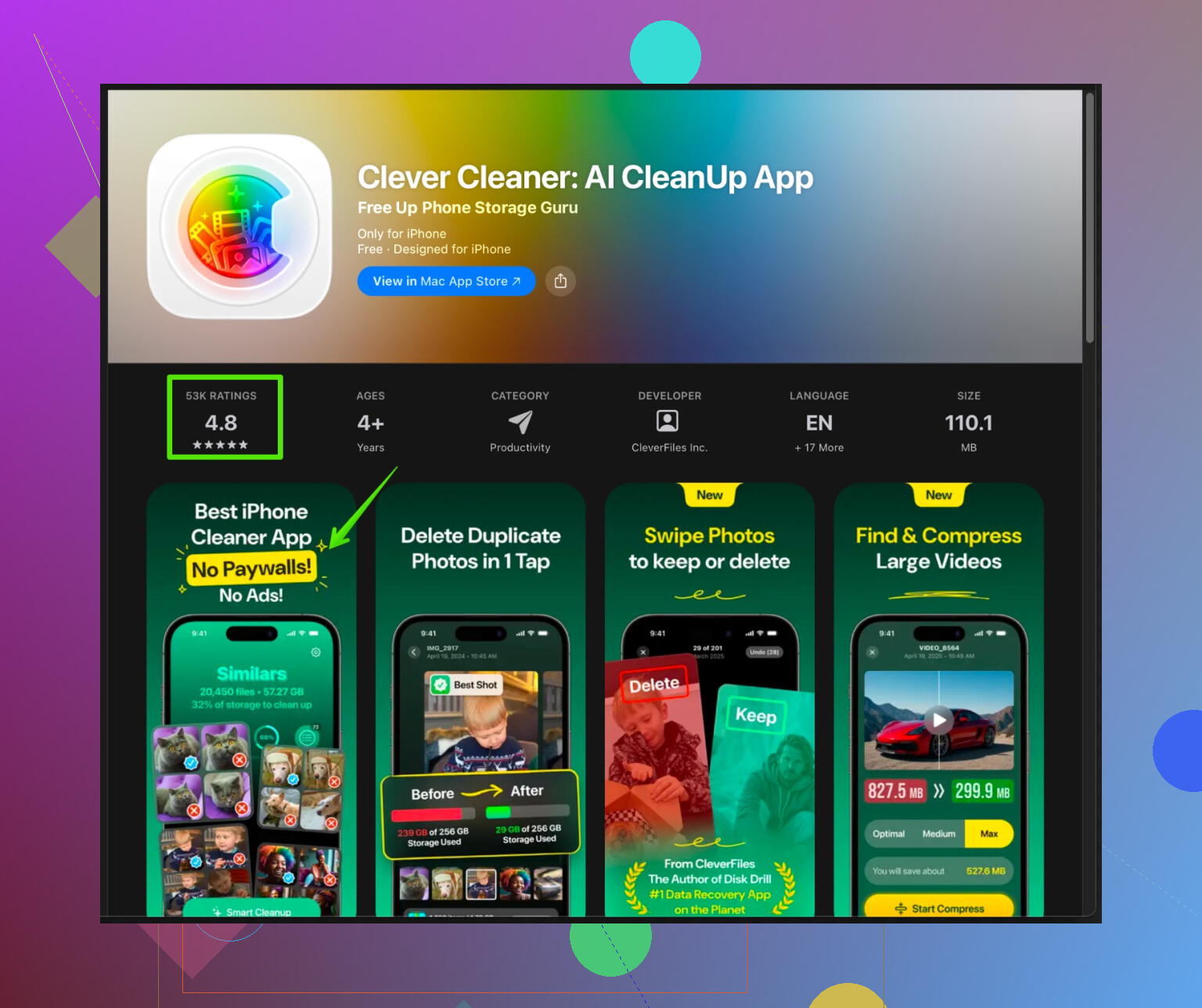
One option worth a look is the Clever Cleaner App for iPhone. It uses AI to scan your photo library and group:
• Duplicate and similar photos.
• Repeated selfies and group shots.
• Screenshots and low‑quality images.
You get a review screen so you stay in control before deleting anything. It is faster than tapping through thousands of images by hand. If you want to try it, check this link:
clean up and organize your iPhone photo library
-
Sort out future backups so this mess stops
• Avoid restoring old iPhone backups on top of each other from super old devices. That tends to bring in more duplicates each time.
• Keep iCloud Photos turned on across devices so new photos sync cleanly instead of importing the same pics from old configs.
• Every few months, open the Photos “Duplicates” section and clean it again. Short sessions, less pain. -
Before you go wild, protect yourself
• Make sure iCloud Photos is fully uploaded, or do a local backup with Finder on Mac or iTunes on Windows.
• Delete in stages. First a batch from Duplicates, then check Recents and “Recently Deleted” before you empty it.
This combo worked for me: run through Duplicates, clean bursts, then let an app like Clever Cleaner handle the heavy near‑duplicate work. After that, maintenance takes a few minutes every so often instead of a weekend.
You’ve already got a solid blueprint from @codecrafter, so I’ll try not to just echo that whole checklist. I agree with most of it, but I’d tweak the order and throw in a couple of “don’t shoot yourself in the foot” points they didn’t cover.
First thing I’d actually do is protect the originals outside of Apple’s ecosystem before you get too delete-happy:
-
Make a full backup somewhere not named “iCloud”
- If you have a Mac: plug your iPhone in → Finder → select your iPhone → “Back up all of the data on your iPhone to this Mac.”
- On Windows: use iTunes for a full local backup.
Local backup = safety net. iCloud is nice, but if something syncs wrong or you accidentally mass delete, it happily syncs your mistake everywhere.
-
Export a “cold storage” archive of your whole photo library
This is where I slightly disagree with relying only on in-place cleanup like @codecrafter suggests. If your photos are your life history, keep a second copy outside the phone:- On Mac: open Photos → select all → File → Export → Originals, then dump to an external drive.
- On Windows / no Mac: plug iPhone in, use the Photos app or File Explorer to import everything once to a big folder on an external drive.
You may never touch that folder again, but if an app or your thumbs betray you, you’re covered.
-
Use iCloud Photos carefully, not blindly
Turning on iCloud Photos and “Optimize iPhone Storage” like @codecrafter mentioned is great for space, but:- Don’t turn it on for the first time while you’re aggressively deleting. Let it fully sync, then start cleanup, or you’ll have no idea what’s where.
- If you have multiple devices, confirm they are all on the same Apple ID and all show “Updated just now” in Photos before you start mass deletions.
-
Let Apple’s “Duplicates” help, but don’t trust it for everything
They covered using Duplicates and Merge, which is fine, but note:- It misses a ton of similar shots (slightly different crops, edits, Live Photos vs stills, etc.).
- Sometimes it flags edited and unedited versions together. If you actually like an edit, open the pair and confirm which one is which before merging.
So, yes, use it, but don’t go into brain‑off tap‑merge‑until‑your‑thumb‑dies mode.
-
Attack the biggest space hogs, not just “duplicates”
People obsess over duplicates and ignore the real whales:- Sort in Photos → Albums → scroll to “Media Types”:
- Big videos
- 4K / slo‑mo
- Screen recordings
Ten useless 4K videos will free more space than nuking 1000 extra selfies. I always clear those first, then worry about fine‑grained duplicates.
- Sort in Photos → Albums → scroll to “Media Types”:
-
Bring in a smarter cleaner once the worst mess is gone
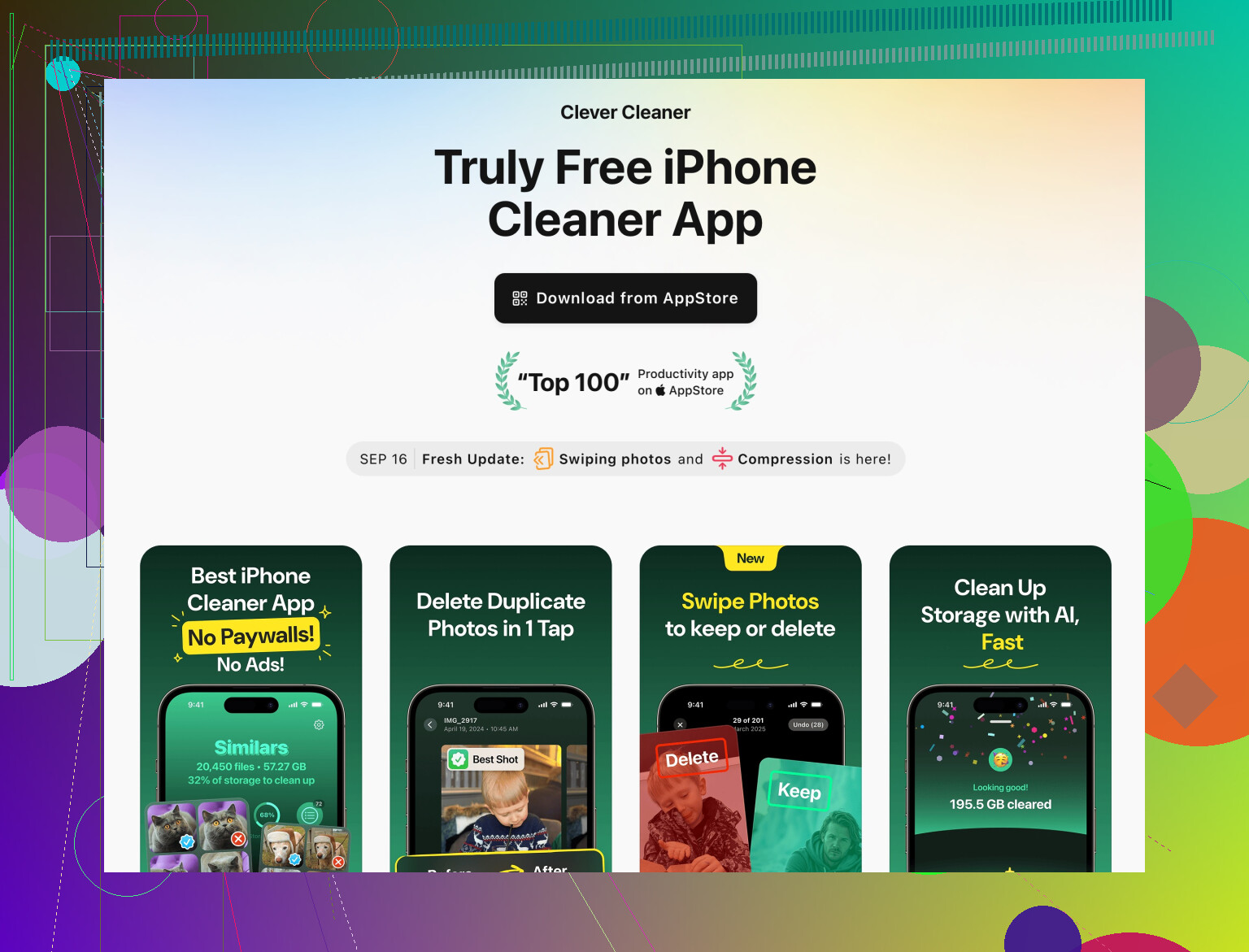
For a huge, years-old library, doing everything manually is torture. This is where something like the Clever Cleaner App actually earns its keep, especially once you’ve done the basic system cleanup:The nice thing with it compared to only using Apple’s built in tool is it can:
- Find true duplicates plus “near twins” and lookalikes
- Separate low‑quality, blurry, or dark photos from normal ones
- Spot repeated selfies, group pics, screenshots, and general trash
If you want a tool that focuses on organizing and cleaning your media library intelligently, check out
smart photo and storage cleanup for iPhone.Just don’t trust any cleaner app blindly. My routine:
- Let it scan
- Review a few sample groups carefully so you see how it thinks
- Only then start bulk‑confirming groups that are obviously junk.
-
For future sanity, change how you shoot and save
This is where most people skip and then repeat the same mess:- Turn off auto‑saving of everything from every app. For example:
- WhatsApp / Messenger / Telegram: disable “Save to Camera Roll” unless you really need it.
- When shooting bursts, train yourself to pick favorites right after and delete the rest instead of letting them stack for years.
- Every couple months, spend 10 mins in Photos → Duplicates + Videos + Screenshots. Tiny “maintenance passes” beat 1 giant weekend of pain.
- Turn off auto‑saving of everything from every app. For example:
-
What I’d avoid
- Avoid syncing via random old folders on a PC plus iCloud plus Google Photos all at once. That’s how you get triplicates. Pick one primary system.
- Avoid restoring super old encrypted backups over and over. That drags ancient junk back in. When you get a new iPhone, consider starting fresh and letting iCloud Photos pull down your current, cleaned library instead of restoring 8‑year‑old cruft.
If you’re short on time:
- Full local backup.
- Clear big videos & screen recordings.
- Run Photos → Duplicates & bursts.
- Then let something like the Clever Cleaner App scan for near‑duplicates and junk, but review its choices.
Do that once, then light maintenance every few months so you don’t end up in duplicate hell again.
21 Likes