I accidentally deleted important photos from my Nikon camera memory card while moving files to my Windows PC. The card is no longer showing the pictures, and I need the safest way to recover deleted Nikon camera photos from an SD card on Windows without overwriting anything. What recovery steps or software should I try first?
I ran into this with a Nikon SD card a while back. There are free ways to try recovery, but the result depends on one thing more than anything else, whether the deleted shots were overwritten.
If the deletion happened a minute ago, stop using the card now. No more photos. No video. Don’t even poke around with the camera if you can avoid it. Every new write to the card chips away at what’s still recoverable. I learned this the annoying way.
The short version is simple. Free recovery tends to work when the files are deleted but the storage blocks are still untouched.
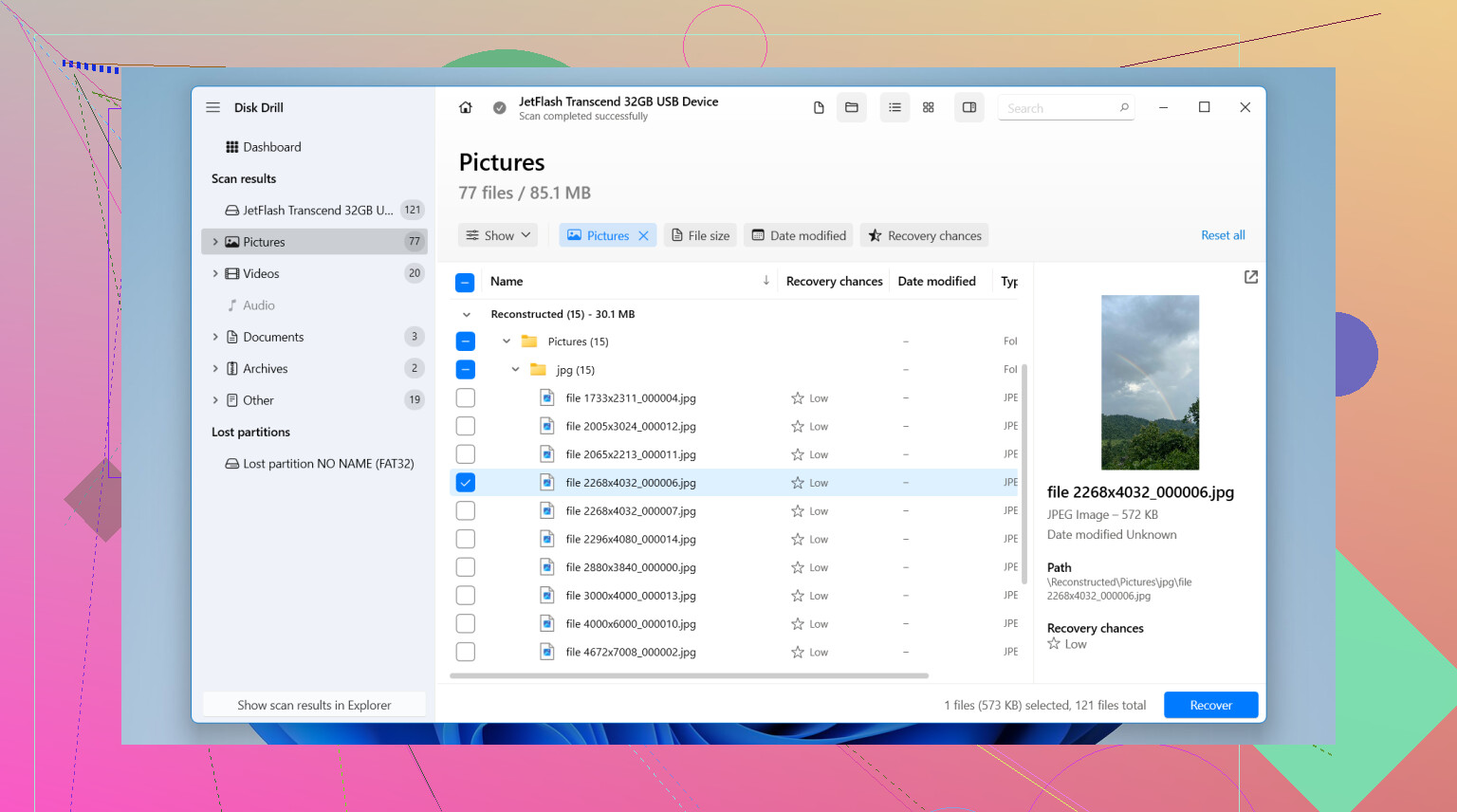
On Windows, the easiest first pass is Disk Drill. The free limit is 100 MB. For a few JPEGs, or even as a quick check to see whether the Nikon photos still show up intact, I think it’s a decent starting point.
What I did:
- Took the SD card out of the Nikon and used a separate card reader.
- Installed Disk Drill on the computer, not on the SD card.
- Opened it, picked the SD card, then hit Search for lost data.
- Used Universal Scan. For deleted photos, this tends to be the right first try.
- Waited for the scan to finish, then previewed the files.
- Marked the photos I wanted back and clicked Recover.
- Saved them to the PC, never back onto the same SD card.
If your missing files go past 100 MB and you don’t want to spend money, PhotoRec is the usual free option people mention. It’s open source and it works, but yeah, it’s rougher. No nice preview flow. Filenames often come back mangled. Folder structure usually disappears. Still, I’ve seen it pull photos off cards when prettier tools didn’t help.
One thing Nikon users miss, esp if you shoot RAW, check NEF support before wasting time. Some free recovery apps are fine with JPEGs and then fall flat with RAW files.
Also, check the boring stuff first. If you copy images to your computer after shoots, use SnapBridge, or sync anything to cloud storage, the photos might already exist somewhere else. I’ve seen people spend an hour on recovery and then find the files sitting in an old import folder.
If you want the clean checklist:
- Stop using the SD card.
- Use a card reader, not the camera over USB.
- Try Disk Drill first if 100 MB is enough.
- Use PhotoRec if you need a fully free route and don’t mind a clunky process.
If the card is physically damaged, throws read errors, or your computer doesn’t detect it at all, I wouldn’t keep messing with free tools. At that point, a recovery shop makes more sense. DIY attempts on a failing card sometimes make the mess worse.

7 Likes
First, stop touching the card. Don’t reconnect it to the Nikon and don’t copy anything else to it. Deletion on SD cards often removes the file index first. The image data may still sit there until new writes replace it.
I mostly agree with @mikeappsreviewer, but I’d add one safer step before scanning. Make a byte-for-byte image of the memory card, then run recovery on the image, not the original card. On Windows, USB Image Tool or HDD Raw Copy Tool works for this. If the card starts throwing read errors mid-scan, you’ll wish you had done this first.
Practical order I’d use:
- Put the Nikon card in a reader.
- Check Windows File History, old import folders, OneDrive, Nikon software folders.
- Create an image of the card.
- Scan the image with Disk Drill, especially if you need Nikon NEF and JPG recovery with preview support.
- Export recovered files to your PC or another drive, never back to the SD card.
If Windows asks to fix or format the card, hit no. That stuff ruins recoverey fast.
If you want more user experiences, this thread is worth a look:
best photo recovery software recommendations from Reddit users
If the card disconnects, shows 0 bytes, or gets hot, skip DIY and go to a lab.
One thing I’d do a little diff from @mikeappsreviewer and @nachtschatten is check whether the files were actually deleted by Windows Explorer or just moved into some weird import/cache path. Nikon stuff sometimes gets copied into Pictures, OneDrive Camera Roll, or old Adobe/Nikon transfer folders and people think the card ate them. Search Windows for *.NEF, *.JPG, and sort by date before going full panic mode.
Also, if the card still reads fine, I would not start with random “repair” prompts or CHKDSK. That advice gets tossed around way too much and it can make recovery uglier.
My order would be:
- Lock the SD card with the little side switch if your reader respects it.
- Search the PC for existing copies first.
- If found nowhere, scan the card for recoverable Nikon photos.
- Recover to a different drive only.
I do agree Disk Drill is a solid choice on Windows because it can preview a lot of camera image types, which matters if you shot NEF RAW plus JPEG. That preview step saves time vs recovering a mountain of junk. If the thumbnails look broken or half-gray, some files were probly overwritten already.
One more Nikon-specific thing: if the camera used two card slots and backup/overflow mode was enabled, check the second card. Sounds obvious, but yeah, people forget.
For a simple SD card photo recovery software overview, this quick look at SD card recovery tools for deleted photos is pretty easy to skim.
If the card starts disconnecting, asking to format, or reading crazy slow, stop DIY stuff fast. That’s where home recovery can go from “maybe” to “welp.”

One small disagreement with @nachtschatten and @ombrasilente: I would not spend too long hunting Windows folders if the photos are mission-critical. Do a quick search, sure, but deleted card data has a shrinking shelf life if anything writes to that card later.
What I’d add is this: check the card’s actual capacity and health in Windows before recovery. If it suddenly shows the wrong size, RAW instead of exFAT/FAT32, or throws I/O errors in Event Viewer, treat it like a failing card, not just a deleted-files case. In that situation, repeated scans can do more harm than help.
Also, Nikon-specific gotcha: some cameras create fragmented video/photo writes, so recovery tools may find the NEF files but not restore original names or shoot sequence cleanly. That is normal.
About Disk Drill since @mikeappsreviewer mentioned it:
Pros
- Good preview for JPG and many NEF files
- Easier to sort real photos from junk
- Friendly on Windows
- Can recover from card images, which is safer
Cons
- Free recovery is limited
- Deep scans can return lots of clutter
- Original filenames/folders are not always recoverable
If Disk Drill shows clean previews, that’s a very good sign. If previews are corrupted, gray, or half-rendered, overwrite damage probably happened already.
Final thing: once recovered, compare file sizes and open several photos from different parts of the shoot. Don’t assume all recovered files are actually usable just because they copied out.