My iPhone suddenly showed a storage full message, and now I’m not sure what to delete first or how to free up space without losing important photos, apps, or messages. I need help figuring out the safest way to clean up iPhone storage and stop this from happening again.
Storage alerts on an iPhone feel worse than they are. I’ve seen the phone yell about space when the fix took five minutes. First thing I do is check what is using the storage, not start deleting random stuff.
Start with iPhone Storage
Open Settings > General > iPhone Storage. Then wait. Don’t tap around too fast. The colored bar takes a bit to finish loading, and until it does, the numbers are off.
This screen is the only place I trust at first. It shows whether your space is getting eaten by photos, apps, messages, system data, or something else. If you skip this step, you’re guessing.
The fake warning people fall for
I’ve seen this one a lot. You’re on a website, then a huge pop-up says your iPhone storage is full, or your SIM is damaged, or there’s a virus, with some countdown garbage. That is not from Apple.
Real iPhone storage alerts show up as normal system messages or inside Settings. They do not come from a browser tab with panic language. If it popped up while browsing, close the tab and move on. Don’t tap anything in it.
Why deleting stuff sometimes changes nothing
This catches a lot of people. You delete photos and videos, then the warning is still there. Feels broken. Sort of is, but there’s a reason.
On iPhone, deleted photos go to Recently Deleted. They stay there for 30 days and keep using the same amount of storage until you remove them from there too.
What I do:
- Open Photos
- Go to Albums
- Scroll to Recently Deleted under Utilities
- Tap Select
- Tap Delete All
Same story in the Files app. Check Downloads, then clear Recently Deleted there as well. Those are separate. I missed the Files one once and kept wondering why I only got half my space back.
If this started after an iOS update
This one is common. Right after an update, iOS often hangs onto temporary install files longer than it should. The phone downloaded update packages, unpacked them, swapped files around, and sometimes cleanup lags behind.
I usually restart the phone once after updating. That alone fixes it more often than you’d think. The restart forces iOS to recalculate storage and dump temp files it no longer needs.
If the warning sticks around, go back to Settings > General > iPhone Storage and look at System Data. If it jumped up a lot after the update, that’s often where the extra junk landed.
Places where storage piles up quietly
Messages is a big one. Most people ignore it for years. Video clips, memes, voice notes, GIFs, random attachments from old chats, all of it sits there.
You can trim it two ways.
For automatic cleanup:
Go to Settings > Messages > Keep Messages, then switch from Forever to 1 Year or 30 Days.
For manual cleanup:
Go to Settings > General > iPhone Storage > Messages, then use Review Large Attachments.
Safari cache is another easy cleanup.
Go to Settings > Safari > Clear History and Website Data.
Some apps are worse. Instagram, TikTok, and a few others build up cache with no proper clear button. In those cases, deleting the app and reinstalling it is the cleanest fix. Annoying, yep. Still works.
When the built-in tools stop being enough
Apple’s storage screen gives totals, but not much detail. It won’t neatly show your biggest videos first. It won’t group near-duplicate photos in a useful way. It won’t point at the 47 screenshots you forgot from 2022. I hit that wall myself.
For deeper cleanup, I used https://www.youtube.com/shorts/qUVkfQqrwsk
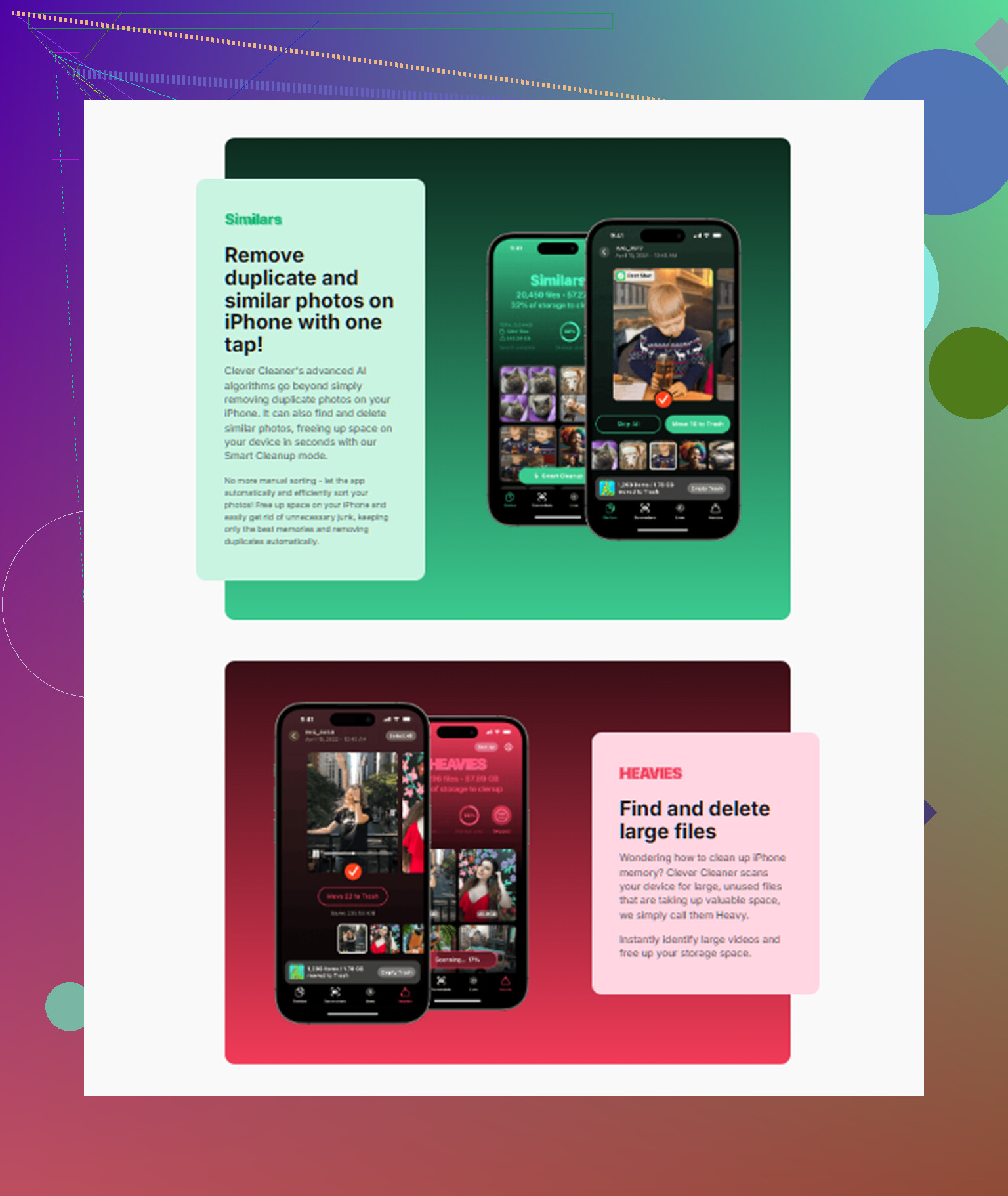
What helped me most was seeing the biggest files first. Once the large videos and screen recordings were obvious, the cleanup got fast. The duplicate photo sorting also saved time, since going through burst shots by hand is miserable.
On my phone, I cleared about 12GB, then emptied Recently Deleted. After that, the warning stopped coming back. The lag I’d been noticing also faded out.
If the phone still says storage is full when it isn’t
This part is weird, but I’ve run into it. Settings shows free space, yet the warning keeps returning. At that point, I treat it like a bad count.
Step one is a full restart. Not fancy, but it often fixes phantom storage readings.
If a restart does nothing, back up your iPhone to iCloud or a computer, then do a factory reset. It’s a pain. Still, when the issue comes from deeper system junk or broken storage indexing, manual cleanup won’t touch it. A reset usually does.
Short version
- Check Settings > General > iPhone Storage first
- Ignore browser pop-ups claiming storage damage or viruses
- Empty Recently Deleted in Photos
- Empty Recently Deleted in Files
- Restart after iOS updates
- Clean Messages attachments and Safari data
- Reinstall cache-heavy apps if needed
- If storage numbers look wrong, restart or reset after backup
That order saves time. I learned it the hard way.
24 Likes
Don’t start with photos first. I disagree a bit with @mikeappsreviewer there, because people panic-delete memories and save almost no space if the real hog is offline media or app data.
My order is this:
-
Check streaming apps.
Spotify, Netflix, YouTube, Podcasts. Offline downloads get huge. I’ve seen 10GB to 40GB sitting there. -
Check Photos settings before deleting anything.
Settings > Photos > Optimize iPhone Storage.
If you use iCloud Photos, this cuts local storage a lot. Safer than mass deleting. -
Look at voice memos and screen recordings.
People forget these. A few long recordings eat gigs fast. -
Open Apple Music, WhatsApp, Telegram, Messenger.
These apps store media copies. WhatsApp alone is often the hidden mess. -
Offload apps, don’t delete them first.
Settings > App Store > Offload Unused Apps.
This keeps your documents and app data. Safer move. -
Check Mail.
Big attachments and old downloaded messages pile up. Removing and re-adding a mail account sometimes clears old local cache.
If you want a faster visual cleanup, Clever Cleaner is worth a look. It helps spot large videos, duplicate shots, and junk pics without making you dig through every album manualy.
Also, if you want a simple video guide, this is decent for freeing up iPhone storage for free:
watch how to free up iPhone storage for free
Safest rule, target replaceable stuff first. Downloads, cache, offline media, old attachments. Keep personal stuff for last. Thats the part most people mess up.
Don’t start deleting random photos. That’s how people lose stuff and somehow free up like 800MB.
I mostly agree with @mikeappsreviewer and @viajeroceleste, but I’d add one thing before any cleanup spree: make sure your important stuff is actually backed up. If Photos syncing is off, or Messages aren’t in iCloud, deleting can get real permanent real fast. Check Settings > your name > iCloud and see what’s actually enabled. A lot of people assume it’s backed up. It isn’t always.
My safest order is:
- Confirm backup status first
- Remove downloaded media from streaming apps
- Delete old screen recordings
- Review giant attachments in chat apps, not just Apple Messages
- Offload rarely used apps
- Only then touch photos/videos
One place people skip is WhatsApp storage management. That app hoards videos like a little goblin. Same with Telegram. Also check the TV app if you ever downloaded movies.
I kinda disagree with the “clear Safari data right away” advice because for some people it barely frees anything and just logs them out of sites. Not useless, just lower priority imo.
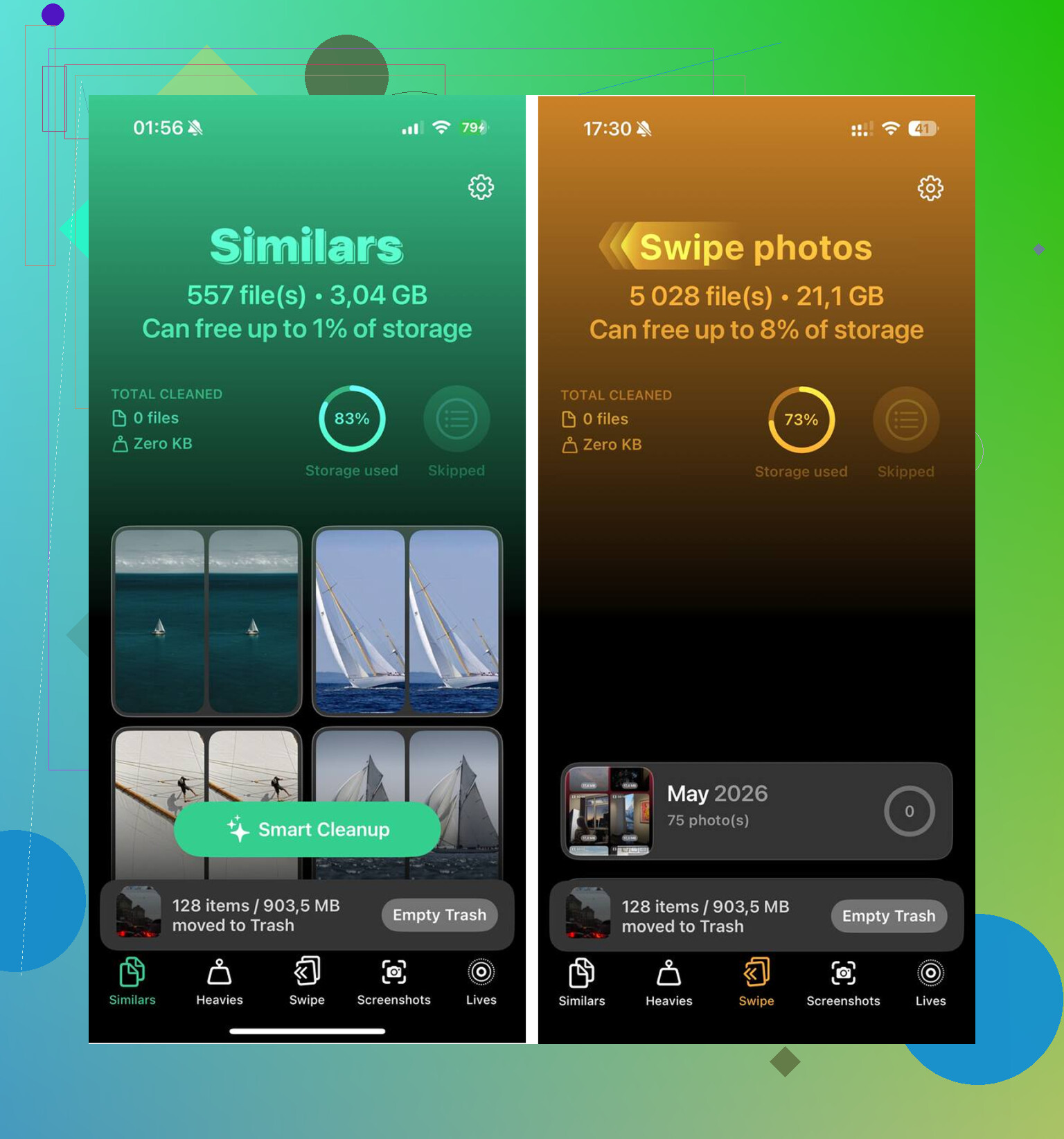
If you want a faster visual way to sort duplicates, big videos, and screenshots, Clever Cleaner is actually handy. And if you’re wondering whether cleaner apps are legit, this explains one that’s safe to use based on security researcher reviews.
Big rule: delete replacable stuff first, memories last. Thats the least painful way to do it.
I’d add one thing the others only touched lightly: check if Apple Intelligence / downloaded voices / language packs are taking space. On newer iPhones, extra Siri voices, keyboards, dictionaries, and offline translation data can quietly eat a few GB. Not usually the main culprit, but worth checking if the obvious stuff looks normal.
Also, I slightly disagree with the “reinstall cache-heavy apps early” approach. Reinstalling apps can log you out, remove drafts, and wipe offline data you actually wanted. I’d save that for apps you know are disposable.
My safer cleanup order:
-
Restart first
If storage accounting is stuck, you may get space back without touching anything. -
Check Storage Recommendations
InSettings > General > iPhone Storage, Apple sometimes suggests things like reviewing downloaded videos or large attachments. Use those before manual digging. -
Look for downloaded system extras
Settings > Accessibility > Spoken Content > Voices, translation/offline language downloads, extra keyboards, dictionaries. -
Audit Notes and Books
Scanned PDFs in Notes and downloaded books/audiobooks can be huge and get overlooked. -
Review GarageBand, iMovie, CapCut, Lightroom, Canva
Creative apps often stash project files locally. One unfinished video project can be several GB. -
Then use Offload App selectively
Not every unused app should stay. Some games keep giant “documents and data” folders, so offloading helps less than expected.
If you want faster visual triage, Clever Cleaner is useful for surfacing large videos and duplicates.
Pros: quick scan, easier than manual album hunting, good for screenshots and similar shots.
Cons: still needs your judgment, may flag photos you want, and cleaner apps in general won’t fix bloated system data.
@viajeroceleste, @kakeru, and @mikeappsreviewer covered the main traps well. I’d just say this: before deleting memories, hunt for projects, downloads, and hidden app libraries. That’s where the surprise wins usually are.