My external hard drive won’t open in Windows and shows “The parameter is incorrect,” but it still appears in Disk Management. I’m trying to figure out if this is a file system issue, drive failure, or something I can fix without losing the data. What should I try next?
Be careful with that error. 'The parameter is incorrect' doesn’t always tell you what actually went wrong. It can show up after an unsafe unplug, a power loss, a bad USB cable, or file system damage. Windows may refuse to open the drive even though the data is still sitting there.
The main thing is to stop writing to the drive for now. Don’t format it, don’t copy anything onto it, and don’t rush into CHKDSK if the files matter. CHKDSK can fix some file system problems, but on a damaged drive it can also change or remove damaged file system records while trying to repair them.
I’d check the simple stuff first:
- Use a different USB cable.
- Plug it straight into another USB port, ideally one on the back of a desktop.
- Try the drive on a different computer.
- Open Disk Management and see whether the drive shows up with the right capacity.
If Disk Management sees it, even when File Explorer says it’s inaccessible, recovery is still very possible.
For that, Disk Drill is a reasonable place to start. It’s worked well for drives where Windows couldn’t open the volume because the file system was messed up.
The safer workflow would be:
- Install Disk Drill on your internal/system drive, not on the external drive with the problem.
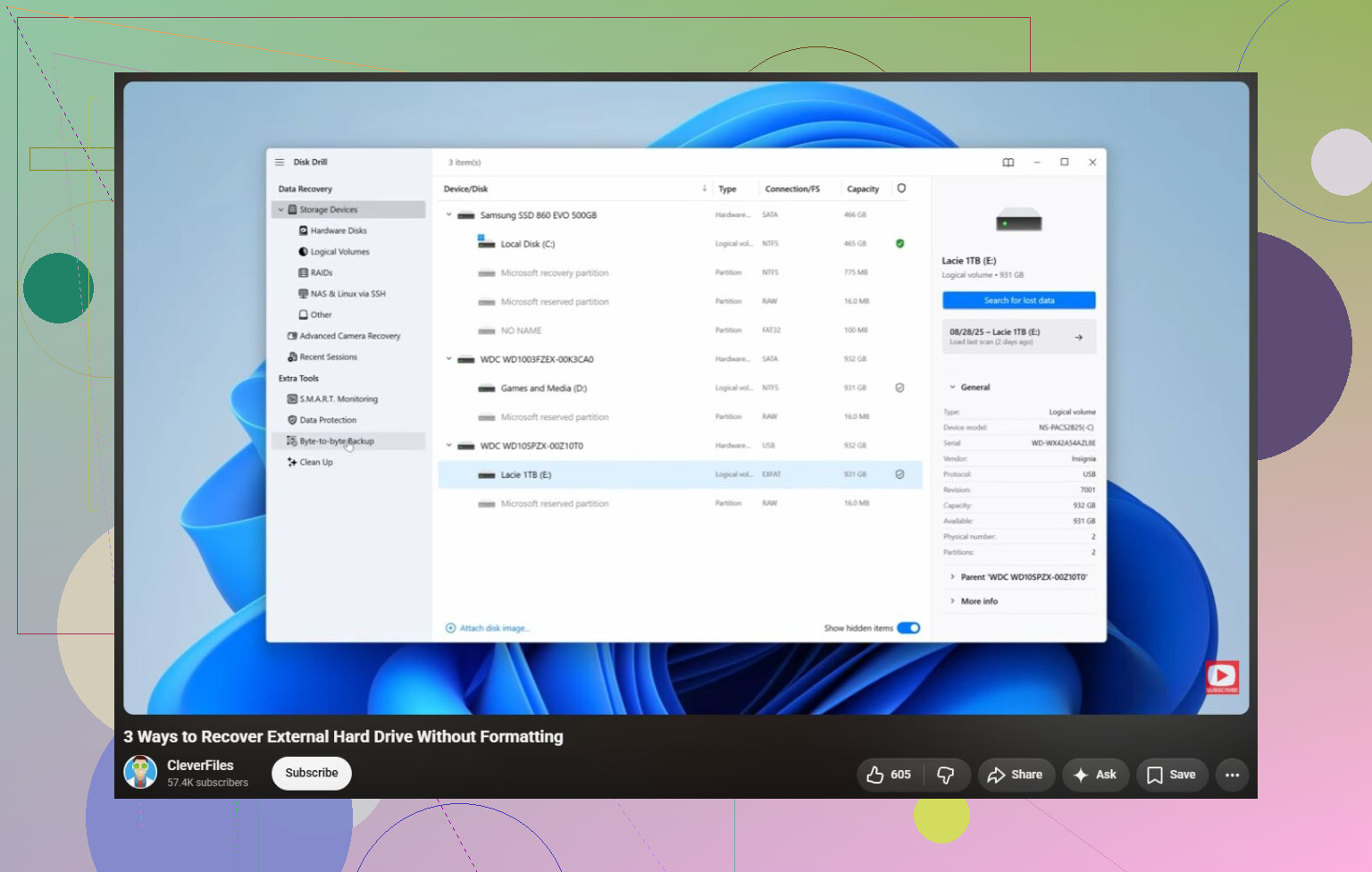
- Open it and see if the external drive appears in the device list.
- If the drive is acting flaky, use Byte-to-byte Backup before scanning. That makes a full image of the drive, so you can scan the copy instead of repeatedly stressing the original. This matters if the drive disconnects, clicks, or behaves inconsistently.
- Mount the image, or scan the original drive only if it seems stable.
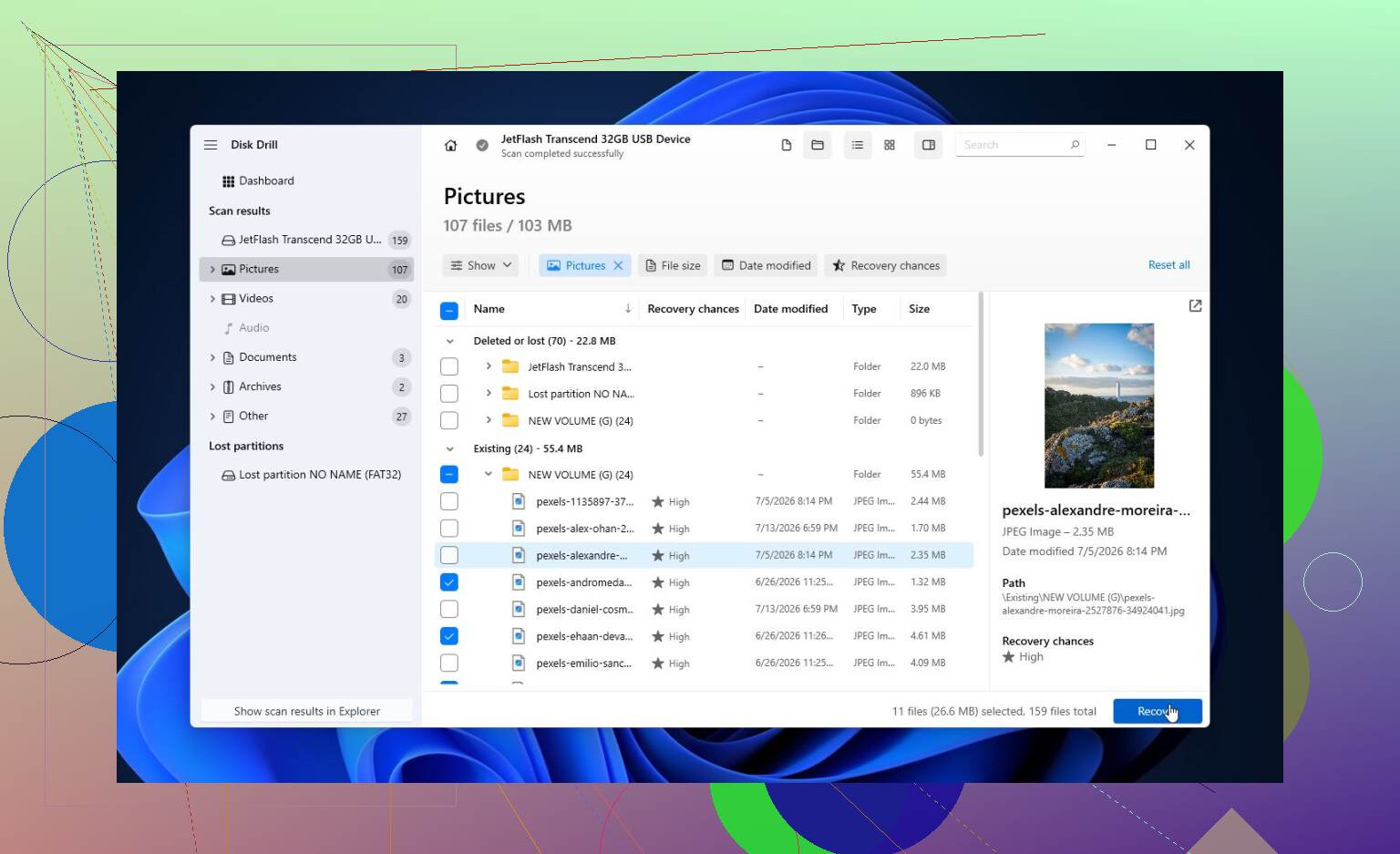
- Run a Universal Scan. It looks for normal files, deleted files, and data that can still be rebuilt from the damaged file system.
- Preview files before recovering them. If photos, documents, or other important files preview correctly, that’s a good sign.
- Recover everything to a different drive. Never save recovered files back to the problem drive. The free Windows version allows up to 100 MB of recovery, which is usually enough to check whether your files are actually recoverable before paying.
After the important files are copied somewhere safe, then it makes sense to try fixing the drive.
If Windows still recognizes the file system as NTFS, exFAT, or FAT32, you can run:
chkdsk X: /r
Replace X with the correct drive letter.
If CHKDSK says the drive is RAW, or it won’t run at all, try TestDisk instead. It can often repair partition damage or recover lost partitions without formatting the drive.
If recovery is done and none of the repair tools help, a quick format is the next thing I’d try. If it was only a logical file system issue, a fresh format may clear the error. But if the same problem comes back after formatting, I wouldn’t trust that drive anymore. At that point it may be failing hardware.
There’s also one odd Windows-related thing worth checking: regional settings. A wrong decimal separator has caused this error for some people. It’s not the usual cause, but if the same error happens with multiple drives or in other Windows tasks, it’s worth looking at.
If the drive vanishes from Disk Management, clicks, spins up and down over and over, or S.M.A.R.T. shows lots of pending or reallocated sectors, stop trying DIY fixes. That points more toward physical failure, and keeping the drive powered on can make recovery harder. If the data is important, a professional recovery lab is the safer move.
20 Likes
Expect the drive to be readable only long enough to copy data, not necessarily fixable in place. If Disk Management shows the correct size, focus on recovery first; if it shows 0 bytes, wrong size, or keeps reconnecting, skip software repairs and assume hardware trouble.
Do not click Initialize, Format, or “scan and fix” if Windows offers it. Disk Management seeing the drive only means the USB bridge and partition table are visible enough for Windows to notice it, not that the volume is safe to repair. I’d check whether it shows a normal partition with the expected size and file system, or whether it says RAW/unallocated. RAW usually points to file system damage; unallocated or changing sizes is a worse sign. If the data matters, treat it as read-only and recover or image it first, like @espritlibre said. Disk Drill or similar tools are fine for checking recoverability, but the key detail is saving to another disk. After that, you can worry about CHKDSK or formatting. Fixing first is how people turn a recoverable drive into a mess.
Don’t keep unplugging and replugging it over and over to “see if it changes.” Each failed mount attempt can make a weak drive worse, and Windows may keep trying background repairs or indexing.
If the drive contains anything important, clone/image it first, then scan the copy with Disk Drill or another recovery tool. After recovery, I’d test the bare drive outside the USB enclosure if possible, because sometimes the enclosure board is the problem, not the disk itself.