I’m trying to free up storage on my iPhone by clearing the Facebook app cache, but I’m worried it might remove my saved posts, saved videos, or other account data. Has anyone done this and can confirm what actually gets deleted?
If Facebook is taking up a ridiculous amount of space on your iPhone, you’re not imagining it. The app can grow fast, mostly because it keeps local files around to make the feed, videos, Reels, and images load quicker.
Clearing Facebook data will not delete your account
Your Facebook account is not stored on the phone. Your friends, posts, profile photos, saved posts, and other account stuff are on Facebook’s servers. Removing local app data only clears files the iPhone has saved temporarily. You may have to log in again depending on what method you use, but your account and saved content are not erased.
The real cleanup option is deleting and reinstalling
On iPhone, there isn’t a simple “clear cache” button for apps like Facebook. Apple gives you a couple of storage options, but they do different things.
If you go to Settings > General > iPhone Storage > Facebook, you’ll see Offload App. That removes the app itself while keeping its Documents and Data. It can help a little, and it usually keeps your login and settings around when you reinstall, but it does not fully clear the part that often takes up the most space.
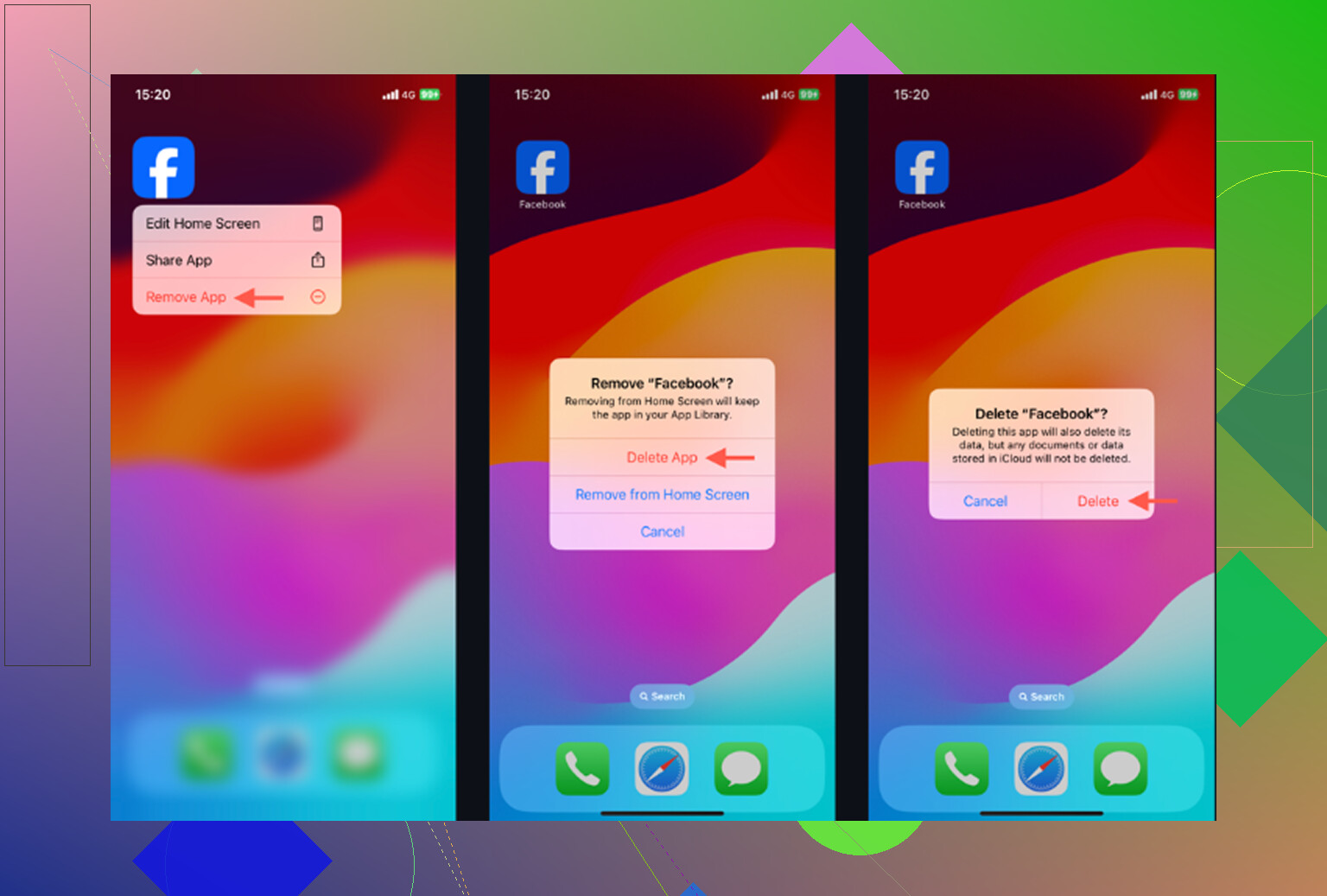
Delete App is the stronger option. You can do it from that same iPhone Storage screen, or by long pressing the Facebook icon and choosing Remove App. This removes the app and its local files, including the cache. After reinstalling Facebook, the storage number should drop a lot. You’ll probably need to sign back in, but your account data syncs back because it was never stored only on the phone.
There is also a smaller cleanup inside Facebook itself. Go to Menu > Settings and Privacy > Settings > Browser, then clear Browsing Data. That mainly clears in-app browser cookies and cached website data. It’s fine to do, but don’t expect it to fix a huge Facebook storage number by itself.
Why Facebook fills back up again
The annoying part is that the cache comes back quickly. Scroll through photos, watch Reels, let videos autoplay, open links, and Facebook starts saving more temporary files again. That’s how the app is built. Clearing it once does not stop it from rebuilding the same kind of cache over the next few days.
If the phone is still slow, check Photos next
A lot of people clear Facebook and then wonder why the iPhone still feels full or sluggish. Usually the bigger storage problem is the photo library, not the app cache.
Old screenshots, duplicate-looking shots, burst photos, and forgotten videos can take up way more space than Facebook. iOS also needs free storage to work properly in the background. When the phone is almost full, everything can start feeling slower, even after you clear one app.
Clever Cleaner is useful for that part because it focuses on the photo library instead of pretending to clear app cache. It’s free, with no ads or subscription. Facebook cache still has to be handled manually, but this helps find the files that are actually eating storage.
The Heavies tab shows your biggest files first, with exact sizes. That makes it easy to spot one huge video that may be taking more space than a pile of app cache.
The Similars tab groups photos that look almost the same and picks a Best Shot, so you don’t have to inspect every version one by one. Screenshots also show file sizes before you delete them, which makes cleanup less random.
Everything is processed on the device, so the app does not upload your photos to an outside server.
The practical order is simple: delete and reinstall Facebook if you want the cache gone right now, then clean up the photo library for the storage issue that usually matters more. After deleting photos or videos, open Photos > Recently Deleted > Delete All. Otherwise, the space will not actually be freed yet.
21 Likes
Expect to lose convenience data, not your Facebook library. Saved posts, saved videos, groups, friends, photos you uploaded, comments, Marketplace listings, and account settings that live in Facebook should still be there after clearing cache or reinstalling the app. Those are tied to your account, not that copy of the app on your iPhone.
The stuff I’d be more careful about is anything half-finished or only sitting locally. If you have an unsent post, a Reel draft, a story you started editing, or something stuck in the upload process, don’t delete the app until you either post it, save it somewhere else, or decide you don’t care. Same goes for browser sessions inside Facebook. Clearing browsing data can log you out of sites you opened through Facebook, even though it won’t touch your Facebook saved posts.
I’d use this order: first clear Facebook’s in-app browser data if you want the low-effort option, then restart the phone and check storage. If Facebook is still huge, delete and reinstall it. Just be ready to sign in again, redo a few permissions, and wait for the app to rebuild some cache after normal use. It’s safe for saved posts, but it is not a permanent storage fix.
No, clearing cache is not a delete command for your Facebook Saved folder.
Your saved posts and saved videos are basically bookmarks attached to your Facebook account. They are not sitting inside the Facebook app cache like downloaded files in a folder. If you delete and reinstall the app, those saved items should still show up after you sign back into the same account.
The thing I would not gloss over is the login side of it. Before deleting the app, make sure you actually know your Facebook password, still have access to the email or phone number on the account, and can receive any two-factor code if you use 2FA. The saved posts are safe, but getting back into the account is where people sometimes create a new headache for themselves.
A few things that can disappear or reset:
- Draft posts, unfinished Reels, unfinished Stories, or anything you were editing inside the app
- Stuff waiting to upload
- In-app browser cookies, so websites opened through Facebook may log you out
- App permissions and notification preferences
- Some “recent searches” or local viewing history type convenience data
- Cached images/videos, meaning things may load slower for a bit after reinstalling
A small catch with saved videos: if the original poster deletes the video, changes privacy, or Facebook removes it, it can vanish from your saved list later. That has nothing to do with you clearing cache. The saved list is more like a pointer to the original post, not a permanent private copy.
I agree with the earlier comments that deleting and reinstalling is usually the only real way to shrink Facebook on an iPhone. Offloading sounds like the cleaner option, but it often leaves the bulky “Documents & Data” part behind, so it may not solve the problem you’re trying to solve. If you want the cache gone, delete the app, reinstall it, then log back in.
One annoying detail: don’t judge the storage number instantly. iPhone Storage can be slow to update, and Facebook will start rebuilding cache as soon as you scroll, watch videos, open comments, or tap links. So if it drops from several GB to a smaller number and then starts climbing again, that is normal. It does not mean your saved posts are being downloaded or duplicated. It just means Facebook is being Facebook.
If your goal is freeing serious space, check Photos and Messages too. Facebook can look huge, but a couple of long videos in Photos or old message attachments can be worse. Clever Cleaner is only relevant for the photo cleanup side, not Facebook cache, so don’t expect it to magically clear app data. For Facebook itself, manual delete/reinstall is still the practical route.
So the short answer is: your saved posts and saved videos should remain. Just finish or abandon drafts first, confirm you can log back in, then delete and reinstall if you want the cleanest cache reset.
The sneaky downside is that after reinstalling, Facebook can make it look like your saved stuff disappeared if you sign into the wrong account, the wrong profile, or an old account tied to a different email/phone number.
If you mean the actual Facebook “Save” button on posts or videos, those should stay with your Facebook account. Clearing cache or deleting the app is not the same as unsaving them. After you log back in, your Saved area should still be there. If you saved a photo or video to your iPhone’s Photos app, that is separate too, and deleting Facebook should not remove it from Photos.
Where people get tripped up is the messy stuff around the account: being logged into a second account, losing 2FA access, or Facebook showing a partially loaded Saved page right after reinstalling. Give it a minute on Wi-Fi before panicking. I’d check that you can log in from Safari first, then delete/reinstall the app. If your Saved list appears empty after that, verify the account/profile before assuming the cache wipe deleted anything.
If you use Facebook’s built-in code generator for two-factor, deleting the app wipes that generator, and it won’t magically come back on reinstall. A few people got locked out that way because they assumed the codes lived on the account. They don’t. Sort out a backup login method before you touch the delete button.
Everything else about saved posts is right, they’re server-side bookmarks and reinstalling won’t touch them. But I think the thread is overselling delete/reinstall as the fix. It shrinks the number for a day, then Facebook refills it the second you scroll. If that cycle annoys you, the app itself is the problem, not your cleanup routine. And yeah, @mikeappsreviewer is correct that Photos is usually the real hog, so a photo tool like Clever Cleaner makes more sense there than fighting Facebook cache over and over.