After a recent Windows update, my hard drive started showing corruption errors and some files won’t open. I’m trying to figure out if the update caused a file system issue, driver problem, or failing drive, and I need help recovering data and getting the disk working again.
If Windows is calling the drive corrupted, don’t assume the files are gone yet. If it still shows up in Disk Management and the size looks right, that usually means there’s at least a chance the file system is messed up while the actual data is still sitting there.
The main thing is to stop doing anything that writes to the drive.
- Don’t format it when Windows prompts you.
- Don’t copy anything new onto it.
- Don’t run CHKDSK as the first step.
- Don’t keep reconnecting it over and over if it keeps dropping out.
All of that can change data on the disk, and that can make recovery worse. CHKDSK especially can help in some cases, but it can also “fix” the file system in a way that makes missing files harder to recover later.
Drives can get into this state for a bunch of boring reasons: sudden shutdowns, power loss, yanking out an external drive without ejecting it, bad sectors, malware, crashes, or just age. A lot of the time Windows can’t read the structure anymore, even though the files themselves haven’t been overwritten.
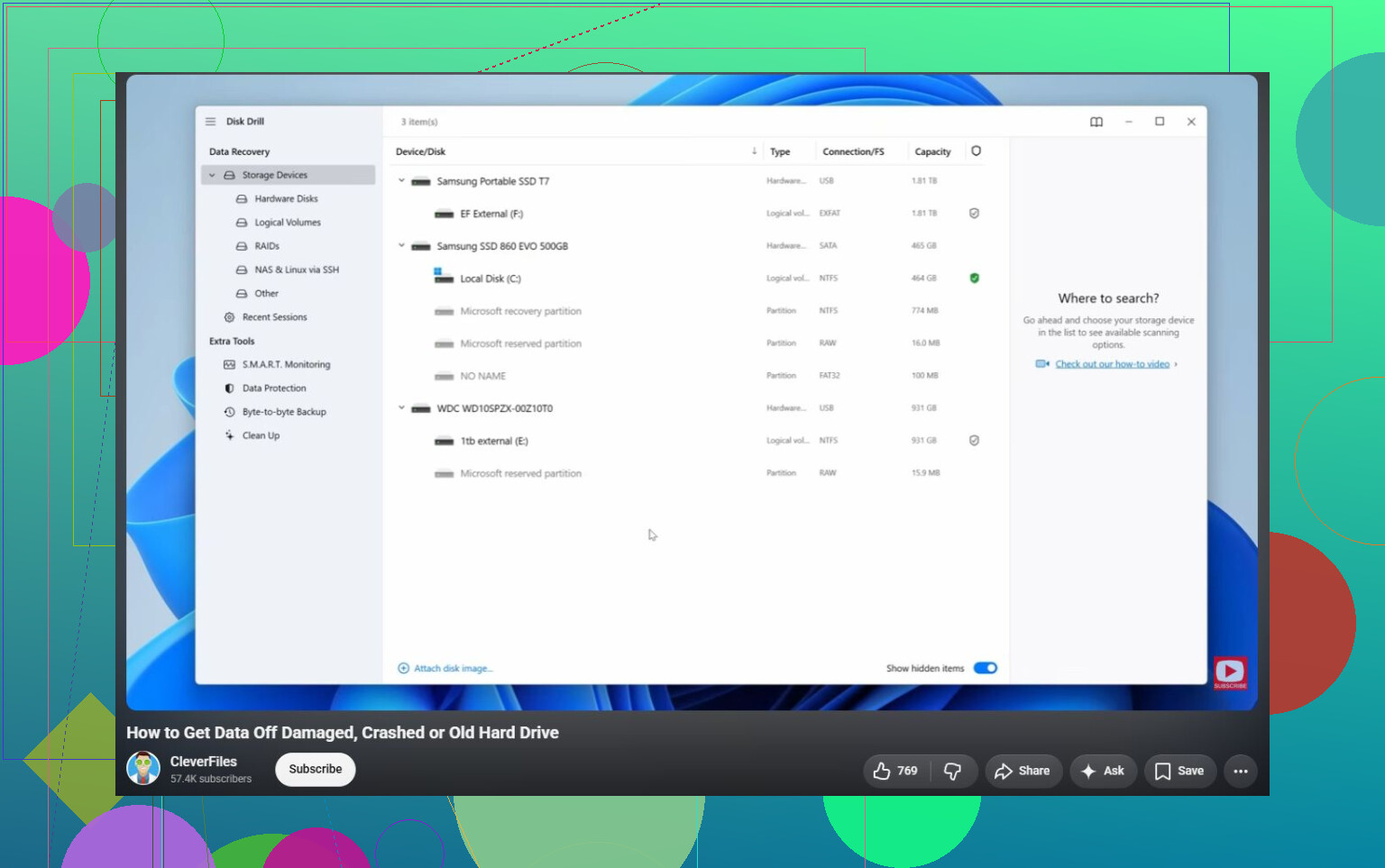
If the drive is still being detected, I’d start with the basic checks first. Look in Disk Management and see if the capacity is correct. If it’s an external drive, try a different USB cable, another port, or another computer, just to rule out a bad connection. After that, focus on copying your important files off before trying to repair the drive.
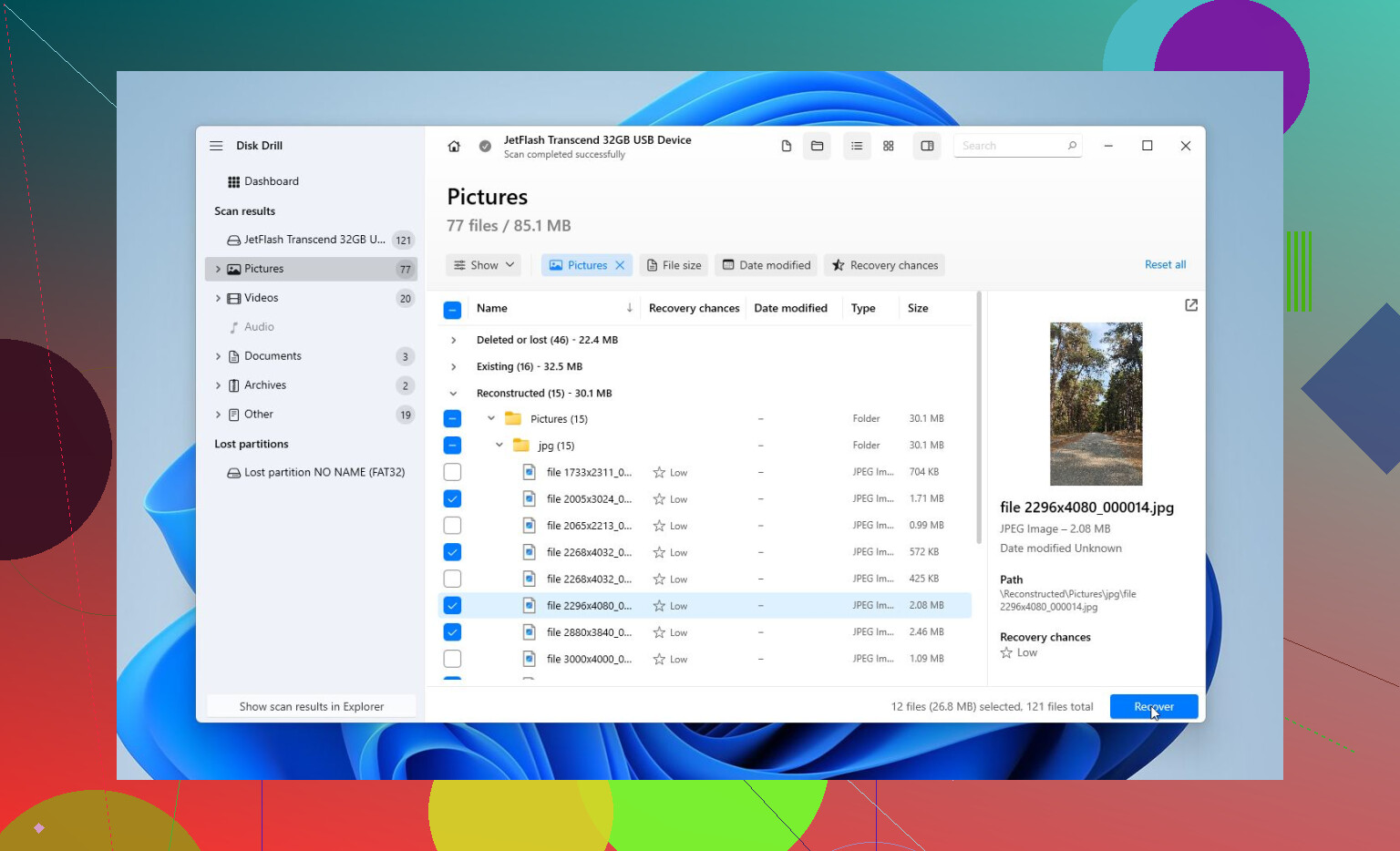
For recovery, Disk Drill is a good option because it can make a full image of the drive first. That matters if the drive is unstable. You don’t want to keep scanning the original disk over and over if it might be failing.
A safer workflow would be:
- Install Disk Drill somewhere else, not on the corrupted drive.
- If possible, make a complete image of the corrupted drive.
- Load that image in Disk Drill.
- Run Universal Scan.
- Preview the found files.
- Recover the files to a different healthy drive.
The preview part is worth using. It lets you check whether your photos, videos, documents, and other files are actually readable before you commit to recovering them. Even without paying for the full version, you can still scan and preview what it finds, which gives you a better idea of whether recovery is realistic.
Once the important stuff is safe, then you can worry about fixing the drive.
I’d usually go in this order:
- CHKDSK, but only after recovery, and only if the file system is still somewhat readable. It can repair file system errors, but it writes changes to the drive.
- TestDisk if the partition is showing as RAW or the partition table looks damaged. Sometimes it can restore access without formatting.
- Format the drive if nothing else works. A quick format can clear logical corruption by creating a fresh file system. If the same drive corrupts again afterward, I wouldn’t keep trusting it with anything important.
Also watch how the drive acts. Clicking sounds, random disconnects, the wrong capacity showing up, or disappearing from Disk Management are bad signs. That’s more likely hardware failure than simple file system corruption, and DIY repair attempts can make things worse.
If you see those symptoms, stop and look at a professional recovery lab instead. They can diagnose the drive, deal with damaged parts if needed, clone it with proper equipment, and recover files from the clone rather than hammering on the failing disk. Many reputable labs have a “no data, no fee” policy, so you generally only pay if they actually get your files back.
So yes, a corrupted hard drive can often be repaired, but don’t make repair the first goal. Get the data off first. After that, you can try CHKDSK, TestDisk, or formatting without risking the only copy of your files.
35 Likes
The sneaky downside here is that Windows may keep trying to “help” every time it boots, and that automatic repair cycle can write more changes to the same disk. If this is the drive with your important files on it, I’d avoid letting Startup Repair, reset options, or repeated boot repairs run until you’ve copied or imaged what you care about.
I wouldn’t jump straight to “the update corrupted the drive.” A Windows update usually involves a reboot, driver reloads, indexing, cleanup, and a lot of disk activity. That can expose a drive that was already weak, especially if it had pending bad sectors or an old file system problem. It can look like the update caused it when the update was just the first heavy write/read event in a while. Checking SMART status is worth doing before repair attempts. If you see warnings for pending sectors, reallocated sectors, or lots of read errors, treat it like failing hardware, not a Windows problem.
If the SMART status looks clean and the drive stays connected normally, then I’d start thinking about software causes: storage controller driver update, chipset driver, USB enclosure weirdness, or Windows mounting the volume badly after the update. In that case, rolling back a storage/USB driver or testing the drive from another machine can tell you a lot. But if the data matters, I agree with the earlier point about recovery first. Whether you use Disk Drill, another recovery tool, or a Linux live USB just to copy files, don’t save anything back to the problem drive. Get the files onto a different disk, then experiment with CHKDSK or driver fixes afterward.
Stop booting from that disk.
If it’s the same drive Windows lives on, every restart is more than “just checking.” Windows may be writing logs, update rollback files, temp files, search index stuff, crash dumps, browser cache, restore data, and whatever else it feels like doing. That matters even if you never intentionally save anything. So if the files matter, I’d shut it down and work from another boot drive or another computer.
The update may have been involved, but I’d be careful about blaming it too quickly. A Windows update is a stress test nobody asked for. Lots of reads, lots of writes, reboot at a bad moment, maybe a storage driver changes, maybe the machine freezes during cleanup. That can expose a flaky drive or make an existing file system problem visible. It does not automatically mean Microsoft “corrupted the hard drive.”
The exact wording of the error would help a lot. “You need to format this drive,” “file or directory is corrupted and unreadable,” “SMART failure predicted,” “access denied,” and “Windows found errors on this drive” are different problems. People lump all of those together as corruption, but the next step changes depending on which one you’re seeing.
A quick triage I’d do before any repair:
- Check whether the drive shows the correct size in BIOS/UEFI or Disk Management.
- If it’s an external drive, remove the easy variables first: different cable, direct USB port, no hub, different PC.
- If it’s an internal SATA drive, reseat/replace the SATA cable if this is a desktop.
- If it’s an NVMe SSD, check that it is not overheating or disappearing after a few minutes.
- Look at Windows Update history and Device Manager only after the data is safe, not while you’re still trying to recover files.
The “correct size” thing is underrated. If a 2 TB drive suddenly shows as 0 bytes, 32 MB, or some nonsense size, don’t waste time with file system tools. That points more toward hardware, firmware, enclosure, or controller trouble. If the size is right and the partition is there but Windows says RAW or asks to scan/repair, then logical damage is more likely.
I slightly disagree with the idea that CHKDSK is always the monster under the bed. It’s useful when you don’t care about recovery and just want a usable file system back. The problem is running it too early. CHKDSK is not a recovery tool. It repairs the file system for Windows, and that can mean moving, deleting, or renaming damaged records. If you have only one copy of the data, that’s a bad first move.
If this were my decision tree, it would be:
- Data important and no backup: image/clone first, then recover from the image.
- Data important and drive is clicking, vanishing, or showing wrong capacity: stop DIY and consider a lab.
- Data not important: run CHKDSK or format and test the drive afterward.
- Data already backed up: uninstall/roll back the update or storage driver and see if the issue repeats.
Disk Drill or similar tools are fine if the disk is stable enough to read, especially if you can scan an image instead of the original drive. The caveat is that recovery software can’t fix a dying disk, and repeated full scans can be rough on weak hardware. If the drive is acting physically unstable, cloning with a tool meant for bad drives is usually the better first step than running a pretty recovery scan directly against it.
For SSDs, don’t get too relaxed just because SMART says “Good.” Consumer SSD health reporting can be vague. I’d still check the manufacturer’s tool if you can, like Samsung Magician, Crucial Storage Executive, WD Dashboard, Kingston SSD Manager, whatever matches the drive. Look for media errors, unsafe shutdowns, spare blocks, temperature, and firmware warnings. A plain green “OK” in a generic tool is not the whole story.
One more thing people forget: if this is a laptop with BitLocker or device encryption, make sure you have the recovery key before moving the drive around or changing boot settings. A repair attempt, BIOS change, TPM weirdness, or booting from external media can trigger a BitLocker prompt. That’s not corruption, but it can look like another disaster if you don’t have the key ready.
After you get the files off, then I’d test whether the update actually matters. Roll back the storage controller driver if one changed. Check the Windows update history for driver updates, not just security updates. Run the drive manufacturer’s long test. Then wipe and reformat the drive only if the hardware test passes. If it throws file system errors again after a clean format, stop trusting it. A drive that corrupts twice is not a drive I’d keep using for anything important.
Fast Startup can leave the volume in a weird semi-hibernated state, so the “shutdown” you’re doing may not be the clean reset you think it is. If Windows updated, crashed, then keeps coming back with corruption messages, I’d do one proper full shutdown before assuming the update itself trashed the drive. Hold Shift while clicking Shut down, or run shutdown /s /t 0 from an admin prompt. Don’t do this as a repair plan if the disk is clicking or disappearing, but it’s worth knowing that normal shutdown is not always normal shutdown on Windows.
I agree with the others that recovery comes before repair. Where I’d be a little more skeptical is spending a lot of time chasing the exact update right now. If the drive has bad sectors or the file system is already dirty, uninstalling updates, rebooting ten times, and trying driver rollbacks can turn a recoverable mess into a worse one. Get the files copied or image the disk first. Disk Drill is fine for scanning if the drive is stable, but install it somewhere else and recover to a different drive. Saving recovered files back onto the same damaged volume is how people accidentally overwrite the stuff they were trying to save.
After the data is safe, check the boring Windows stuff: Event Viewer for Disk, Ntfs, storahci, stornvme, or USB storage errors around the time of the update. That will tell you more than the Windows Update screen. If you see controller resets, bad block warnings, or the same NTFS errors before the update date, the update probably just exposed a problem that was already there. If the logs only start after a storage driver update, then rolling that driver back makes sense. But either way, don’t trust the drive again until it passes a long manufacturer test and survives a fresh format without throwing new errors.
The replies already cover recovery before repair. A simpler route is checking existing backups first, rather than scanning the damaged drive.
If you synced your fiels to OneDrive before the errors, sign in from another computer. Check whether those copies open. For damaged cloud copies, use Version history to restore an earlier version.
Download your recovered files onto a seperate, healthy drive and open your important documents to check them. Keep the affected PC off during this process. Focus on getting usable copies back before troubleshooting the update.
@jackson, OneDrive isn’t the clean backup people assume here. If the file went unreadable on disk before the sync client caught it, OneDrive can happily push that broken version up to the cloud, and then your ‘backup’ is just a second copy of the corruption. Version history saves you sometimes, but only for file types it versions, and only if you catch it before the good versions age out. So yeah, check the cloud copy, but actually open the files and confirm they’re intact before you trust them. A green sync check mark means nothing about whether the bytes are good.
The thing nobody’s really flagged: how you power the drive during all this matters as much as what software you point at it. If it’s an external over USB, a flaky cable or an underpowered port can make a perfectly healthy drive throw read errors that look exactly like corruption. I’ve seen drives ‘recover’ the second they got moved to a powered hub or a rear motherboard port instead of a front panel one. Rule that out before you conclude the file system is toast.
On the imaging advice from @mikeappsreviewer and @sterrenkijker, I’m with them, but one small practical thing with Disk Drill people miss: it lets you save the scan results and reload them later, so if the drive is unstable you scan once, dump the session, and keep working off that without spinning the disk back up every time. On a drive that’s dropping out, not having to re-scan from scratch is the part that actually saves you.
Where I’d slow everyone down is the SMART talk. Clean SMART on a spinning drive still doesn’t tell you about a failing head or a controller that drops under load. If the drive reads fine for two minutes then vanishes, that pattern alone is worth more than any SMART table. Trust behavior over numbers.
Last thing, and it’s dull but real: decide right now where the recovered files are going before you start. People image the drive, run the scan, then realize they don’t have a second healthy disk big enough to hold the output, and they end up tempted to write back to the same drive. Have the empty destination plugged in and confirmed working first. Everything downstream falls apart if that step is an afterthought.