My external drive suddenly changed from NTFS to RAW after a restart, and now Windows says I need to format it before I can use it. It has important files on it, and I’m trying to find a safe way to convert RAW to NTFS without data loss. Has anyone fixed a RAW drive and kept their files intact?
I’d hold off on converting it to NTFS right away. When Windows labels a partition as RAW, what I usually read from that is simple, it no longer understands the file system sitting there. I’ve seen this happen after a bad unplug, a write process getting cut off, file system damage, weak sectors, malware, or a drive starting to die. A lot of the time, the data is still on the disk. The mistake is trying to “fix” it before pulling your files off.
Here’s the order I’d follow.
First, look at the drive in Disk Management
Check whether Windows shows the drive with the correct size. If the capacity looks normal and the only odd thing is the RAW label, you still have a fair shot at recovery. If it keeps dropping off, shows some nonsense size, freezes the system, or starts clicking or buzzing, I’d stop there. I’ve had drives go from readable to dead after too many retries.
Next, recover the files before doing anything else
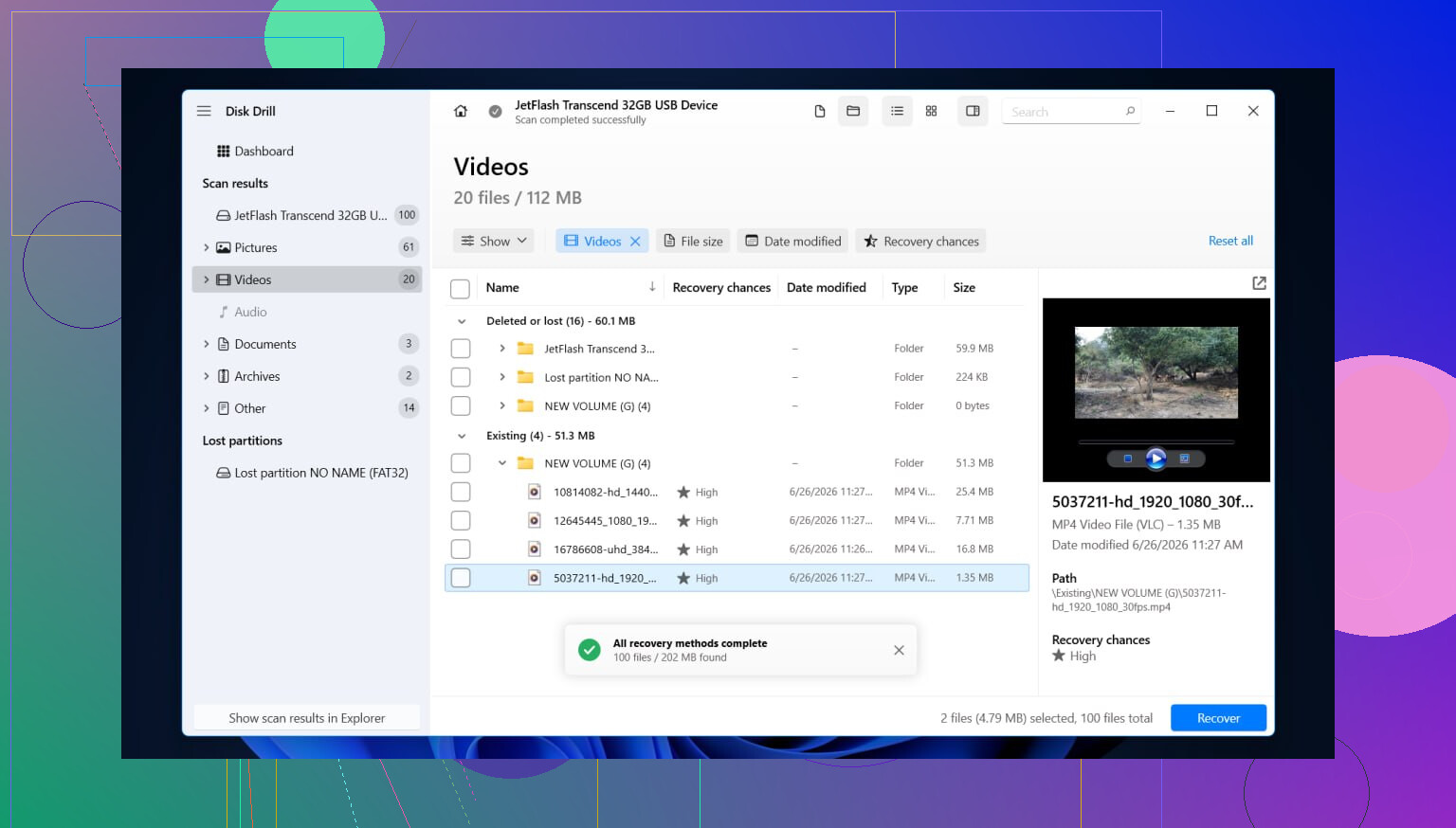
I’d use Disk Drill for this kind of case because it keeps things simple and runs through more than one recovery pass in the same scan, which saves time.
This is how I’d do it:
- Install Disk Drill on a different disk. Don’t put it on the RAW drive.
- Open it, then pick either the RAW partition or the whole physical device.
- Hit Search for lost data and leave it alone until the scan finishes. RAW volumes often scan slow, sometimes painfully slow.
- Sort through the results with the type filters or the search box. If folder view is available, check it. When the old folder layout shows up, recovery tends to go smoother.
- Preview the files you care about, photos, docs, video, whatever matters, and make sure they open.
- Select the stuff you want back.
- Save the recovered files to another drive, not to the damaged one. I did this wrong once years ago. Bad idea.
If the drive starts disconnecting mid-scan or crawls so badly it feels broken, I’d switch plans and make a full byte-for-byte image first. Reading from the image is safer than hammering a weak disk over and over.
After your files are safe, deal with the RAW volume
Only after recovery would I touch repairs. The right move depends on what caused the mess.
Stuff I’d check, in plain terms:
- Format it to NTFS if the file system is trashed and you no longer need anything left on it.
- Rebuild or restore the partition if the partition table got damaged.
- Assign a drive letter if Windows sees the partition but refuses to mount it right.
- Run CHKDSK only after recovery is done. It changes the file system, so I wouldn’t treat it like a recovery tool.
- Reinstall or update storage controller and USB drivers if this started after a Windows update, or if the drive fails on one PC but behaves on another.
- Replace the drive if SMART errors, bad sectors, or repeat read failures keep showing up. At that point I stop trusting the hardware.
Once it seems fixed, test it a bit. Copy over a few large files, unplug it cleanly, reconnect it, then read those files back. If the partition turns RAW again after formatting, I’d stop trying to rehab it. In my experince, when a drive repeats the same failure, the hardware is usually the real problem.
23 Likes
Yes, but not in the way most people mean it.
If your drive shows RAW, Windows no longer reads the NTFS structure. A true RAW to NTFS ‘conversion’ without data loss is rare. Most of the time, you recover the files first, then reformat the drive back to NTFS. That is the safe path.
I agree with @mikeappsreviewer on one big point, do not format first. I disagree a bit on repair timing though. If this is an external HDD with no signs of hardware failure, tools like TestDisk sometimes restore the partition or NTFS boot sector fast enough to bring the volume back without a full file-by-file recovery. It does not always work, and if the disk is unstable, I would skip it.
My order would be:
-
Check SMART health with CrystalDiskInfo.
If it shows Caution or Bad, stop messing with the original drive. Clone it first. -
Try the drive on another USB port, another cable, and another PC.
I’ve seen ‘RAW’ turn out to be a bad enclosure or weak USB cable. Stupid, but it hapens. -
If the drive is stable, scan it with Disk Drill.
Disk Drill is solid for RAW drive data recovery because it looks for lost partitions and file signatures in one workflow. Recover files to a different disk. -
If you want to try a non-destructive fix before formatting, use TestDisk.
Look for:
- Repair NTFS boot sector
- Rebuild boot sector
- Restore partition table
- After your files are safe, delete the RAW volume and format NTFS.
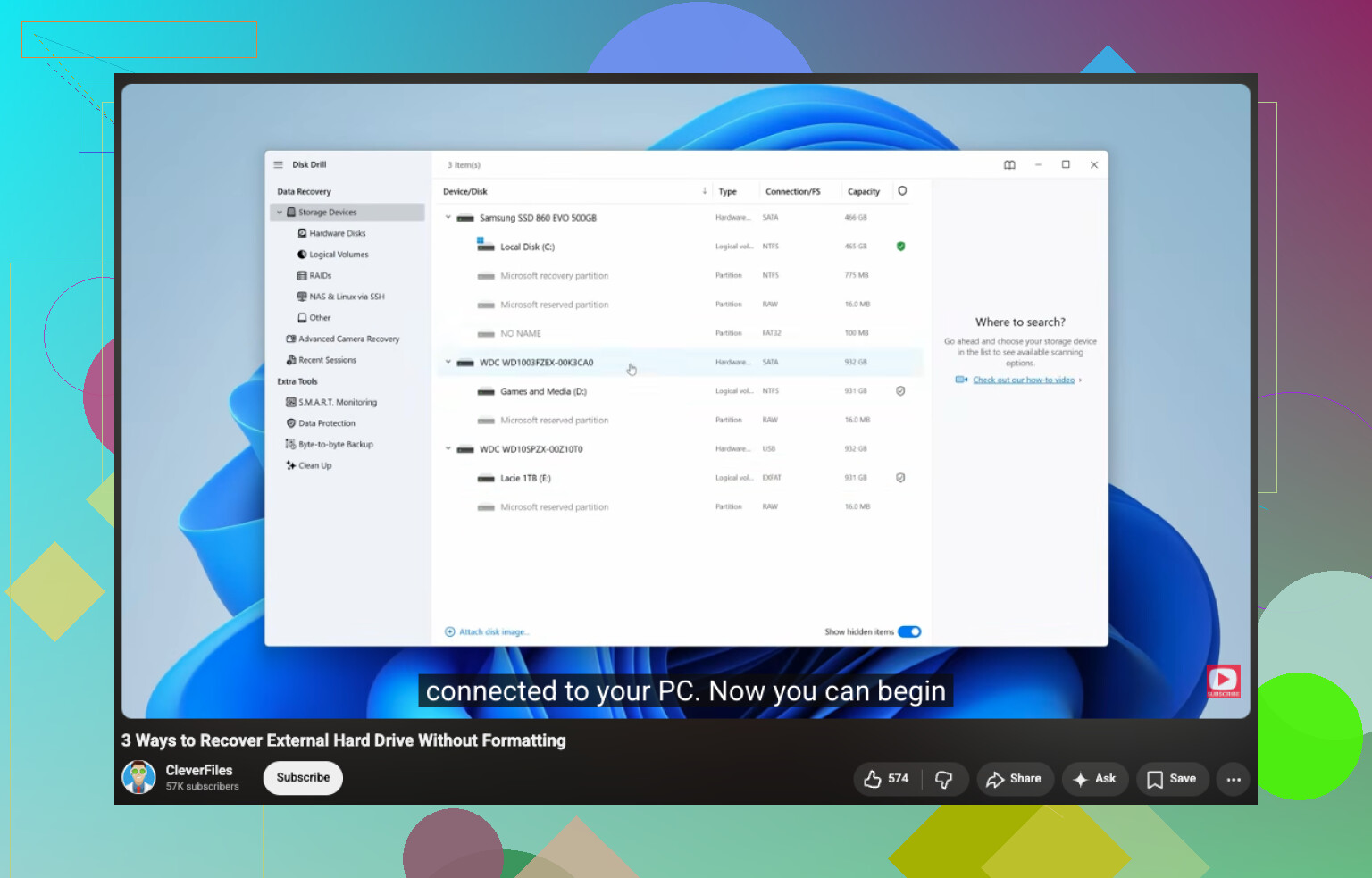
For anyone searching this later, the goal is simple: recover files from a RAW drive without formatting first. This video covers the process well: how to recover files from a RAW drive without formatting
One more thing. If CHKDSK says RAW, do not force it. CHKDSK is for repair, not recovery. It sometimes makes a mess worse. I learned taht one the hard way.
Not really as a clean “convert” in most cases. RAW usually means Windows lost the ability to read the NTFS metadata, not that the files instantly vanished. So I’m with @mikeappsreviewer and partly with @mike34, but I’m a little less eager to try repairs on the original disk unless the data is replacable. One wrong write and you can turn a recoverable mess into a worse one.
My take:
- If the drive spins up normally and shows the correct capacity, treat it like a recovery job, not a conversion job.
- If it’s an SSD or a flaky external enclosure, be extra careful. SSD behavior after errors can get weird fast, and cheap USB bridge boards lie all the time.
- Before touching the file system, check Event Viewer for disk/ntfs errors. That can tell you whether this was a logical corruption issue or a hardware tantrum.
What I’d do differently is make an image first if the files are truly important. Not everyone does this, but it’s the safer play. Work from the clone/image, not the original. After that, use Disk Drill on the image or the drive itself to recover data to another disk. That’s usually the least risky route for RAW drive data recovery.
If you want a broader read on tools, this roundup on top hard drive recovery and repair software for damaged disks is worth a look.
Then, after recovery, wipe the partition and format NTFS. If it turns RAW again later, yeah… the drive is probly toast.