I misplaced my Samsung Smart TV remote and need to control the TV with my iPad. I tried a couple of apps, but my TV isn’t connecting or responding. I need help figuring out the right setup, what app to use, and whether both devices need to be on the same Wi-Fi network.
Yes. I used my iPad as a remote for a Samsung Smart TV, and the only thing I had to get right first was Wi Fi. The iPad and the TV needed to be on the same network or the apps would sit there doing nothing.
A few apps I tried:
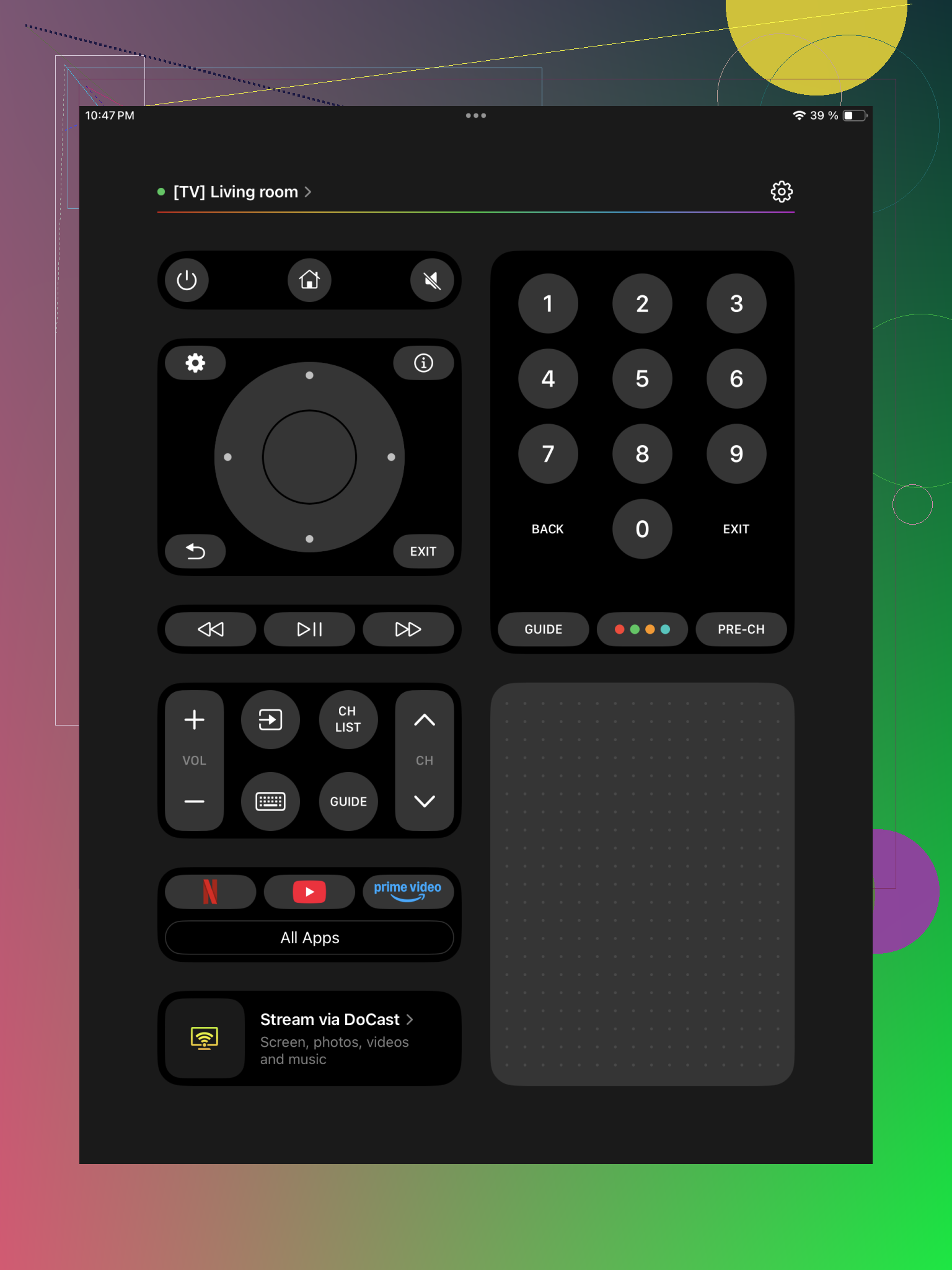
This one felt like the least annoying option. I installed it, opened it, let it scan, picked the Samsung TV, then approved the pairing popup on the TV. Done. I got volume, channels, a trackpad style control, text input from the iPad keyboard, and shortcuts for streaming apps. I kept using it later on another screen too, since it also works with LG, Roku, Fire TV, Android TV, Google TV, and Apple TV. If you hate having five remote apps, this saves some hassle.
- Universal Remote Smart TV
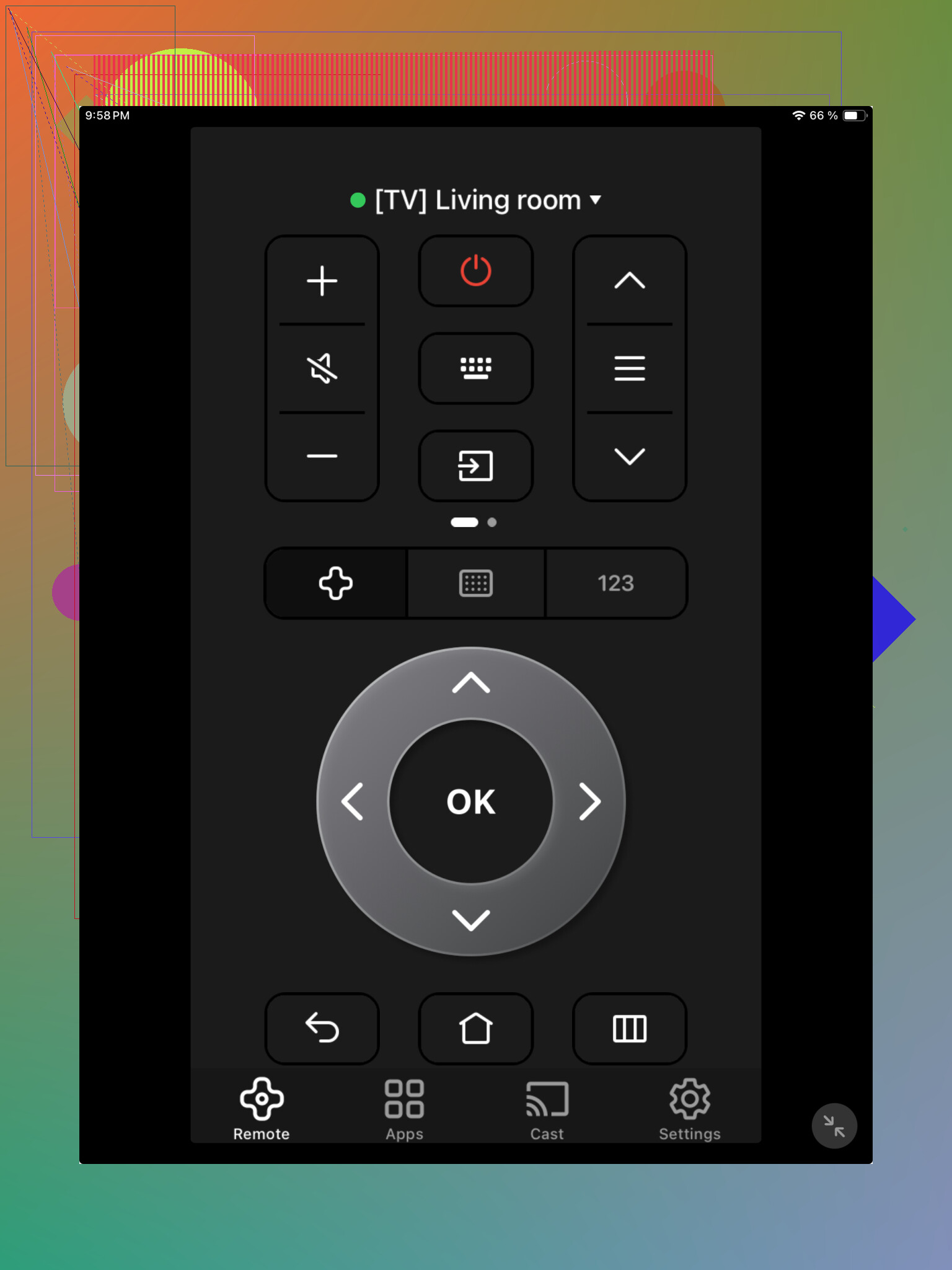
Same general setup. Put both devices on the same Wi Fi, launch the app, tap your Samsung TV from the list. It gives you the usual stuff, playback buttons, navigation, standard remote controls. Nothing fancy, but it did the job when I tested apps back to back.
- Samsung Smart TV Remote Plus
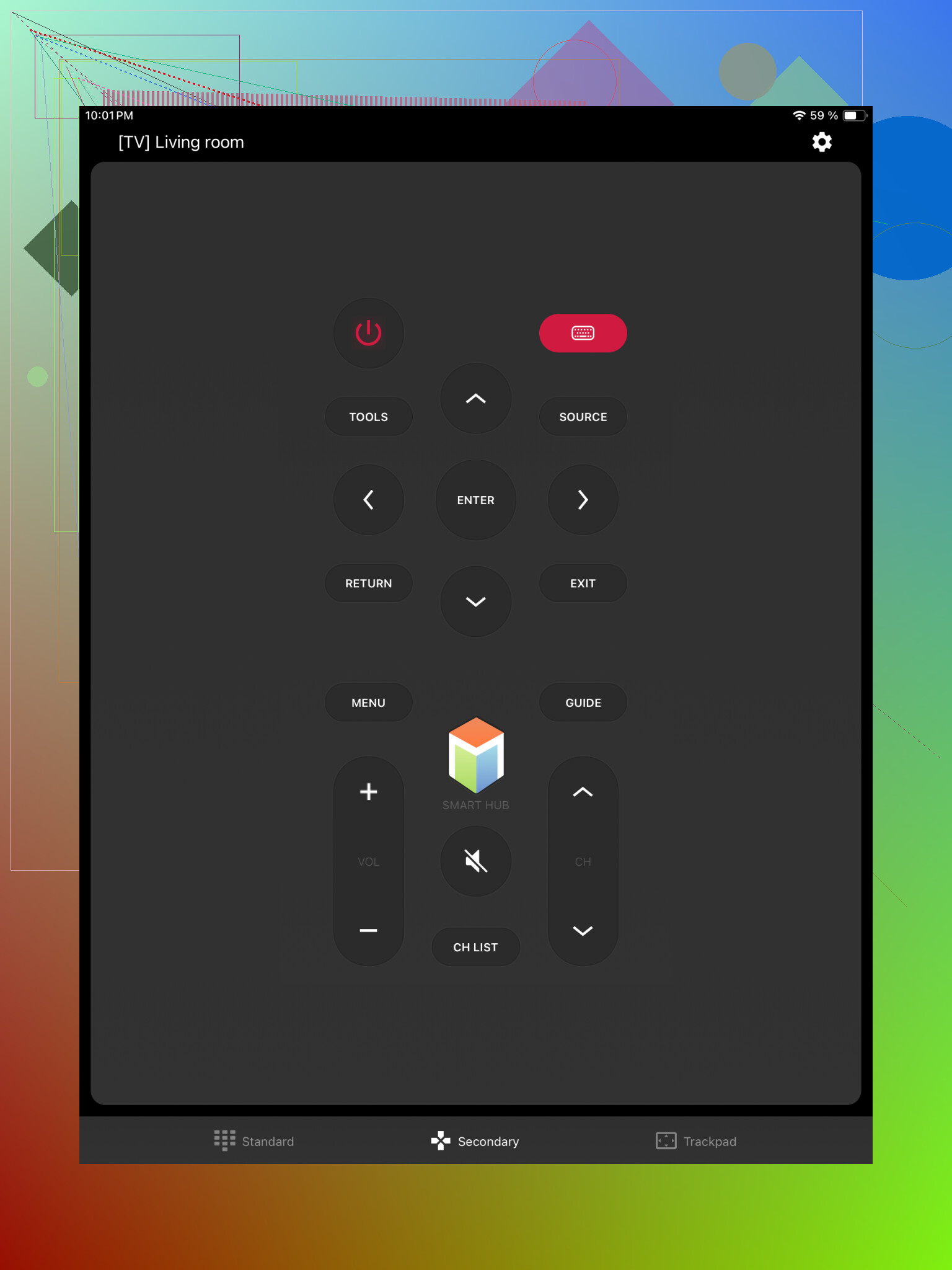
This one sticks to Samsung TVs. I liked it more if the goal was to mimic the normal Samsung remote layout. Setup was easy. If your place has one Samsung TV and you do not care about other brands, this route makes sense.
- Remote for Samsung TV Smart
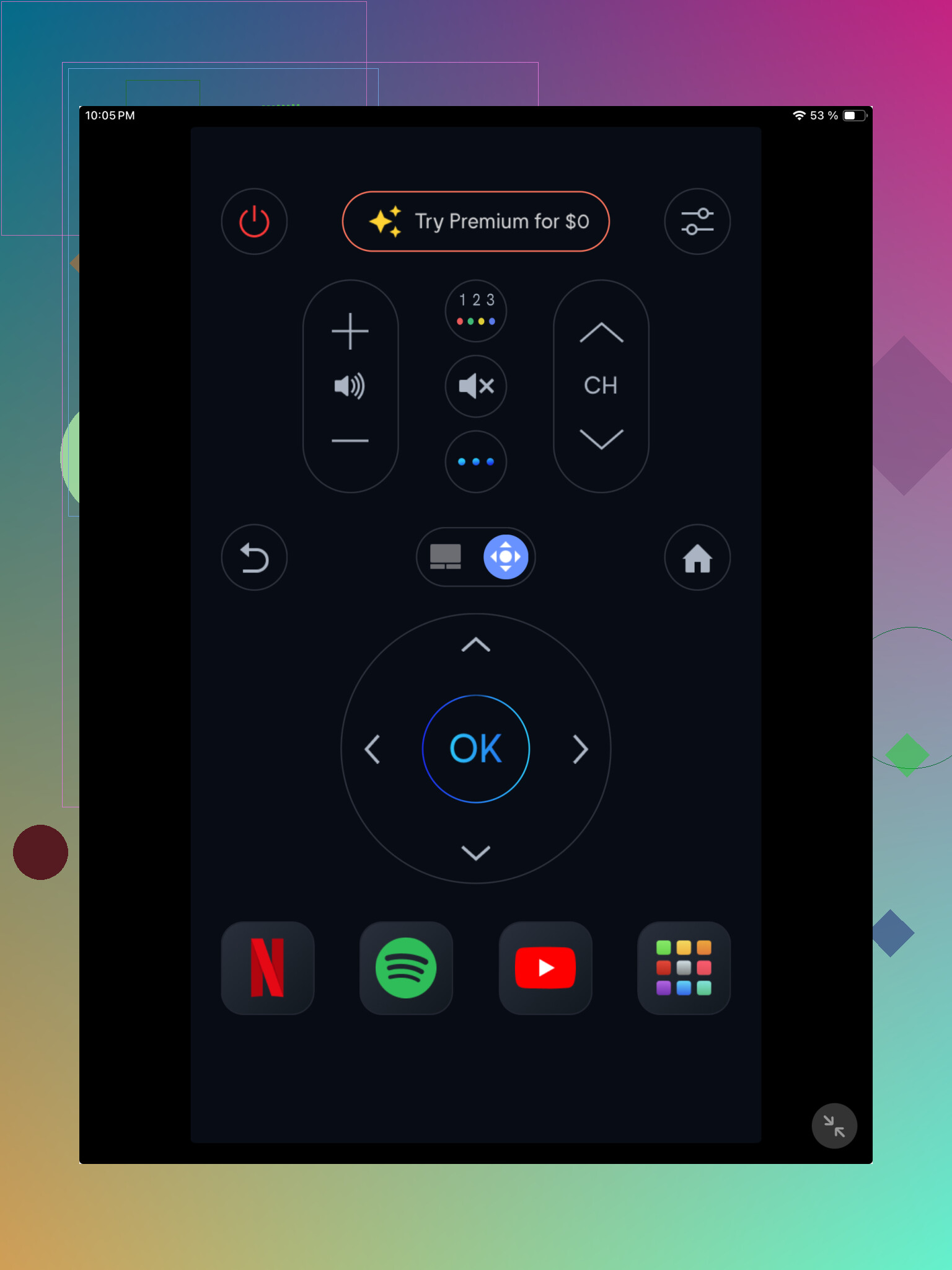
Another Samsung focused app. It covers the basics, volume, channel switching, navigation, playback. Pairing took about a minute for me once the TV and iPad were on the same network. No drama, no extra steps.
If you want the short version, I would start with TVRem. It was the fastest one for me to get running, and I did not need to swap apps later when testing other TVs and streaming boxes.
7 Likes
Yes, your iPad works as a remote for many Samsung Smart TVs, but only if the TV is already on your network. That part trips people up.
A few things to check before blaming the app:
-
Your Samsung TV must already be connected to Wi‑Fi.
If the TV lost Wi‑Fi, your iPad app will not see it. No app fixes this. You need the original remote, a USB keyboard on some models, or SmartThings from a phone that was paired before. -
Turn off VPN on the iPad.
This breaks discovery on a lot of remote apps. Same for Private Relay. I see this a lot. -
Enable network control on the TV.
On some Samsung sets, settings like External Device Manager, IP Remote, Mobile Device Manager, or Power On with Mobile need to be on. Samsung changes the menu names by model year, which is annoyng. -
If your TV is off, many apps will not wake it.
People expect magic here. Most Samsung TVs only respond after they are already on, unless Wake on LAN is supported and enabled.
I’d also try Samsung SmartThings, even though @mikeappsreviewer focused more on dedicated remote apps. SmartThings is Samsung’s own route, and for some TVs it pairs more reliably than generic remote apps. Not always prettier, but often less flaky.
If nothing connects, restart router, TV, and iPad. Then remove the TV from any old paired apps and retry. If your TV is from around 2015 or older, support gets spotty fast.
Yes, but there’s one annoying catch people skip over: if the Samsung TV is not already on your network and paired for remote control, the iPad usually can’t magically rescue you. That’s where I slightly disagree with @mikeappsreviewer and @andarilhonoturno focusing mostly on apps first. Apps are step two. TV state is step one.
A few things worth checking that are diff than the usual “same WiFi” advice:
- If your iPad is on a guest network or your router has AP isolation enabled, the TV and iPad can be on the “same WiFi name” and still not see each other.
- Some Samsung sets block new device pairing if “Device Connect Manager” or similar permission settings were denied before.
- If you use ethernet on the TV and WiFi on the iPad, that’s usually fine, but some cheap routers handle local discovery badly.
Best non-app test: open SmartThings on the iPad first. If Samsung’s own app can’t see the TV, random remote apps probly won’t either.
Also, if the TV is totally off, don’t expect much. A lot of Samsung models only accept control after they’re already powered on. Super dumb, but that’s how it is.
If nothing works, borrow any USB keyboard or mouse and plug it into the TV. Seriously. On many Samsung TVs that lets you navigate settings enough to reconnect WiFi or allow mobile control. Kinda janky, but it works way more often than people think.
If your iPad still won’t control the Samsung TV after the usual same-network checks, I’d look at one thing the others only touched lightly: Bluetooth remotes won’t help here. iPad remote control for Samsung TVs is usually over your home network, not IR and not standard Bluetooth. So if the TV’s network side is broken, app-hopping won’t fix it.
Where I slightly disagree with @andarilhonoturno and @mikeappsreviewer is the “just try another app” angle. Sometimes the failure is really Samsung’s pairing cache on the TV. If the TV previously rejected a phone/tablet request, it can silently ignore new ones until you clear mobile device permissions in TV settings.
A couple less-mentioned fixes:
- Reboot the TV fully by unplugging it for 60 seconds, not just turning it off.
- On the iPad, disable Wi-Fi Assist so it doesn’t drift to cellular during discovery.
- Make sure multicast/UPnP is not blocked in your router settings.
- If the TV shows in the app but buttons do nothing, test with a different button set first, especially Home or Menu. Some apps connect but map controls poorly on older Samsung models.
For ', pros and cons are pretty simple:
Pros
- Convenient if the TV is already network-ready
- Bigger touchscreen controls
- Often gives text input, which is nicer than a physical remote
Cons
- Usually cannot help if the TV is offline
- Wake-from-off support is inconsistent
- App compatibility gets messy on older Samsung sets
I’d still prioritize SmartThings first, then a universal option like ’ only if Samsung’s own route fails. @ombrasilente made a good point about guest networks and isolation though. That one breaks setup a lot.