My phone doesn’t have an IR blaster, but I need a reliable TV remote app after losing the original remote. Can I control my smart TV over Wi-Fi, and which apps work best?
You probably don’t need an IR blaster. If your TV connects to Wi-Fi, your iPhone can control it through the network instead.
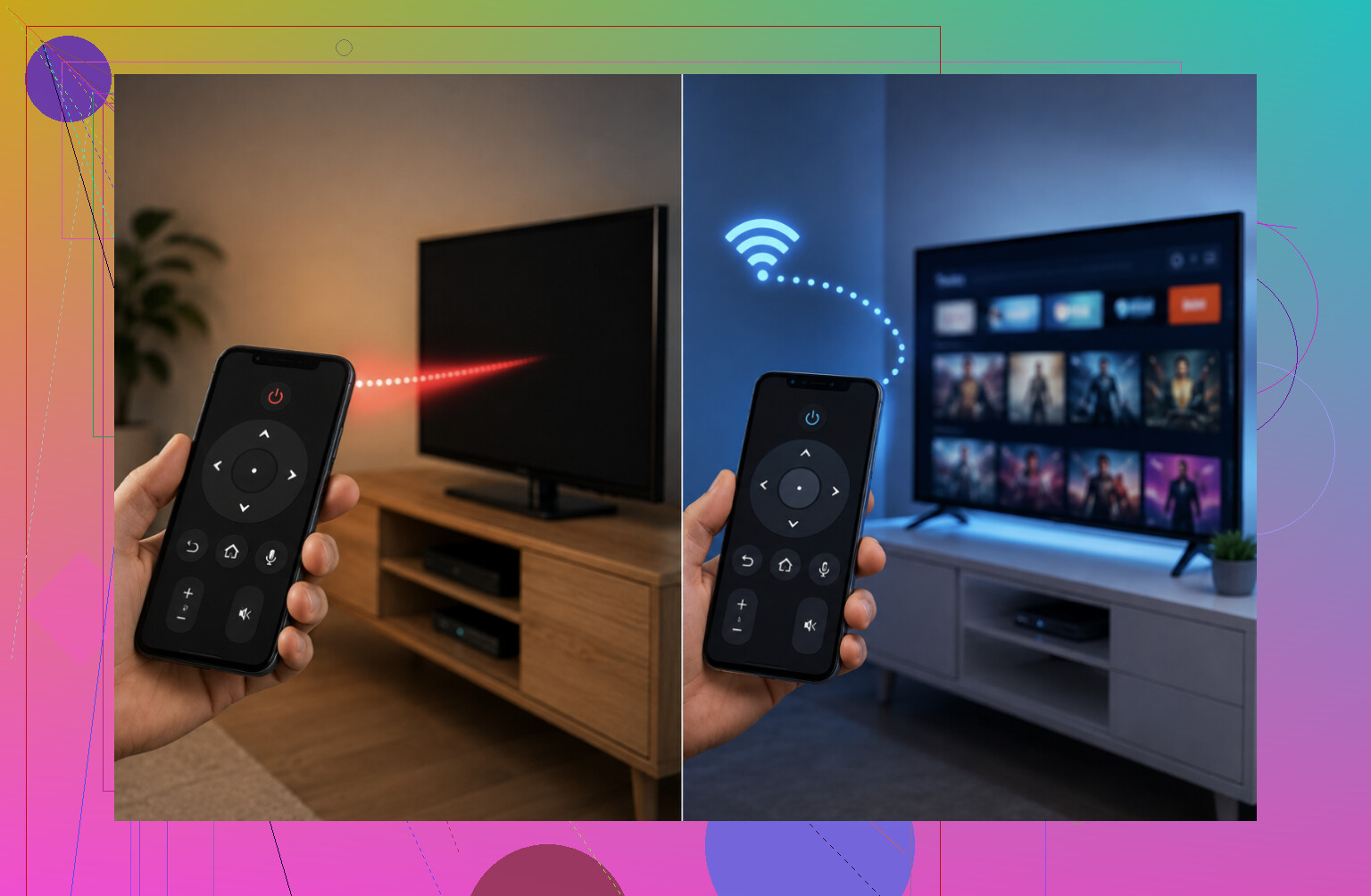
IR is mainly relevant for older TVs. An IR blaster copies the signal from a traditional remote, so it has to be pointed toward the TV. Some Android phones have included one, but iPhones never have.
Smart TVs work differently. A remote app sends commands over Wi-Fi, which means you don’t need line of sight and can even control the TV from another room. Just make sure the phone and TV are connected to the same network.
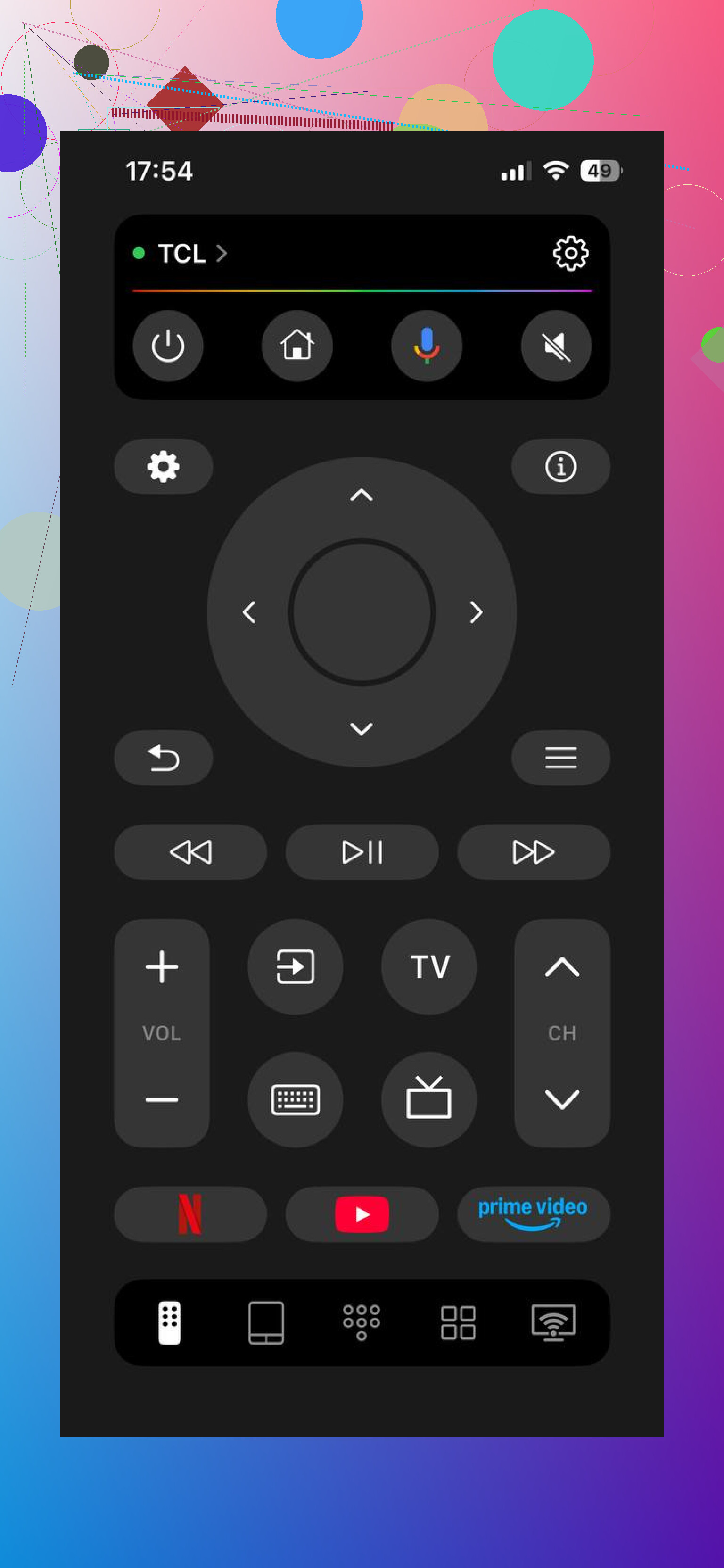
You can use the manufacturer’s app, such as Samsung SmartThings, LG ThinQ, Roku, or Fire TV. If you have different TV brands or want everything in one place, a universal app like TVRem (free) supports Samsung, LG, Roku, Fire TV, Android/Google TV, and Apple TV over Wi-Fi.
If the TV is an older model with no Wi-Fi or network features, an app by itself won’t work. Since an iPhone can’t transmit IR, you would need either a physical universal remote or an IR dongle. Those dongles can be finicky on iPhones, so a cheap universal remote is usually the easier option.
Basically, use the TV brand’s app or something like TVRem for a smart TV. Only worry about IR hardware if the TV is an older, non-networked model.
Check whether your TV has Wi-Fi or smart features. That will tell you right away whether an app is enough or you need a physical remote. 👍
37 Likes
Don’t pay for a universal remote app before checking the TV maker’s free app. Samsung SmartThings, LG ThinQ, Roku, Fire TV, and Google TV are usually the safest first choice because they support the correct buttons and pairing process.
The annoying catch is initial setup. Your TV may display a pairing code or ask you to approve the phone, and some models cannot be awakened over Wi-Fi after they are fully powered off. If you cannot reach the TV’s physical buttons, borrowing or buying a basic replacement remote may be necessary just to connect it to Wi-Fi and enable network control.
Once paired, no IR blaster is needed. Keep both devices on the same network, avoid guest Wi-Fi, and leave any “quick start,” “network standby,” or “mobile power on” setting enabled if you want the app to turn the TV on.
Don’t install the first “universal remote” app you see. A lot of them are subscription-heavy wrappers, and they still won’t find a TV if your router blocks device-to-device traffic.
Try the TV maker’s app first, then check three common trouble spots: give the app local-network permission, turn off any VPN temporarily, and make sure neither device is on a guest Wi-Fi network. Some routers split 2.4 GHz and 5 GHz devices badly, so discovery can fail even when both screens show the same Wi-Fi name.
If the TV is offline and you cannot enter the Wi-Fi password, a phone app cannot rescue that situation. Before buying a replacement remote, check for a small joystick or button under the TV’s center logo or along the rear edge. It may be enough to reach network settings and complete the app pairing.
Watch out for TVs with a separate “power on by Wi‑Fi” setting. The app may work perfectly while the screen is on, then become useless after shutdown unless network standby is enabled.
Don’t buy an IR dongle just because the phone and TV are using different technology. For a smart TV, that is usually the clumsiest possible solution to a fairly ordinary network problem.
Use the manufacturer’s app first. It is more likely to handle pairing, input selection, settings, and the odd brand-specific button correctly. Universal apps can be convenient if you have several TVs, but many are basically a remote-shaped subscription screen with advertisements attached.
The TV does not technically need to be on Wi-Fi. It can be connected to the router by Ethernet while your phone uses Wi-Fi, as long as both are on the same local network and the router allows them to communicate. Likewise, 2.4 GHz versus 5 GHz should not matter on a properly configured network. Guest mode, client isolation, mesh settings, VPNs, and blocked local-network permission are the usual troublemakers.
There is another workaround if you mostly watch through a Roku, Fire TV, Apple TV, or Google TV device: control that device with its own app instead of controlling the television directly. With HDMI-CEC enabled, the streaming device may switch inputs and turn the TV on or off. Volume control is less consistent because some setups still depend on IR, so don’t expect the phone to magically become every remote ever made.
The real obstacle is getting through the first pairing. If the TV is offline, waiting at a setup screen, or asking you to approve access, no app can press a button on a TV it cannot yet reach. Check for a physical joystick under or behind the panel. If that cannot get you into network settings, borrow a compatible remote or buy a basic replacement for setup. After the TV is connected and network standby is enabled, the phone app should be reliable enough for normal use without an IR blaster.
Relying on your phone as the only remote gets old fast, and that is the thing nobody here flagged yet. Wi-Fi control works, but it is not instant the way IR is. There is a small lag on button presses, and volume especially can feel a beat behind. If you are the type who taps volume up five times in a row, you will notice it.
The stuff about pairing and network standby in the earlier replies is solid, I won’t rehash it. @emma1994 nailed the real bottleneck, which is getting through that first connection when the TV is offline.
Where a phone app actually beats a normal remote is typing. Searching in YouTube or Netflix with a real remote is misery, and a phone keyboard makes that part painless. So even after you sort out a replacement remote, keep the app around for search boxes.
Couple of annoyances worth knowing before you commit to the app route:
- Your screen lock will fight you. Set a longer screen timeout or you will unlock the phone every time you want to pause.
- Incoming calls or notifications pull you out of the remote mid-show.
- If the phone drops to 2 percent battery, your remote is now dead. A cheap universal remote does not have that problem.
On the app choice, the manufacturer app first advice is right. TVRem or any universal option makes sense only if you are juggling more than one brand, otherwise you are adding a middle layer for no reason. I’d treat it as a convenience for a mixed setup, not a fix for a single smart TV.
Honestly, for the price of a burrito you can grab a basic replacement remote and keep the app for search and the occasional couch-to-kitchen moment. Best of both, and you are not stranded when the phone dies.
Try a USB keyboard if the TV is stuck offline. Many smart TVs accept the arrow, Enter, and Escape keys, which may be enough to connect Wi-Fi and approve the manufacturer’s remote app.
After pairing, the phone needs no IR blaster. This workaround is model-dependent, but it can save you from buying a remote solely for the initial setup.
“Smart TV” does not automatically mean every Wi-Fi remote app will support it. The exact model and year matter, especially with older sets whose network features may only cover streaming.
I’d search the TV’s model number in the manufacturer’s app compatibility list first. If it is supported, no IR blaster is needed. If the official app cannot detect it even after pairing and network checks, a universal app probably will not fix missing TV-side support. At that point, a basic replacement remote is the safer answer.
Don’t factory-reset the TV while troubleshooting, since that can erase its Wi-Fi connection and leave the app unable to find it. If it’s already online, install the manufacturer’s app and pair over the same network; no IR blaster is needed.
Plug a wired USB keyboard into the TV. Many smart TVs accept arrow keys, Enter, Escape, and volume controls. Use it to open network setings, connect Wi-Fi, and approve phone pairing. A USB mouse also works on some models.
Chek the TV’s rear or side USB port first. This avoids IR, subscriptions, and app detection issues. Once Wi-Fi pairing finishes, unplug the keyboard and use the official phone app.