My hard drive suddenly stopped showing up, and it has important photos, work documents, and personal files I never backed up. I’m trying to figure out if DIY hard drive data recovery is possible or if I should stop using it right away and get professional help before I make things worse.
If your hard drive is acting up and you still need the files, stop touching it first. I mean it. Don’t copy stuff onto it, don’t install recovery apps there, don’t let Windows ‘fix’ it, don’t keep retrying random scans. Every extra write raises the odds of losing recoverable data.
Old spinning drives sometimes give you a second chance. Sometimes a full one. I’ve seen drives look half-dead and still cough up most of the data. I’ve also seen people ruin their odds by poking at them for an hour.
Before doing any recovery, check how bad the drive looks.
If you hear clicking, repeated spin-up and spin-down, scraping, or the drive keeps dropping off the system, treat it like a hardware problem. Same if it takes forever to open folders or vanishes mid-use. A normal HDD should not sit there clicking over and over.
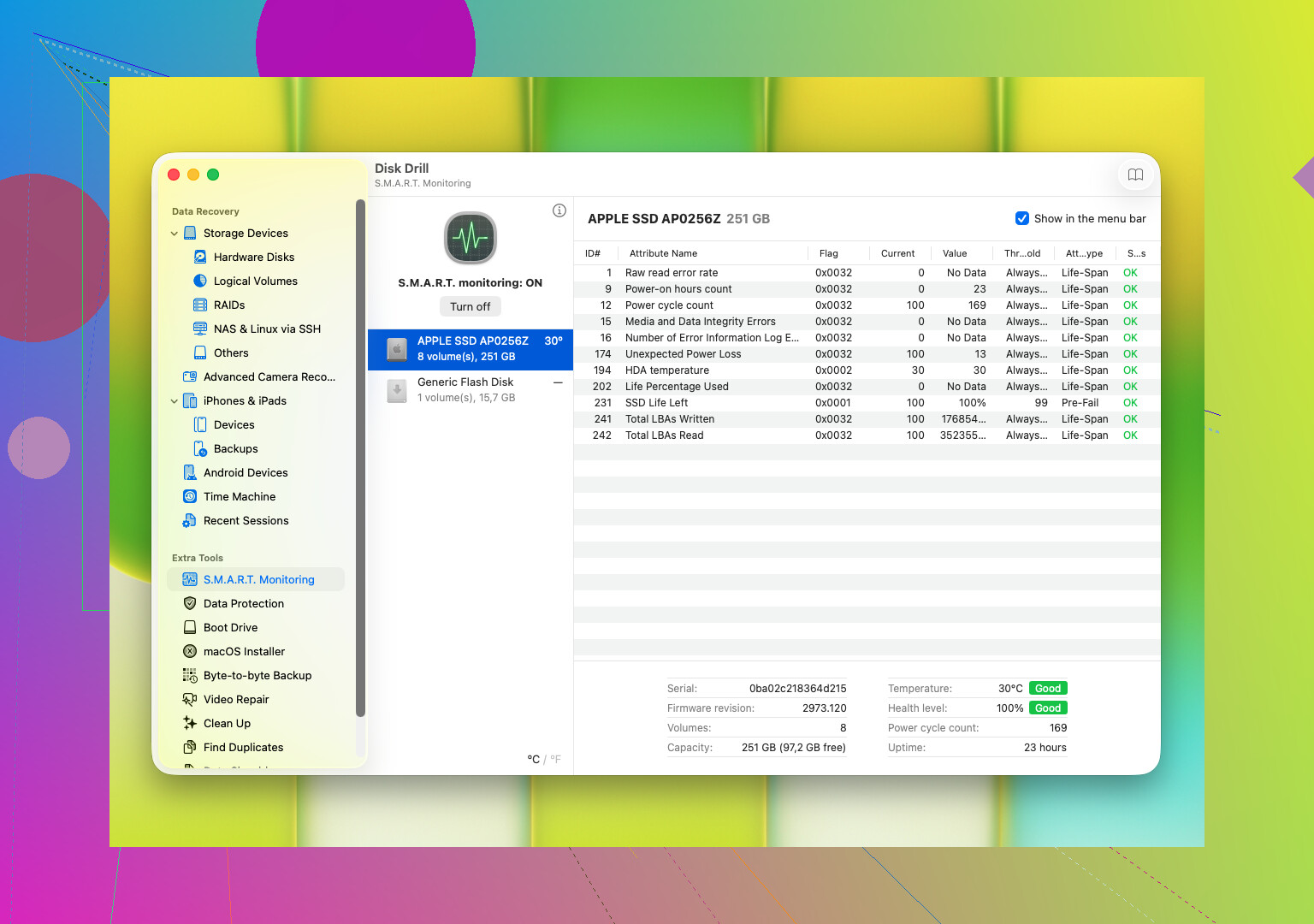
Also check the drive’s S.M.A.R.T. data. This gives you the health info the drive reports about itself. You’re looking for stuff like bad sectors, read errors, reallocated sectors, heat issues, or other signs the disk surface or mechanics are going bad. Most disk tools show this.
If you spot physical failure signs, especially clicking or S.M.A.R.T. values getting worse fast, stop doing repeated scans. Skip CHKDSK. Skip homebrew repair tricks. Those often make a weak drive worse. At that point, your best move is usually one of these:
- Make a byte-for-byte image right away, if the drive still reads.
- Send it to a recovery shop if the files matter more than the cost.
If the drive still responds normally enough and doesn’t seem to be falling apart, then go to software recovery fast. One tool people tend to start with is Disk Drill. From what I’ve seen, it handles the usual mess pretty well, deleted files, accidental format jobs, damaged partitions, RAW drives, drives Windows refuses to open.
The part I found useful with Disk Drill is simple. It rolls multiple scan types together, works with common Windows and macOS file systems, and lets you preview files before recovery. Preview matters. If your photos or docs open in preview, you’ve got a better sign the data is still usable. It also reads S.M.A.R.T. info and lets you make a byte-to-byte backup image, which matters a lot when the drive feels unstable.
The usual flow looks like this:
- Plug the HDD into your computer.
- Install Disk Drill somewhere else, not on the damaged drive.
- Pick the problem drive from the list.
- Start the scan.
- Let it run, or browse found files while it scans.
- Preview what you want back.
- Restore those files to a different drive.
Small thing, but people mess this up all the time. Do not recover files back onto the same HDD.
If Disk Drill stops seeing the drive, freezes during scanning, or the drive starts sounding worse while you’re trying to recover, stop there. Don’t push it. Those are common signs the issue is deeper than file damage and software recovery is getting risky.
14 Likes
If the drive is silent, spins up normal, and shows up in BIOS or Disk Management, DIY recovery still has a shot. If it clicks, grinds, or disconnects over and over, stop. That is shop territory.
I agree with @mikeappsreviewer on one big point, stop writing to it. I differ a bit on scanning right away. First check where it fails. BIOS, USB adapter, Disk Management, another SATA port, another cable, another PC. A bad enclosure kills a lot of ‘dead drive’ cases.
If the disk appears with the wrong size, 0 bytes, or hangs the system, do less, not more. If it appears normally, use recovery software on another drive. Disk Drill is fine for recovering lost photos, work docs, and other hard drive files after deletion, formatting, or partition damage. Save recovered files elsewhere. Obvious, but ppl still mess this up.
Skip freezer tricks. Skip CHKDSK. Both make bad situations worse more often then better.
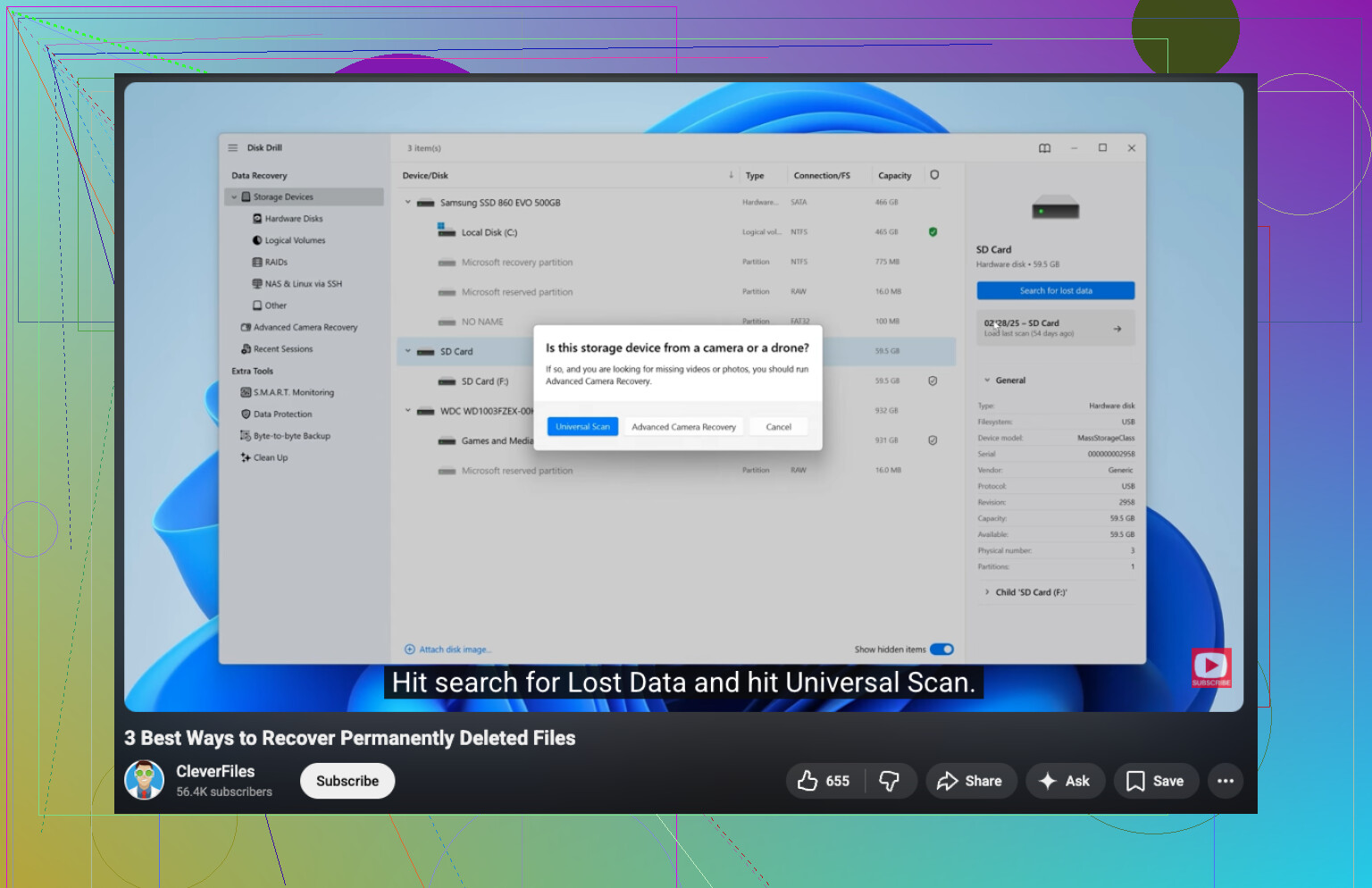
If you want a simple walk-through, this helps, how to recover files from a hard drive step by step.
Short version. Logical issue, DIY is possible. Mechanical issue, stop now.
DIY is possible, but only in the narrow window where the drive is failing logically, not physically. I mostly agree with @mikeappsreviewer and @viajantedoceu, but I’d add one thing: people jump to “recovery software” too fast when the real issue is sometimes power, enclosure, or USB bridge failure.
So, first question: does the drive show up anywhere at all?
- BIOS/UEFI
- Disk Management
- Device Manager
- another dock, cable, or direct SATA connection
If the answer is “yes, but weirdly,” that matters. A drive that appears with the correct size but no readable files is a very diff case from one that shows 0 bytes or hard-freezes the PC.
My rule is pretty simple:
- Visible, stable, no ugly noises = DIY can make sense
- Clicks, buzzing, vanishing, system freezing = stop messing with it
Also, if this is an external HDD, the enclosure itself may be dead while the actual disk is fine. I’ve seen ppl panic over a “dead hard drive” that was really just a trash USB-SATA board.
For DIY, I’d image the drive first if possible, then recover from the image, not the original. That’s where something like Disk Drill is useful, not just for scanning deleted or lost files, but because it can help with byte-level backup and file preview. Preview is underrated. If your photos preview correctly, that tells you a lot before you waste hours.
One mild disagreement with the usual advice: I would not keep swapping it between ten different machines “just to test.” A couple controlled checks, sure. Endless retries, nope.
And absolutely do not:
- run CHKDSK
- format it “to see if it comes back”
- install recovery software onto that same drive
- recover files back onto it
If the files are irreplaceable and the drive is acting unstable, pro recovery is probly the smarter call, even if it hurts the wallet.
Also, if you want more real-world discussion on hard drive recovery cases, this thread is worth a look: Facebook community tips for hard drive data recovery